12 Best aText Alternatives for Windows & Mac (2026)
Find the best aText alternatives for Mac and Windows. Compare 12 free and paid text expanders to automate typing and work faster in 2026.

Text expanders help reduce repetitive typing, but not every tool keeps up with how people actually work today. If you’ve been using aText, you might notice limitations when it comes to automation, cross-platform use, or more advanced customization.
That’s why some users start looking for aText alternatives that offer more flexibility, better integrations, or support across both Mac and Windows.
In this article, we’ll cover the 12 best aText alternatives for faster typing, automation, and productivity in 2026.
12 Best aText Alternatives for Windows & Mac
If you are looking for a way to automate repetitive typing with text expansion on your Windows or Mac device, there are plenty of great options out there.
Here's our list of the 12 best aText alternatives in 2026:
| Tool | Best For | Platforms | Pricing |
|---|---|---|---|
| 1. Text Blaze | Text expansion + workflow automation | Chrome, Edge, Windows, Mac | Free forever |
| 2. TextExpander | Teams and shared templates | Mac, Windows, iOS | $39.96/year |
| 3. PhraseExpress | Advanced templates and automation | Windows, Mac, iOS | One-time license ($99.95) |
| 4. Typinator | Simple Mac text expansion | Mac | One-time purchase ($49.99) |
| 5. FastKeys | Windows automation + text expansion | Windows | One-time purchase ($29) |
| 6. Espanso | Open-source customization | Windows, Mac, Linux | Free |
| 7. Alfred | Mac productivity + workflows | Mac | Free + paid Powerpack (£34) |
| 8. ShortKeys | Browser-based text expansion | Chrome | Free |
| 9. AutoHotkey | Script-based automation (advanced users) | Windows | Free |
| 10. Beeftext | Basic Windows text expansion | Windows | Free |
| 11. PhraseExpander | Structured templates and professional use | Windows, Mac | Free trial, then $180/user |
| 12. Breevy | Simple Windows text expansion | Windows | Free trial, then $99 (lifetime) |
1. Text Blaze
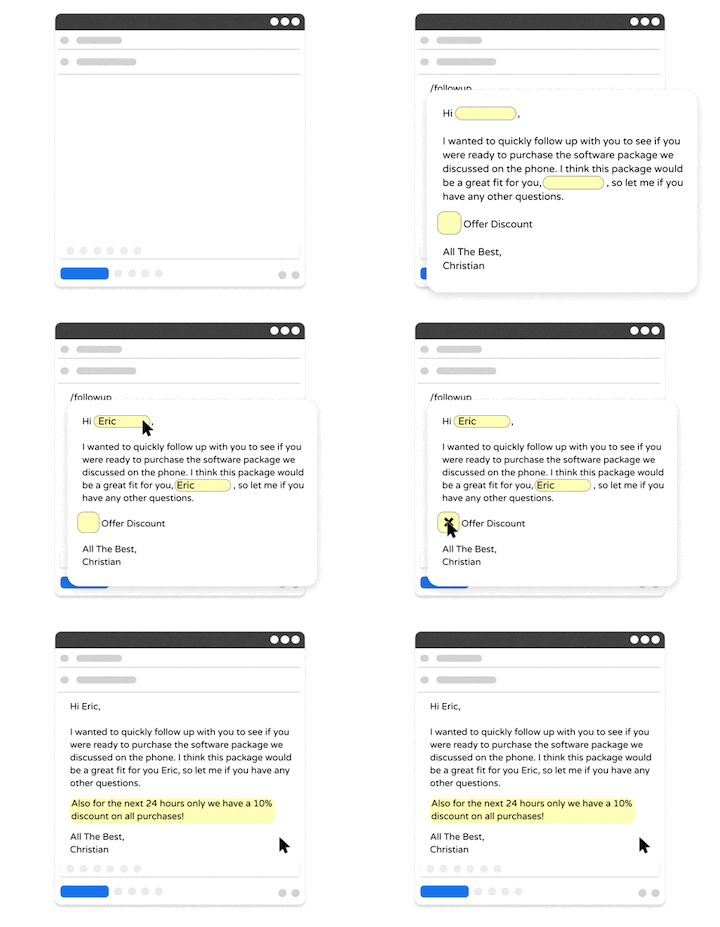
Text Blaze is a text expander that allows you to create smart text templates and insert them on any site or app using keyboard shortcuts.
Text Blaze can help you automate repetitive typing, streamline workflows, and boost productivity with customizable, dynamic text templates.
Plus, Text Blaze is the #1 rated text expander on the Chrome Web Store (4.9 rating with 1,800+ reviews) and is trusted by 800,000+ users.
Why people use Text Blaze:
Create dynamic templates with placeholders, drop-down menus, toggle fields, if/else rules, autopilot, data transfer, and more.
Text Blaze works anywhere and is available on Chrome, Windows, and Mac!
Automate workflows by streamlining data transfer, form-filling, repetitive typing, and much more.
Text Blaze is perfect for teams. Guide your team's communication & workflows with shared templates. Learn more here.
Text Blaze is free forever. Get started and save time for free.
Want to automate repetitive typing anywhere for free?
Join 800,000+ who are using Text Blaze templates.
2. TextExpander
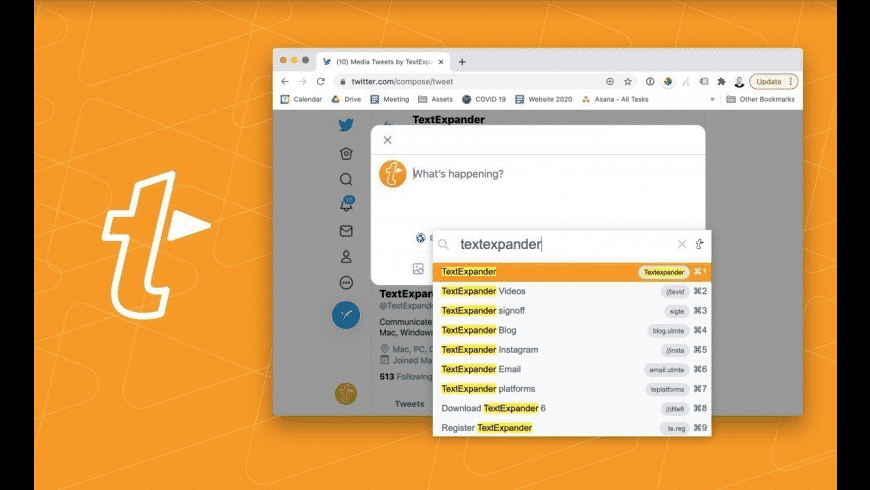
TextExpander is one of the more established tools in this category, especially for teams. It allows users to create and share snippets across an organization, which can help standardize communication. The platform includes collaboration features and usage tracking, which are useful in structured environments.
At the same time, it relies on a subscription model, which may not appeal to everyone. Tools like TextExpander are often considered when teams need more coordination around shared content.
Why people use TextExpander:
- Share and manage templates across teams
- Maintain consistent messaging across an organization
- Access analytics and usage insights
- Works on Mac, Windows, and iOS
3. PhraseExpress
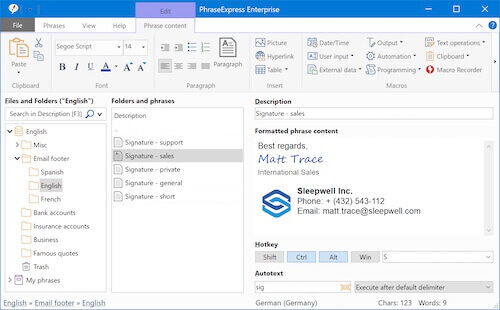
PhraseExpress offers a mix of text expansion and desktop automation features, with support for macros and form-based templates. It’s designed to handle more complex use cases, especially for users managing large libraries of phrases.
The tool also includes options for syncing and organizing content across devices. Because of its feature set, it can take some time to get fully set up. It’s usually a better fit for users who want more control over how templates behave.
Why people use PhraseExpress:
- Create advanced templates with macros and forms
- Organize and manage large phrase libraries
- Use across Windows, Mac, and mobile devices
- Sync content across devices and teams
4. Typinator
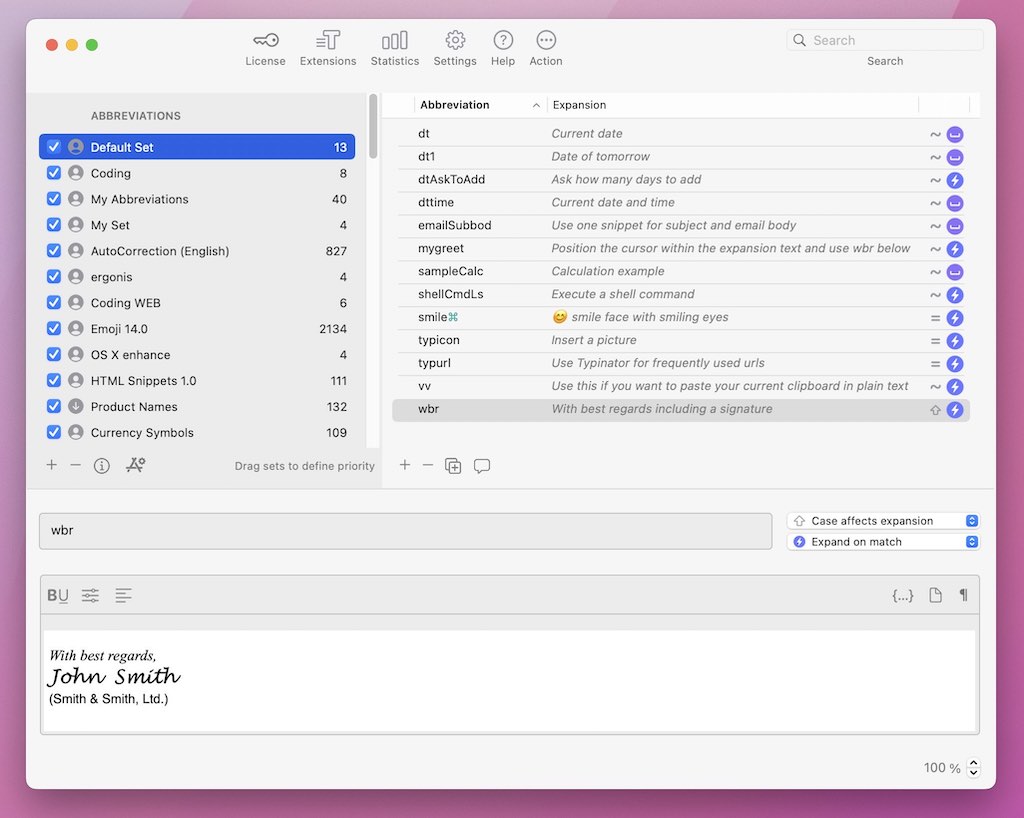
Typinator is a Mac-only text expander that focuses on simplicity and native performance. It allows users to expand shortcuts into text, images, or formatted content. The interface is relatively straightforward, which makes it easier to get started.
However, it doesn’t offer much in terms of cross-platform support. It’s typically used by Mac users who want a lightweight alternative to tools like aText.
Why people use Typinator:
- Native Mac experience with simple setup
- Expand text, images, and formatted content
- Automate repetitive typing tasks
- Works well for Mac-only workflows
5. FastKeys
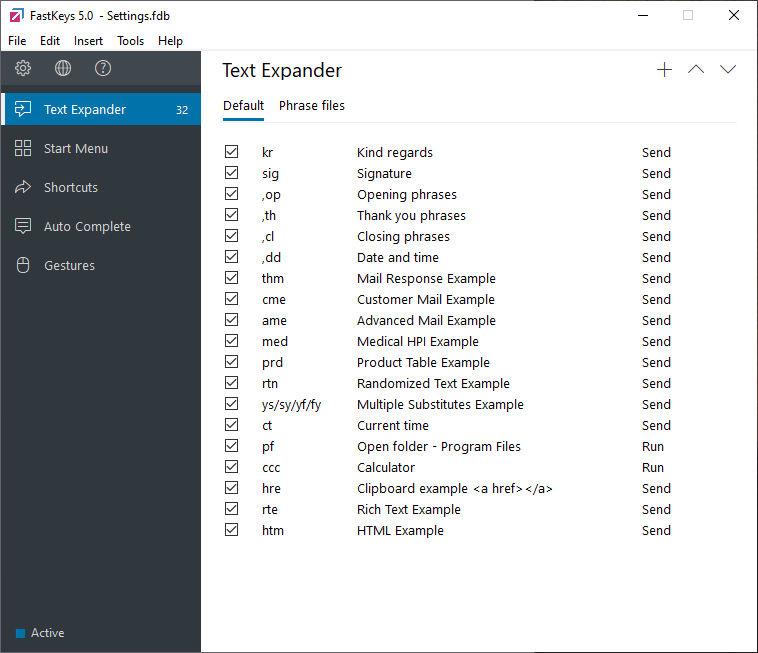
FastKeys is more of an automation tool than a pure text expander. In addition to shortcuts, it includes features like hotkeys, auto-complete, and a clipboard manager. It can also learn from your typing patterns, which adds another layer of automation.
Because it covers a lot of functionality, the interface can feel a bit dense at first. It’s generally used by Windows users who want more than basic text expansion.
Why people use FastKeys:
- Combine text expansion with desktop automation
- Use hotkeys and auto-complete features
- Access built-in clipboard manager
- One-time license with no subscription
6. Espanso
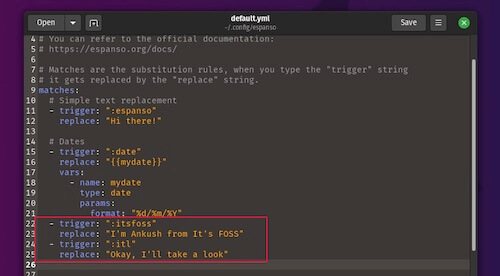
Espanso is an open-source text expander that runs in the background and works across multiple platforms. Instead of a traditional interface, it relies more on configuration files and packages. This gives users a lot of flexibility, but it may not be as approachable for beginners.
It supports a wide range of use cases, including developer workflows. For users comfortable with setup and customization, sites like Espanso can be powerful options.
Why people use Espanso:
- Free and open-source
- Works across Windows, Mac, and Linux
- Highly customizable with packages
- Suitable for technical users
7. Alfred
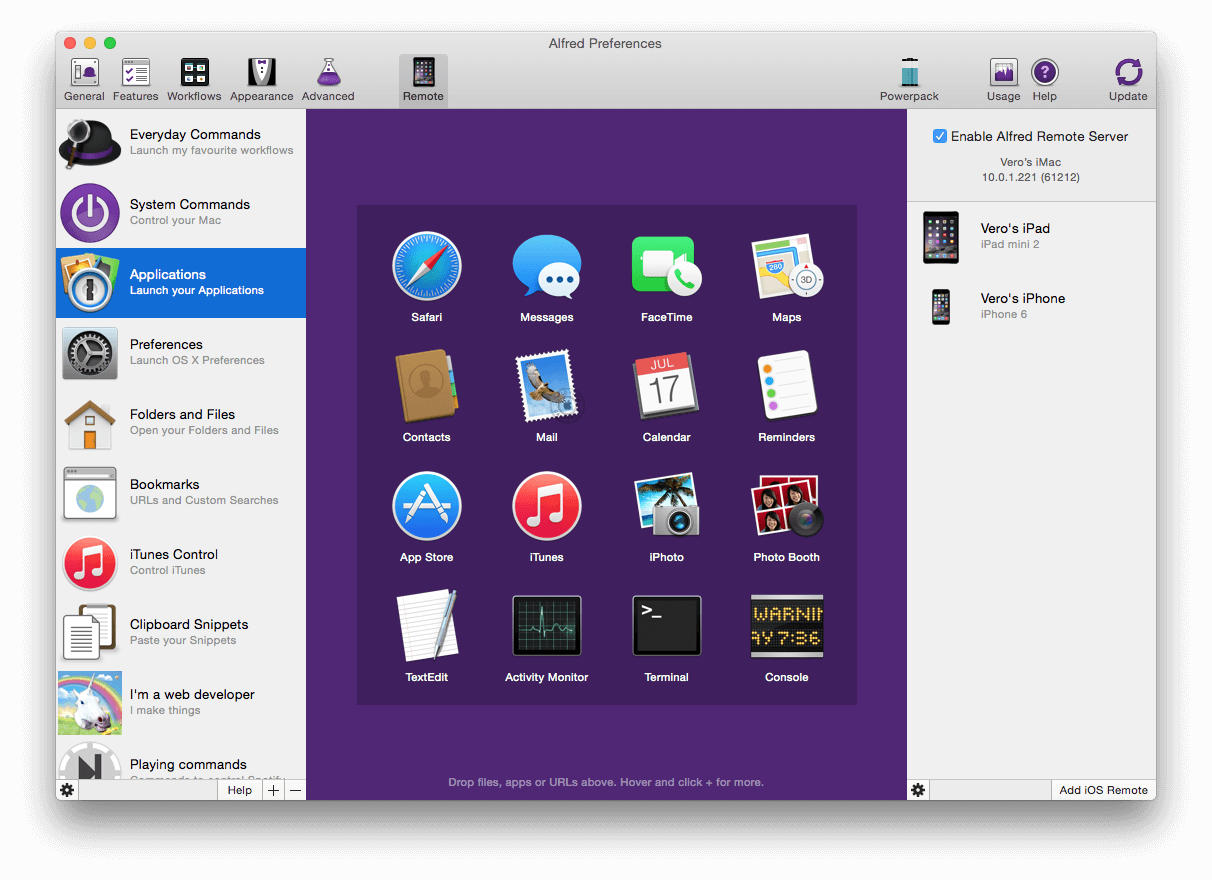
Alfred isn’t a dedicated text expander, but it includes snippet features as part of a broader productivity tool. It’s primarily used for launching apps, searching files, and building workflows on Mac.
Text expansion is just one part of what it offers. Because of that, it may not replace a full-featured text expander for everyone. Still, it’s a common choice for users who want everything in one place.
Why people use Alfred:
- Combine text expansion with productivity workflows
- Automate tasks beyond typing
- Quickly launch apps and search files
- Strong Mac-focused ecosystem
Want to automate repetitive typing anywhere for free?
Join 800,000+ who are using Text Blaze templates.
8. ShortKeys
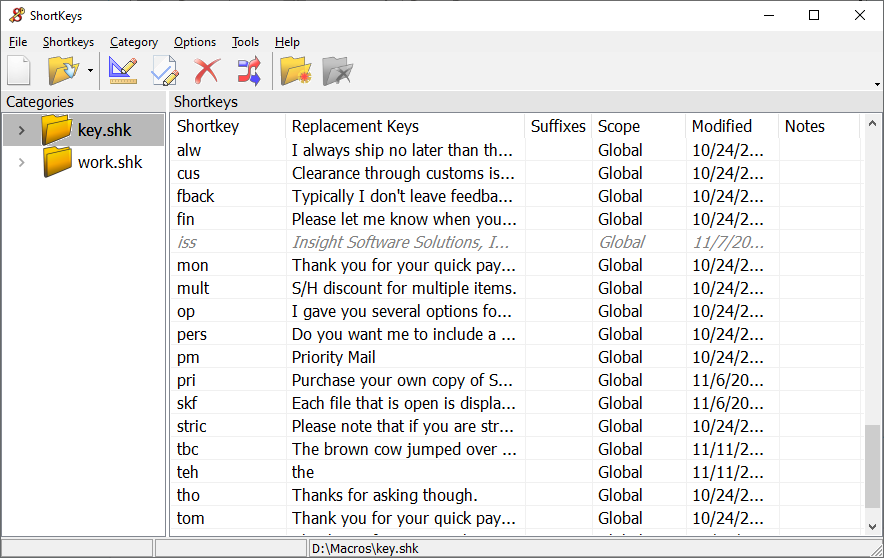
ShortKeys is a text expander for Chrome that focuses on text expansion within the browser. It allows you to create shortcuts that expand into longer text while working on websites. This makes it useful for tools like email, CRMs, or support platforms.
However, it’s limited to browser-based workflows. It’s typically used by people who spend most of their time working online.
Why people use ShortKeys:
- Expand text directly in the browser
- Simple setup with minimal configuration
- Useful for web-based workflows
- Works as a Chrome extension
9. AutoHotkey
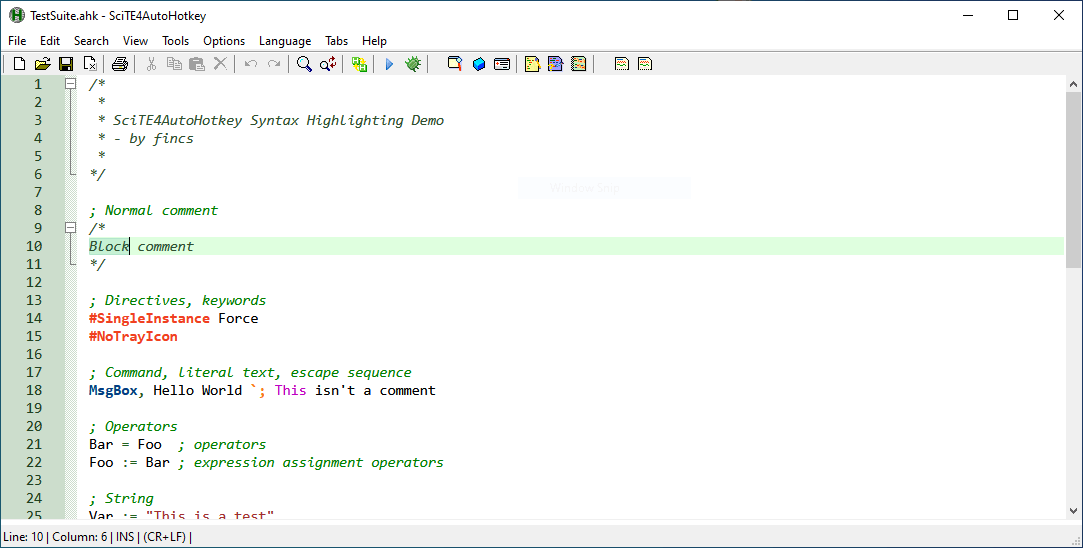
AutoHotKey is a scripting tool for Windows that can be used for text expansion and much more. It allows users to write scripts to automate tasks, including keyboard shortcuts and system actions. This level of control makes it very flexible, but it also comes with a learning curve.
It’s not the easiest tool to pick up if you’re just looking for basic shortcuts. Most people use tools like AutoHotKey when they need full customization.
Why people use AutoHotkey:
- Automate tasks with custom scripts
- Create advanced keyboard shortcuts
- Expand text with full control
- Ideal for power users on Windows
10. Beeftext
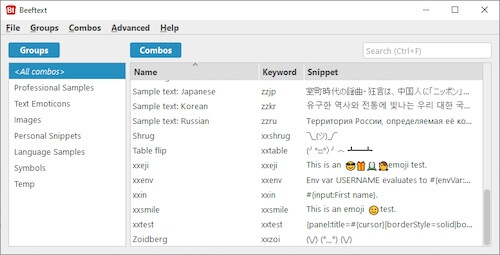
Beeftext is a lightweight, open-source text expander built for Windows. It focuses on basic text replacement without adding too many extra features. The setup is straightforward, and it works across applications.
At the same time, it lacks more advanced capabilities like syncing or dynamic templates. Tools like Beeftext are usually chosen by users who want something simple and free.
Why people use Beeftext:
- Free and open-source
- Lightweight and easy to use
- Works across Windows applications
- Good for basic text expansion
11. PhraseExpander
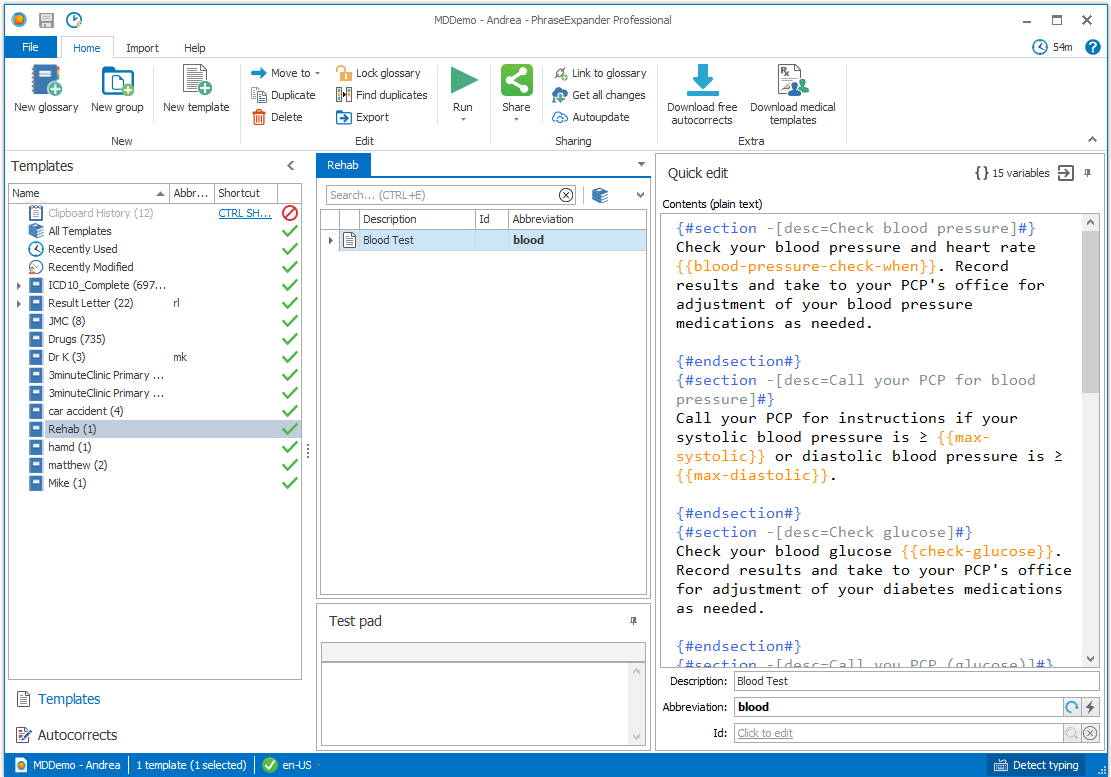
PhraseExpander is designed for users who need structured templates and more guided input. It includes features like form-based fields, autocomplete, and template customization. The tool is often used in more specialized environments, such as healthcare or support teams.
Because of its focus, it may feel more complex than simpler tools. It’s typically used when workflows require more structure.
Why people use PhraseExpander:
- Create structured templates with forms
- Use autocomplete for faster typing
- Customize templates for specific workflows
- Suitable for professional use cases
12. Breevy
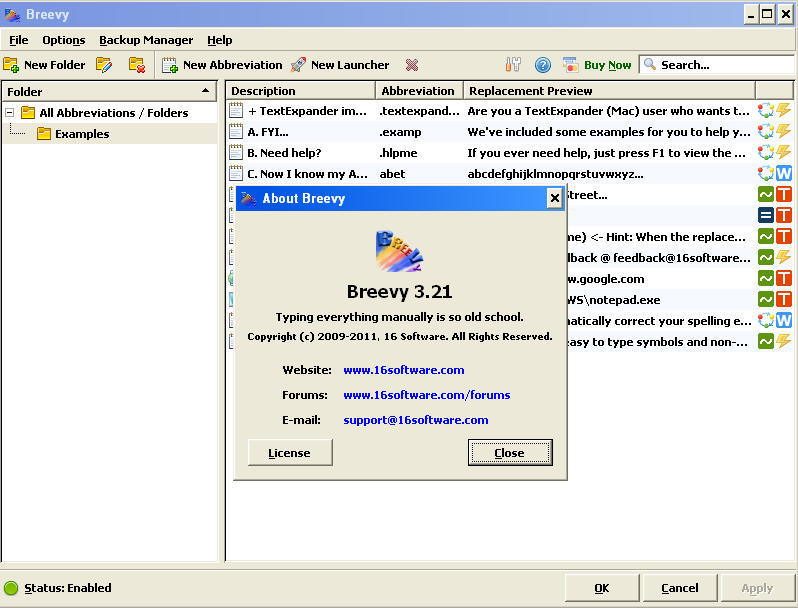
Breevy is a Windows text expander that focuses on straightforward text replacement. It allows you to create abbreviations that expand into longer text across applications. The tool integrates with system autocomplete, which can improve typing efficiency.
However, it doesn’t include many advanced features beyond that. It’s often used by people who want a simple alternative without a subscription.
Why people use Breevy:
- Simple and fast text expansion
- Works across Windows applications
- Integrates with system autocomplete
- Easy to switch from other tools
aText FAQ
What Is aText?
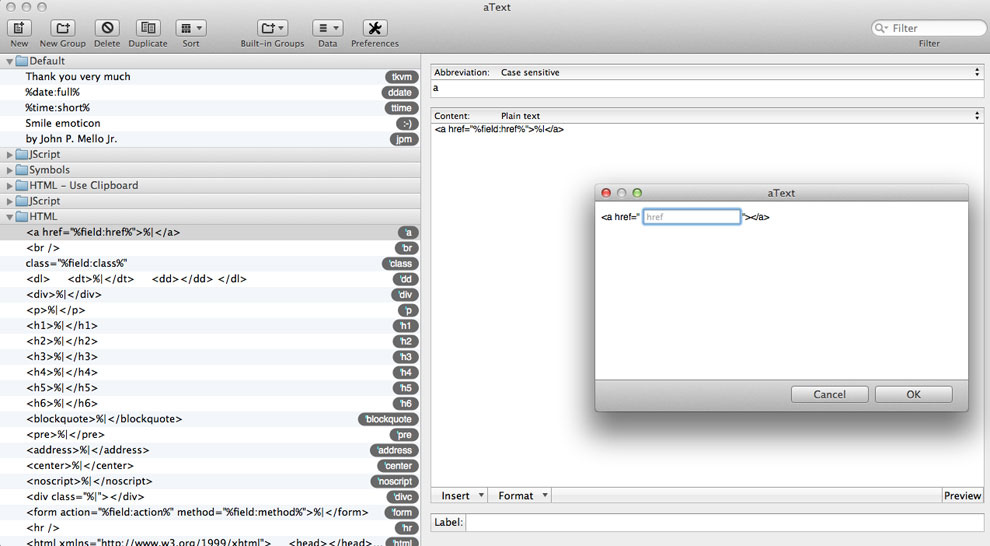
aText is a text expansion tool that replaces short abbreviations with full words, sentences, or templates.
For example, you can type a shortcut like ;email and have it instantly expand into a full email response. This helps reduce repetitive typing and ensures consistency in your writing.
aText is commonly used for:
- Email templates and responses
- Customer support replies
- Code snippets and repetitive inputs
- Personal productivity workflows
It works across multiple applications, allowing users to insert pre-written content anywhere they type.
What Is aText's Pricing?
aText uses a one-time purchase model instead of a subscription. Here's a breakdown of aText's pricing:
This makes it more affordable upfront compared to many subscription-based text expanders, especially for individual users.
However, some users prefer tools with ongoing updates, cloud sync, or more advanced automation features, which are often included in newer alternatives.
Want to automate repetitive typing anywhere for free?
Join 800,000+ who are using Text Blaze templates.
Is aText for Mac or Windows?
aText is available for both macOS and Windows, but it is more commonly associated with Windows users.
If you work across multiple devices or need more modern features, exploring alternatives can help you find a better fit for your workflow.
Why Look for an aText Alternative?
aText is a solid text expansion tool that helps reduce repetitive typing and improve efficiency. For many users, it covers the basics well and offers a simple, one-time purchase model.
That said, different workflows call for different features, and some users look for alternatives that better match how they work day to day.
Here are a few common reasons people explore aText alternatives:
You want more flexibility in how your templates work: Some tools offer dynamic fields, forms, or conditional logic to help you create more customized and reusable content.
You work across multiple devices: If you switch between Mac, Windows, or the browser, you may prefer a tool that stays in sync everywhere you work.
You need to share templates with others: Teams often look for easier ways to organize, manage, and collaborate on snippets.
You prefer a simpler or more modern experience: Some tools focus on faster setup, cleaner interfaces, and easier day-to-day use.
You want access to newer features: This can include integrations or AI-assisted writing to help you draft and improve content more efficiently.
Exploring aText alternatives can help you find a tool that aligns more closely with your workflow and preferences.
How to Choose an aText Alternative
Not all text expanders work the same way, so it’s worth thinking about how you plan to use one before choosing a tool.
Here are a few things to consider:
Where you do most of your work: Some tools are desktop-based, while others work in the browser. If you spend most of your time in web apps, a browser-based option may be more convenient.
Level of customization you need: If you only need basic shortcuts, most tools will work. For more advanced use cases like forms, dynamic fields, or logic, you’ll want something more flexible.
Platform compatibility: Make sure the tool works on the devices you use. Some are Mac-only or Windows-only, while others support both (or even Linux).
Ease of setup and use: Some tools are simple to get started with, while others require more setup or technical knowledge. Choose one that matches your comfort level.
Collaboration needs: If you’re working with a team, look for features like shared templates, folders, and permissions.
Pricing model: Some tools charge a monthly subscription, while others offer a one-time license or free plan. Consider what makes the most sense for your workflow.
Taking a few minutes to evaluate these factors can help you choose a tool that fits your workflow without overcomplicating things.
What Is the Best aText Alternative?
The best aText alternative depends on how you work and what features matter most to you.
If you’re looking for a simple text expander, there are plenty of tools on this list that handle basic shortcuts and replacements well. Others focus more on advanced automation, scripting, or platform-specific workflows, which can be useful depending on your setup.
If you want a balance between ease of use and more advanced capabilities, Text Blaze is a strong option to consider. It allows you to create reusable templates, use dynamic fields and forms, and automate repetitive typing across websites and apps. Because it works across Chrome, Windows, and Mac, it fits well into most modern workflows without requiring a complex setup.
You can get started with Text Blaze for free and see how it fits into your workflow before committing to anything.