10 Best Clipboard Managers for Mac and Windows (2026)
Compare the best clipboard managers for Mac and Windows. See features, use cases, and how they differ from text expanders.

Copying and pasting sounds simple until you realize how often you lose what you just copied. Most systems only store one item at a time, so the moment you copy something new, the previous item is gone.
That becomes a problem when you're working across tabs, reusing links, or pulling text from multiple places. Clipboard managers fix this by saving everything you copy so you can go back and reuse it anytime.
In this guide, we'll cover the 10 best clipboard managers for Mac and Windows, how they work, and when it makes sense to use one instead of a text expander.
What is a Clipboard Manager?
A clipboard manager is a tool that saves everything you copy so you can access it later instead of losing it after one paste. It extends your clipboard from a single item to a searchable history of copied content.
Most clipboard managers store text, links, images, and other data, allowing you to reuse them without switching back and forth between apps. Many also include features like search, pinning, and organization to make it easier to find what you copied earlier.
Instead of relying on your system’s default clipboard, which only holds one item at a time, a clipboard manager keeps a running history so you can quickly retrieve and reuse past content.
What Makes a Good Clipboard Manager?
Not all clipboard managers are the same. Some are simple tools that just store copied text, while others add search, organization, and automation features.
Here are a few things to look for:
System-wide access - Works across all apps, not just inside a browser or one program.
Search speed - Lets you quickly find something you copied earlier without scrolling through everything.
History limits - Stores enough items so you don’t lose important content.
Organization - Allows you to pin, group, or label frequently used items.
Privacy controls - Gives you control over what gets saved, especially for sensitive data.
If you mainly need quick access to recently copied items, a simple tool will work. If you rely on copied content throughout your workflow, it’s worth choosing something with better search and organization.
Clipboard Management vs Text Expansion (Key Differences)
Clipboard managers and text expanders both help reduce repetitive typing, but they work differently.
Clipboard management - Stores everything you copy so you can reuse it later. Best for quick reuse of existing content.
Text expansion - Lets you create shortcuts that expand into full text. Best for structured, repeatable content like emails or templates.
Use case difference - Clipboard tools are reactive, while text expanders are proactive.
Workflow fit - Clipboard managers help with copying and pasting, while text expanders help you avoid copying altogether.
If you mostly copy links, text, or images throughout the day, a clipboard manager will help you keep track of everything. If you regularly reuse the same structured responses, templates, or messages, a text expander is usually the better fit.
In many workflows, using both together makes sense. A clipboard manager helps you access what you’ve already copied, while a text expander helps you avoid copying in the first place.
10 Best Clipboard Managers for Mac and Windows
Clipboard managers vary quite a bit. Some focus on simple history tracking, while others add search, organization, or even automation features.
The list below includes a mix of lightweight tools, built-in options, and more advanced solutions depending on how you work.
Here's our list of the 10 best clipboard managers for Mac and Windows:
| Tool | Best For | Platforms | Pricing |
|---|---|---|---|
| Text Blaze | Text expansion, hotkeys, and snippets | Chrome, Edge, Windows, Mac | Free forever |
| Clipboard History Pro | Browser-based clipboard tracking | Chrome | Limited free plan |
| Ditto | Full clipboard history | Windows | Free |
| Windows Clipboard (Win + V) | Built-in clipboard history | Windows | Free |
| PasteBar | Organizing clipboard items | Windows, Mac | Free |
| Maccy | Lightweight clipboard history | Mac | Free |
| PhraseExpander | Structured text automation | Windows, Mac | Paid ($180 one-time) |
| CopyClip | Basic clipboard tracking | Mac | Free |
| TextExpander | Text expansion with shortcuts | Chrome, Windows, Mac | Paid ($39.96/year) |
| Pasteboard | Clipboard history with sync | Mac | Free |
1. Text Blaze

Best for: Replacing repetitive copy-paste with reusable templates and shortcuts.
Text Blaze is not a traditional clipboard manager, but it often replaces the need for one when you find yourself copying the same types of content repeatedly. Instead of storing clipboard history, it lets you create shortcuts that expand into full text anywhere you work.
This makes it especially useful for emails, forms, and messages that follow a consistent structure. Rather than copying and pasting from previous content, you can insert it instantly, which helps reduce manual steps and keep responses consistent.
Key features:
Save & re-use repetitive phrases, links, and messages with keyboard shortcuts.
Create dynamic templates with placeholders, drop-down menus, toggle fields, if/else rules, autopilot, data transfer, and more.
Automatically use clipboard contents with text shortcuts. Extract clipboard contents and use formulas to extract only parts that you need.
Automate workflows by streamlining data transfer, form-filling, repetitive typing, and much more.
Works on: Chrome, Edge, Windows, and Mac.
Pricing: Free forever. Get instant value for free.
Want to automate repetitive typing anywhere for free?
Join 800,000+ who are using Text Blaze templates.
2. Clipboard History Pro
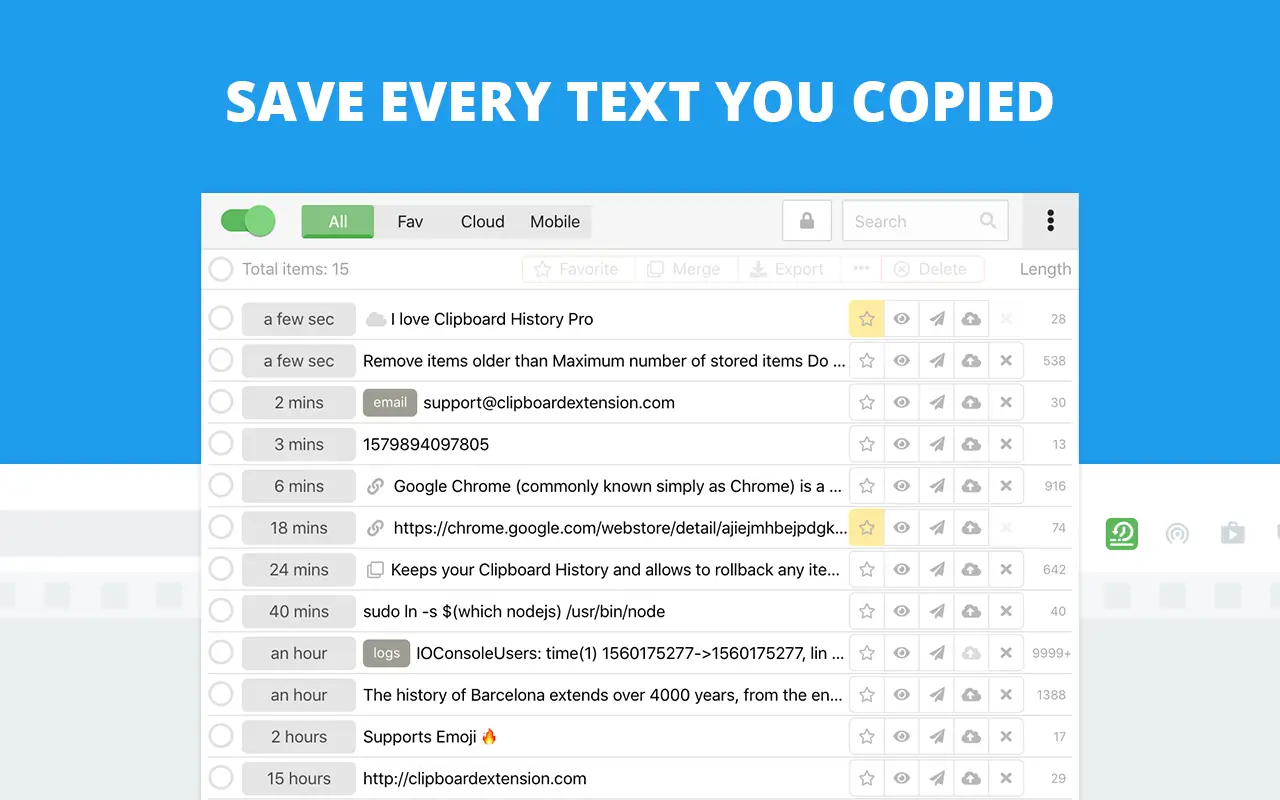
Best for: Tracking copied text within Chrome.
Clipboard History Pro is a browser-based clipboard manager that stores everything you copy while working in Chrome. It keeps a running history of text so you can quickly reuse content without switching between tabs or losing what you copied earlier.
It also offers a text replacement/text expansion feature, though it is only available on the paid plan. Since tools like Clipboard History Pro are limited to Chrome, they may not be as useful if you need clipboard access across desktop apps.
Works on: Chrome.
Pricing: Free plan available. Pro plan costs $60/year and unlocks text expansion and cloud sync.
3. Ditto Clipboard Manager
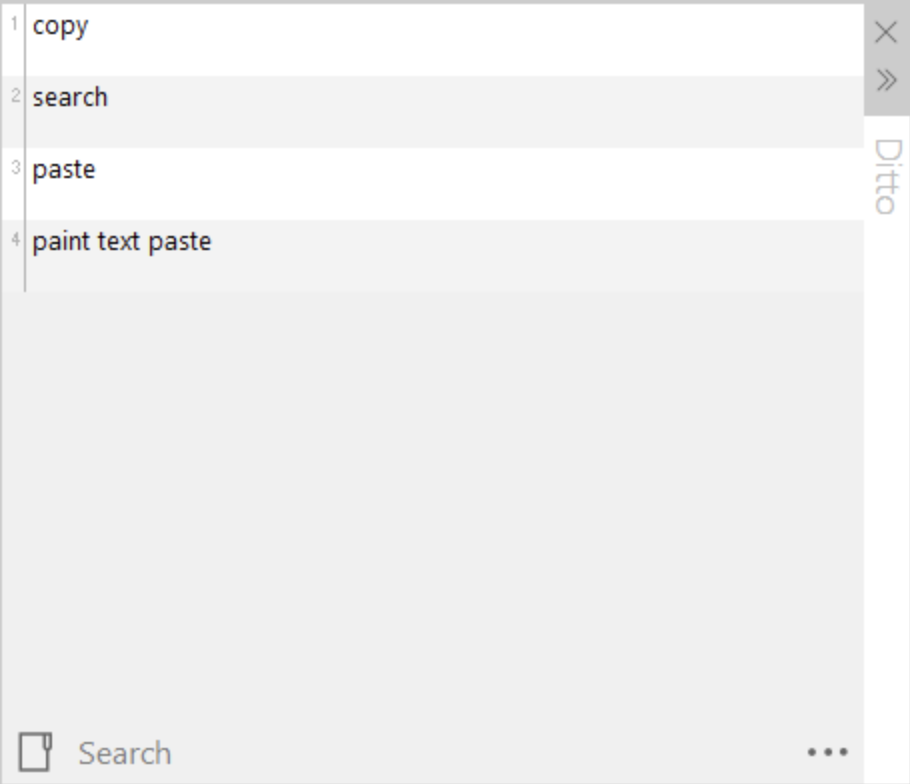
Best for: Full clipboard history on Windows.
Ditto is a Windows clipboard manager that stores a detailed history of everything you copy, including text and images. It allows you to search, organize, and pin frequently used items so they are easy to access later.
It has been around for a long time and is known for being reliable and flexible. While the interface is more functional than modern, it provides a strong set of features for users who want a complete clipboard history solution.
Works on: Windows.
Pricing: Free.
4. Windows Clipboard Manager (Win + V)
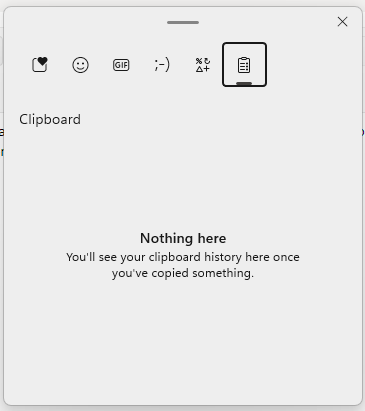
Best for: Basic clipboard history without installing anything.
The built-in Windows clipboard manager lets you access recently copied items using a keyboard shortcut. It stores a limited history and allows you to quickly paste previous items when needed.
It is a convenient starting point for anyone who wants basic clipboard functionality without downloading additional tools. However, it does not include features like advanced search, organization, or long-term storage.
Works on: Windows.
Pricing: Free.
5. PasteBar
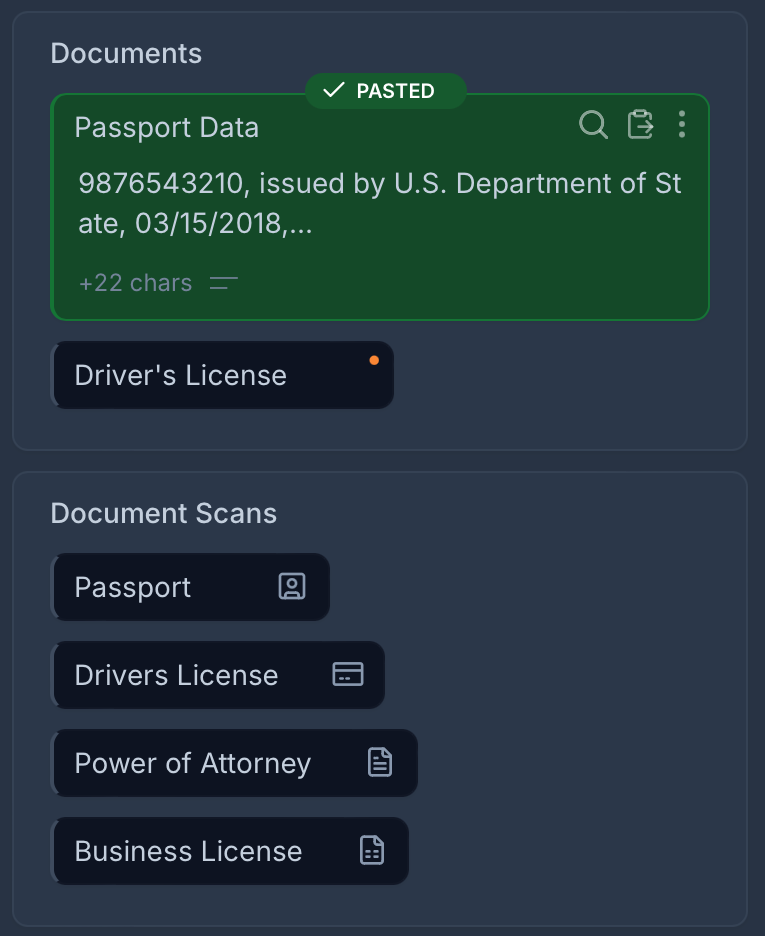
Best for: Organizing copied content into groups.
PasteBar is a clipboard manager that focuses on organizing copied items instead of just listing them. It allows you to group and manage content, which can be helpful when you reuse the same types of text regularly.
This makes it easier to keep track of frequently used snippets without relying on a long, unstructured history. It works across both Mac and Windows and sits between simple clipboard tools and more structured systems.
Works on: Windows and Mac.
Pricing: Free.
6. Maccy
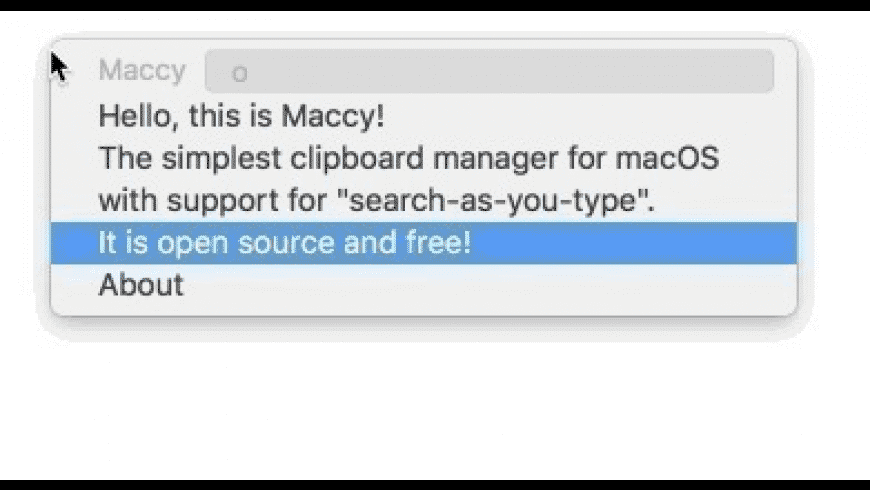
Best for: Fast and lightweight clipboard access on Mac.
Maccy is a lightweight clipboard manager designed for macOS that runs quietly in the background. It automatically saves everything you copy and makes it easy to access recent items when needed.
The focus is on speed and simplicity, which makes it easy to use without setup. It does not include advanced features, but it handles basic clipboard history reliably for everyday use.
Works on: Mac.
Pricing: Free.
7. PhraseExpander
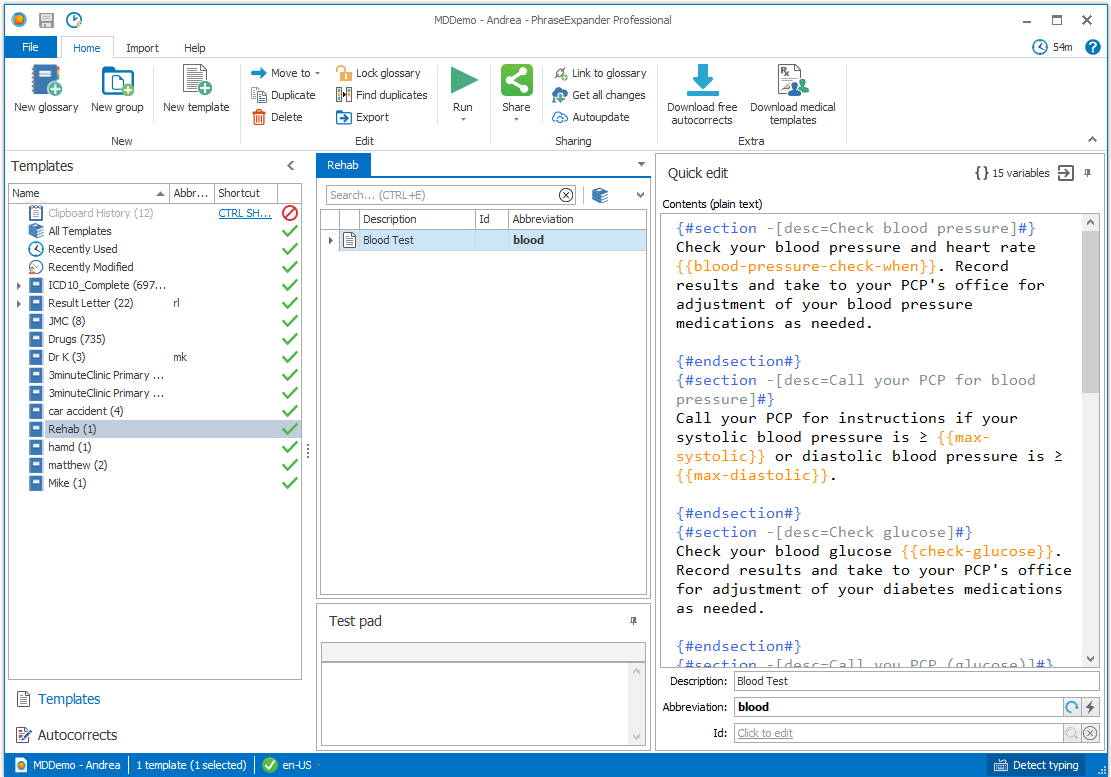
Best for: Reusing structured text in repeatable workflows.
PhraseExpander is closer to a text expansion tool than a traditional clipboard manager. Instead of storing clipboard history, it allows you to create and insert reusable content using shortcuts.
It is useful for workflows where consistency matters, such as standardized responses or documentation. Compared to clipboard managers, tools like PhraseExpander require more setup but offer more control over how content is reused.
Works on: Windows and Mac.
Pricing: $180 for a license.
Want to automate repetitive typing anywhere for free?
Join 800,000+ who are using Text Blaze templates.
8. CopyClip
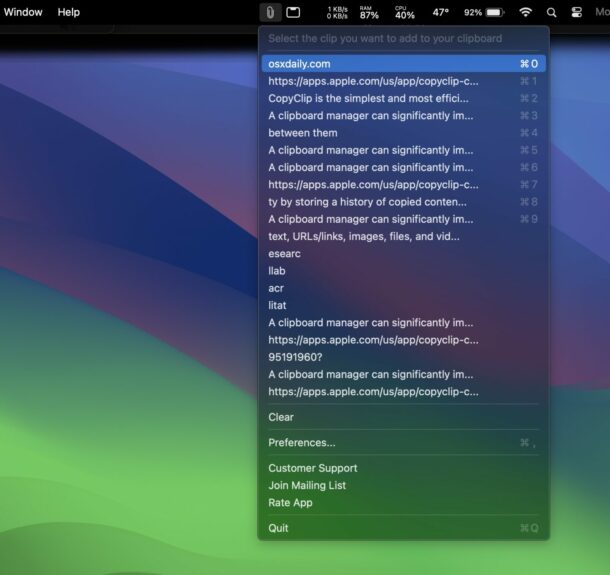
Best for: Simple clipboard history in the Mac menu bar.
CopyClip is a basic clipboard manager that stores recently copied text and makes it accessible from the menu bar. It focuses on simplicity and quick access without additional features.
It is easy to start using and works well for lightweight needs. However, it does not include advanced search or organization, which may limit its usefulness for more complex workflows.
Works on: Mac.
Pricing: Free.
9. TextExpander
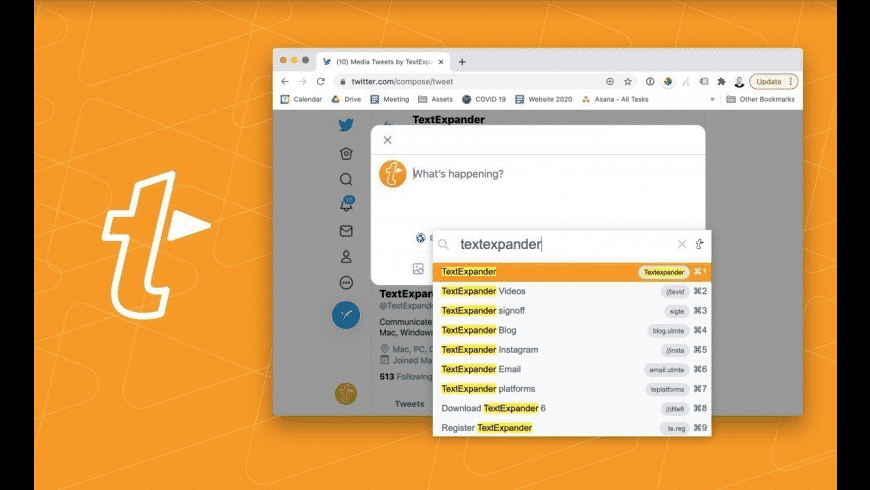
Best for: Creating reusable text with shortcuts.
TextExpander is a text expansion tool that overlaps with clipboard workflows by reducing the need to copy and paste. It allows you to create shortcuts that expand into longer content.
It is commonly used in professional environments where consistent messaging is important. While apps like TextExpander do not function entirely as clipboard managers, they serve a similar purpose for structured text reuse.
Works on: Chrome, Windows, and Mac.
Pricing: $39.96/year.
10. Pasteboard
Best for: Clipboard history with search and syncing on Mac.
Pasteboard is a clipboard manager for macOS that stores copied items and makes them searchable. It also includes features like syncing across devices, which can be useful for multi-device workflows.
It offers more functionality than simpler clipboard tools, but that can make it feel heavier. It is better suited for users who want more control over how their clipboard history is managed.
Works on: Mac.
Pricing: Free.
What is the Best Clipboard Manager for Your Workflow?
The best clipboard manager depends on how you actually work day to day.
If you just need quick access to recently copied items, simple options like built-in clipboard tools or lightweight apps are usually enough. They help you recover things you copied without adding extra complexity.
If you copy and reuse content more frequently, it’s worth using a dedicated clipboard manager with search and organization features. These tools make it easier to find past items, group them, and avoid digging through tabs to find something again.
At a certain point, though, clipboard managers start to feel limited. If you’re repeatedly copying the same types of responses, messages, or templates, you’re still relying on manual steps.
That’s where it can make sense to move beyond clipboard management. Instead of copying and pasting, tools like Text Blaze let you insert full templates using shortcuts, helping you skip the copy step entirely and keep your workflow consistent.