15 Best Free Productivity Apps for Windows in 2026
Compare the best free productivity apps for Windows, including tools for notes, tasks, automation, and focus, to find the right fit for your workflows.

Getting work done on Windows often means juggling too many tools at once. You switch between apps, repeat the same tasks, and waste time on small things that add up throughout the day.
The right productivity apps help you stay organized, reduce manual work, and move through tasks faster. Whether you need better task management, faster typing, or automation, there are free tools that can make a real difference.
In this guide, we'll cover the 15 best free productivity apps for Windows, along with tips to choose the right ones for your workflows in 2026.
Types of Productivity Apps
Productivity apps come in different forms depending on what you’re trying to improve. Here are some common types of productivity apps:
Task management apps
These apps help you track to-dos, organize projects, and stay on top of deadlines. They’re useful for managing both personal tasks and team workflows.
Note-taking apps
Note apps are designed for capturing ideas, organizing information, and building knowledge over time. Some are simple, while others support structured systems and linking between notes.
Automation apps
Windows automation tools reduce repetitive work by handling tasks for you. This can include typing shortcuts, workflow automation, or connecting different apps together.
Search and launcher tools
These tools help you quickly find files, apps, and information on your computer. Instead of navigating folders manually, you can access what you need in seconds.
Utility and system tools
Utility apps enhance how Windows works. This includes clipboard managers, system tweaks, and tools that improve everyday interactions with your computer.
Want to save hours by automating repetitive typing & workflows?
Join over 800,000+ others who are automating workflows with Text Blaze.
How to Choose a Productivity App for Windows
Choosing the right productivity app depends on how you work and what slows you down. Here are a few questions to ask yourself while evaluating productivity apps for Windows:
Will this actually work on my setup? - Make sure it runs smoothly on your Windows device and fits with the tools you already use.
Is this easy enough for me to stick with? - If it feels confusing or takes too long to learn, you probably won’t use it consistently.
Does this reduce the repetitive work I deal with? - Look for features that help you avoid doing the same tasks over and over.
Will this fit into how I already work? - The app should support your current workflow instead of forcing you to change everything.
What am I actually getting for free? - Check the limits so you don’t run into restrictions too quickly.
Start with one or two tools that solve your biggest problems, then expand as needed.
15 Best Free Productivity Apps for Windows
Your productivity struggle is about to be over. Check out the tools below and find one that can help you boost productivity on Windows.
Here's our list of the 15 best free productivity apps for Windows:
| Tool | Best for | Free plan |
|---|---|---|
| Text Blaze | Automating repetitive typing & workflows | Free plan with core features |
| Notion | All-in-one workspace | Free plan (AI features limited) |
| Todoist | Simple task management | Free plan (5 projects limit) |
| Microsoft OneNote | Structured note-taking | Limited free version |
| ClickUp | Project and task management | Free plan (60 MB storage) |
| Clockify | Time tracking | Free trial (paid after) |
| Microsoft PowerToys | Windows system enhancements | Completely free |
| Ditto | Clipboard history | Completely free |
| Everything | Fast file search | Completely free |
| Flow Launcher | Quick app and file access | Completely free |
| Trello | Visual task tracking | Free plan (10 collaborators) |
| Obsidian | Knowledge management | No free plan (paid) |
| Microsoft Power Automate | Workflow automation | Free trial (paid after) |
| Google Keep | Quick note capture | Completely free |
| Zapier | App automation | Free plan (100 tasks) |
1. Text Blaze
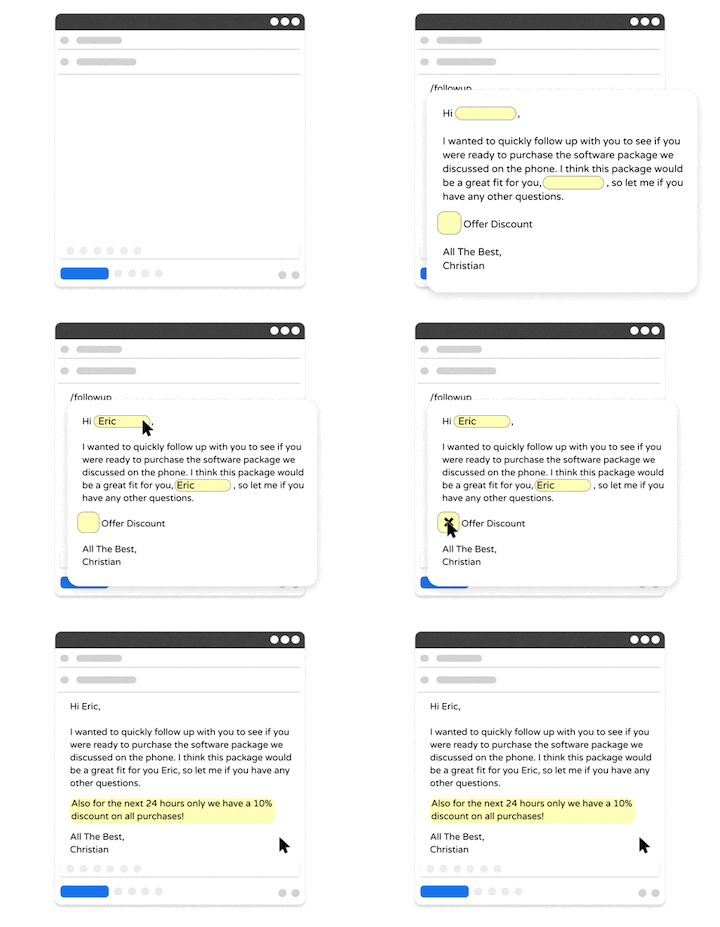
Text Blaze is the ultimate productivity tool and text expander for Windows that helps you create smart text templates that automate repetitive typing and workflows.
With Text Blaze, you can automate repetitive typing, form-filling, data transfer, communications, and more, on any website.
Key features:
Automate repetitive typing & boost productivity using keyboard shortcuts & dynamic text templates with Text Blaze for Windows.
Get the right message in every interaction and reduce mistakes.
Streamline repetitive workflows, like transferring data, filling out forms, sending an email, or any other repetitive workflow.
Text Blaze is perfect for support teams! Learn more about using Text Blaze for teams to supercharge your team's communication and productivity!
Price: Text Blaze is free forever. Get started and start saving time instantly without having to pay $1.
Want to save hours by automating repetitive typing & workflows?
Join over 800,000+ others who are automating workflows with Text Blaze.
2. Notion

For organizing notes, tasks, and projects in one place, Notion offers a flexible workspace. You can create pages, databases, and simple systems that fit your workflow. It works well for both personal use and team collaboration. It also offers AI tools for productivity that are useful.
Key features:
- All-in-one workspace for notes and tasks
- Custom databases and templates
- Real-time collaboration
- Cross-platform syncing
Price: Free plan available, but has limited usage of Notion AI. Notion Plus is $10/month.
3. Todoist
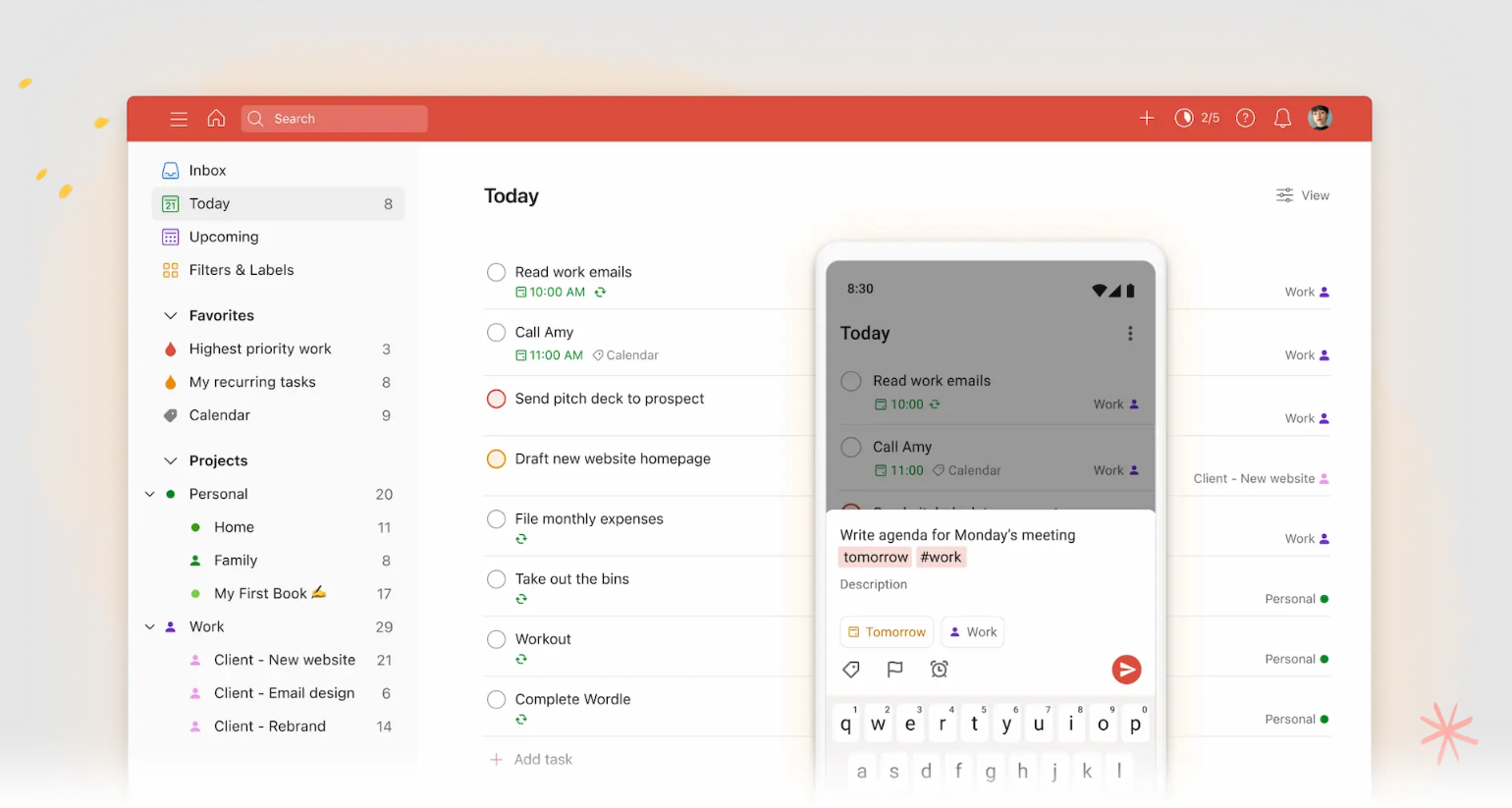
If you want something simple for managing tasks, Todoist keeps everything clear and easy to track. You can create tasks, set deadlines, and organize them into projects. It’s designed to be fast to use without extra complexity. This makes it a good choice for daily task management.
Key features:
- Create and organize tasks quickly
- Set deadlines and reminders
- Use labels and filters for organization
- Sync across devices
Price: Free plan available with 5 personal projects, then $60/year for more.
4. Microsoft OneNote
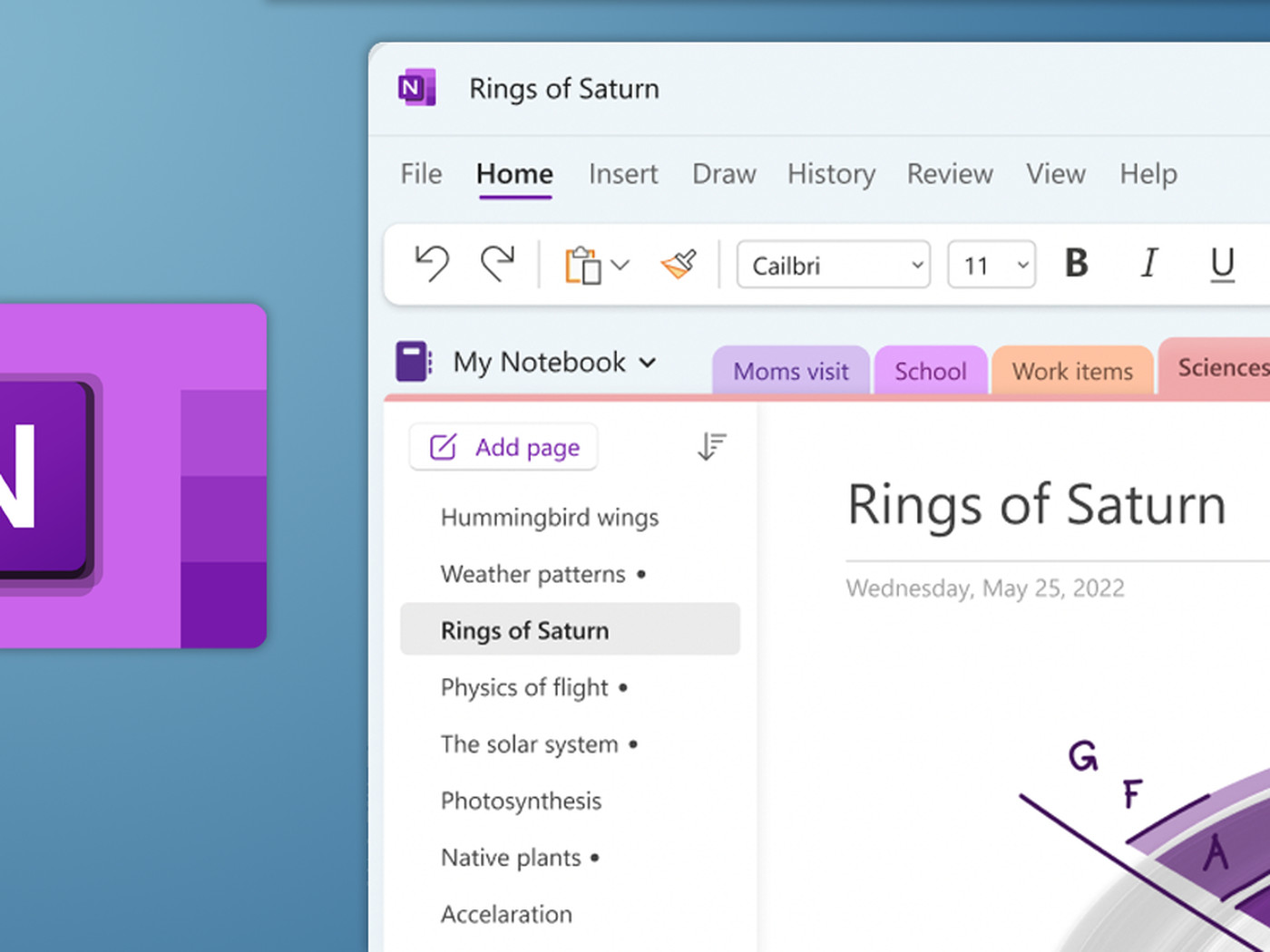
Microsoft OneNote is built for capturing and organizing notes in a familiar notebook-style layout. You can create sections, pages, and structured notes for different topics. It integrates well with the Windows ecosystem. This makes it a reliable option for long-term note organization.
Key features:
- Organize notes into notebooks and sections
- Support for text, images, and drawings
- Sync across devices with Microsoft account
- Integration with other Microsoft tools
Price: Limited free version with a Microsoft account.
5. ClickUp
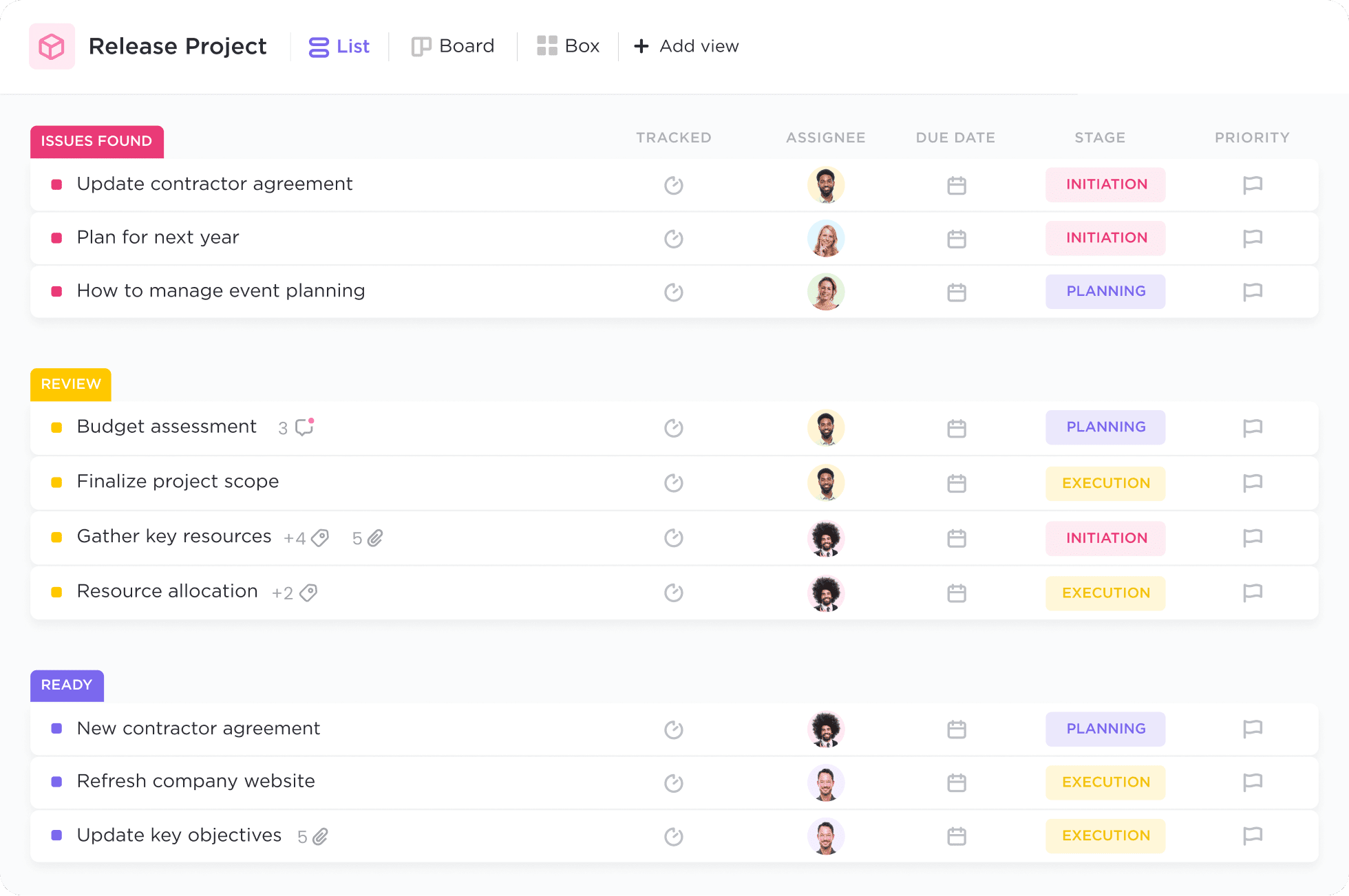
For managing projects and tasks in one place, ClickUp provides a more structured system. It combines task tracking, documents, and collaboration features. You can customize views based on how you work. This makes it suitable for both individuals and teams.
Key features:
- Task and project management tools
- Custom views like list, board, and calendar
- Built-in docs and collaboration
- Workflow customization
Price: Free plan available with 60 MB storage. Unlimited storage is $7/user/month.
6. Clockify
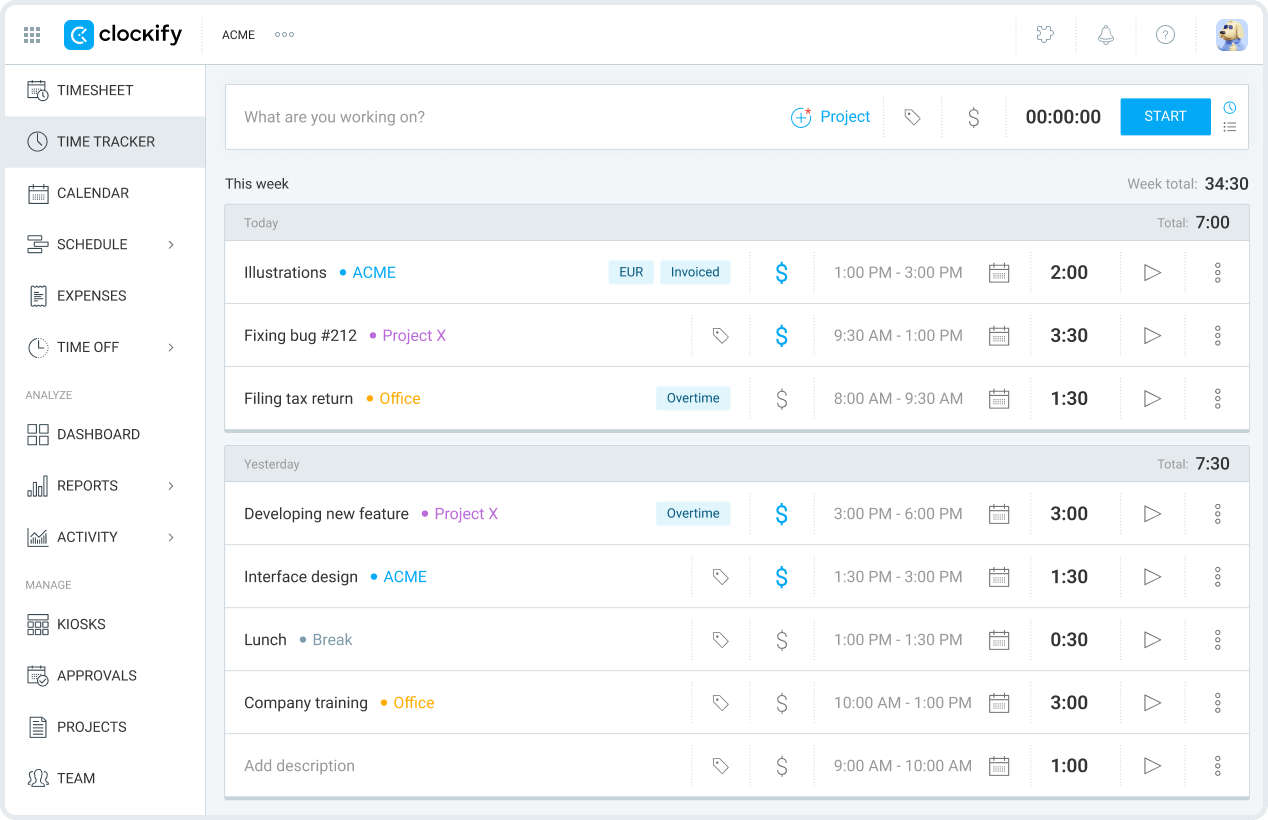
Clockify is designed for tracking how you spend your time throughout the day. You can log hours, track projects, and review reports. It's a good productivity tool for teams who need visibility into time usage. This helps improve planning and productivity.
Key features:
- Time tracking with manual and automatic options
- Project and task tracking
- Detailed reports and analytics
- Team time management
Price: Free trial, then $4.99/month.
7. Microsoft PowerToys
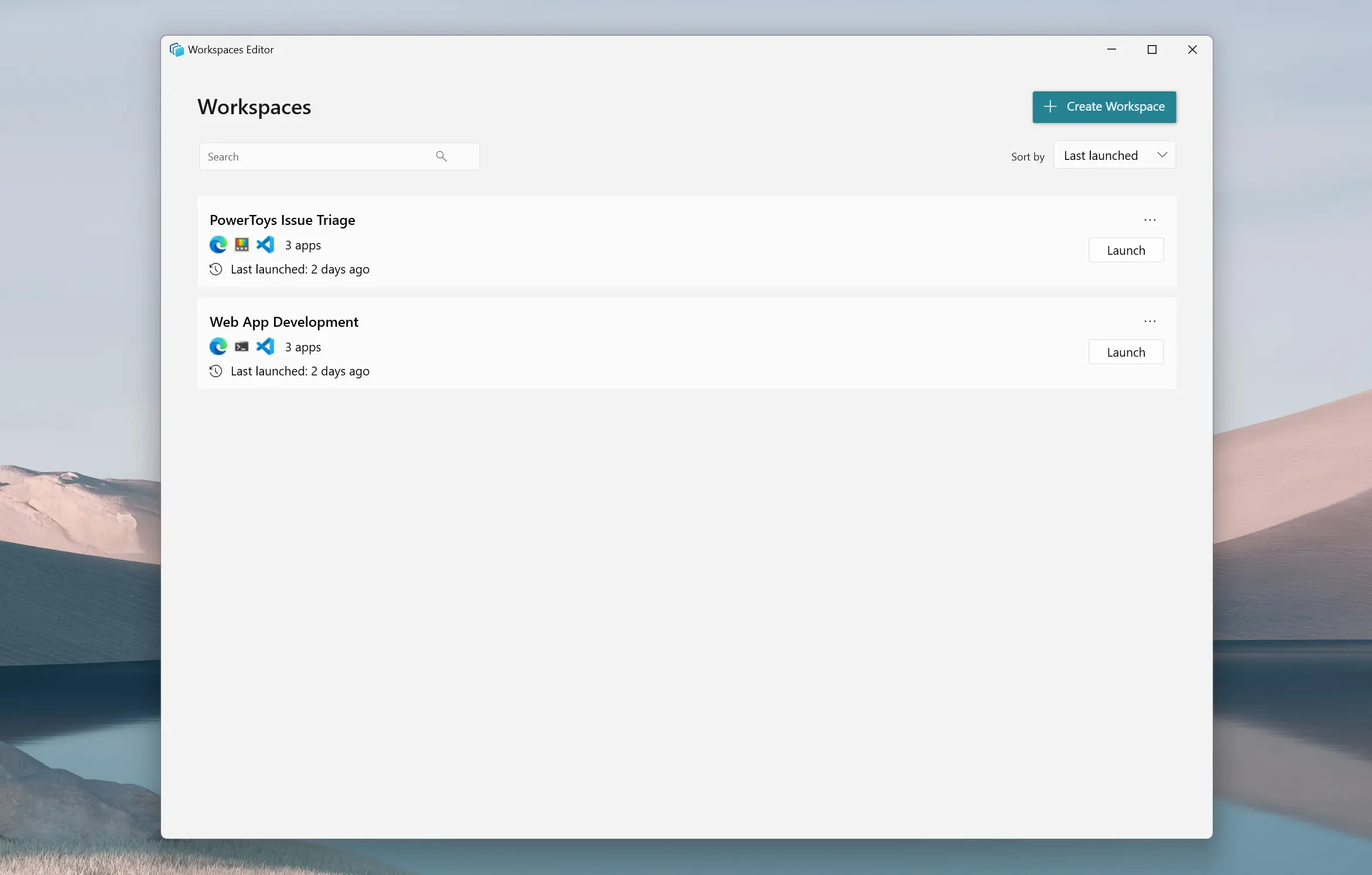
Microsoft PowerToys adds useful features that improve how Windows works. It includes tools for window management, file renaming, and quick search. These small improvements can save time during everyday tasks. It’s especially useful for power users.
Key features:
- Advanced window management tools
- Bulk file renaming
- Quick search and launcher tools
- Keyboard shortcuts and utilities
Price: Free and open source.
Want to save hours by automating repetitive typing & workflows?
Join over 800,000+ others who are automating workflows with Text Blaze.
8. Ditto

Copying and pasting multiple items can quickly become frustrating. Ditto solves this by storing your clipboard history so you can reuse anything you’ve copied. It runs in the background and is easy to access. This makes it a simple but effective productivity boost.
Key features:
- Clipboard history tracking
- Search through copied items
- Sync clipboard across devices
- Lightweight and fast
Price: Free and open source.
9. Everything
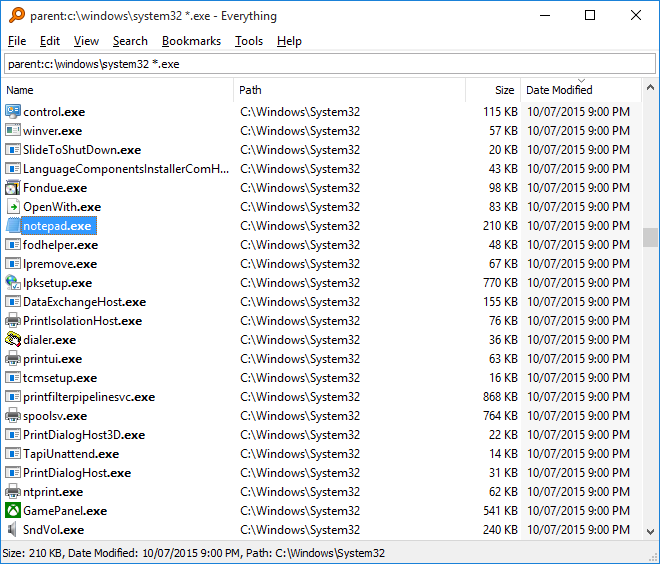
Finding files on Windows can take longer than it should. Everything for Windows speeds this up by indexing your files and letting you search instantly. Results appear as you type, which saves time when navigating your system. It’s a productivity software that does one thing well.
Key features:
- Instant file and folder search
- Real-time indexing
- Lightweight performance
- Simple interface
Price: Free.
10. Flow Launcher
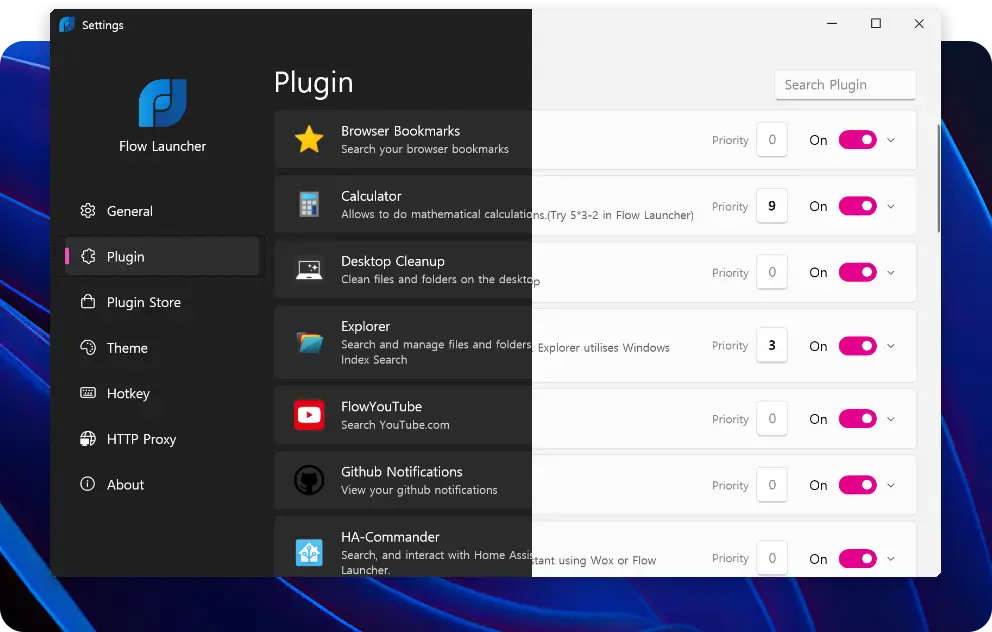
Flow Launcher helps you open apps, search files, and run commands quickly from one place. Instead of clicking through menus, you can access tools using keyboard input. It supports plugins for added functionality. This makes it a useful shortcut tool for daily workflows.
Key features:
- Quick app and file launching
- Plugin support for extended features
- Keyboard-driven workflow
- Customizable interface
Price: Free and open source.
11. Trello
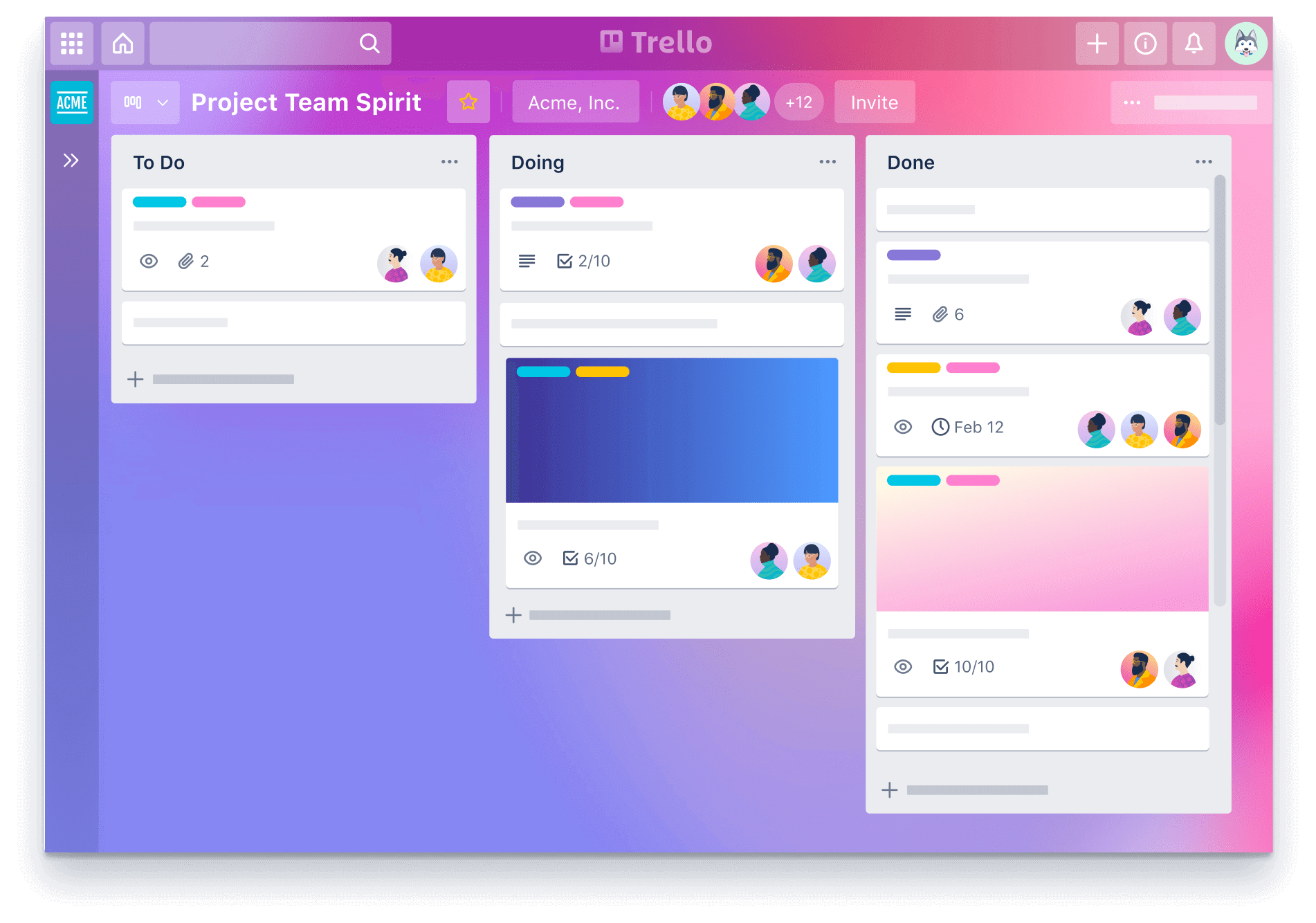
For visual task management, Trello uses boards and cards to organize work. You can move tasks through different stages and track progress easily. It works well for both personal projects and team collaboration. The layout is simple and easy to understand.
Key features:
- Visual boards and task cards
- Drag-and-drop task management
- Collaboration and sharing
- Integrations with other tools
Price: Free for up to 10 collaborators, then $6/user/month.
12. Obsidian

Obsidian focuses on building a connected system of notes. Instead of storing information in isolation, you can link ideas together. This is useful for long-term knowledge management. It works locally on your device, which gives you more control over your data.
Key features:
- Link notes to build a knowledge system
- Local file storage
- Custom plugins and themes
- Markdown-based editing
Price: $5/user/month.
13. Microsoft Power Automate
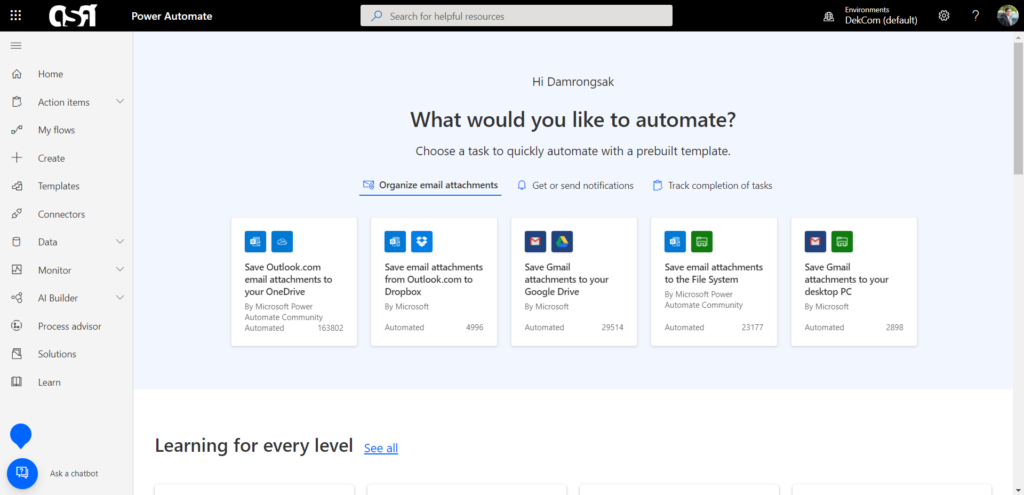
For more advanced workflows, Microsoft Power Automate lets you automate tasks across apps and systems. You can create flows that trigger actions based on events. Tools like Power Automate support both cloud and desktop automation. This makes it useful for reducing repetitive processes.
Key features:
- Create automated workflows
- Desktop and cloud automation
- Integration with Microsoft tools
- Trigger-based actions
Price: 30 day free trial, then $15/month (paid yearly).
Want to save hours by automating repetitive typing & workflows?
Join over 800,000+ others who are automating workflows with Text Blaze.
14. Google Keep
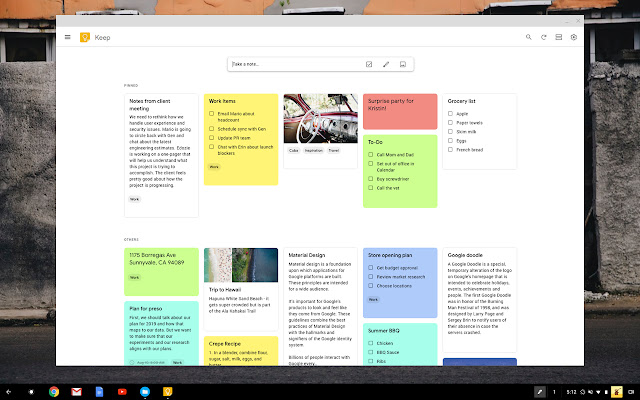
If you need a lightweight note-taking tool, Google Keep keeps things simple. You can quickly capture notes, lists, and reminders. It syncs across devices and is easy to use. This makes it ideal for quick thoughts and simple organization.
Key features:
- Quick note and list creation
- Reminders and labels
- Sync across devices
- Simple interface
Price: Free with a Google account.
15. Zapier
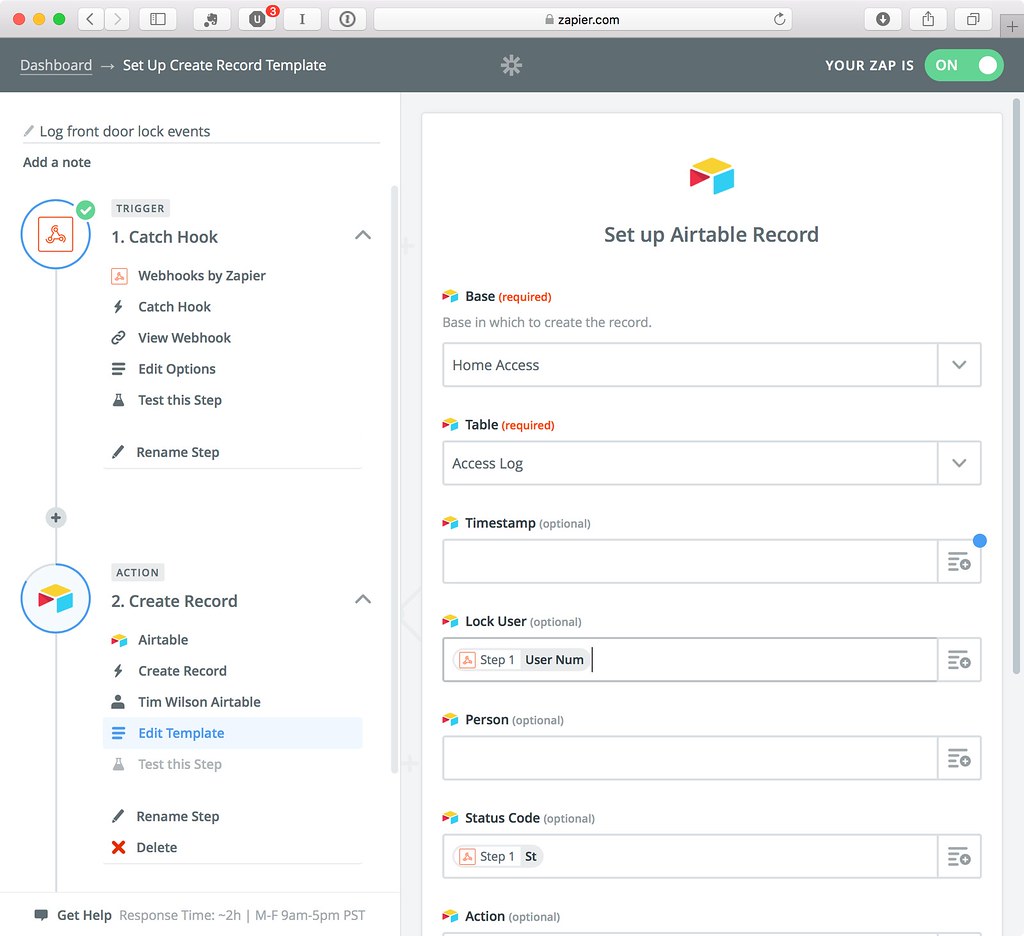
Zapier fits into your workflow by connecting different apps and automating actions between them. You can set up triggers that move data or perform tasks automatically. Tools like Zapier support a wide range of integrations. It's a popular [productivity Chrome extension].
Key features:
- Connect apps and automate workflows
- Trigger-based automation
- Wide integration library
- No-code setup
Price: Free plan available with 100 tasks, then $19.99/month (bulled annually).
What Is the Best Productivity App for Windows?
The best productivity app for Windows depends on where you lose the most time during your day. Some tools help you stay organized, while others focus on tracking work or simplifying your setup.
If you deal with a lot of repetitive tasks, especially writing the same messages or filling out similar information, automation usually has the biggest impact. Reducing that kind of work can make everything else feel faster and more manageable.
Text Blaze is a strong option for this because it helps you turn repetitive typing into reusable templates that work across the apps and websites you already use.