7 Best Free Keyboard Shortcut Apps (Windows & Mac)
Find the best free keyboard shortcut apps for Windows and Mac. Learn built-in shortcuts, text expansion tools, and how to speed up repetitive typing.

Typing the same phrases, switching between apps, and repeating small actions throughout the day adds up quickly. You’ve probably used keyboard shortcuts, or hotkeys, to speed things up, like copying, pasting, or jumping between windows.
Those shortcuts help, but they only cover basic actions. When your work involves writing the same messages, filling out forms, or reusing content, they start to feel limited.
That’s where text expansion and keyboard shortcut apps come in, letting you trigger full sentences, templates, and even workflows from a few keystrokes.
In this article, we’ll cover the 7 best free keyboard shortcut apps for Windows and Mac and how they can help you move faster with less typing.
What Are Keyboard Shortcuts?
Keyboard shortcuts are key combinations or triggers that perform actions instantly on your device. Instead of clicking through menus or typing everything manually, you can press a few keys or type a short command to get the same result.
There are different types of keyboard shortcuts, depending on what you want to do:
System actions - Open apps, switch windows, lock your screen, or trigger system-level commands.
Text editing - Copy, paste, undo, redo, and format text while writing or editing.
Navigation - Move between tabs, files, menus, or sections within an app.
Content insertion - Insert full sentences, templates, or structured text using short triggers.
Most people rely on built-in shortcuts like Ctrl+C or Cmd+V, but more advanced shortcuts can go beyond simple actions and help automate parts of your workflow.
How to Use Keyboard Shortcuts
Getting value from keyboard shortcuts starts with using what’s already available, then building on top of it.
Here are a few common ways to use keyboard shortcuts:
Start with system shortcuts (hotkeys) - Learn the built-in shortcuts for your operating system, like switching apps, opening search, or managing windows. These handle common actions quickly.
Customize OS-level shortcuts - Both Windows and Mac let you create or modify shortcuts for specific actions, which helps tailor your setup to how you work.
Use a keyboard shortcut app for more control - Apps let you create custom triggers that go beyond simple actions. You can insert full text, automate steps, or trigger workflows across apps.
Use text expansion for repetitive typing - Instead of typing the same messages or content repeatedly, you can use text expanders to assign a short keyword that expands into longer text.
Built-in shortcuts help with navigation and actions, while keyboard shortcut apps and text expansion tools help you automate typing and more complex workflows.
7 Best Free Keyboard Shortcut Apps
Different apps focus on different use cases, from simple text expansion to full automation. Here's our list of the 7 best free keyboard shortcuts apps for Windows and Mac:
1. Text Blaze
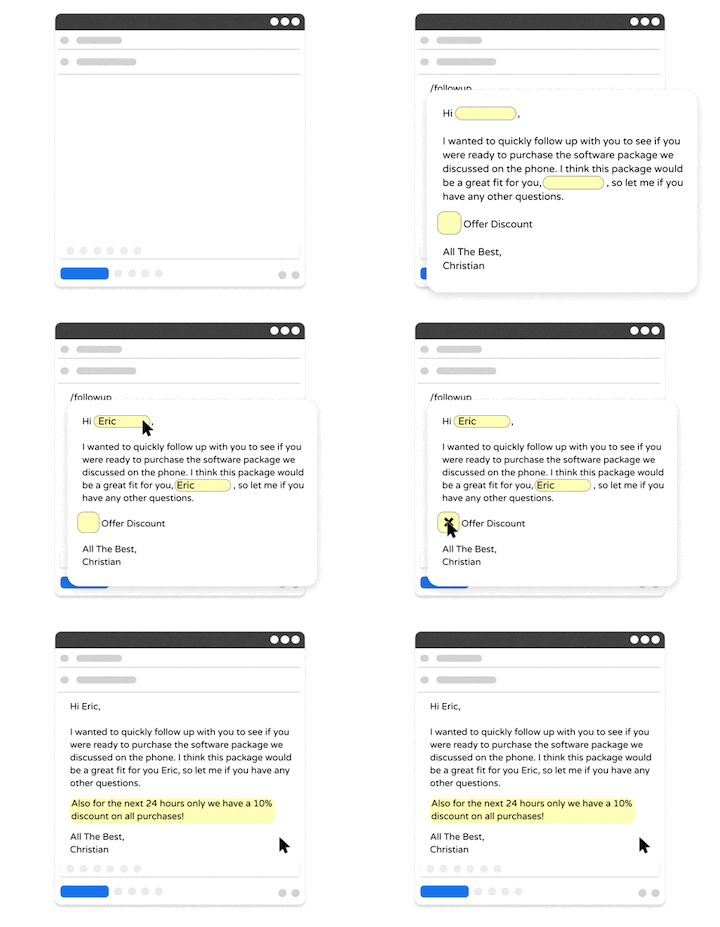
Text Blaze is a text expander and keyboard shortcuts app that allows you to create smart text templates and insert them on any site or app using keyboard shortcuts.
Text Blaze can help you automate repetitive typing, streamline workflows, and boost productivity with customizable, dynamic text templates.
Plus, Text Blaze is the #1 rated text expander on the Chrome Web Store (4.9 rating with 1,800+ reviews) and is trusted by 800,000+ users.
Here's what makes Text Blaze stand out:
Create dynamic templates with placeholders, drop-down menus, toggle fields, if/else rules, autopilot, data transfer, and more.
Text Blaze works anywhere and is available on Chrome, Windows, and Mac!
Automate workflows by streamlining data transfer, form-filling, repetitive typing, and much more.
Text Blaze is perfect for teams. Guide your team's communication & workflows with shared templates. Learn more here.
Text Blaze is free forever. Get started and save time for free.
Want to automate repetitive typing anywhere for free?
Join 800,000+ who are using Text Blaze templates.
2. AutoHotkey
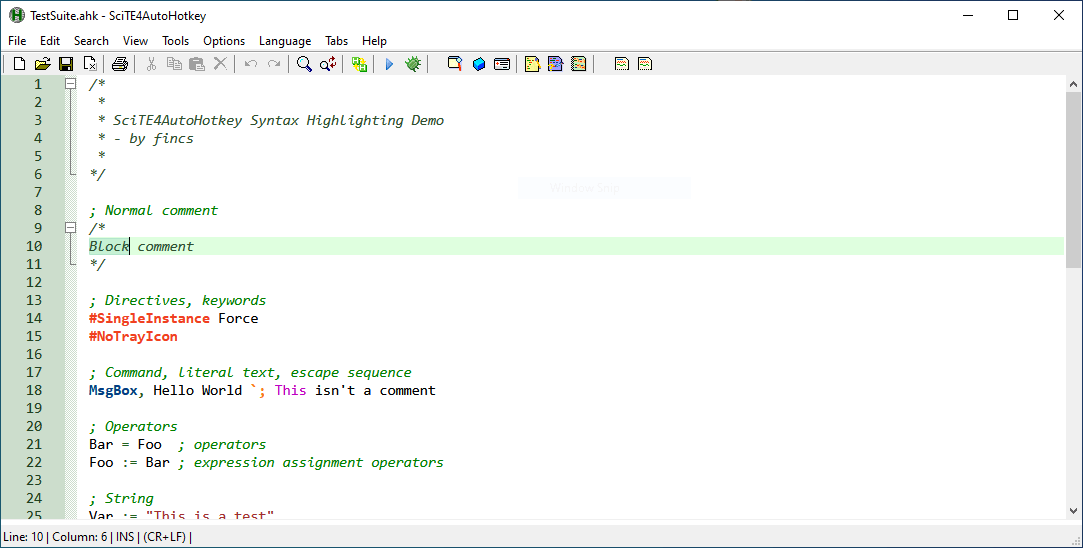
AutoHotKey is more of a scripting and automation tool than a typical keyboard shortcut app. It allows you to create custom hotkeys, remap keys, and automate sequences of actions across applications.
The tradeoff is complexity. Most functionality depends on writing scripts, which takes some time to learn. However, that same flexibility makes tools like AHK possible to build very specific automations.
It’s generally used by people who want full control over their keyboard behavior and system-level actions on Windows.
3. PhraseExpress
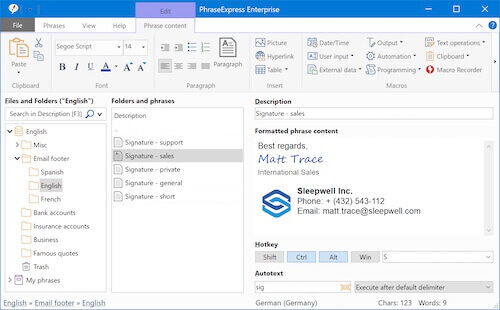
Some users need both text expansion and automation in one place, and that’s when PhraseExpress is usually considered. It lets you create shortcuts that insert text, trigger macros, or run commands.
It also supports organizing phrases into shared libraries, which can help manage larger sets of content. This is useful when working with standardized responses or team-based workflows.
PhraseExpress works across Windows and macOS, making it a practical option if you switch between devices or need cross-platform support.
4. Espanso
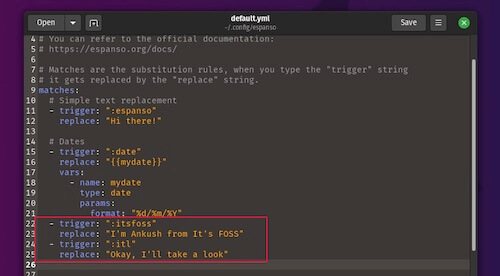
Espanso focuses on text expansion but takes a different approach compared to most apps. Instead of a visual interface, it relies on configuration files to define shortcuts and expansions.
This setup gives you more control, but it also requires editing files manually. For some users, that’s efficient. For others, it may feel less intuitive.
Apps like Espanso are commonly used by people who prefer open-source tools or want lightweight options that run consistently across multiple operating systems.
5. aText
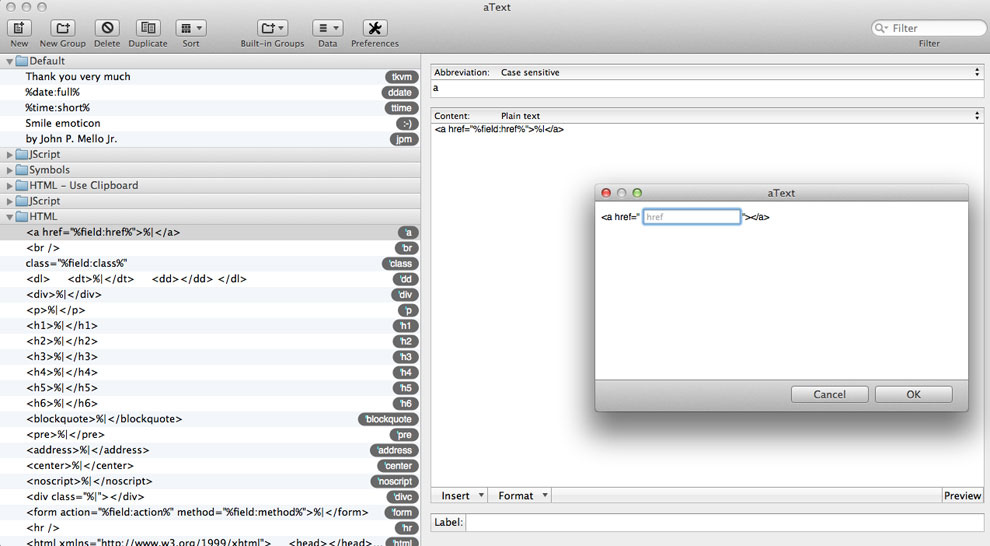
If you’re mainly looking for a simple way to expand text, aText keeps things somewhat straightforward. You define abbreviations, and they expand into longer phrases when triggered.
It focuses on core functionality rather than automation, which makes it easier to learn but more limited in scope. There aren’t as many advanced features compared to other tools in this list.
aText is typically used for basic tasks like email templates, repeated phrases, or short-form content reuse on Windows and Mac.
6. Beeftext
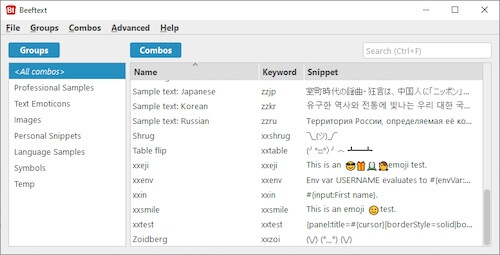
For Windows users who want something lightweight, Beeftext can be used for quick text replacement without added complexity. You can create shortcuts that expand into longer text with minimal setup.
The interface is simple, and it doesn’t include advanced automation features. That keeps it easy to use but also limits what you can build with it.
It tends to fit users who just want to speed up typing without managing workflows or configurations.
Want to automate repetitive typing anywhere for free?
Join 800,000+ who are using Text Blaze templates.
7. Pulover’s Macro Creator
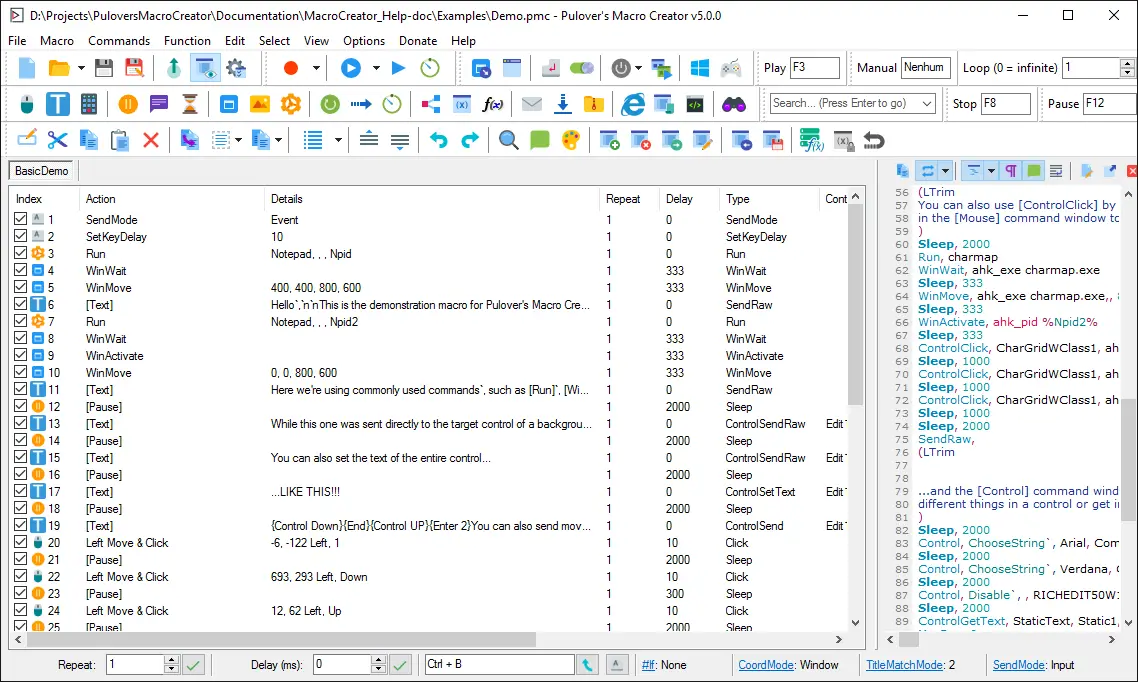
Pulover’s Macro Creator builds on AutoHotkey but adds a visual layer for creating automations. Instead of writing scripts from scratch, you can record actions and edit them through an interface.
This makes it easier to create macros, especially for repetitive workflows that involve multiple steps. You can automate sequences rather than just single shortcuts.
Tools like PMC are generally used for task automation on Windows, particularly when you want more structure than scripting alone provides.
Keyboard Shortcuts vs Text Expansion
Keyboard shortcuts and text expansion are often grouped together, but they solve different problems.
Here's a brief comparison:
Keyboard shortcuts (hotkeys) - Trigger actions on your device, like opening apps, switching windows, or running commands.
Text expansion - Inserts pre-written content when you type a shortcut. This is useful for emails, forms, and repetitive typing.
Where they overlap - Some tools combine both, letting you trigger actions and insert content from the same shortcut.
If you mainly want to move faster between apps, shortcuts are enough. If you want to reduce typing and reuse content, text expansion tools offer more flexibility.
What is the Best Keyboard Shortcuts App?
The best keyboard shortcut app depends on what you’re actually trying to improve in your workflow. If your goal is to move faster around your device, system shortcuts and hotkeys are usually enough. These help you switch between apps, trigger commands, and reduce the need to use your mouse.
If your main issue is repetitive typing, the problem is different. Instead of triggering actions, you’re trying to reuse content like emails, responses, or form entries. That’s where text expansion becomes more useful, since it lets you insert full text from a short trigger.
Some people end up needing both. Shortcuts help you navigate and execute actions, while text expansion helps you reduce how much you type.
If your work involves a lot of repeated writing or structured content, a tool like Text Blaze can help you go beyond basic shortcuts by turning small triggers into full templates and workflows.