16 Best Productivity Chrome Extensions in 2026 (Actually Useful)
Discover 16 actually useful productivity Chrome extensions to save time in 2026. Includes tools for writing, tasks, automation, focus, tab management, and more.

Most productivity Chrome extensions sound useful at first, but once you install them, they either overlap with tools you already use or don’t actually save you time.
That’s the problem with most “best extensions” lists. They include everything, not what’s actually worth using day to day.
This list focuses on Chrome extensions that are genuinely useful in real workflows. Tools that help you write faster, manage tasks, automate repetitive work, stay focused, and keep your browser organized without adding unnecessary complexity.
In this article, we’ll cover 16 productivity Chrome extensions across categories like writing, task management, automation, focus, tab management, and more, so you can find the ones that actually make a difference.
How to Choose a Productivity Chrome Extension
The best productivity Chrome extension depends on what slows you down most during your day.
Here are a few common areas to focus on when choosing the right tool:
Writing & communication: If you spend a lot of time responding to emails, messages, or forms, look for tools that help you reuse content or improve clarity.
Task management: If your work is more task-driven, a task or project management extension can help you stay organized without switching between apps.
Automation: If repetitive work is the main issue, automation tools can reduce manual steps and save time across workflows.
Focus & tabs: If you’re dealing with distractions or too many tabs, focus and tab management tools can help you stay on track.
In most cases, you don’t need one tool that does everything. A small combination of extensions across different categories usually works better and fits more naturally into your workflow.
16 Best Productivity Chrome Extensions
Finding the right Chrome extensions can make a noticeable difference in how you work, but most lists include tools you’ll never actually use. This list focuses on extensions that solve real problems across writing, tasks, automation, focus, and browser management, so you can find what actually fits your workflow.
Here's our list of the 16 best productivity Chrome extensions that are actually useful:
| Tool | Category | Best For | Key Benefit |
|---|---|---|---|
| Text Blaze | Writing & Communication | Repetitive typing & workflows | Automate repetitive typing & workflows |
| Grammarly | Writing & Communication | Grammar & writing clarity | Improves writing in real time |
| ProWritingAid | Writing & Communication | Editing long-form writing | Deep writing analysis and reports |
| Todoist | Task & Project Management | Task management | Organizes tasks and priorities |
| ClickUp | Task & Project Management | Project workflows | Manages tasks and projects in one place |
| Zapier | Automation & Workflows | App automation | Connects apps and automates tasks |
| Bardeen | Automation & Workflows | Browser automation | Automates actions directly in Chrome |
| Lightning Autofill | Automation & Workflows | Form filling | Autofills repeated inputs |
| Clockify | Focus & Time Management | Time tracking | Tracks time across tasks |
| Momentum | Focus & Time Management | Daily focus | Replaces new tab with focus dashboard |
| OneTab | Tab & Browser Management | Tab management | Collapses tabs into a list |
| Toby | Tab & Browser Management | Tab organization | Organizes tabs by project |
| Notion Web Clipper | Notes & Content Capture | Saving content | Clips and organizes web content |
| Evernote Web Clipper | Notes & Content Capture | Content capture | Saves pages and screenshots |
| Bitwarden | Utilities | Password management | Stores and autofills passwords |
| GoFullPage | Utilities | Screenshots | Captures full webpages |
Writing & Communication
These tools help you write faster, improve clarity, and handle repetitive communication across emails, documents, and forms.
1. Text Blaze
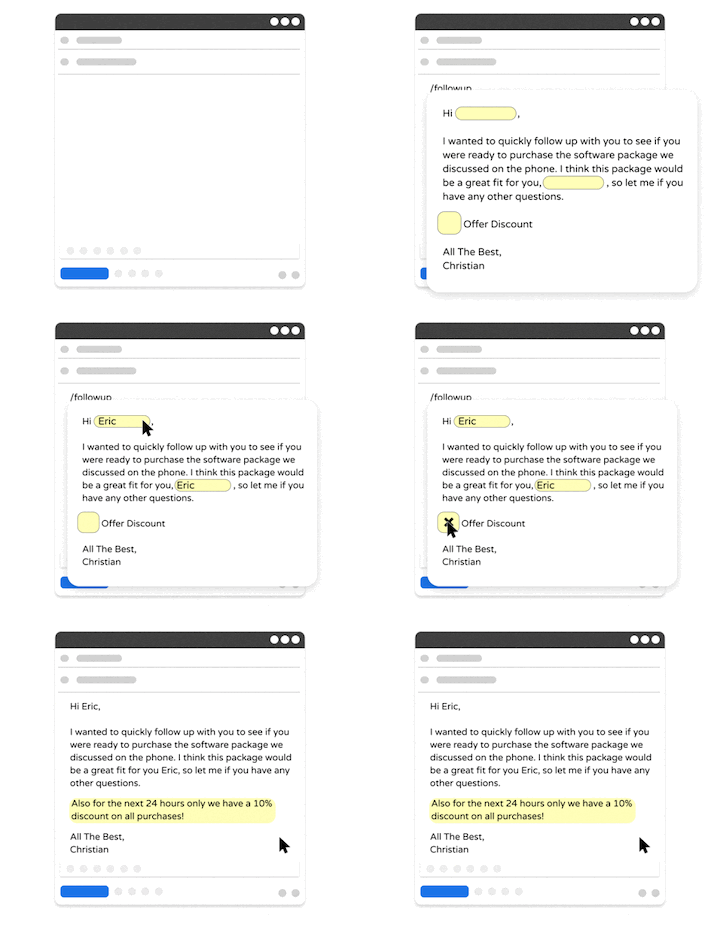
Text Blaze is a text expander and keyboard shortcuts app that allows you to create smart text templates and insert them on any site or app using keyboard shortcuts. Text Blaze can help you automate repetitive typing, streamline workflows, and boost productivity with customizable, dynamic text templates. Plus, Text Blaze has a 4.9 rating with 1,900+ reviews and has 800,000+ users.
Best for: Repetitive typing, templates, and structured communication
How it helps:
Create dynamic templates with placeholders, drop-down menus, toggle fields, if/else rules, autopilot, data transfer, and more.
Automate workflows by streamlining data transfer, form-filling, repetitive typing, and much more.
Text Blaze works anywhere and is available on Chrome, Windows, and Mac.
Text Blaze is perfect for teams. Guide your team's communication & workflows with shared templates. Learn more here.
Pricing: Text Blaze is free forever. Get started and save time for free.
Want to automate repetitive typing anywhere for free?
Join 800,000+ who are using Text Blaze templates.
2. Grammarly
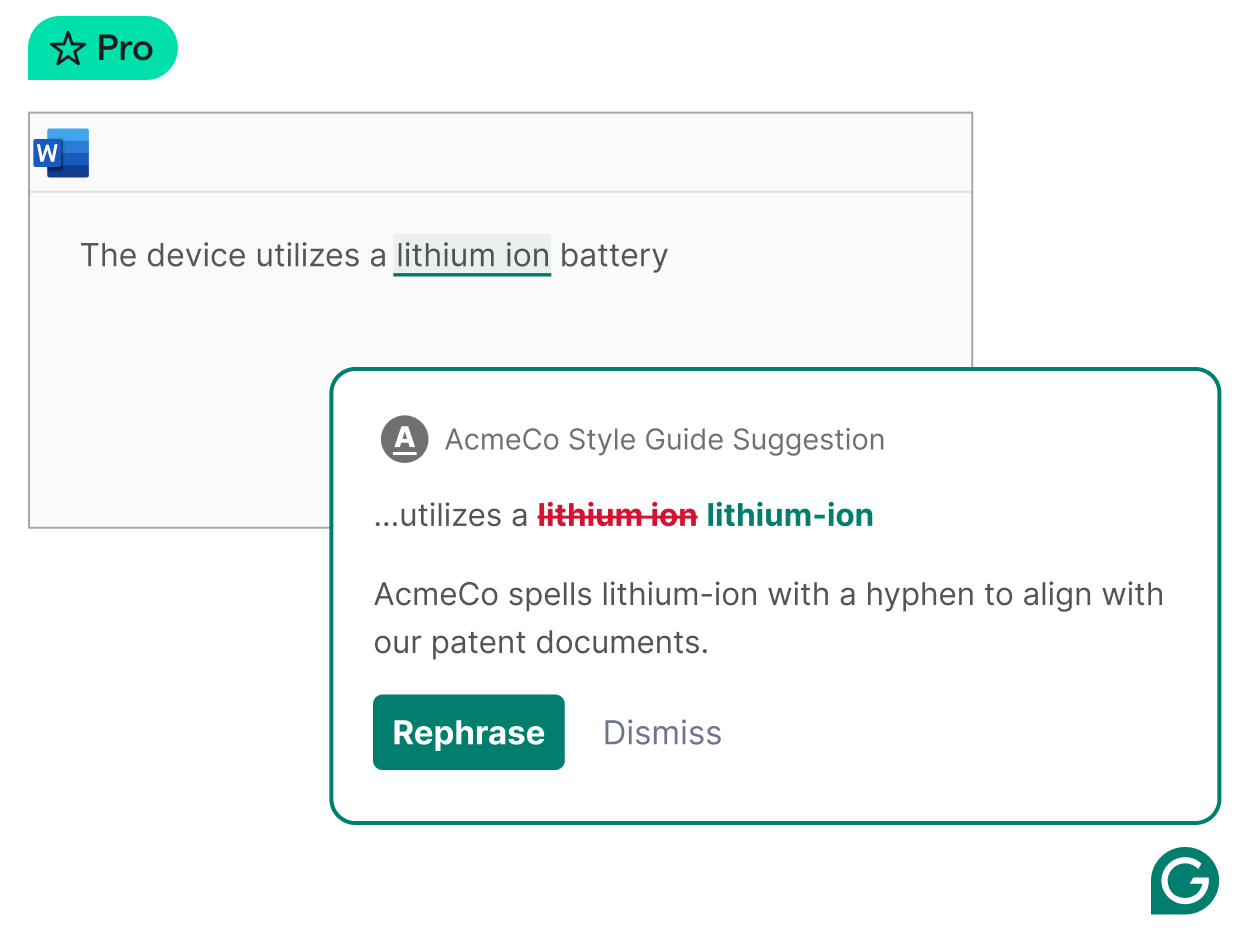
Writing quickly often leads to small mistakes that can affect clarity. Grammarly checks your writing in real time across Chrome, helping you catch grammar issues, improve tone, and make your writing easier to understand. It works in emails, documents, and most web-based editors.
Best for: Grammar checking and improving writing clarity
How it helps:
- Highlights grammar, spelling, and punctuation issues
- Suggests clearer or more concise phrasing
- Adjusts tone depending on context
- Works across most websites and writing fields
Pricing: Free plan available with premium features
3. ProWritingAid
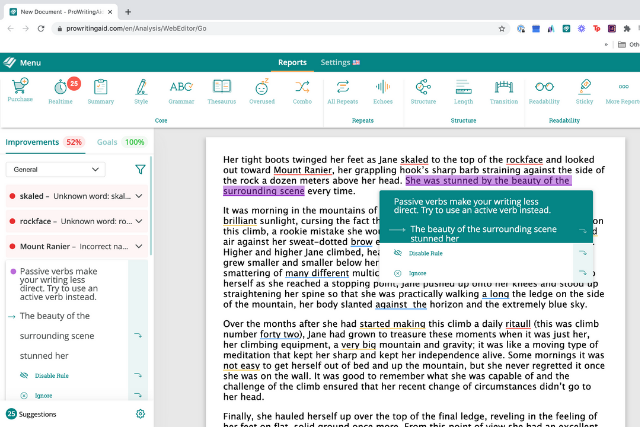
For longer or more detailed writing, ProWritingAid offers deeper analysis than basic grammar tools. It provides reports on readability, sentence structure, and writing style, which can help you refine content over time. It’s especially useful when editing documents or longer-form writing in the browser.
Best for: Editing and improving longer-form writing
How it helps:
- Analyzes readability and sentence structure
- Identifies overused words and style issues
- Provides detailed writing reports
- Helps improve clarity and consistency
Pricing: Free version available with paid plans
Task & Project Management
These tools help you organize tasks, manage projects, and keep track of work without switching between multiple apps.
4. Todoist
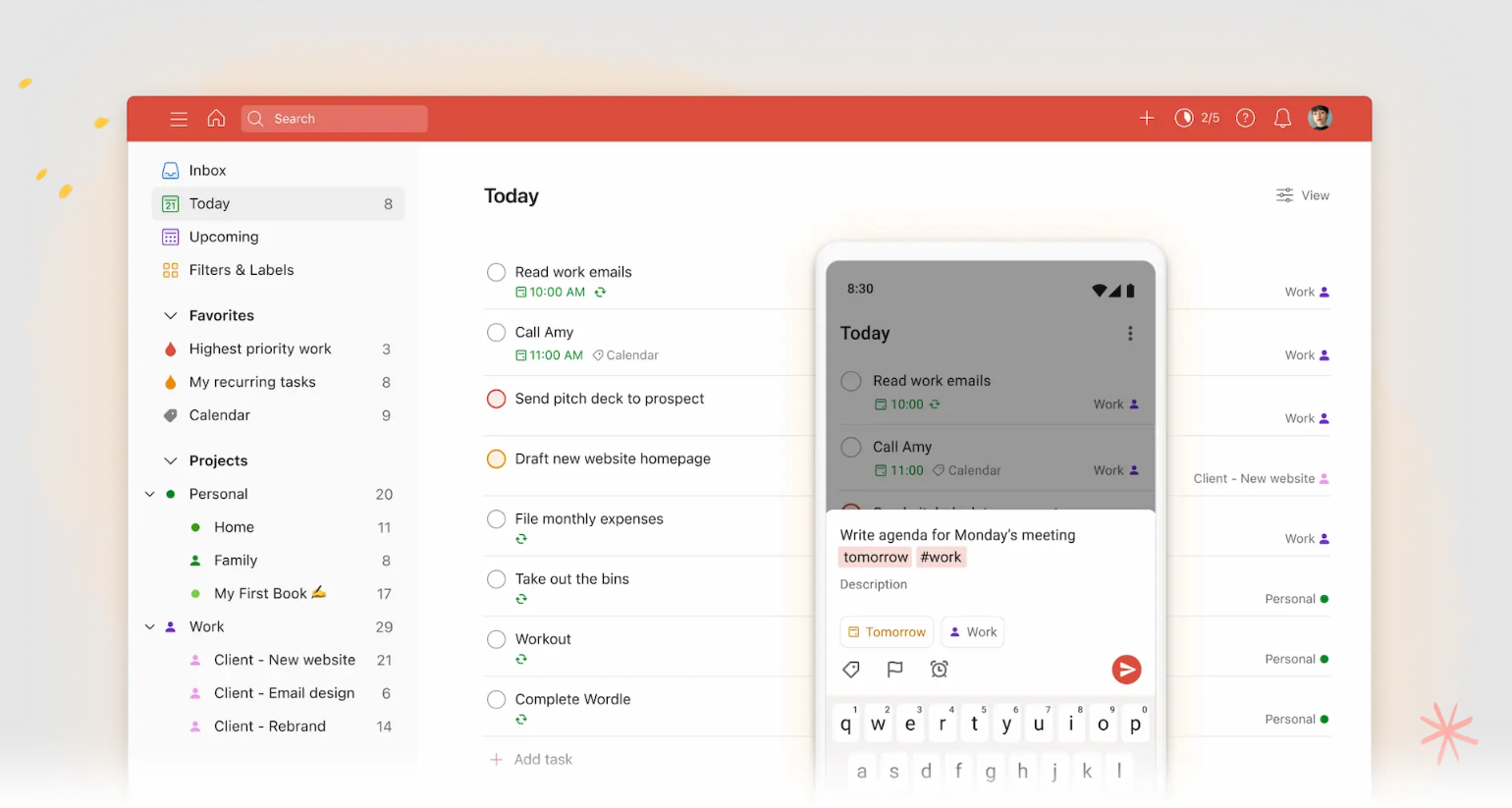
Keeping track of tasks across different tools and tabs can get messy. Todoist gives you a simple way to capture, organize, and prioritize tasks directly from your browser. You can quickly add tasks while browsing and keep everything synced across devices.
Best for: Managing personal and work tasks
How it helps:
- Captures tasks from any webpage
- Organizes tasks with projects and labels
- Sets due dates and reminders
- Syncs across devices and platforms
Pricing: Free plan available with premium features
5. ClickUp
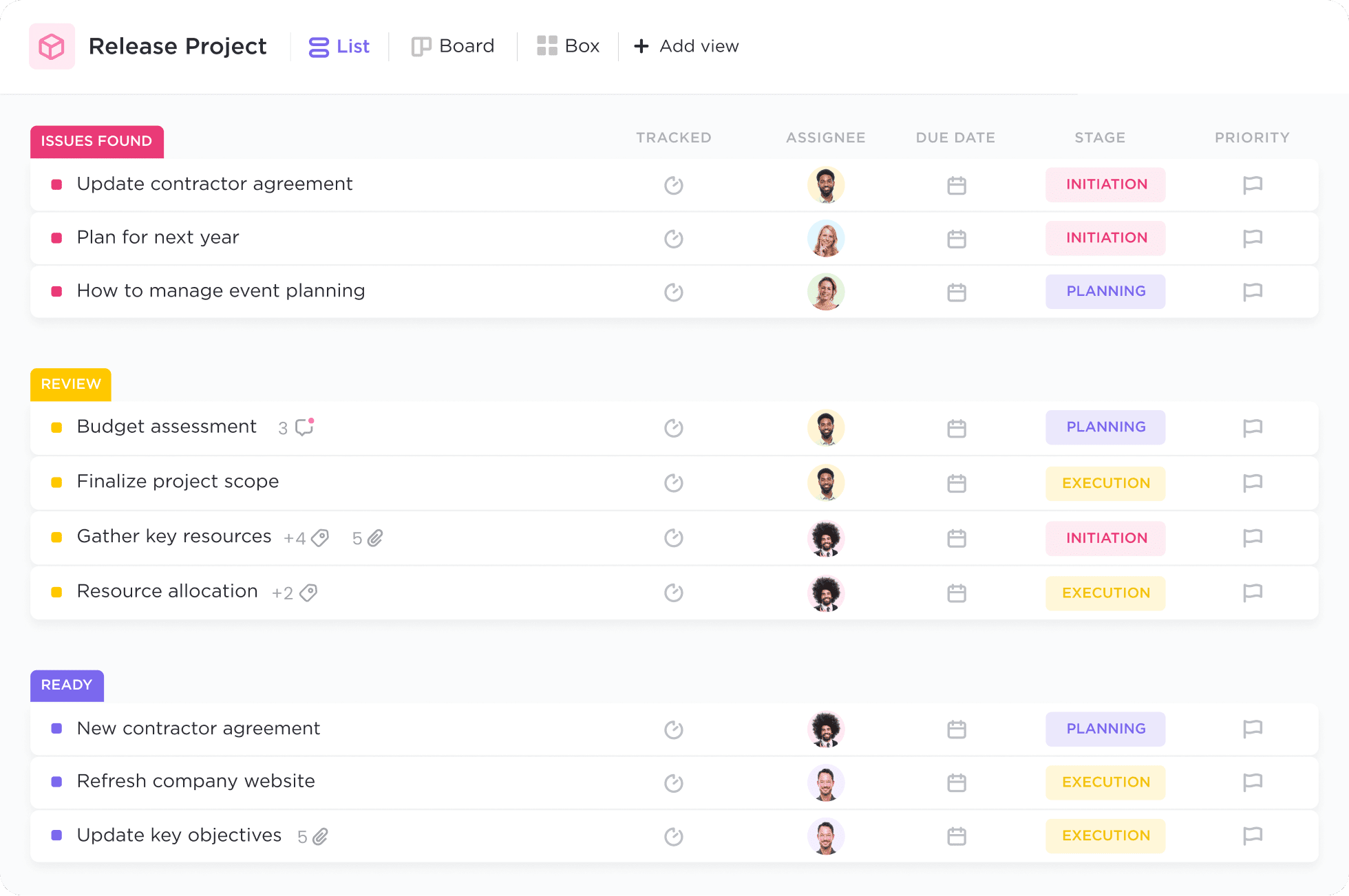
ClickUp brings project management into your browser so you can manage tasks without switching tools. It connects with your workspace and lets you create tasks, track progress, and update projects while you’re working online. This can reduce context switching throughout the day.
Best for: Managing projects and team workflows
How it helps:
- Creates and updates tasks from the browser
- Tracks project progress and status
- Connects with existing ClickUp workspaces
- Reduces switching between tools
Pricing: Free plan available with paid plans
Automation & Workflows
These tools help reduce repetitive work by automating actions, connecting apps, or speeding up common workflows in your browser.
6. Zapier
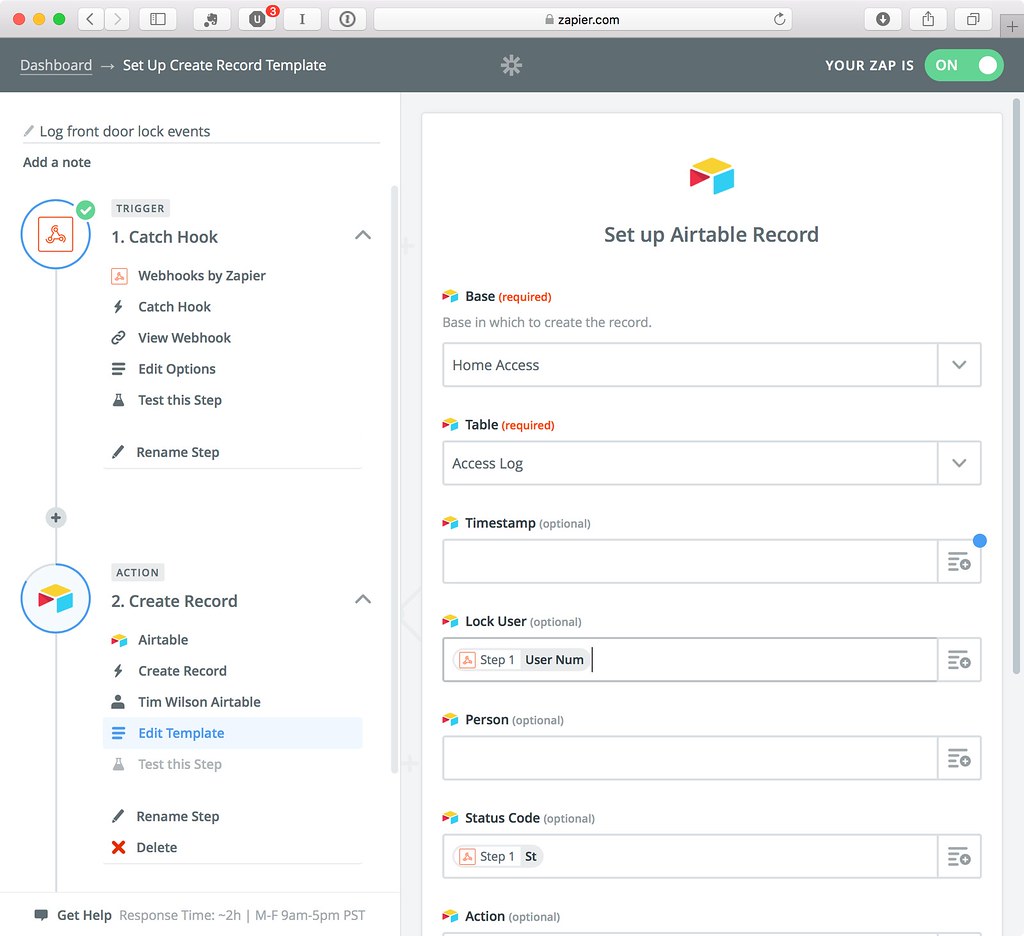
If you use multiple apps, Zapier helps connect them so actions in one tool trigger actions in another. The Chrome extension lets you quickly create and trigger automations while browsing. It’s useful for reducing manual work and automating desktop workflows across tools you already use.
Best for: Connecting apps and automating workflows
How it helps:
- Automates repetitive tasks across apps
- Triggers workflows directly from Chrome
- Connects with thousands of tools
- Reduces manual data entry
Pricing: Free plan available with paid tiers
Want to automate repetitive workflows?
Join 800,000+ who are using Text Blaze templates.
7. Bardeen
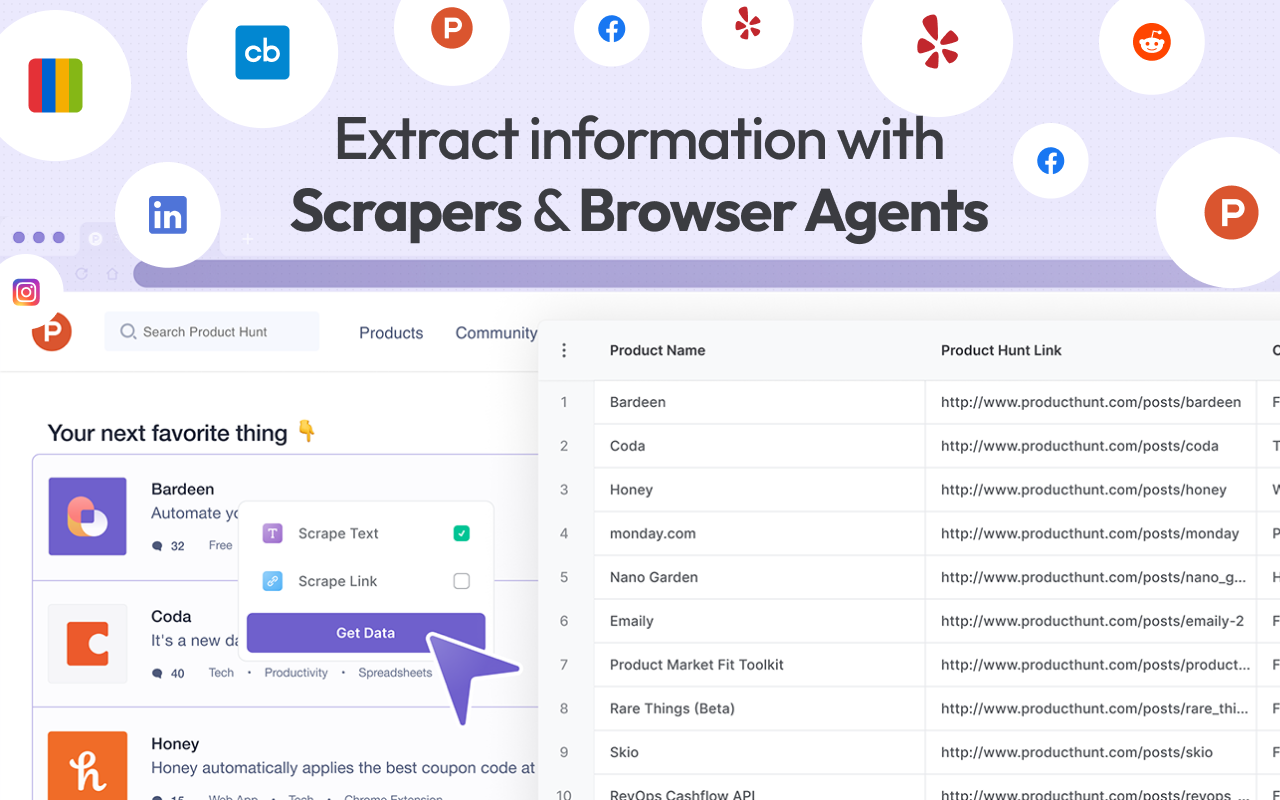
Bardeen AI is an AI productivity tool that focuses on browser-based automation, letting you create workflows directly within Chrome. Instead of switching between tools, you can automate actions like data extraction, task creation, and repetitive steps while browsing.
Best for: Browser automation and workflow shortcuts
How it helps:
- Automates actions directly in the browser
- Extracts data from websites
- Creates workflows without leaving Chrome
- Reduces repetitive manual steps
Pricing: Free plan available with paid options
8. Lightning Autofill
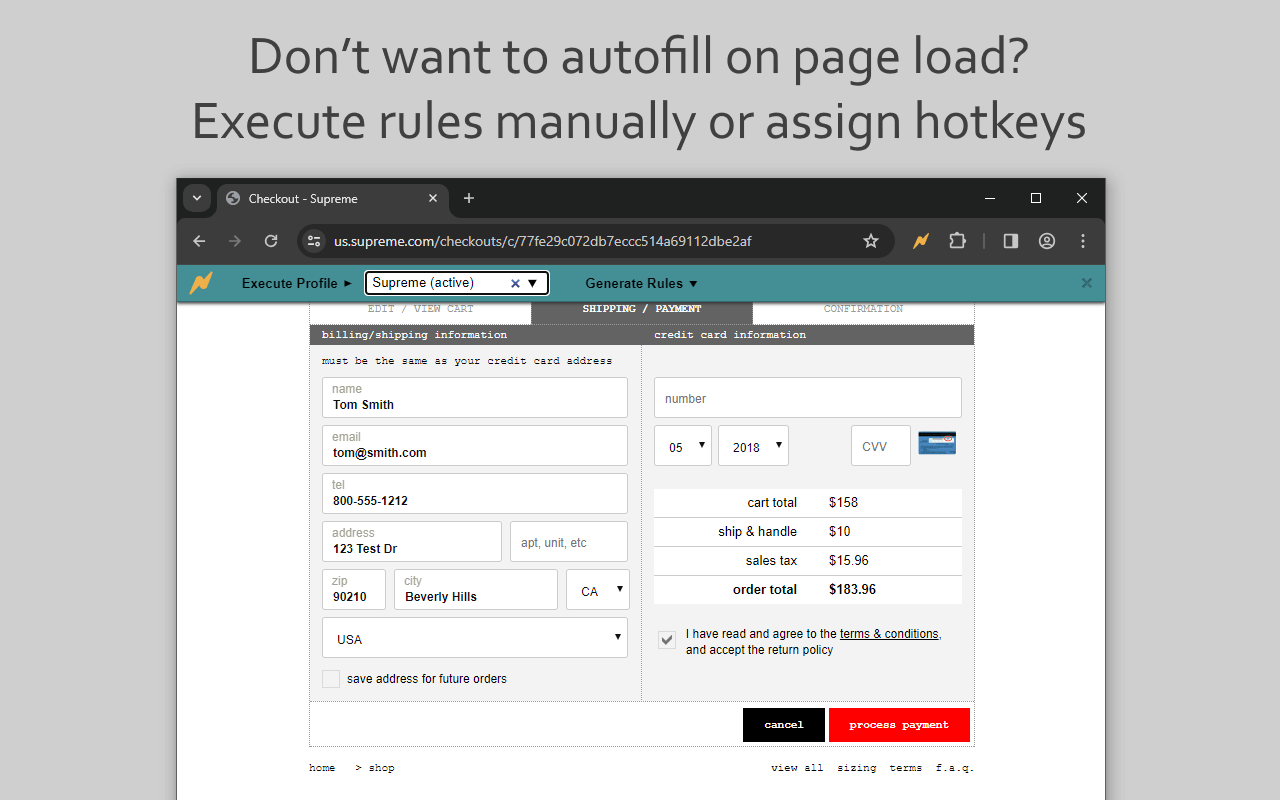
Filling out forms repeatedly can be time-consuming, especially with longer inputs. Lightning Autofill lets you save commonly used information and quickly insert it into forms across websites. This can help speed up data entry tasks and reduce repetitive typing.
Best for: Autofilling forms and repetitive data entry
How it helps:
- Saves frequently used form inputs
- Autofills forms across websites
- Reduces manual typing for repeated entries
- Speeds up data entry tasks
Pricing: Free version available
Focus & Time Management
These tools help you stay on track, manage your time, and reduce distractions while working in your browser.
9. Clockify
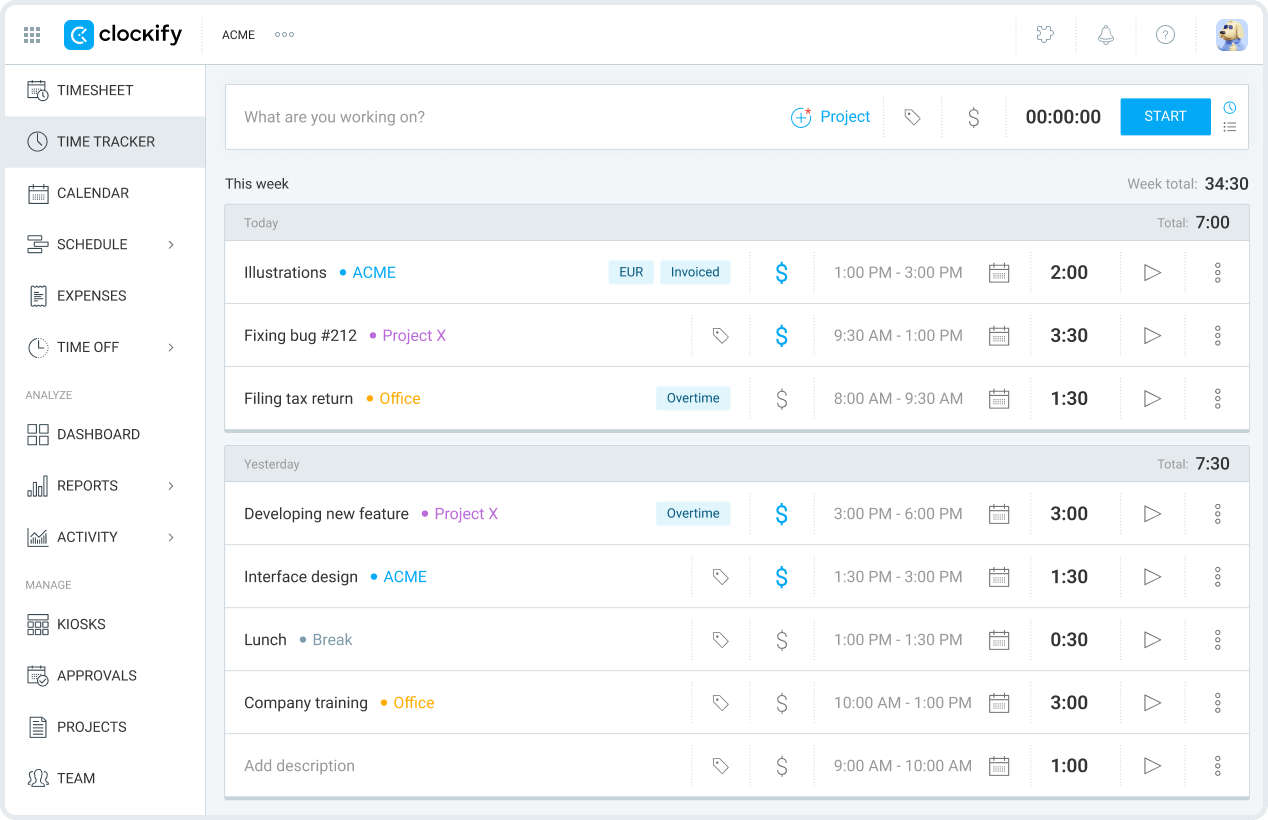
Tracking how you spend your time can help you understand where your day goes. Clockify allows you to track time directly from your browser, making it easier to log work sessions without switching tools. It’s useful for both individuals and teams.
Best for: Time tracking and productivity insights
How it helps:
- Tracks time directly in the browser
- Logs work sessions across tasks
- Generates reports on time usage
- Helps identify productivity patterns
Pricing: Free plan available with paid upgrades
10. Momentum

Momentum replaces your new tab page with a simple dashboard focused on one main goal for the day. It includes a to-do list, weather, and a clean layout designed to reduce distractions. This can help you stay focused when opening new tabs.
Best for: Daily focus and simple task tracking
How it helps:
- Displays a daily focus goal
- Replaces new tab with a clean dashboard
- Includes simple to-do tracking
- Reduces distractions while browsing
Pricing: Free plan available with paid features
Tab & Browser Management
These tools help you organize tabs, reduce clutter, and manage multiple workflows more efficiently in your browser.
11. OneTab
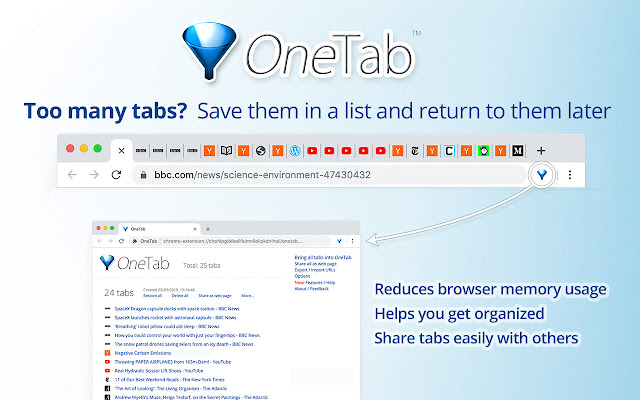
Having too many tabs open can slow down your browser and make it harder to focus. OneTab lets you collapse all open tabs into a single list, which you can restore later. This helps reduce clutter and improve performance.
Best for: Reducing tab clutter
How it helps:
- Converts tabs into a single list
- Restores tabs when needed
- Reduces browser memory usage
- Keeps your workspace organized
Pricing: Free
Want to automate repetitive typing anywhere for free?
Join 800,000+ who are using Text Blaze templates.
12. Toby

Toby helps you organize tabs into collections so you can group related work together. Instead of keeping dozens of tabs open, you can save them into structured layouts and reopen them when needed. This is useful for managing different projects.
Best for: Organizing tabs by project or workflow
How it helps:
- Groups tabs into collections
- Saves and restores tab sessions
- Organizes work by project
- Reduces tab overload
Pricing: Free plan available with paid features
Notes & Content Capture
These tools make it easier to save, organize, and revisit useful content you find while browsing.
13. Notion Web Clipper
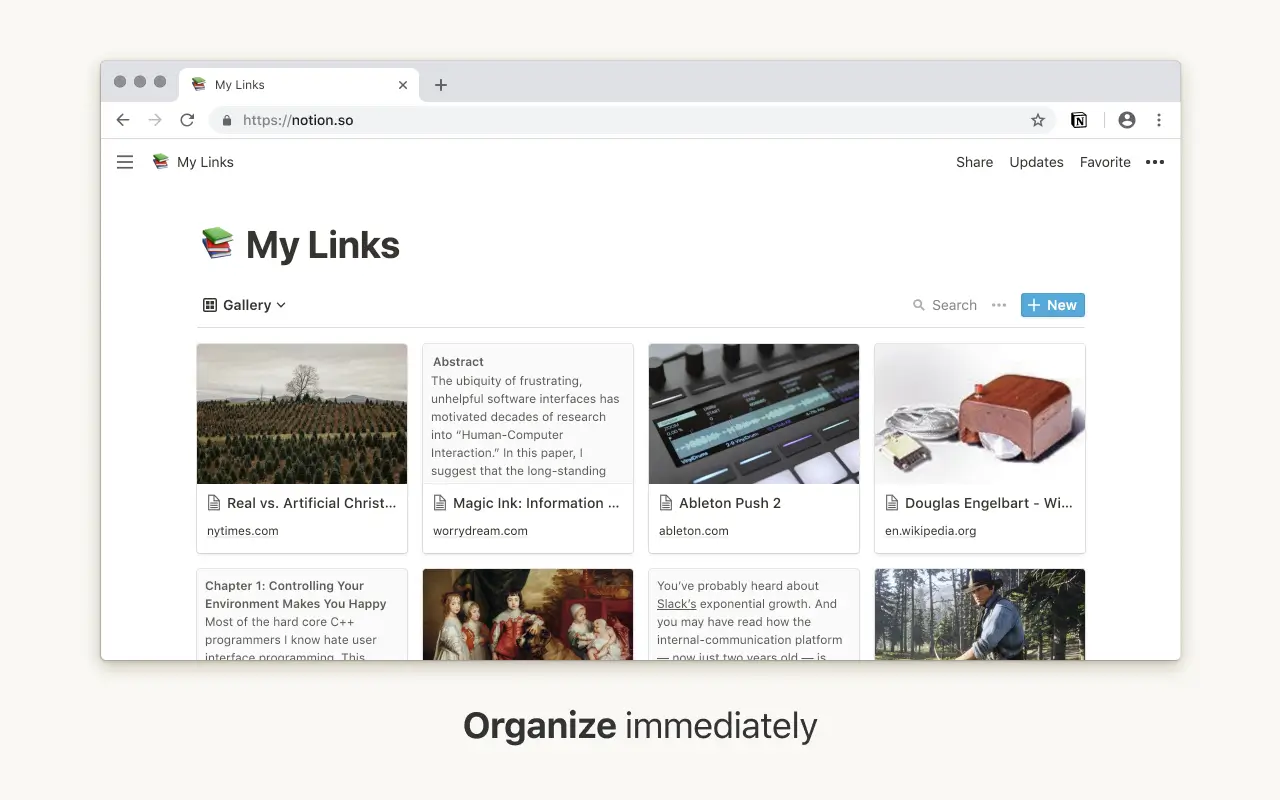
When you come across useful content, Notion Web Clipper lets you save it directly to your workspace. You can organize saved pages, notes, and references without leaving your browser. This helps keep research and resources in one place.
Best for: Saving and organizing web content
How it helps:
- Saves webpages to Notion
- Organizes content into databases or notes
- Supports research workflows
- Keeps resources centralized
Pricing: Free
14. Evernote Web Clipper
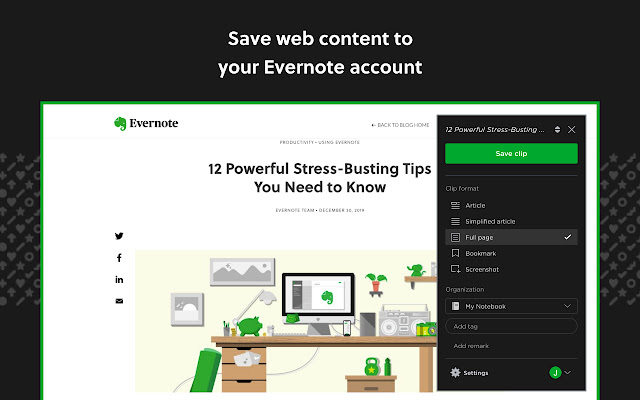
Evernote Web Clipper allows you to capture articles, pages, and screenshots from the web. You can save content in different formats and organize it into notebooks. It’s useful for collecting information while browsing.
Best for: Capturing and storing web content
How it helps:
- Clips full pages or selected content
- Saves screenshots and annotations
- Organizes content into notebooks
- Supports research and note-taking
Pricing: Free plan available with paid plans
Utilities (Everyday Productivity Tools)
These tools handle common tasks like password management and screenshots, helping you work more efficiently across different sites.
15. Bitwarden
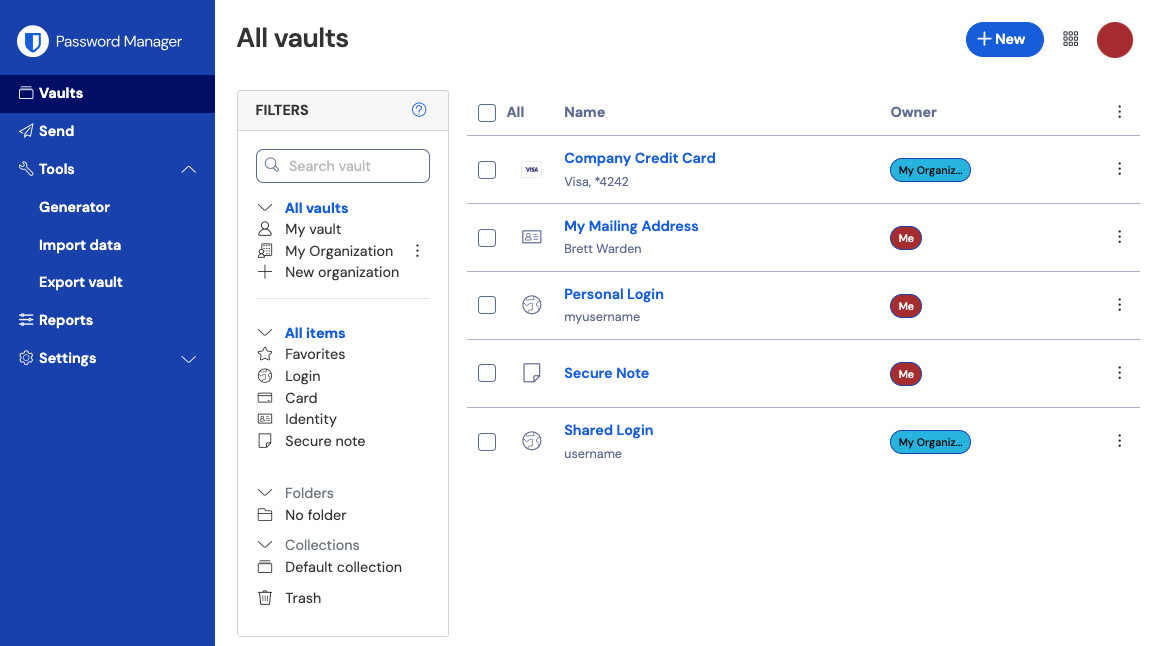
Managing passwords across different sites can become difficult without a system. Bitwarden stores and autofills passwords securely, making it easier to log into accounts without remembering each one. It also has a Mac productivity app for desktop users.
Best for: Password management and security
How it helps:
- Stores and autofills passwords
- Generates secure passwords
- Syncs across devices
- Improves account security
Pricing: Free plan available with paid options
Want to automate repetitive typing anywhere for free?
Join 800,000+ who are using Text Blaze templates.
16. GoFullPage
Sometimes you need to capture an entire webpage, not just what’s visible on screen. GoFullPage lets you take full-page screenshots in one click, which can be useful for documentation, sharing, or saving content.
Best for: Full-page screenshots
How it helps:
- Captures entire webpages
- Saves screenshots as images or PDFs
- Works with one click
- Useful for documentation and sharing
Pricing: Free
What is the Best Productivity Chrome Extension?
There isn’t a single “best” productivity Chrome extension—it depends on what slows you down most. Some tools help with writing, others with tasks, focus, or business automation.
If you’re trying to stay organized, task tools can help. If distractions or tab overload are the issue, focus and tab management tools make more sense. And if you want to reduce repetitive work, automation tools tend to have the biggest impact.
In most cases, the best setup is a mix of tools across categories rather than relying on just one. If you want something that provides immediate value, tools that reduce repetitive typing and streamline communication are often the most noticeable. Text Blaze is a strong option here, since it helps you automate repetitive typing and workflows for free.