12 Best Text Expanders for Chrome, Windows, and Mac in 2026
Find the best text expanders for Chrome, Windows, and Mac. Compare 12 tools to automate typing, save time, and improve productivity.

Typing the same emails, messages, or form responses over and over takes up more time than it should. If your day is filled with repetitive typing, it can slow you down and make simple tasks feel harder than they need to be.
Text expanders solve this by turning short shortcuts into full phrases, paragraphs, or templates. Instead of rewriting the same thing again and again, you can insert it instantly and move on.
In this guide, we’ve put together the 12 best text expanders for Chrome, Windows, and Mac in 2026. Whether you want something simple for quick shortcuts or a more advanced tool with automation and dynamic templates, these options cover a range of use cases.
12 Best Text Expanders in 2026
With so many text expanders out there, it can be hard to figure out which one fits your workflow.
Whether you need something simple for your browser or a tool that works across your desktop, here’s a breakdown of 12 options worth checking out.
Without further ado, here's our list of the best text expanders for Chrome, Windows, and Mac:
Text Expanders Comparison
| Tool | Best For | Platform | Pricing |
|---|---|---|---|
| 1. Text Blaze | Text expansion & workflow automation | Chrome, Edge, Windows, Mac | Free plan available |
| 2. TextExpander | Structured snippets for teams | Windows, Mac | $4.16/month |
| 3. PhraseExpress | Desktop automation + macros | Windows, Mac | Free / $99.95 one-time |
| 4. Espanso | Open-source, system-wide expansion | Windows, Mac, Linux | Free |
| 5. Magical | Browser-based workflows + AI | Chrome | $6.50/month |
| 6. ProKeys | Lightweight browser expansion | Chrome | Free |
| 7. aText | Simple desktop text expansion | Windows, Mac | $4.99/year or $29.99 lifetime |
| 8. Typinator | Mac system-wide expansion | Mac | $49.99 one-time |
| 9. Rocket Typist | Command-style snippet access | Mac | $19.99 one-time |
| 10. AutoHotKey | Script-based automation | Windows | Free |
| 11. Beeftext | Basic Windows text expansion | Windows | Free |
| 12. Auto Text Expander | Simple Chrome expansion | Chrome | Free |
1. Text Blaze
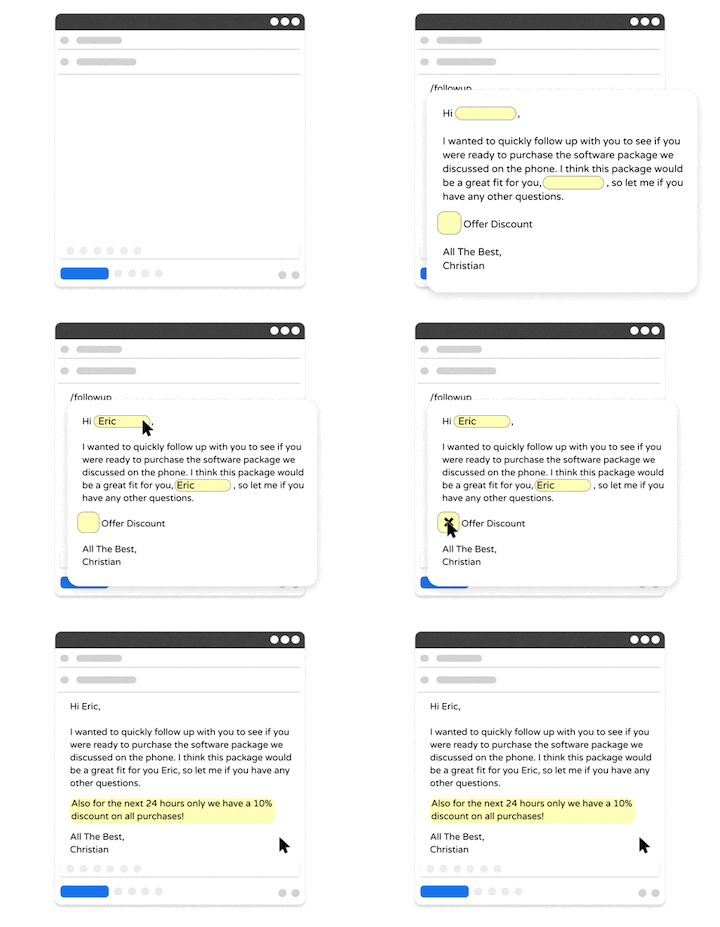
Text Blaze allows you to create smart text templates and insert them on any site or app with keyboard shortcuts. With Text Blaze, you can automate repetitive typing and tasks, boost productivity, and save hours every week.
Text Blaze is trusted by 800,000+ users and has a 4.9 rating on the Chrome Web Store.
Best for: Individuals or teams looking for a free text expander that works on any website or app.
Key features:
Create dynamic templates with placeholders, drop-down menus, toggle fields, if/else rules, autopilot, data transfer, and more.
Text Blaze works anywhere and is available on Chrome, Windows, and Mac!
Automate workflows by streamlining data transfer, form-filling, repetitive typing, and much more.
Text Blaze is perfect for teams. Guide your team's communication & workflows with shared templates. Learn more here.
Pricing: Free forever.
Want to automate repetitive typing on Mac for free?
Join 800,000+ who are using Text Blaze templates.
2. TextExpander
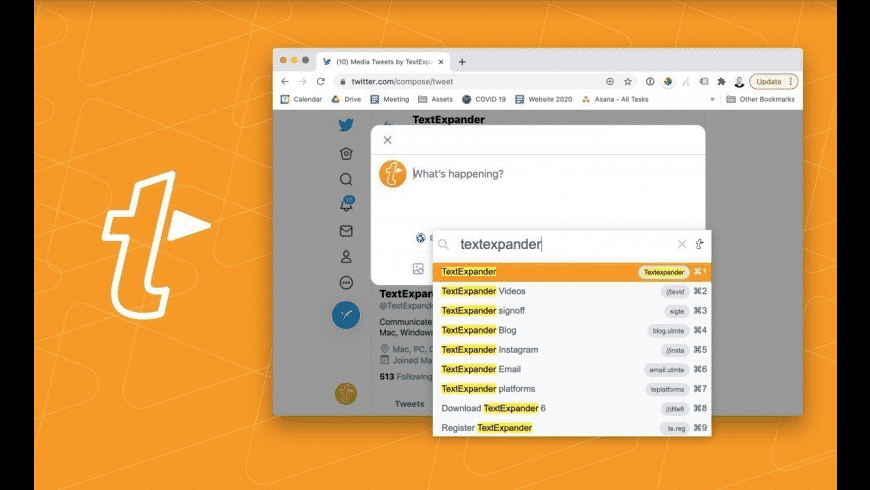
TextExpander is a cross-platform text expander for Windows and Mac that focuses on structured snippets. It includes fill-ins, dropdowns, and shared libraries for managing content across devices.
Basic snippets are easy to create, but more advanced setups can take time to configure. Tools like TextExpander are often used in workflows where consistency is important.
Best for: Teams or individuals who need structured, reusable snippets across multiple devices.
Key features:
- Snippets with fill-ins and dropdown inputs
- Cloud sync across devices
- Shared libraries for teams
- Usage tracking and reporting
Pricing: $39.96/year or $4.16/month.
3. PhraseExpress
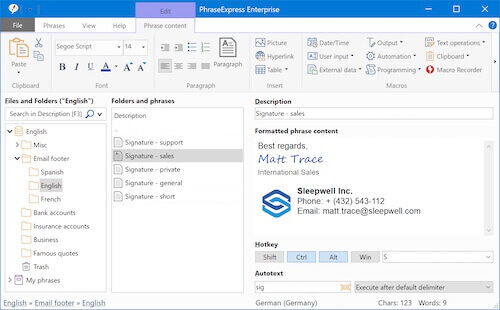
PhraseExpress is a desktop-based text expander available on Windows and Mac. It includes support for macros, dynamic content, and shared phrase libraries.
It takes longer to set up compared to simpler tools, especially if you use its automation features. It’s typically used in more structured desktop workflows.
Best for: Users who want desktop-based text expansion with automation and macro support.
Key features:
- Phrase libraries with nested organization
- Macro automation and dynamic placeholders
- Team sharing with permission controls
- Works across most desktop applications
Pricing: Free trial version available. Standard licenses are $99.95.
4. Espanso
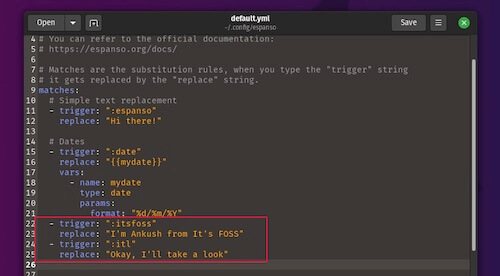
Espanso is an open-source text expander that works across Windows, Mac, and Linux. It runs system-wide and uses configuration files to manage snippets.
This gives you flexibility, but setup requires editing files manually. Tools like Espanso usually take longer to get started compared to tools with a visual editor.
Best for: Users comfortable with a more technical setup who want a customizable, system-wide tool.
Key features:
- System-wide text expansion across apps
- Config-based snippet management
- Support for scripts and custom commands
- Cross-platform compatibility
Pricing: Free and open source.
5. Magical
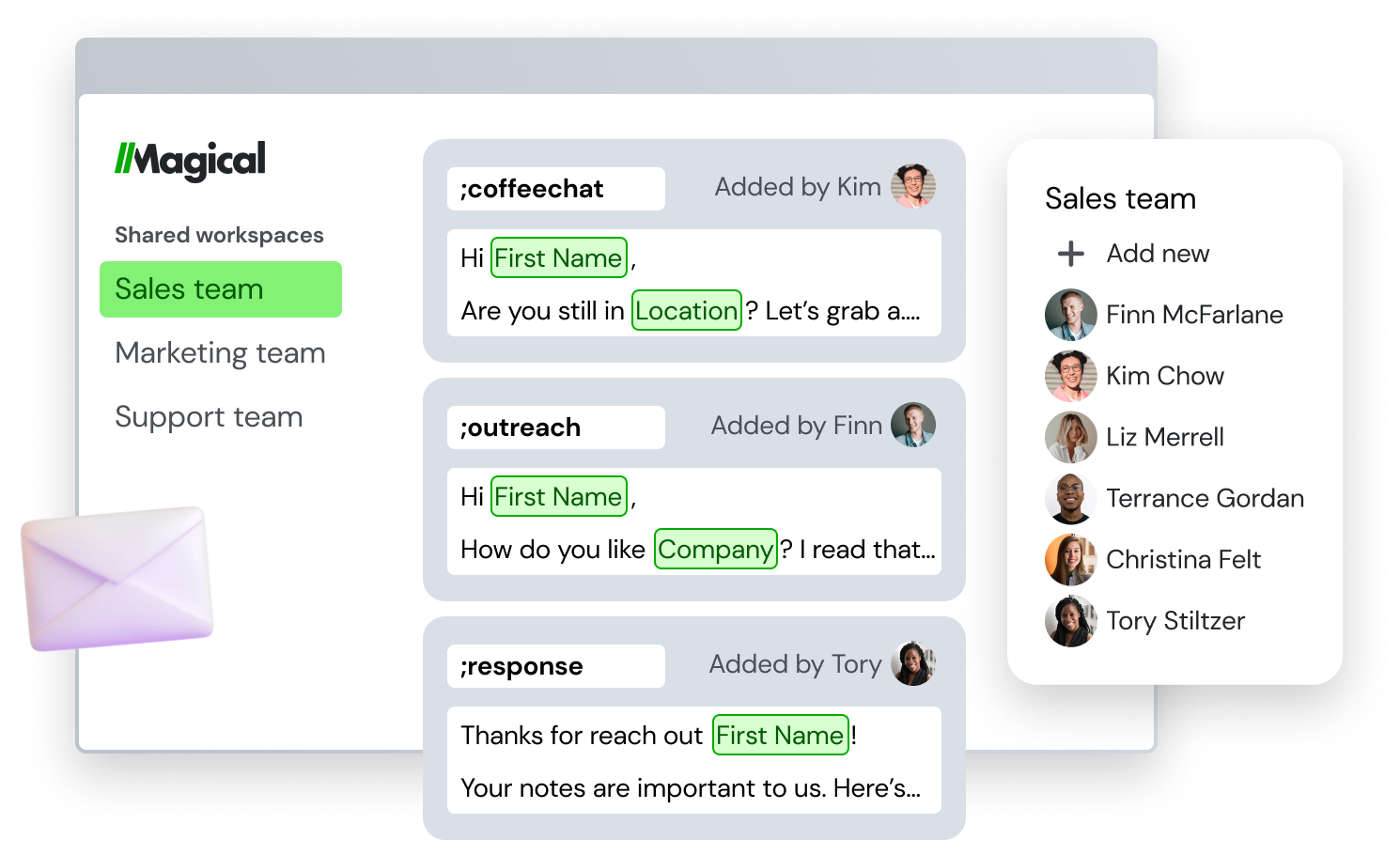
Magical Text Expander is a Chrome-based text expander designed for use inside web apps. It allows you to create shortcuts and insert text while working in tools like Gmail or LinkedIn.
Setup is quick, and most features work right away. Tools similar to Magical are limited to browser-based workflows and automating them with AI.
Best for: Users who primarily work in the browser and want to use AI in their workflows.
Key features:
- Chrome extension for web-based workflows
- Simple shortcut-based expansions
- Works in common web apps
- Minimal setup required
Pricing: $6.50/month or $66/year for the Core plan.
Want to automate repetitive typing on Mac for free?
Join 800,000+ who are using Text Blaze templates.
6. ProKeys
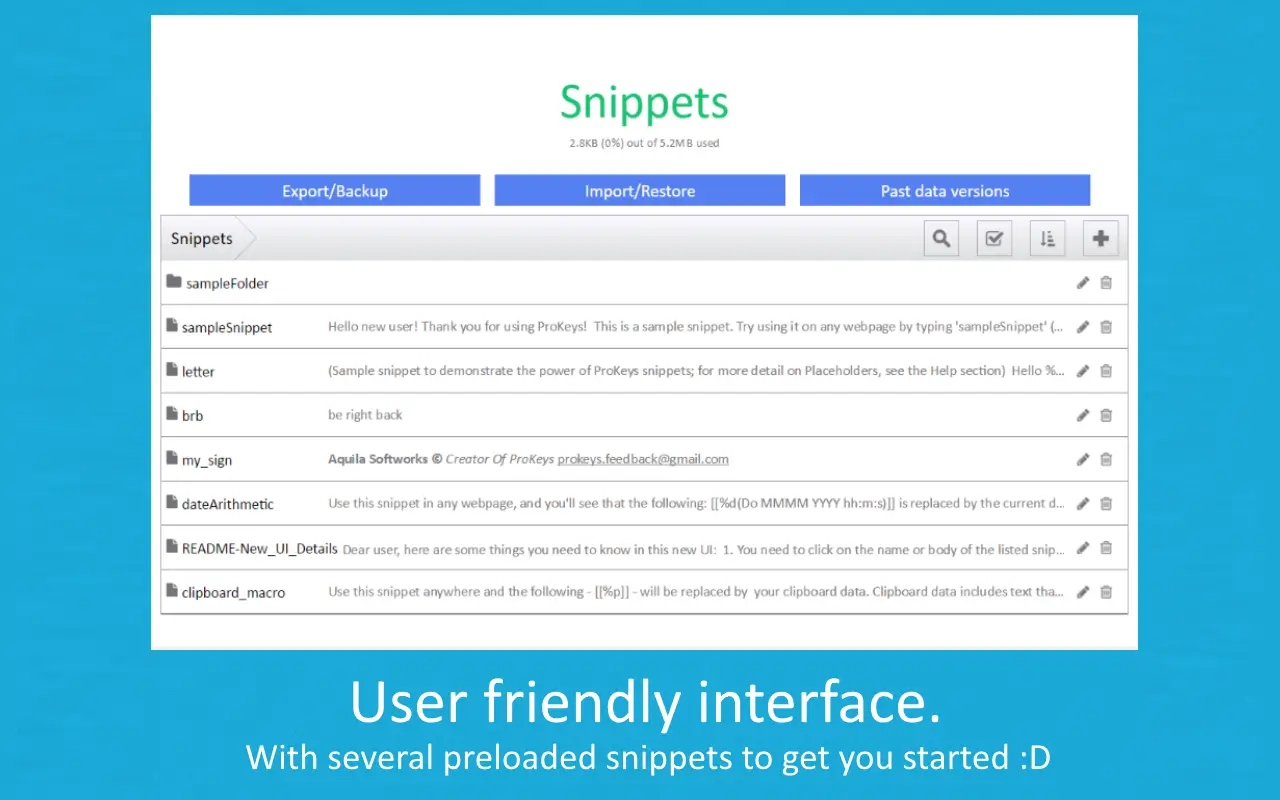
ProKeys is a Chrome extension for managing text snippets within the browser. It supports basic expansions and allows some customization through JavaScript.
It’s easy to start with simple snippets, but more advanced customization requires manual setup. It’s mainly suited for browser-based workflows.
Best for: Users who want a browser-only text expander with some customization options.
Key features:
- Snippet expansion within Chrome
- Support for basic scripting with JavaScript
- Simple snippet organization
- Lightweight and easy to run
Pricing: Free.
7. aText
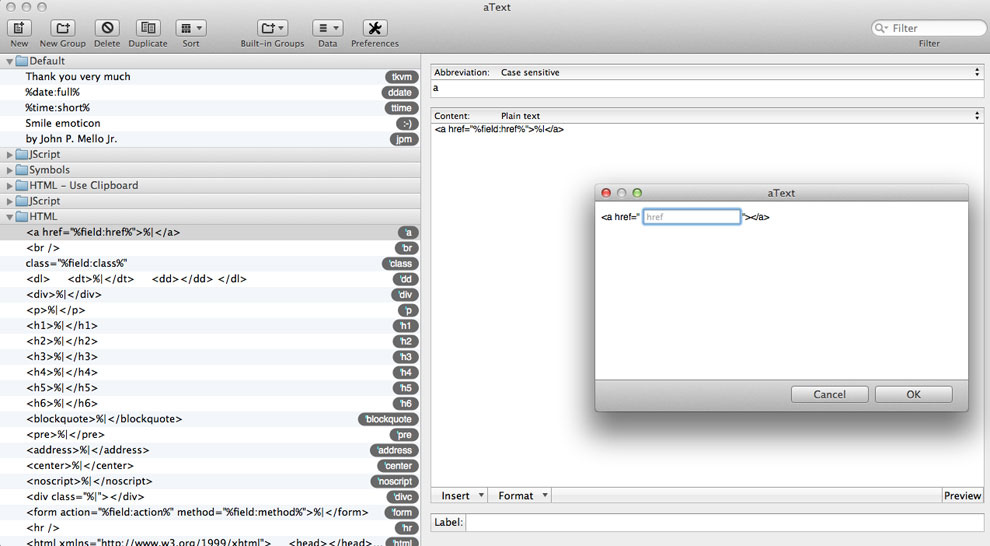
aText is a desktop text expander for Windows and Mac that focuses on basic text replacement. It supports variables, formatting, and grouping for organizing snippets.
It’s relatively easy to set up and use for standard shortcuts, as it stays focused on core functionality without adding many advanced features.
Best for: Users who want a simple, desktop-based text expander without extra complexity.
Key features:
- Abbreviation-based text expansion
- Support for variables and formatting
- Snippet organization with groups
- Works across desktop applications
Pricing: $4.99 for a 1 year license and $29.99 for a lifetime license.
8. Typinator
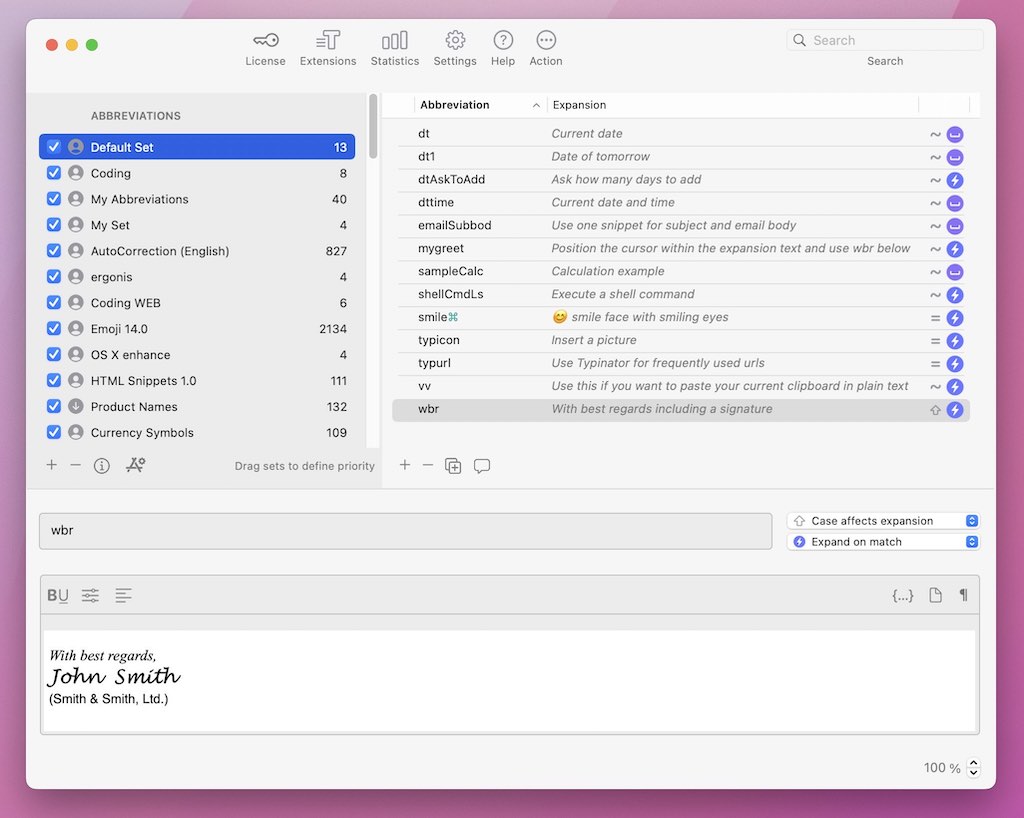
Typinator is a Mac-only text expander that provides system-wide expansion. It supports formatted text, images, and dynamic placeholders.
It’s generally easy to set up for basic use, though it’s limited to macOS. It focuses on text expansion rather than broader automation.
Best for: Mac users who want system-wide text expansion with flexible snippet options.
Key features:
- System-wide expansion on macOS
- Support for formatted text and images
- Dynamic placeholders and variables
- Snippet organization and grouping
Pricing: $49.99 for a lifetime license or $29.99/year for Advanced usage.
9. Rocket Typist
Rocket Typist is a Mac-based text expander that uses a command-style interface to trigger snippets. You can insert text through shortcuts or by searching for snippets.
The workflow is different from traditional expanders and may take some time to get used to. It’s designed specifically for macOS users.
Best for: Mac users who prefer a command-style approach to triggering snippets.
Key features:
- Snippet expansion via shortcuts or command bar
- Search-based snippet insertion
- macOS-native design
- Snippet organization tools
Pricing: $19.99 one-time.
10. AutoHotKey
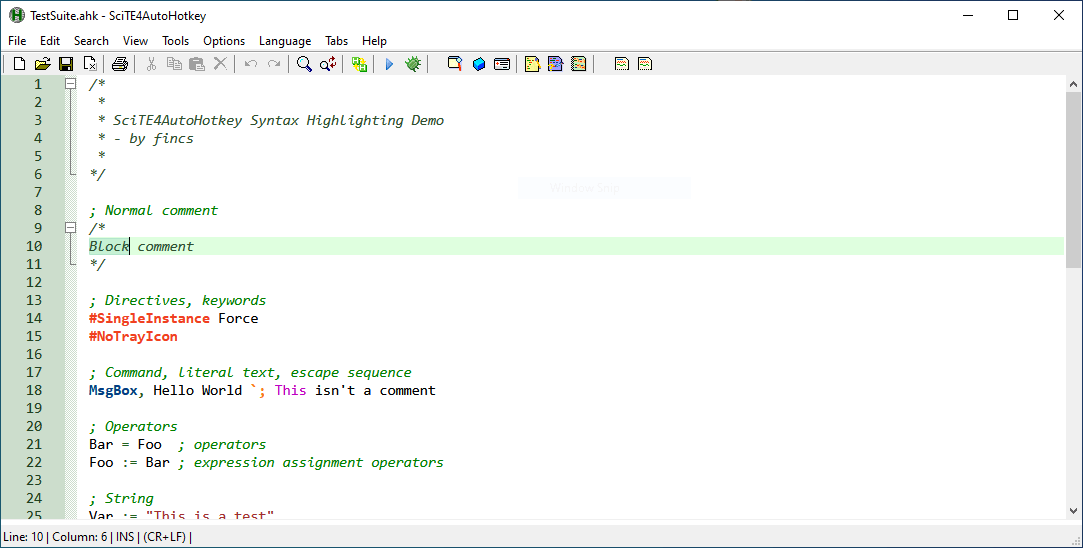
AutoHotKey is a Windows automation tool that includes text expansion as part of its scripting system. Instead of using a visual interface, you define behavior through scripts.
This provides more control but requires setup and familiarity with scripting. Some sites like AutoHotKey typically take longer to get started compared to standard text expanders.
Best for: Windows users who want advanced control and are comfortable working with scripts.
Key features:
- Script-based text expansion and automation
- Custom hotkeys and macros
- Works across all Windows applications
- Highly customizable behavior
Pricing: Free and open source.
Want to automate repetitive typing on Mac for free?
Join 800,000+ who are using Text Blaze templates.
11. Beeftext
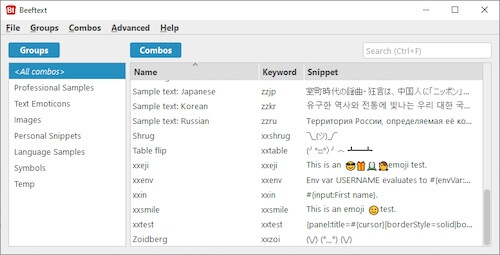
Beeftext is a lightweight text expander for Windows focused on basic functionality. It allows you to create shortcuts that expand into predefined text.
It’s quick to set up and works across desktop apps. It doesn’t include advanced automation or dynamic content.
Best for: Windows users who want a minimal, easy-to-use text expander.
Key features:
- Simple shortcut-based expansions
- Works across Windows apps
- Clean and lightweight interface
- Easy setup
Pricing: Free.
12. Auto Text Expander
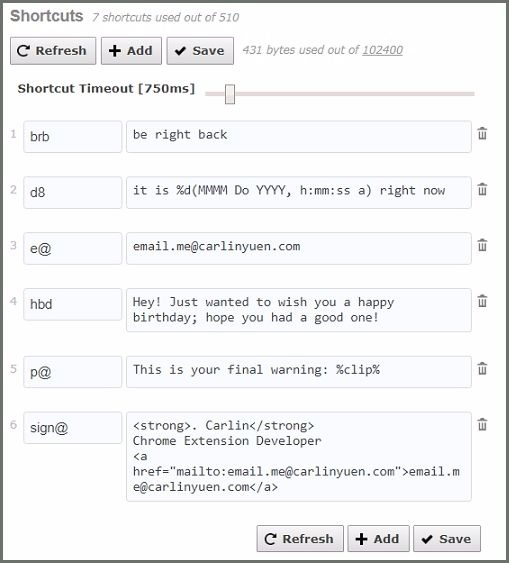
Auto Text Expander is a Chrome extension for basic text expansion in the browser. It allows you to create shortcuts and insert text while working in web apps.
Setup is simple and takes only a few minutes. It does not include dynamic fields or automation features.
Best for: Users who need basic text expansion inside Chrome.
Key features:
- Shortcut-based text expansion
- Works in browser-based apps
- Simple setup and interface
- No advanced automation features
Pricing: Free.
Text Expanders FAQ
What is a Text Expander?
A text expander is a tool that lets you create shortcuts that automatically expand into longer text. Instead of typing the same message, email, or response repeatedly, you can insert it instantly using a short keyword or abbreviation.
Text expanders are commonly used by customer support teams, healthcare professionals, sales teams, and anyone who works with repetitive typing. They help save time, reduce errors, and keep communication consistent across messages and documents.
How Do You Use a Text Expander?
Most text expanders are simple to set up and start using right away. Once installed, you can create shortcuts for your most-used phrases and trigger them anywhere you type.
Here’s how text expanders typically work:
Install a text expander on your browser or desktop
Create a shortcut (short keyword or abbreviation)
Add the full text you want it to expand into
Type the shortcut in any text field
Watch it expand instantly into your full message
You can start with basic snippets and gradually add more advanced templates as your workflow grows.
Types of Text Expanders
Text expanders come in different forms depending on where you work and how advanced you want your setup to be.
Here are the main types of text expanders:
Browser-based text expanders – Run as Chrome extensions and work well in web apps like Gmail, LinkedIn, and Google Docs
Desktop text expanders – Installed on Windows or Mac and work across all apps, including Outlook, Word, and Slack
Cross-platform tools – Sync across devices so you can use the same snippets on multiple systems
AI-powered text expanders – Use AI to help generate or improve text as you type
The right type depends on whether you primarily work in your browser, across desktop apps, or need more advanced automation features.
Are Text Expanders Worth Using?
If you spend any part of your day typing the same messages, filling out forms, or responding to similar requests, a text expander can make a noticeable difference pretty quickly.
Instead of rewriting the same content over and over, you can insert it instantly and move on. Over time, that adds up to less friction in your workflow and more time spent on actual work instead of repetitive typing.
Most people don’t realize how much time they’re losing to small, repeat tasks until they automate them. Once you start using text expansion regularly, it tends to become something you rely on every day.
Want to automate repetitive typing on Mac for free?
Join 800,000+ who are using Text Blaze templates.
How Do You Choose a Text Expander?
The right text expander depends on where you work and how advanced you want your setup to be. Some tools are built for quick shortcuts, while others are designed for more structured workflows with dynamic templates and automation.
Here are a few things to consider when comparing text expanders:
Where it works – Make sure the tool supports the apps and platforms you use most (browser, desktop, or both)
Ease of setup – Some tools are ready in minutes, while others require more configuration
Dynamic features – Look for placeholders, form fields, or variables if you want more flexible templates
Automation capabilities – More advanced tools support logic, calculations, or data transfer between fields
Team features – Useful if you want to share and standardize responses across a team
AI support – Some tools include AI to help generate or improve text as you type
Once you know what you’re looking for, it becomes much easier to narrow down the options and find a tool that fits your workflow.
What is the Best Text Expander?
The best text expander depends on how you work and what you need from it. Some tools are built for quick shortcuts in the browser, while others are designed for more structured templates and automation across desktop apps.
If you mainly need simple expansions, a lightweight tool may be enough to handle everyday typing. If you work across multiple apps or deal with more repetitive workflows, it can make sense to use a tool that supports dynamic fields, shared templates, or more advanced logic.
It also comes down to how much setup you’re comfortable with. Some text expanders are ready to use in minutes, while others take more time to configure but offer more control.
If you want a balance between ease of use and more advanced capabilities, Text Blaze is a strong option to consider. It works across Chrome, Windows, and Mac, and allows you to create both simple shortcuts and more structured templates depending on your workflow.