15 Best Desktop Automation Tools for Windows and Mac (2026)
Compare the best desktop automation tools for Windows and Mac, including software for repetitive tasks, workflows, scripting, and testing.

Repetitive work on your computer can quietly consume hours every week. Filling out the same forms, sending similar emails, copying data between apps, and running routine workflows slows down productivity and increases the risk of mistakes.
Desktop automation tools help solve this problem by automating routine actions on your computer. Instead of repeating the same steps manually, these tools can run tasks for you, saving time and reducing errors.
In this guide, we'll explain what desktop automation is, how it works, and cover the 15 best tools that can help automate work on Windows and macOS in 2026.
What Is Desktop Automation?
Desktop automation refers to software that automates actions performed on a computer. These tools can simulate clicks, keyboard inputs, data entry, or workflows across applications so tasks run automatically instead of manually.
Businesses and individuals use desktop automation to streamline repetitive tasks such as filling out forms, processing data, managing files, or testing software. Many tools support scripting, templates, or workflow builders that allow users to create automated processes.
Desktop automation can be used by developers, IT teams, operations staff, support teams, and anyone who regularly performs repetitive computer tasks.
Benefits of Desktop Automation
Desktop automation helps reduce manual work and improve consistency across tasks. Here are a few key benefits that it can provide:
Time savings - Automations handle repetitive steps so you can focus on higher-value work.
Fewer errors - Automated workflows reduce mistakes that often occur during manual data entry or copy-paste tasks.
Improved productivity - Teams can complete more work without increasing effort.
Process consistency - Automated tasks follow the same steps every time.
Scalable workflows - Automation allows businesses to handle larger workloads without adding manual effort.
Desktop automation works well for both individual productivity and large operational workflows.
Examples of Desktop Automation
Desktop automation can apply to many everyday computer tasks. Here are some common examples of how individuals and teams use automation to reduce repetitive work:
Automating data entry
Many workflows require entering the same information into forms, spreadsheets, or internal tools. Desktop automation tools can automatically insert data, populate fields, and move information between systems. This reduces manual typing and helps prevent mistakes during repetitive data entry.
Automating customer support responses
Support teams often send similar replies to common questions. Automation tools can generate responses using templates, variables, or predefined workflows. This allows agents to reply faster while maintaining consistent messaging.
Automating file management
Desktop automation can organize files without manual effort. For example, automation tools can rename files, move documents into folders, or archive files based on rules. This helps keep systems organized and reduces time spent managing files.
Automating software testing tasks
Testing teams frequently automate tasks like launching applications, running test scripts, and validating user interface elements. Desktop automation tools can simulate user actions to test applications automatically and identify issues more efficiently.
Automating repetitive workflows
Many workflows involve repeating the same sequence of actions across applications. Automation tools can perform steps like opening programs, copying data, generating reports, or sending notifications automatically. This reduces manual effort and keeps processes running consistently.
Want to save hours by automating repetitive typing & workflows?
Join over 700,000+ others who are automating workflows with Text Blaze.
How to Get Started With Desktop Automation
Getting started with desktop automation does not require advanced programming skills. Most tools allow you to automate tasks using templates, macros, or simple workflow builders.
Identify repetitive tasks - Look for tasks you perform repeatedly, such as entering the same information, copying data between tools, or generating routine emails.
Choose the right automation tool - Some tools focus on simple macros and templates, while others support advanced scripting or enterprise automation workflows.
Start with small automations - Begin by automating a single workflow or task before expanding to more complex processes.
Test and refine the workflow - Run the automation multiple times to ensure it behaves correctly and handles edge cases.
Once the initial automation works reliably, you can expand it to automate additional tasks or workflows.
What to Look for in Desktop Automation Software
Choosing the right desktop automation software depends on the type of tasks you want to automate and what device you have (Windows or macOS).
Here are a few (general) things to look for while evaluating desktop automation software:
Ease of use - Tools should make it simple to create automations without complex setup.
Operating system compatibility - Make sure the tool supports Windows automation, mac automation, or both.
Customization and scripting - Advanced users may want scripting capabilities to automate complex workflows.
Application compatibility - The software should integrate with the desktop apps you use daily.
Security and reliability - Automation tools should handle data securely and run workflows consistently.
Selecting software that fits your workflows will make automation easier to adopt and maintain.
15 Best Desktop Automation Tools
Many desktop automation tools focus on different types of workflows. Some specialize in scripting or macros, while others focus on enterprise automation or productivity tasks.
Regardless of what you are looking for, investing in an automation tool and implementing it effectively can save you hours each day.
Here's our list of the 15 best desktop automation tools in 2026:
1. Text Blaze

Text Blaze is the ultimate productivity and automation tool that helps you create smart text templates that automate repetitive typing and workflows.
With Text Blaze, you can automate repetitive typing, form-filling, data transfer, communications, and more, on any website.
Key features:
Automate emails & messages to customers with dynamic, smart templates that work in any site or app with Text Blaze for Windows and Text Blaze for macOS.
Get the correct response in every interaction. Text Blaze helps you get the right message every time.
Reduce mistakes with templates that help agents stay consistent and on-brand.
Streamline repetitive workflows, like transferring data, filling out forms, sending an email, or any other repetitive workflow.
Text Blaze is perfect for support teams! Learn more about using Text Blaze for teams to supercharge your team's communication and productivity!
Want to save hours by automating repetitive typing & workflows?
Join over 700,000+ others who are automating workflows with Text Blaze.
2. UiPath

UiPath is one of the most widely used robotic process automation platforms. It allows businesses to automate complex workflows across desktop applications, enterprise software, and internal systems.
The platform includes visual workflow builders that let users create automation scripts without writing code. More advanced users can also build sophisticated automation using scripting and integrations.
UiPath is commonly used for automating finance processes, data entry tasks, and operational workflows.
Key features:
- Visual automation builder for creating workflows.
- Desktop and enterprise automation capabilities.
- Integration with many business applications.
- Automation management and monitoring tools.
3. Automation Anywhere
Automation Anywhere is another major robotic process automation platform used by enterprises to automate business workflows. It allows organizations to build automated processes that run across multiple applications and systems.
The platform supports bot-based automation that can handle data processing, document handling, and repetitive operational tasks. Businesses often use it to automate workflows across departments.
Automation Anywhere also provides tools for managing and monitoring automation across large teams.
Key features:
- Bot-based automation for complex workflows.
- Workflow designer for building automation processes.
- Integration with enterprise systems.
- Automation analytics and monitoring.
4. Microsoft Power Automate
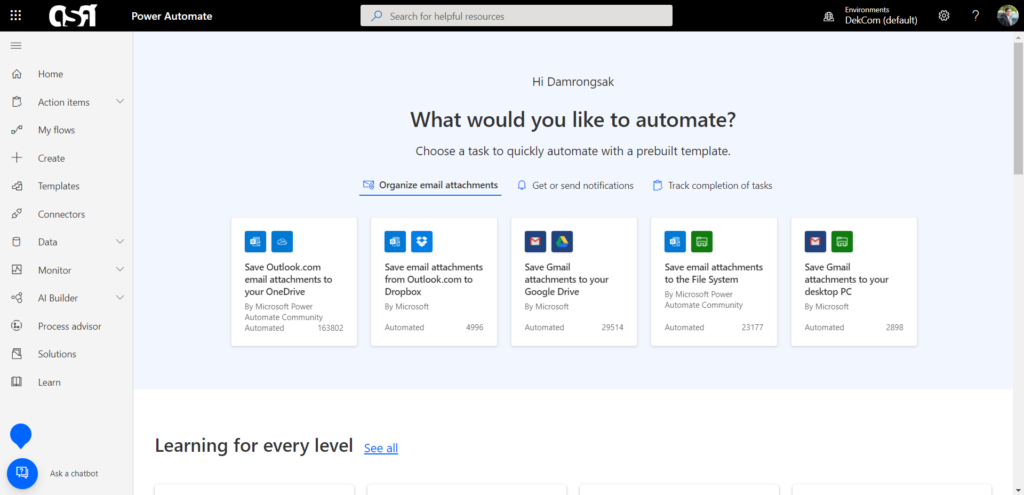
Microsoft Power Automate provides workflow automation across Microsoft services and desktop applications. It includes both cloud workflows and desktop automation features.
The desktop version allows users to record actions and build automated workflows that interact with applications, files, and system processes.
Power Automate is commonly used by organizations already working within the Microsoft ecosystem.
Key features:
- Desktop automation recorder for building workflows.
- Integration with Microsoft 365 and other services.
- Visual workflow designer.
- Automation monitoring and scheduling.
5. AutoHotkey
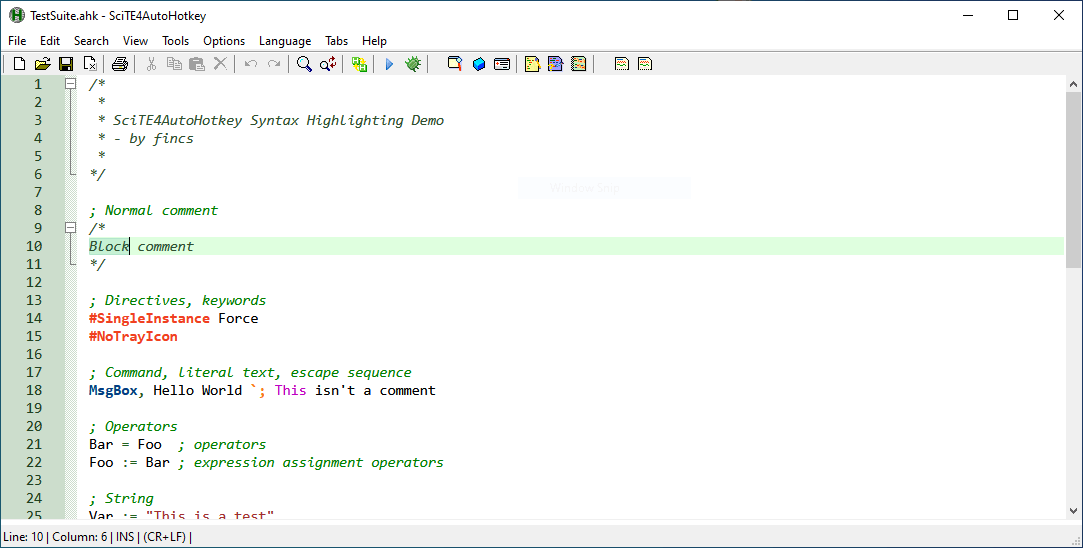
AutoHotKey is a scripting language and text expander designed for automating tasks on Windows. It allows users to create scripts that simulate keystrokes, mouse clicks, and other system actions.
Developers and advanced users often rely on AutoHotkey to automate repetitive desktop tasks or create custom keyboard shortcuts.
It is a text expander for Windows that is script-based and offers a high level of customization for building automation workflows.
Key features:
- Powerful scripting for Windows automation.
- Custom keyboard shortcuts and macros.
- Automation of mouse and keyboard actions.
- Open-source and highly customizable.
Want to save hours by automating repetitive typing & workflows?
Join over 700,000+ others who are automating workflows with Text Blaze.
6. AutoIt
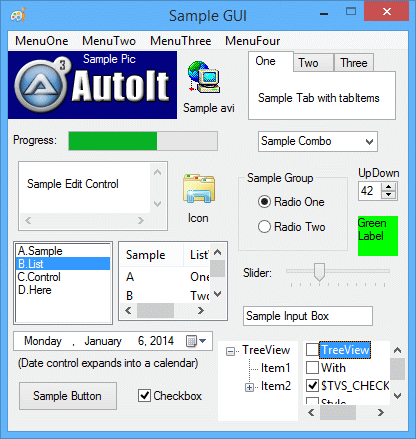
AutoIt is another scripting language designed for Windows desktop automation. It allows users to automate GUI interactions and system tasks using scripts.
Many developers use AutoIt to automate repetitive workflows, software installations, and administrative tasks.
The language is designed to be relatively simple while still supporting powerful automation features.
Key features:
- Script-based Windows automation.
- GUI interaction automation.
- Support for system administration tasks.
- Lightweight and flexible scripting environment.
7. Selenium
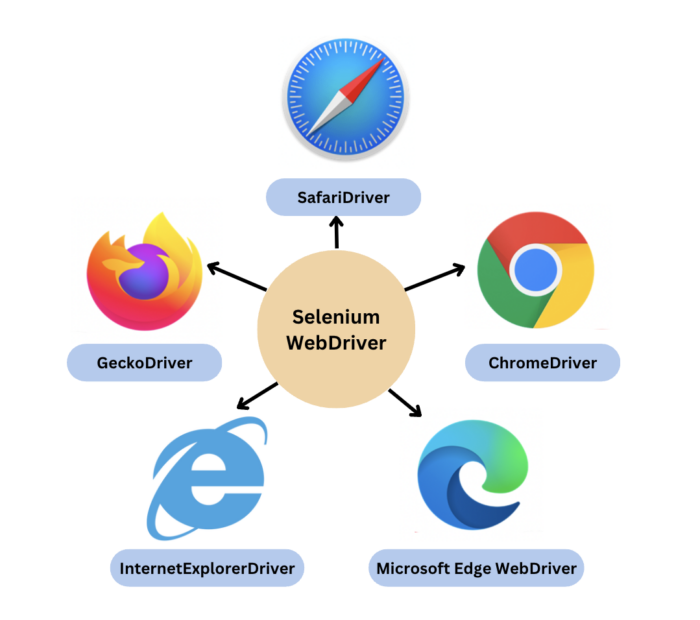
Selenium is a widely used framework for automating web browsers. Although it is primarily used for testing web applications, it can also automate repetitive browser tasks.
Developers often use Selenium to run automated tests, collect web data, or automate web-based workflows.
Because it supports multiple programming languages, it can integrate into complex automation environments.
Key features:
- Automated browser testing and workflows.
- Support for multiple programming languages.
- Cross-browser automation capabilities.
- Integration with testing frameworks.
8. Ranorex

Ranorex is a desktop and web testing automation tool designed for QA teams. It allows testers to build automated test scripts for applications running on Windows.
The platform provides a visual test automation interface that simplifies the creation of testing workflows.
Ranorex supports both codeless automation and scripted automation depending on user experience levels.
Key features:
- Automated testing for desktop and web apps.
- Visual test automation builder.
- Scripted automation for advanced users.
- Testing and reporting tools.
9. TestComplete
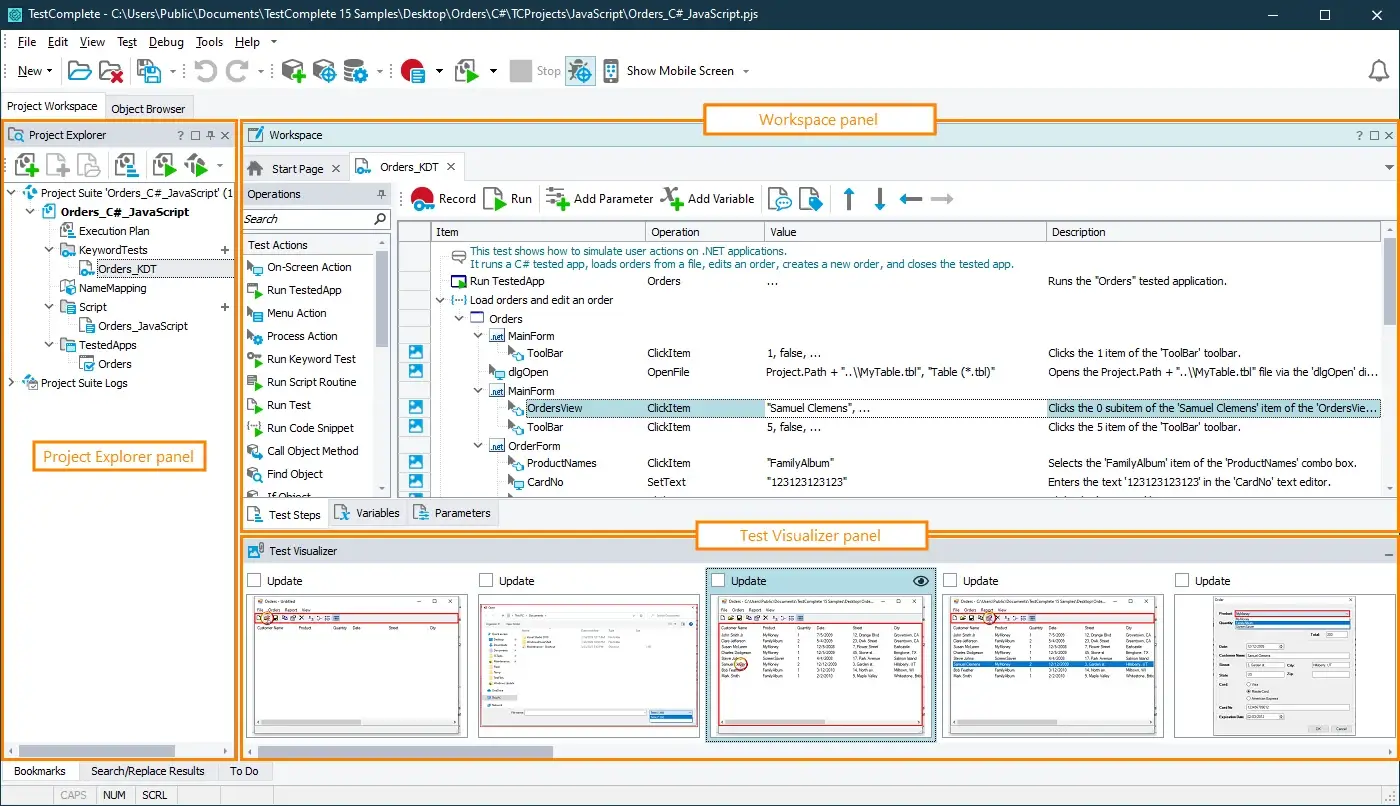
TestComplete is an automated testing platform designed for functional and regression testing of desktop applications. It supports both script-based testing and record-and-playback automation.
QA teams use TestComplete to validate application functionality across different environments.
The platform integrates with development tools and testing pipelines.
Key features:
- Automated functional testing for desktop apps.
- Record-and-playback automation tools.
- Scripted testing support.
- Integration with development workflows.
10. RoboTask
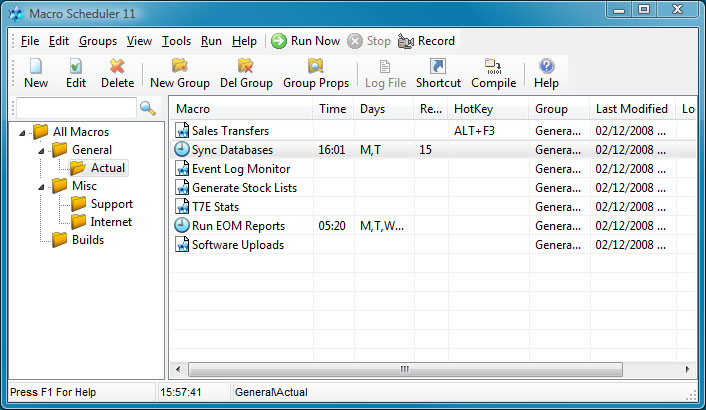
RoboTask is a desktop automation tool designed to automate repetitive tasks on Windows without requiring programming knowledge. It allows users to create automation workflows that perform actions like launching applications, processing files, or sending emails.
The software uses a visual task builder that lets users define triggers and automated steps. This makes it accessible for users who want automation without writing scripts.
RoboTask is commonly used to automate routine administrative tasks and background workflows on Windows systems.
Key features:
- Visual automation builder for creating task workflows.
- File processing and folder monitoring automation.
- Trigger-based actions such as scheduled tasks or system events.
- Automation of emails, file operations, and application actions.
11. Keyboard Maestro
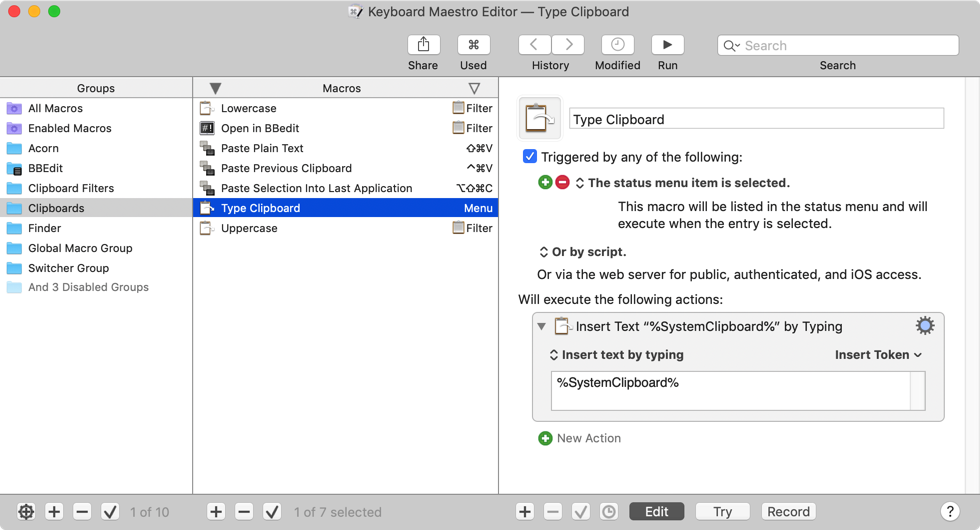
Keyboard Maestro is a macOS automation tool designed to automate repetitive actions on Mac computers. It allows users to build macros and useful text replacements.
These macros can launch apps, manipulate files, or simulate user input. Many Mac users rely on Keyboard Maestro to automate daily workflows.
Tools like Keyboard Maestro support triggers such as hotkeys, schedules, or application events.
Key features:
- Macro automation for macOS workflows.
- Trigger-based automation system.
- Automation of keyboard and mouse actions.
- Workflow automation across applications.
Want to save hours by automating repetitive typing & workflows?
Join over 700,000+ others who are automating workflows with Text Blaze.
12. Macro Recorder
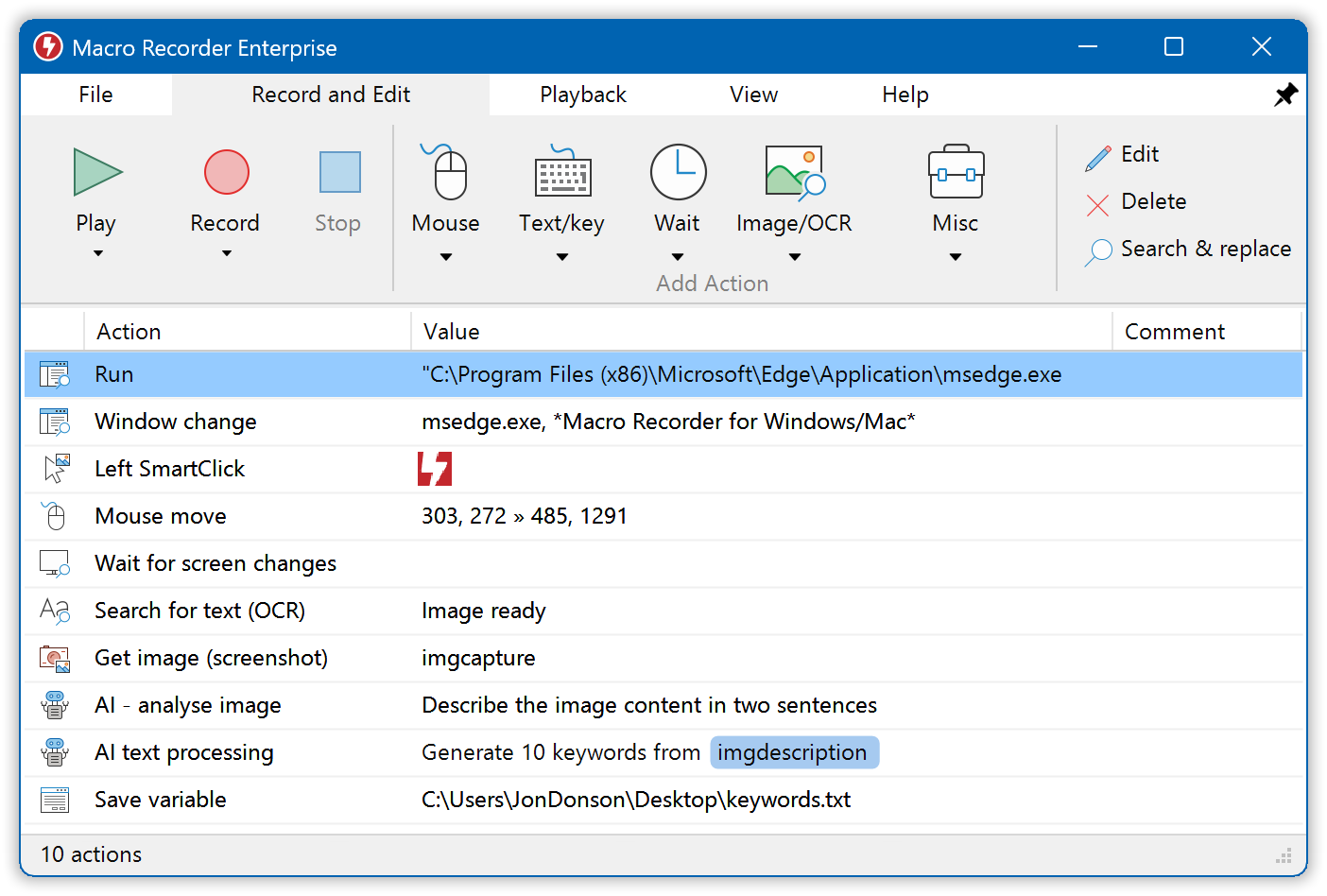
Macro Recorder is a desktop automation tool that records mouse and keyboard actions and turns them into automated scripts.
Users can record repetitive tasks and replay them automatically whenever needed.
This approach works well for automating simple workflows without needing scripting knowledge.
Key features:
- Record and replay desktop actions.
- Automation of repetitive tasks.
- Script editing capabilities.
- Cross-platform support.
13. Zapier
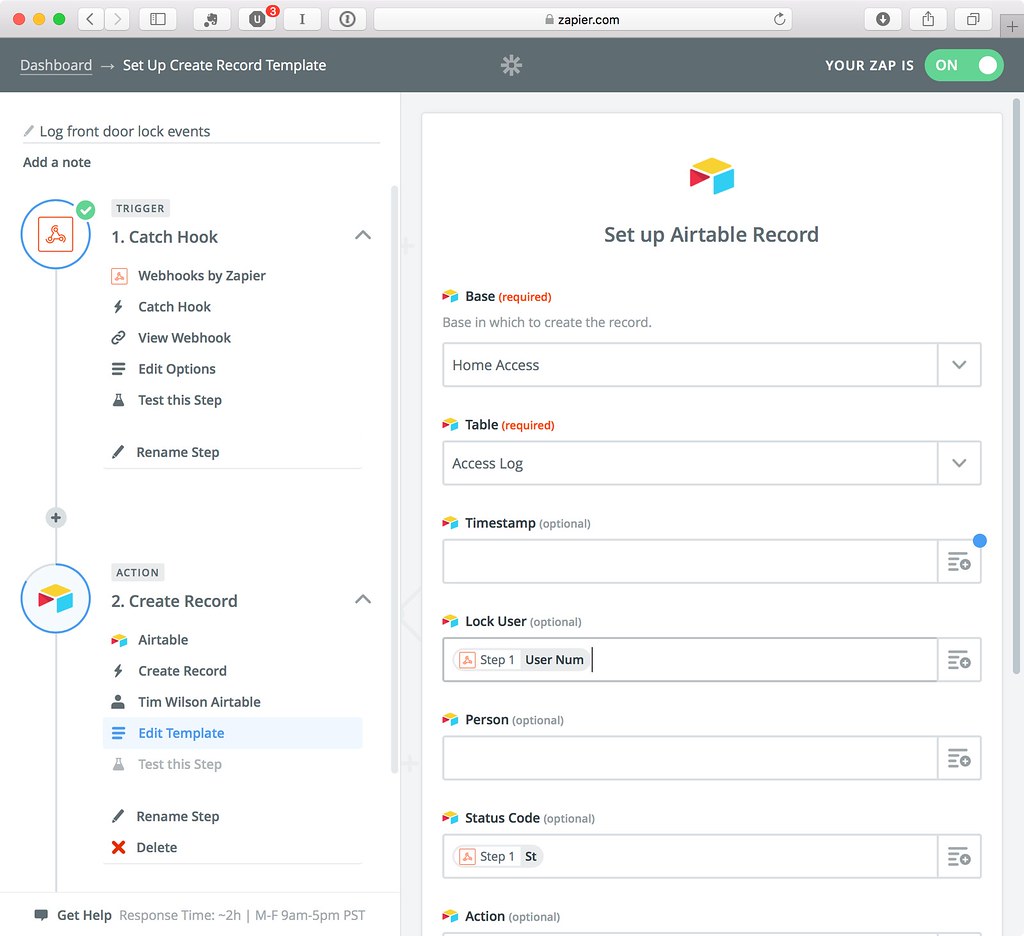
Zapier is a workflow automation platform that connects apps and services to automate tasks between them.
Users create automated workflows called “Zaps” that move information between applications automatically. For example, a Zap might send data from a form submission to a spreadsheet or trigger notifications when a new task is created.
Tools like Zapier are commonly used by operations, marketing, and support teams that want to automate repetitive workflows without writing code.
Key features:
- Connect thousands of apps to automate workflows.
- Trigger actions automatically when events occur.
- Build multi-step automations without coding.
- Move data between apps to eliminate manual work.
14. BetterTouchTool
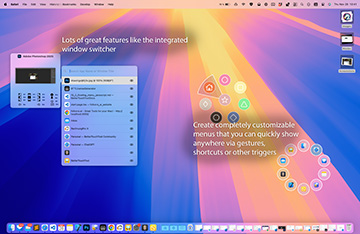
BetterTouchTool is a popular mac productivity app that allows users to automate actions using gestures, keyboard shortcuts, and triggers. It helps streamline repetitive desktop interactions by turning manual steps into automated workflows.
Users can create triggers for trackpad gestures, keyboard shortcuts, or system events that perform actions across applications. This makes it useful for automating everyday tasks like window management, launching apps, or controlling system behavior.
BetterTouchTool is often used by Mac users who want deeper control over their desktop environment and faster workflows.
Key features:
- Automate actions using gestures, keyboard shortcuts, and triggers.
- Create custom workflows that interact with macOS apps.
- Automate window management and system actions.
- Customize trackpad, mouse, and keyboard behavior.
15. Alfred
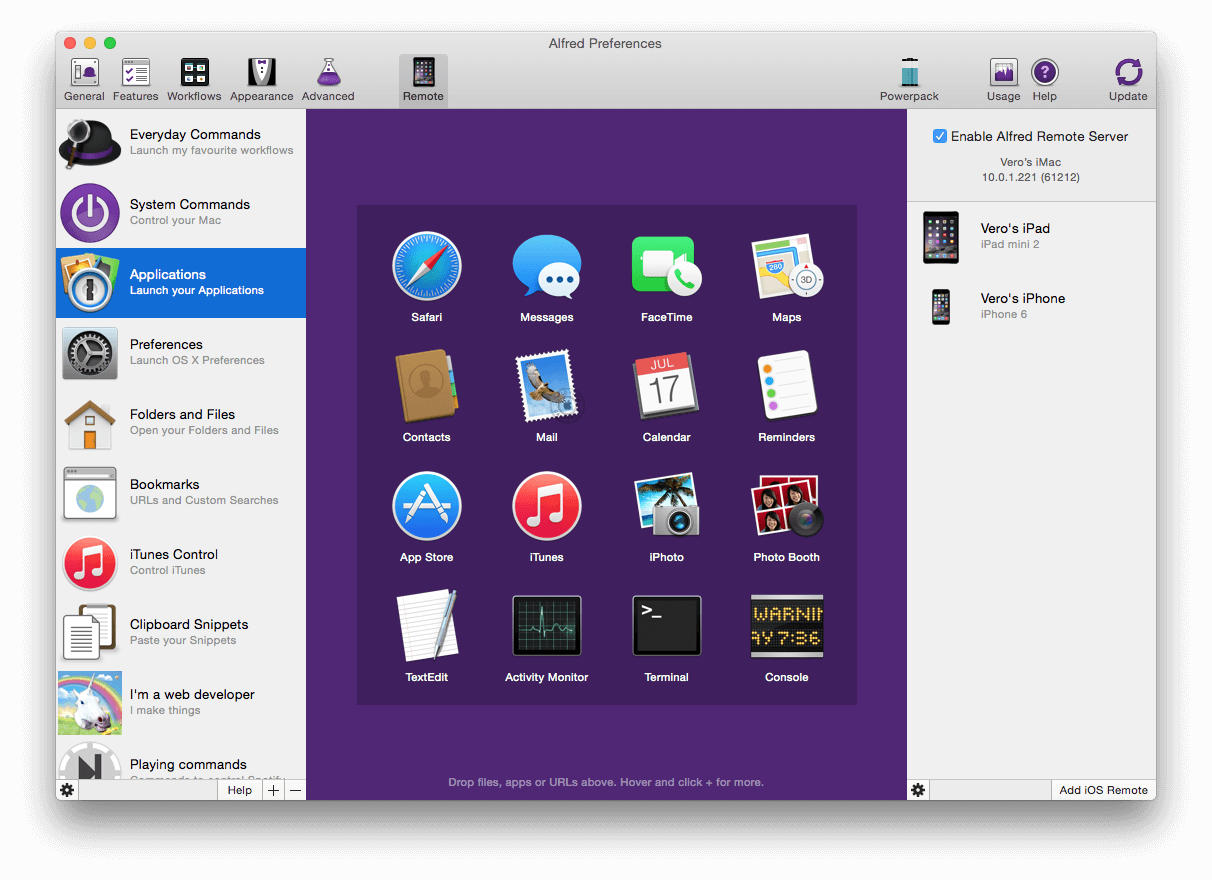
Alfred is a macOS productivity and automation tool that helps users automate workflows directly from their desktop. It allows users to launch apps, search files, run scripts, and trigger automated actions using keyboard commands.
It also can serve as a text expander for macOS, although the app launching feature is more popular.
Tools like Alfred are widely used by professionals who want faster navigation and lightweight automation on macOS.
Key features:
- Launch apps, search files, and run actions using keyboard shortcuts.
- Create custom workflows that automate multi-step tasks.
- Run scripts and trigger system commands from Alfred workflows.
- Integrate with macOS apps and services for faster automation.
Want to save hours by automating repetitive typing & workflows?
Join over 700,000+ others who are automating workflows with Text Blaze.
Best Practices for Implementing Desktop Automation
Successful desktop automation requires careful planning and maintenance. When you implement a tool, make sure to do it intentionally and with purpose.
Here are a few tips for implementing desktop automation tools:
Start with repetitive tasks - Focus on workflows that consume significant time when performed manually.
Document automation workflows - Clear documentation helps teams understand how automated processes work.
Test automations thoroughly - Validate workflows before relying on them in production environments.
Monitor automation performance - Track results to ensure workflows run reliably over time.
As automation expands, teams should regularly review workflows to ensure they remain effective.
What Is the Best Desktop Automation Tool?
The best desktop automation tool depends on the type of tasks you want to automate. Some tools specialize in scripting and developer workflows, while others focus on business automation or productivity improvements.
For many teams and individuals, the most useful automation tools are the ones that remove repetitive work from everyday processes. This includes tasks like generating responses, filling forms, and managing communication workflows.
Text Blaze is a strong option for automating repetitive typing and communication tasks across websites and desktop applications. By using templates and dynamic automation, it helps reduce manual work and maintain consistency in everyday workflows. Either Text Blaze for Windows or Text Blaze for macOS can help you automate repetitive typing and workflows anywhere on your desktop.