12 Best Espanso Alternatives to Save Time in 2026
Looking for an Espanso alternative? Discover the best text expanders with easier setup, plus free and paid options for any workflow.

If you’ve used Espanso, you know it’s a flexible text expander that can handle a wide range of shortcuts and automation. It works well once everything is set up, especially if you’re comfortable managing configurations.
At the same time, the YAML-based setup and lack of a traditional interface don’t always fit how everyone prefers to work. Depending on your workflow, you might find yourself wanting something that’s easier to manage or quicker to adjust over time.
That’s usually when it makes sense to look at other options. Some tools offer a more visual setup, while others focus on speed, simplicity, or built-in features like syncing and templates.
In this article, we’ll walk through the 12 best Espanso alternatives for Windows and Mac so you can find one that fits your workflow a bit better.
What Is Espanso?
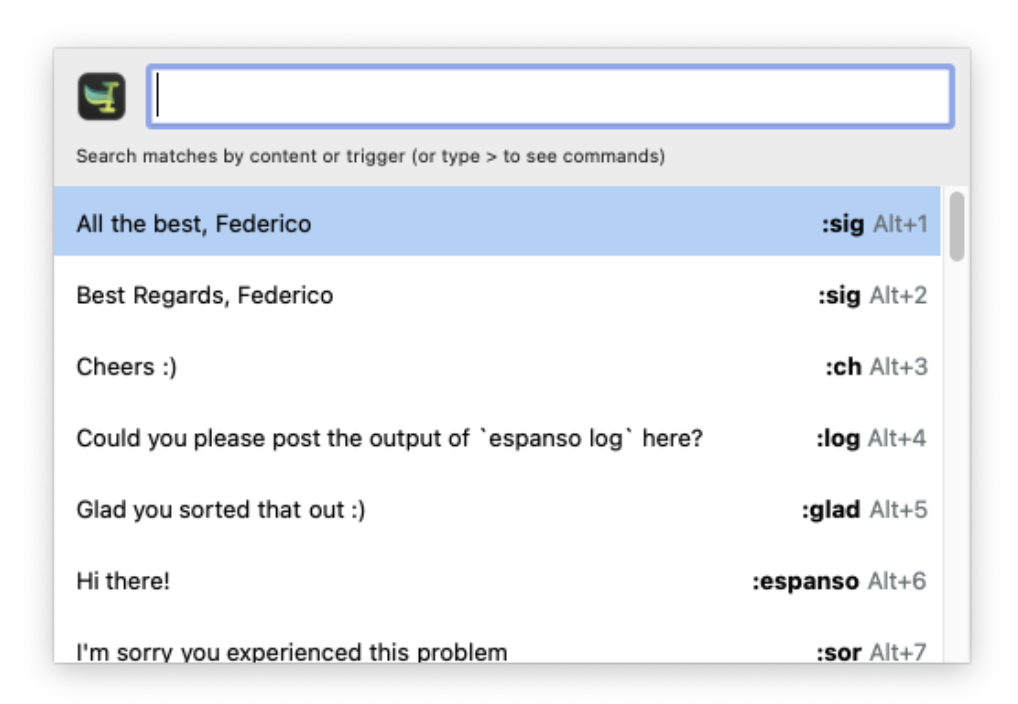
Espanso is an open-source text expander that replaces short text triggers with longer snippets across your system. It runs in the background and works across different apps, which makes it useful for repetitive typing tasks like emails, notes, or code.
Unlike many other text expanders, Espanso uses a YAML-based configuration instead of a visual interface. This gives you a lot of flexibility in how your snippets are set up, but it also means changes are made through configuration files rather than a built-in editor.
Espanso is free to use and available on Windows, Mac, and Linux, which makes it a popular choice for users who want a lightweight, customizable solution.
Why Look for an Espanso Alternative?
Espanso works well for many use cases, but it doesn’t always fit every workflow. Depending on how you prefer to set up and manage your snippets, you might find yourself exploring other options.
Here are some common reasons people look for alternatives:
Different setup preferences: Espanso uses YAML files for configuration, which may not feel as intuitive if you prefer a visual editor.
Interface and management: Some tools offer dashboards or editors that make it easier to organize and update snippets over time.
Built-in features: Alternatives may include features like cloud sync, team sharing, or template libraries out of the box.
Workflow fit: Different tools prioritize different things—some focus on simplicity, while others are designed for more structured or team-based workflows.
Because of this, it can be helpful to compare a few different tools to see which one fits your workflow best.
12 Best Espanso Alternatives
| Tool | Best For | Platform | Interface | Pricing |
|---|---|---|---|---|
| Text Blaze | Text expansion & workflow automation | Chrome, Windows, Mac | GUI | Free forever |
| PhraseExpress | Hotkeys & text automation | Windows, Mac | GUI | Free (personal), $99.95 |
| TextExpander | Team-based text expansion | Windows, Mac | GUI | $39.96/year |
| aText | Simple personal use | Windows, Mac | GUI | $4.99/year or $29.99 lifetime |
| Typinator | Mac-native expansion | Mac | GUI | $49.99 or $29.99/year |
| Beeftext | Lightweight Windows use | Windows | GUI | Free |
| ClipboardFusion | Clipboard + automation | Windows | GUI | Free trial, $19 |
| AutoHotkey | Script-based automation | Windows | Script | Free |
| Keysmith | No-code Mac automation | Mac | GUI | Free + Paid ($54) |
| FastKeys | Desktop automation + snippets | Windows | GUI | $29 |
| Rocket Typist | Simple Mac expansion | Mac | GUI | Free + $19.99 |
| ShortKeys | Browser-based shortcuts | Chrome | Browser | Free + Paid |
1. Text Blaze
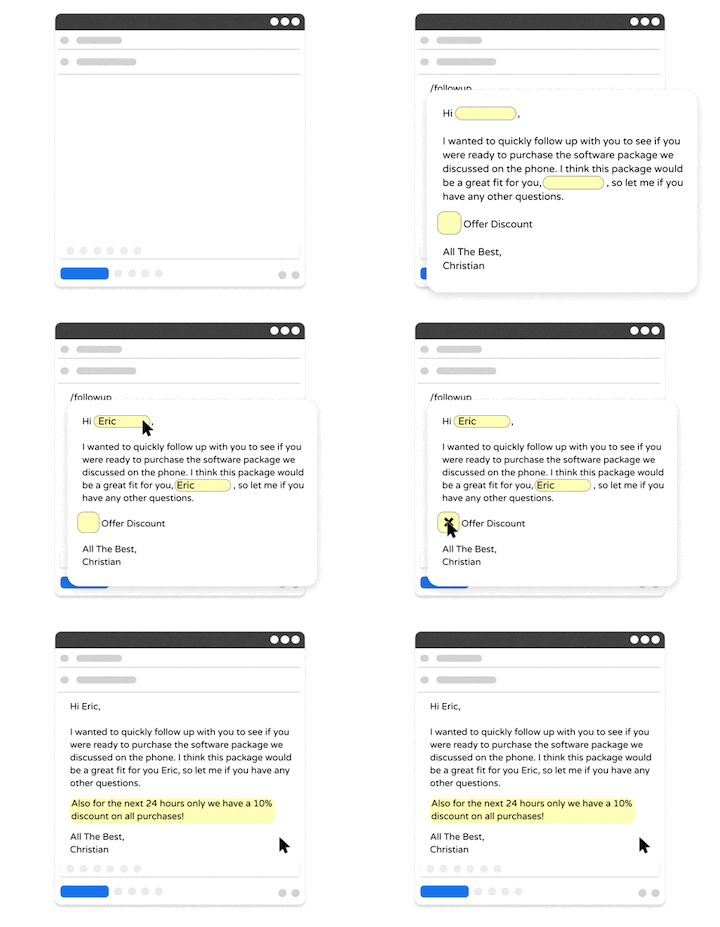
Text Blaze is a text expander that allows you to create smart text templates and insert them on any site or app using keyboard shortcuts. Text Blaze can help you automate repetitive typing, streamline workflows, and boost productivity with customizable, dynamic text templates. Plus, Text Blaze is the #1 rated text expander on the Chrome Web Store (4.9 rating with 1,800+ reviews) and is trusted by 800,000+ users.
How it helps:
Create dynamic templates with placeholders, drop-down menus, toggle fields, if/else rules, autopilot, data transfer, and more.
Text Blaze works anywhere and is available on Chrome, Windows, and Mac.
Automate workflows by streamlining data transfer, form-filling, repetitive typing, and much more.
Text Blaze is perfect for teams. Guide your team's communication & workflows with shared templates. Learn more here.
Best fit for: People who want a flexible text expander with a visual editor that works across tools.
Pricing: Free forever. Get instant value for free.
Want a free text expander that works anywhere?
Join 800,000+ who are using Text Blaze templates.
2. PhraseExpress
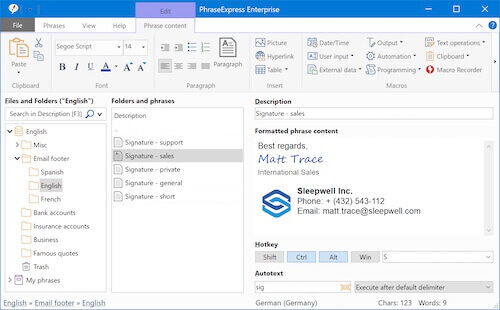
PhraseExpress combines text expansion with automation features like macros and scripting. It offers both local storage and cloud sync, which makes it usable across devices and teams. The interface is more structured than Espanso, with a focus on organizing phrases and templates in a central library. It can take a bit of setup, but it offers a wide range of customization options.
Who should use PhraseExpress: Users who want advanced text expansion with structured organization and automation features.
How it helps:
- Store and organize phrases in a centralized library
- Sync snippets across devices using cloud support
- Automate repetitive typing with macros
- Support multiple languages and formatting
- Share templates across teams
- Customize workflows with advanced settings
Pricing: Free for personal use, $99.95 for a Standard license for professional use.
3. TextExpander
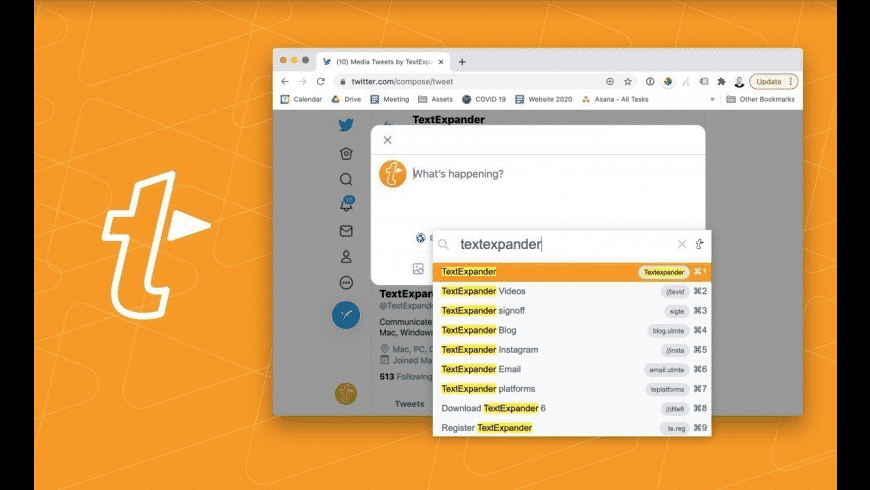
TextExpander is a well-known option that focuses on simplicity and collaboration. It provides a clean interface for managing snippets and sharing them across teams. Compared to Espanso, the setup is more guided, with built-in syncing and organization tools. Tools like TextExpander are often used in environments where consistency across communication matters.
Who should use TextExpander: Teams and individuals who want a straightforward text expander with built-in sharing and syncing.
How it helps:
- Create and expand snippets across apps
- Sync snippets across devices automatically
- Share templates with team members
- Maintain consistent communication across workflows
- Organize snippets with tags and folders
- Track usage and manage shared content
Pricing: $39.96/user/year.
4. aText
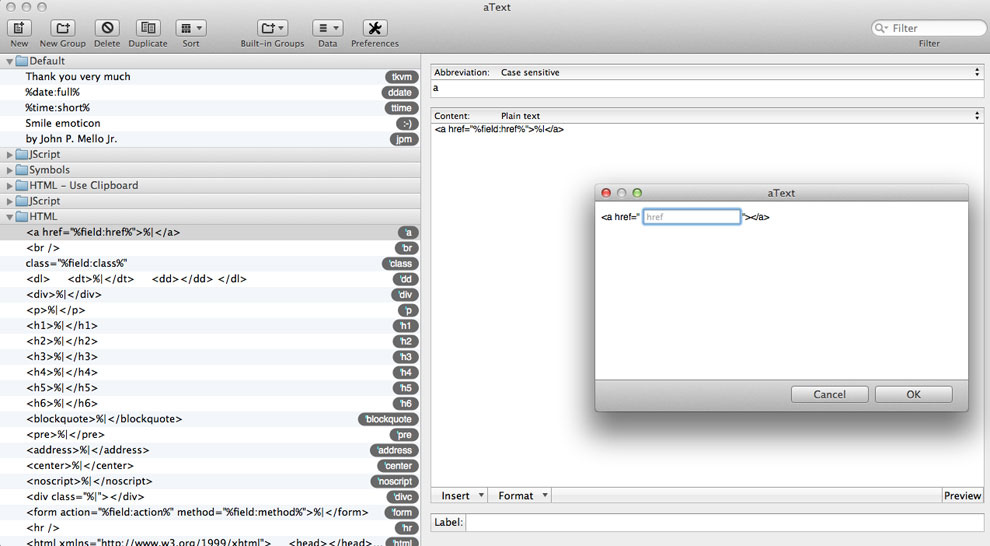
aText keeps things relatively simple and focuses on core text expansion features. It works on both Windows and macOS and offers a straightforward way to create and manage snippets. There’s also support for cloud syncing if you want to use it across devices. It doesn’t go as deep into automation, but it covers the basics well.
Who should use aText: Individuals looking for a simple and affordable text expander.
How it helps:
- Expand text using custom shortcuts
- Sync snippets across devices with cloud services
- Use built-in templates for common tasks
- Organize snippets into groups
- Support basic scripting and formatting
- Work across multiple apps
Pricing: $4.99 for a personal license (1 year) and $29.99 for a lifetime license.
5. Typinator
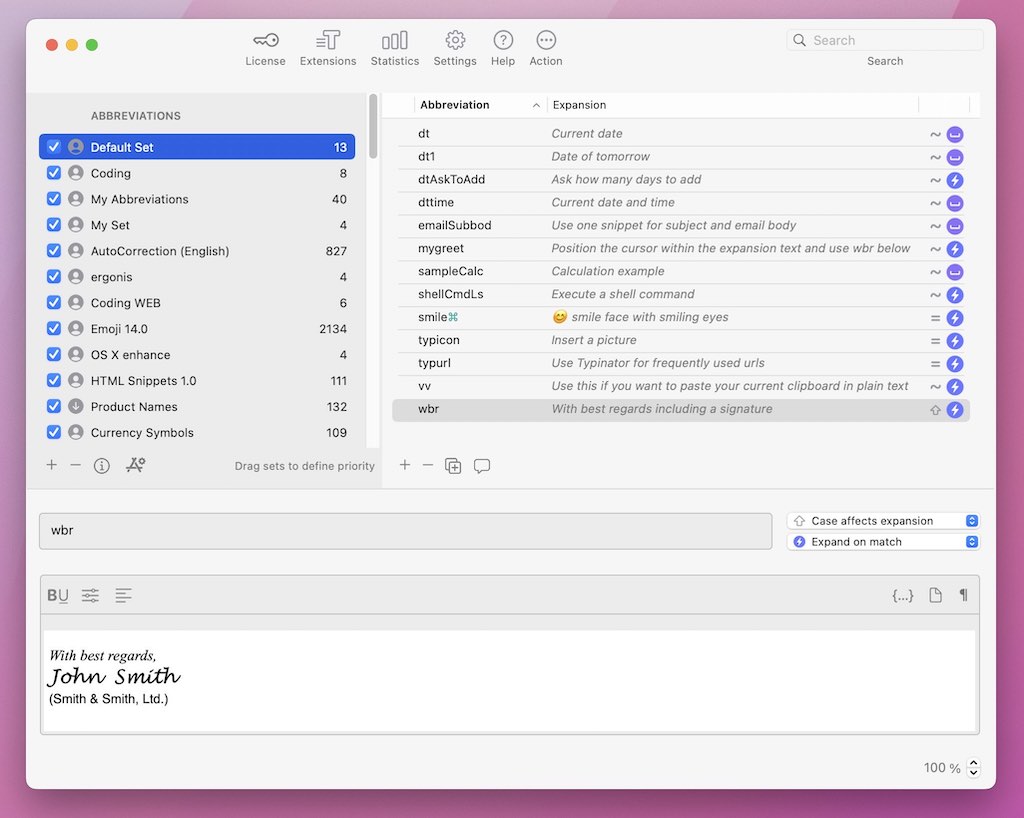
For Mac users, Typinator offers a more native experience with a visual interface for managing snippets. It allows you to organize and expand text across macOS apps without needing to edit configuration files. There are also options for dynamic content and automation within snippets. Overall, it leans more toward a traditional text expander setup.
Who should use Typinator: Mac users who want a native text expander with a visual interface.
How it helps:
- Create and manage snippets with a visual editor
- Expand text across macOS apps
- Use placeholders and dynamic content
- Organize snippets into sets
- Automate repetitive typing tasks
- Integrate with macOS workflows
Pricing: $49.99 one-time purchase, or $29.99/year for advanced features.
6. Beeftext
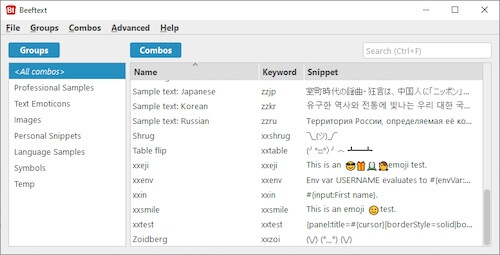
Beeftext is a free and open-source option designed specifically for Windows text expansion. It focuses on simple text expansion without adding too many extra features. The interface is minimal, but it makes it easy to create and trigger snippets quickly. Tools like Beeftext are practical options if you just want something lightweight that works.
Who should use Beeftext: Windows users who want a simple, free text expander without extra complexity.
How it helps:
- Expand text using simple shortcuts
- Create and manage snippets in a basic interface
- Organize snippets into groups
- Work across Windows applications
- Set triggers for automatic expansion
- Keep setup simple and lightweight
Pricing: Free and open-source.
Want a free text expander that works anywhere?
Join 800,000+ who are using Text Blaze templates.
7. ClipboardFusion
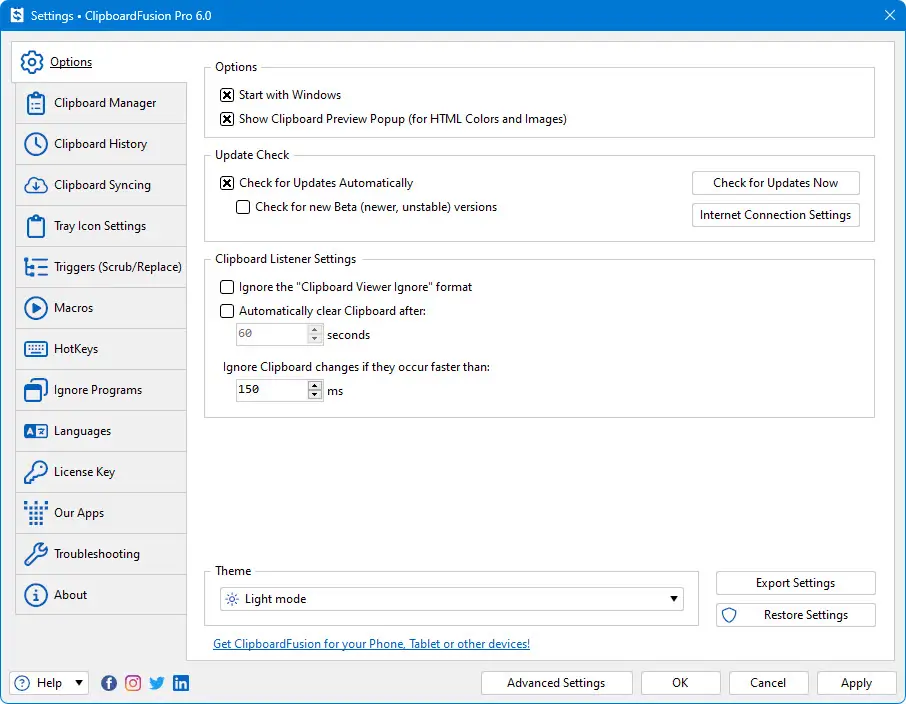
ClipboardFusion sits a bit outside traditional text expanders, but it still covers many similar use cases. It combines clipboard management with automation features, including text triggers. This makes it useful if your workflow involves a lot of copying, pasting, and modifying text. It’s less focused on templates and more on broader clipboard workflows.
Who should use ClipboardFusion: Users who want both clipboard management and text-related automation in one tool.
How it helps:
- Store and manage clipboard history
- Create triggers for repetitive text insertion
- Automate clipboard-related tasks
- Sync clipboard data across devices
- Modify text automatically during paste
- Combine clipboard workflows with snippets
Pricing: Free trial, then $19.
8. AutoHotkey
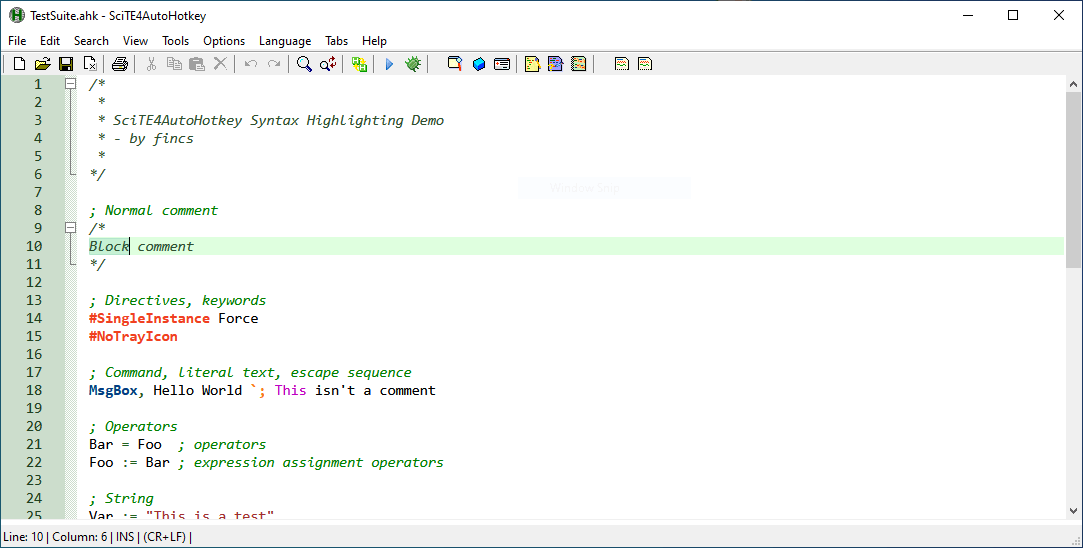
AutoHotKey takes a more technical approach by using scripting to automate tasks, including text expansion. It gives you a high level of control over how shortcuts behave, but it requires writing and maintaining scripts. Compared to Espanso, it’s even more flexible, but also more involved to set up. Sites like AutoHotKey are often used for broader automation beyond typing.
Who should use AutoHotkey: Users who want full control over automation and are comfortable with scripting.
How it helps:
- Create custom scripts for text expansion
- Automate keyboard and mouse actions
- Build complex workflows across apps
- Customize triggers and hotkeys
- Integrate automation into daily tasks
- Extend beyond text expansion into full automation
Pricing: Free and open-source.
9. Keysmith
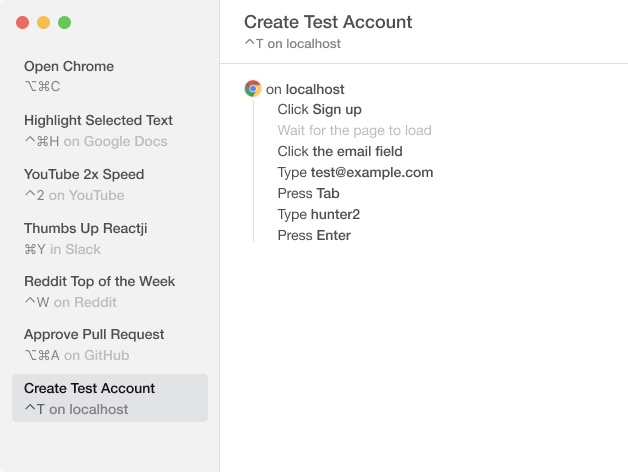
Keysmith focuses on no-code automation for macOS, combining recorded actions with shortcuts. Instead of configuring files, you can capture workflows and replay them when needed. It also supports text expansion within those workflows. It’s more focused on automation as a whole rather than just snippets.
Who should use Keysmith: Mac users who want no-code automation alongside text expansion.
How it helps:
- Record and replay actions with shortcuts
- Automate repetitive workflows visually
- Expand text within larger automation flows
- Integrate with macOS apps
- Customize triggers and actions
- Reduce manual steps in daily tasks
Pricing: Free plan available, $54 for a single license.
10. FastKeys
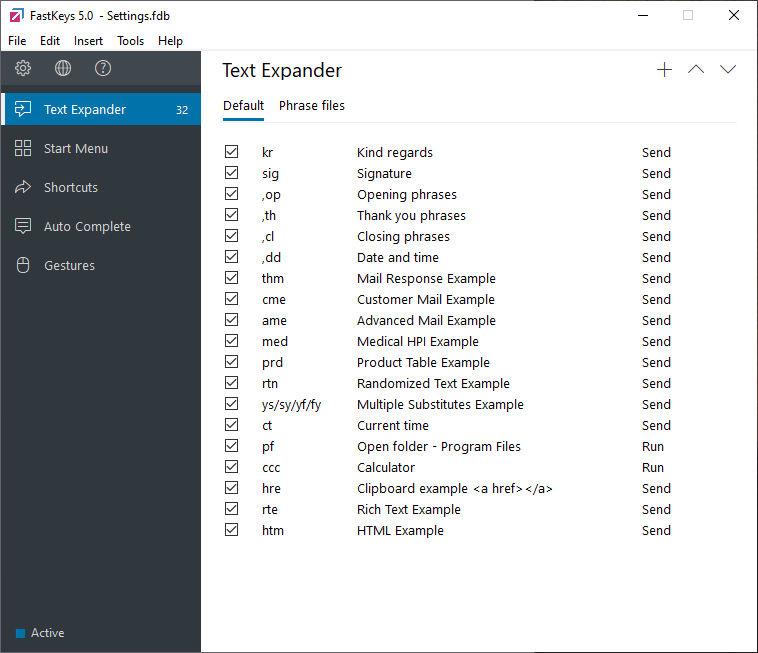
FastKeys brings together text expansion, macros, and automation into a single tool. It allows you to manage shortcuts and workflows from one place instead of relying on multiple tools. Compared to Espanso, it offers a more structured interface with broader functionality. It’s useful if you want more than just text expansion.
Who should use FastKeys: Users who want text expansion combined with broader desktop automation.
How it helps:
- Expand text with customizable shortcuts
- Create macros for repetitive tasks
- Automate keyboard and mouse actions
- Manage workflows from a central interface
- Use start menus and shortcuts for quick access
- Combine text expansion with automation tools
Pricing: Personal plan is $29.
Want a free text expander that works anywhere?
Join 800,000+ who are using Text Blaze templates.
11. Rocket Typist
Rocket Typist is a macOS text expander that keeps things relatively straightforward. It provides a clean interface for managing snippets and inserting them quickly. Compared to Espanso, tools like Rocket Typist are easier to set up but more limited in advanced customization. It works well for everyday text expansion tasks.
Who should use Rocket Typist: Mac users who want a simple and fast text expander.
How it helps:
- Expand text using simple shortcuts
- Manage snippets in a clean interface
- Insert frequently used text quickly
- Organize snippets into categories
- Work across macOS applications
- Keep setup simple and efficient
Pricing: Offers a free version, paid version is $19.99.
12. ShortKeys
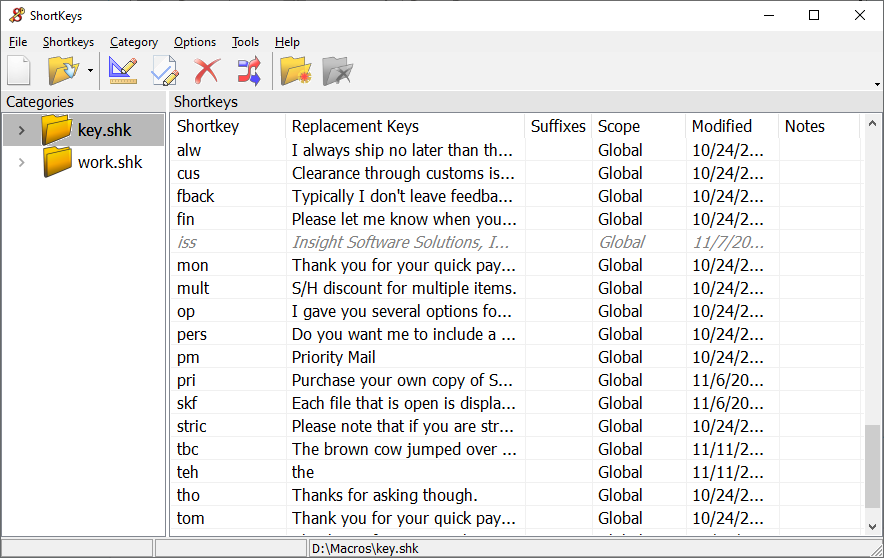
ShortKeys is a browser-based option that focuses on creating custom shortcuts within Chrome. It allows you to automate both text insertion and simple actions on web pages. It doesn’t work system-wide, but it’s easier to set up if most of your work happens in the browser. It’s more limited, but still useful in the right context.
Who should use ShortKeys: Users who primarily work in the browser and want simple shortcut-based automation.
How it helps:
- Create shortcuts for text insertion in the browser
- Automate repetitive actions on web pages
- Customize keyboard shortcuts for workflows
- Work directly within Chrome
- Simplify browser-based tasks
- Reduce repetitive typing online
Pricing: Free with optional paid features.
What Is the Best Espanso Alternative?
The best Espanso alternative really comes down to how you prefer to work day to day. If you like having full control over how everything is set up, you might lean toward something more customizable. Alternatively, if you’d rather have a cleaner, more visual experience, then a tool with a built-in editor may feel easier to manage over time.
It also depends on where you spend most of your time. Some tools are better suited for system-wide use across apps, while others are more focused on specific environments like your browser or a single operating system.
In many cases, it’s less about finding the most powerful tool and more about finding one that fits naturally into your workflow without adding extra friction.
If you’re looking for a balance between flexibility and ease of use, Text Blaze is worth considering. It gives you a visual way to create and manage snippets, while still supporting more advanced workflows with forms, logic, and templates that work across apps.