15 Best Keyboard Maestro Alternatives in 2026
Looking for a Keyboard Maestro alternative? Compare the 15 best automation and text expansion tools across Mac, Windows, iOS, and the web in 2026.

Keyboard Maestro has been a go-to Mac automation tool for years, with a loyal base of power users who've built complex macros, workflows, and triggers around it. But the same things that make it powerful (the depth, the scripting, the granular control) are what push some people to look elsewhere.
Maybe you want something simpler. Maybe you need automation that works on Windows or iOS, not just macOS. Maybe you don't want to spend $36 to find out if it's a fit. Whatever the reason, there are plenty of strong alternatives worth considering, and they cover everything from text expansion to cross-app workflows to full system automation.
In this guide, we'll cover the 15 best Keyboard Maestro alternatives in 2026, including both free and paid options across Mac, Windows, iOS, and the web.
What is Keyboard Maestro?
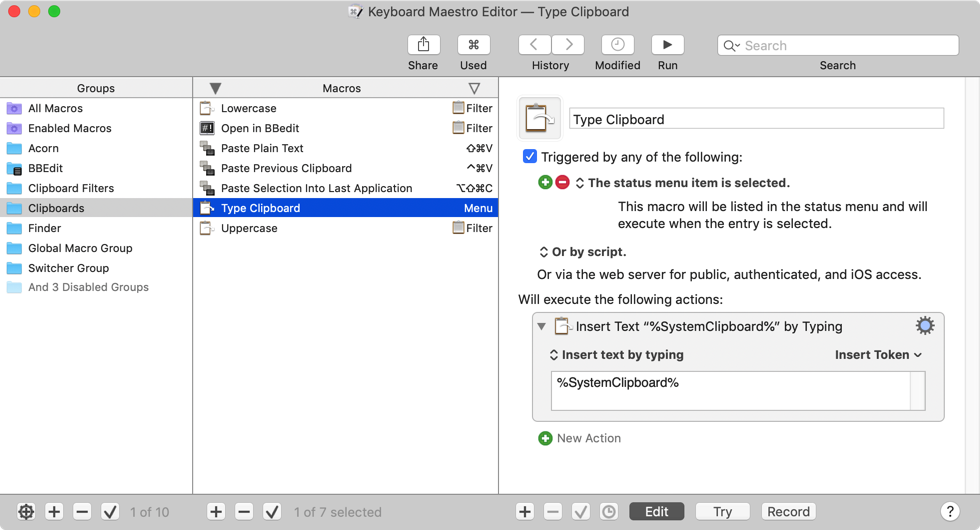
Keyboard Maestro is a macOS automation tool that lets you create custom macros, automate text input, and control applications with triggers and shortcuts. It uses a visual editor to chain actions together, which means you can build complex workflows without writing any code.
The tool is popular with Mac power users, developers, and anyone who runs repetitive tasks across multiple apps. Common use cases include text expansion, form-filling, window management, file processing, app launching, and clipboard automation.
What makes Keyboard Maestro stand out is its trigger system. Macros can fire based on keyboard shortcuts, app launches, time of day, USB device connections, clipboard changes, or even network events, which gives you a lot of flexibility for building automations that match your actual workflow.
Is Keyboard Maestro Free?
No, Keyboard Maestro is not free. It uses a one-time lifetime license model rather than a subscription, but there is no free tier or free version available. A free trial is offered so you can test the tool before committing to a purchase.
If you're looking for a free automation or text expansion tool that works on Mac, Windows, or beyond, keep reading for our top picks.
Why Look for a Keyboard Maestro Alternative?
Keyboard Maestro is a capable automation tool, but it has real limitations that push some users to look elsewhere.
The biggest one is platform. Keyboard Maestro only runs on macOS, which means Windows users, mobile users, and anyone working across multiple operating systems are out of luck. If your team uses a mix of devices, sharing automations across the group isn't really an option.
Pricing is another sticking point. Keyboard Maestro is a one-time purchase at $36, which is reasonable for what you get, but there's no free tier to test things out before committing. Major version upgrades cost an additional $25, so the long-term cost adds up if you stay current.
The learning curve also keeps some people away. Keyboard Maestro's editor is powerful, but it can feel dense if you're new to automation or only need a few simple shortcuts. Many users find that a lighter tool like a text expander or launcher handles 80% of what they actually need without the complexity.
Finally, Keyboard Maestro is focused on local Mac automation. It's not designed for cross-app cloud workflows, team collaboration, or syncing snippets and macros across devices, which matters more when your team works across different setups.
How to Choose a Keyboard Maestro Alternative
Once you've decided to explore alternatives, the next question is which one fits your workflow. Here are the key things to compare when evaluating tools:
Type of automation you need – Text expanders handle repetitive typing, launchers focus on speed and navigation, and full automation tools handle multi-step workflows. Knowing which category fits your needs narrows the list fast.
Visual editor vs scripting – Some tools (like Text Blaze and Shortcuts) use visual editors that work without code. Others (like AutoHotkey and Hammerspoon) require scripting. Pick based on your comfort level and how much time you want to invest in learning.
Trigger options – Look at what can fire your automations: keyboard shortcuts, text triggers, app launches, time-based triggers, or system events. More trigger types means more flexibility down the road.
Team features – If you're sharing automations with coworkers, check for shared libraries, admin controls, usage analytics, and compliance certifications. Most solo tools don't have these.
Integrations and ecosystem – The right tool plugs into what you already use, whether that's Microsoft 365, Google Workspace, Slack, or your CRM. Strong integrations multiply what each tool can do.
The right tool should match your workflow without adding unnecessary complexity. In most cases, a simpler tool that fits your daily tasks will be more effective than a powerful tool you rarely use.
15 Best Keyboard Maestro Alternatives
Keyboard Maestro's main limitation is that it only runs on macOS, which leaves Windows users, mobile users, and teams in a tough spot. The alternatives below cover a wider range of platforms and use cases, from cross-platform text expanders to dedicated Windows and iOS tools, plus cloud-based automation that connects apps without any scripting.
Here's our list of the 15 best Keyboard Maestro alternatives, organized by platform so you can find the right fit faster:
| Tool | Category | Platforms | Pricing |
|---|---|---|---|
| Text Blaze | Text expansion + workflows | Mac, Windows, Chrome, Edge | Free; paid from $2.99/mo |
| TextExpander | Text expansion | Mac, Windows, iOS, Chrome | From $3.33/user/mo |
| Espanso | Open-source text expansion | Mac, Windows, Linux | Free |
| aText | Text replacement | Mac, Windows | $4.99/yr or $29.99 lifetime |
| PhraseExpress | Text expansion + macros | Mac, Windows, iOS, Android | Free for personal; from $99.95 one-time |
| Alfred | Launcher + light automation | Mac | Free; £34 one-time for Powerpack |
| Raycast | Launcher + extensions | Mac | Free; $8/user/mo for Pro |
| BetterTouchTool | Input customization | Mac | $10 one-time |
| Automator | Basic system automation | Mac | Free (built-in) |
| Hammerspoon | Advanced Lua scripting | Mac | Free |
| AutoHotkey | Scripting + automation | Windows | Free |
| Power Automate | Microsoft workflow automation | Windows, Web | Free; from $15/user/mo |
| Apple Shortcuts | Native workflow automation | Mac, iOS, iPadOS | Free (built-in) |
| Scriptable | JavaScript automation for iOS | iOS, iPadOS | Free |
| Zapier | Cloud automation | Web (any platform) | Free; from $19.99/mo |
Cross-Platform Alternatives
These tools work across multiple operating systems, which makes them a good fit if you switch between devices or work on a team where everyone runs different setups.
1. Text Blaze
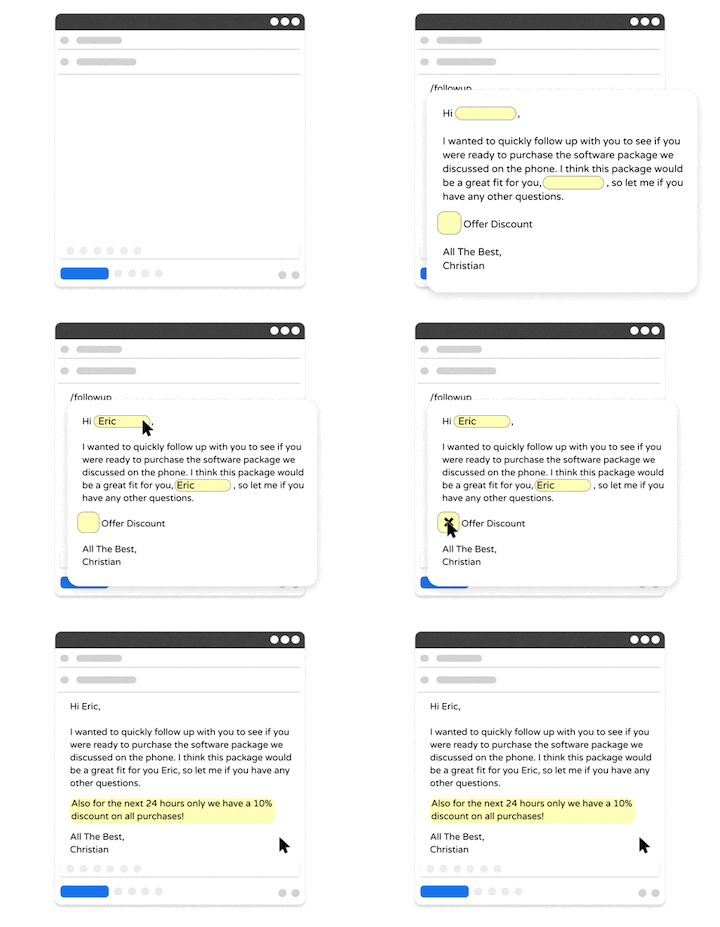
Text Blaze is a text expander and keyboard shortcuts app that lets you create smart templates and insert them on any site or app using keyboard shortcuts. It handles repetitive typing, form filling, and dynamic content with templates that include placeholders, dropdown menus, if/else logic, formulas, and form fields.
Text Blaze runs as a Chrome extension, a Windows app, and a Mac app, so your snippet library follows you across browsers and desktop apps. Compared to Keyboard Maestro, Text Blaze focuses on text and workflow automation rather than full system-level macros, which makes it easier to set up and use day to day.
Key features:
Automate repetitive typing anywhere in Chrome, Edge, Windows, and Mac with the same snippet library
#1 rated text expander on the Chrome Web Store with a 4.9 rating and 800,000+ users
Dynamic templates with placeholders, dropdowns, formulas, and if/else logic
Automate workflows like data transfer, form-filling, and more
Team features including shared folders, usage analytics, and admin controls
Pricing: Free forever.
Best for: People who want a flexible text expander that works across browsers and desktops without learning a scripting language.
Looking for a free text expander that works anywhere (Chrome, Windows, macOS)?
Join 800,000+ who are using Text Blaze templates.
2. TextExpander
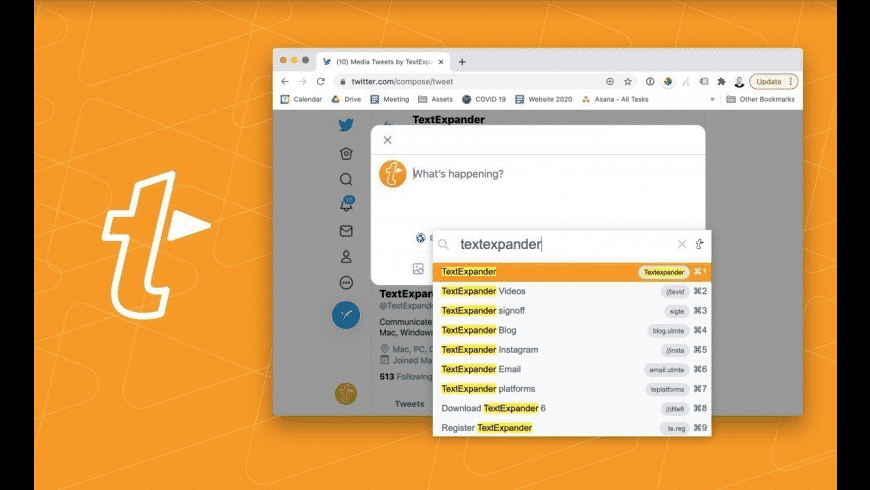
TextExpander is one of the older names in text expansion, with cross-platform support across Mac, Windows, iOS, iPadOS, and Chrome. It includes shared snippet groups, admin controls, usage analytics, and compliance features like SOC 2 and HIPAA, which makes it a common pick for larger teams.
Snippets can use fill-in fields, dropdown menus, dates, math, and scripting in JavaScript or AppleScript. Compared to Keyboard Maestro, tools like TextExpander are narrower in scope (text-focused rather than full automation) but work across more platforms, which is their main pull for teams.
Key features:
- Cross-platform sync across desktop, mobile, and Chrome
- Team features with compliance certifications (SOC 2, HIPAA, SSO, SCIM)
- Fill-in snippets with dropdowns, dates, and scripting support
- Real-time team sharing and usage analytics
Pricing: Individual from $3.33/user/month billed annually; Business from $8.33/user/month.
Best for: Larger teams that need cross-platform text expansion with compliance features.
3. Espanso
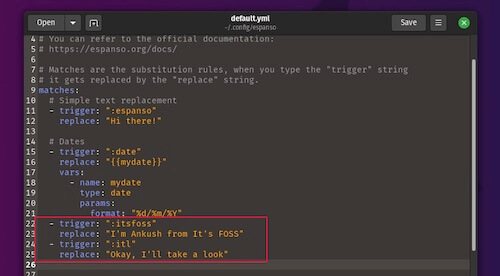
Espanso is a free, open-source text expander written in Rust that works across Mac, Windows, and Linux. It runs entirely locally and uses YAML config files for setup, which means editing text files instead of clicking through a GUI. Once running, it supports forms, regex triggers, scripts, packages, and dynamic content like dates and clipboard data.
Compared to Keyboard Maestro, tools like Espanso are narrower (text-only) and requires more upfront configuration, but give you full control over your snippets without any subscription.
Key features:
- Free and open source under GPL-3.0
- Cross-platform across Mac, Windows, and Linux
- Forms, regex triggers, scripts, and package system for shared snippets
- Privacy-first design with all data stored locally
Pricing: Free.
Best for: Developers and technical users who want a free, cross-platform text expander with full control.
4. aText
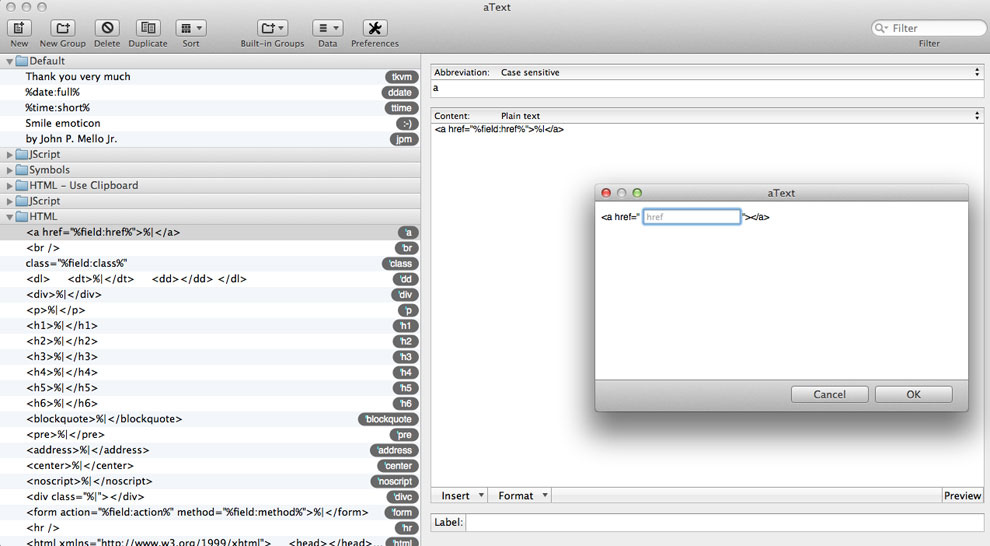
aText is a lightweight text expander for Mac and Windows that runs locally without cloud sync. You can create abbreviations that expand into formatted text, signatures, dates, clipboard content, or full email templates. It's most often picked as a budget alternative to subscription tools like TextExpander.
Compared to Keyboard Maestro, aText is narrower in scope (text expansion only) but offers a true one-time license and a much simpler learning curve. The interface feels older than newer tools, which is the main trade-off for the low price.
Key features:
- Local-only with no cloud dependency
- Supports formatted text, images, dates, and clipboard content
- Cross-platform on Mac and Windows
- One-time license available
Pricing: $4.99/year or $29.99 lifetime.
Best for: Budget-conscious users who want a simple text expander without subscriptions.
5. PhraseExpress
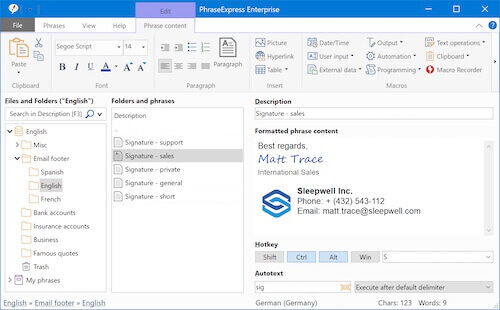
PhraseExpress is a text expander available on Windows, Mac, iOS, and Android that bundles text expansion with macros, autocomplete, clipboard management, and integrations with Google Drive, Dropbox, OneDrive, and SQL Server for team sharing. The paid editions use a one-time purchase model with optional maintenance renewals for updates.
Compared to Keyboard Maestro, PhraseExpress goes broader on platforms but doesn't match its depth for system-level macOS automation. Its strongest features are on Windows.
Key features:
- Cross-platform with the strongest support on Windows
- Macro recorder, autocomplete, and clipboard management
- One-time license with optional maintenance renewals
- Team sharing via cloud storage and SQL Server
Pricing: Free for personal, non-commercial use; Standard from $99.95 one-time; Professional $149.95; Enterprise $249.95.
Best for: Windows-heavy users who want text expansion plus macros with a one-time license.
Alternatives for macOS
These tools are Mac-only or Mac-first, with deep integration into the macOS ecosystem. They cover most of the same ground as Keyboard Maestro but each focuses on a slightly different angle.
6. Alfred
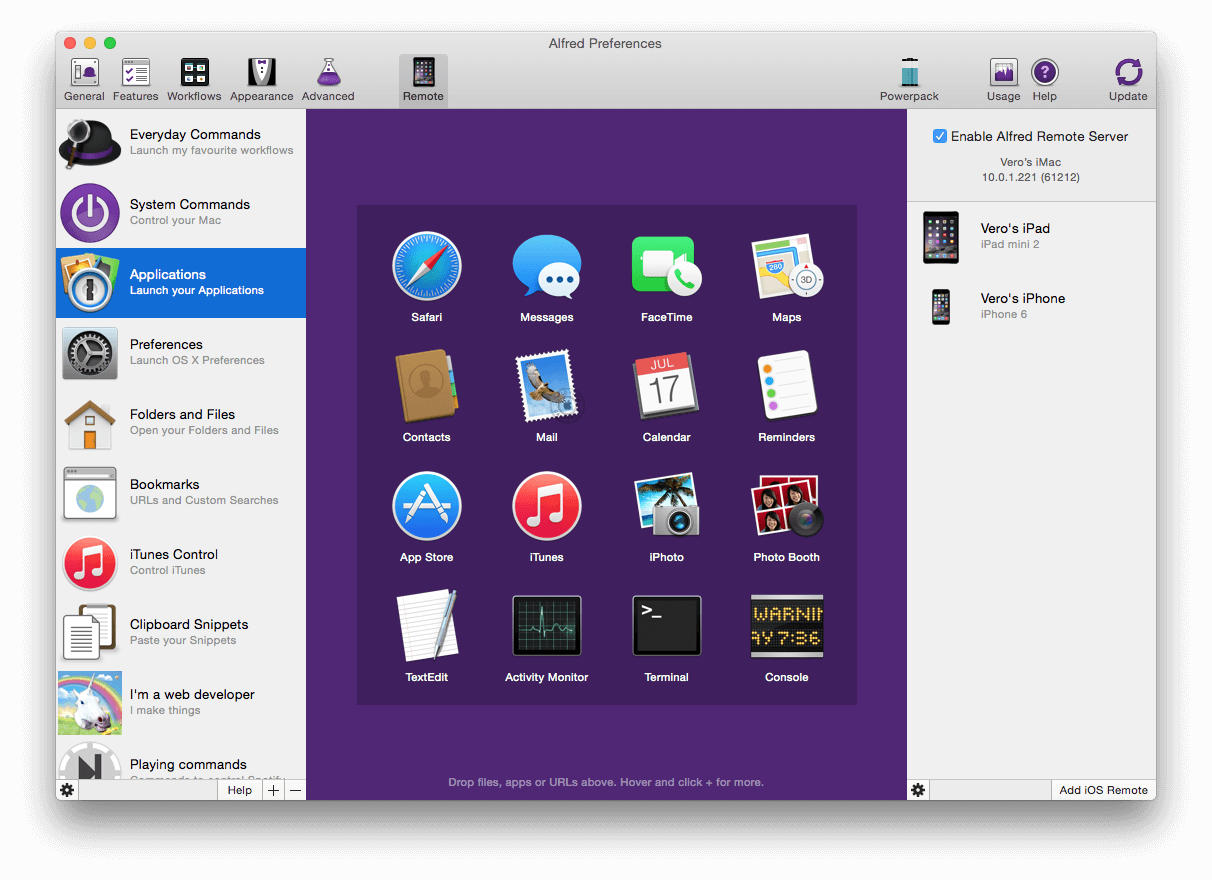
Alfred is one of the longest-running Mac launchers, with a free tier covering app launching and search, and a paid Powerpack that unlocks snippets, clipboard history, workflows, and automation features. Workflows let you chain triggers and actions visually or via scripts, which is the closest Alfred gets to a Keyboard Maestro-style macro system.
Compared to Keyboard Maestro, tools like Alfred are more focused on speed and navigation than full system automation. The Powerpack adds real automation power, but it's still narrower in scope than Keyboard Maestro for complex workflows.
Key features:
- Fast keyboard launcher for apps, files, and search
- Snippets, clipboard history, and text expansion (Powerpack)
- Visual workflow builder with script support
- Highly active community and extension library
Pricing: Free for basic features; Powerpack around £34 (single-user, single-version); Mega Supporter around £59 for lifetime upgrades.
Best for: Long-time Mac users who want fast navigation and light automation in one tool.
Looking for a free text expander that works anywhere (Chrome, Windows, macOS)?
Join 800,000+ who are using Text Blaze templates.
7. Raycast
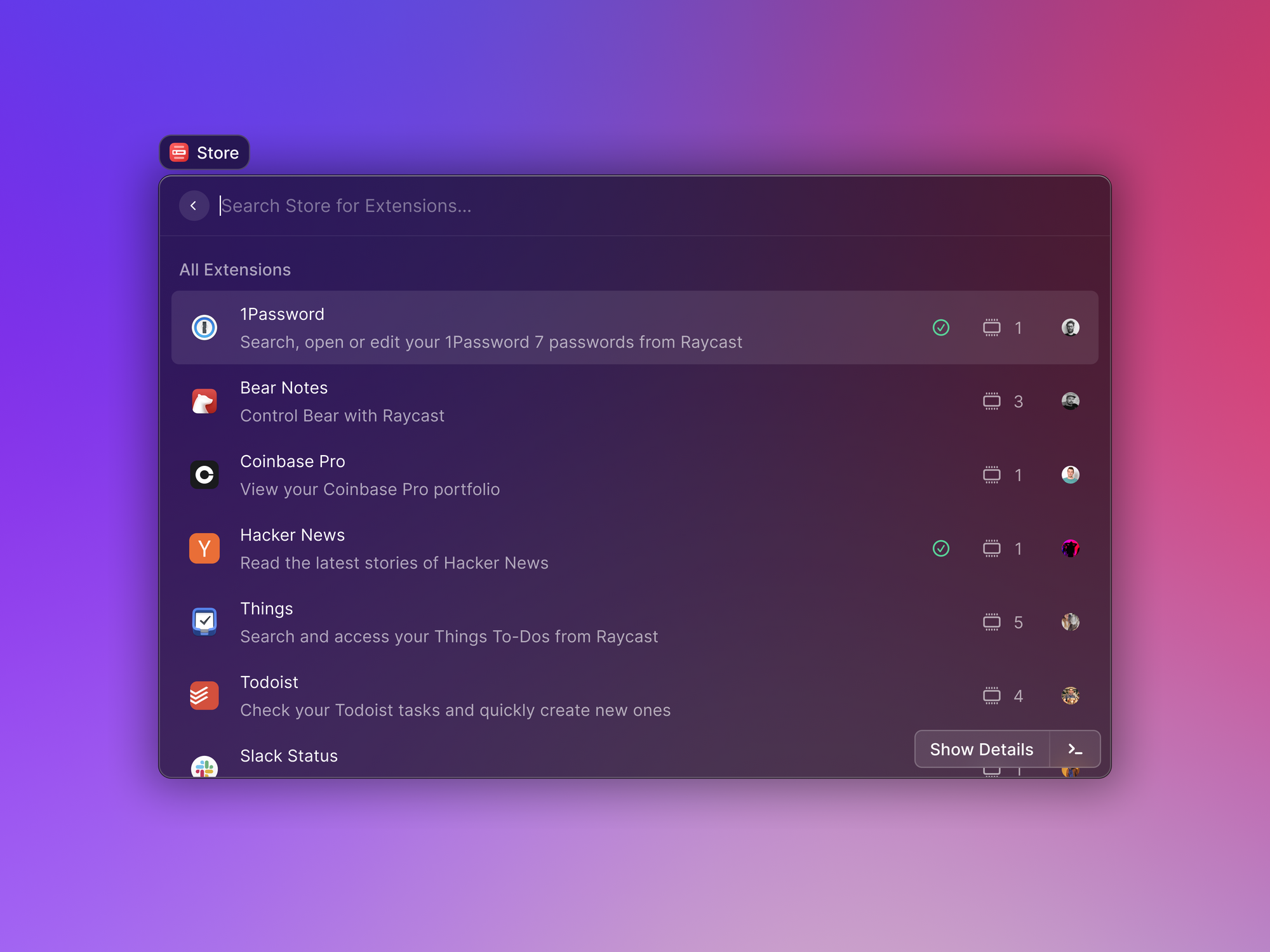
Raycast is a modern Mac launcher that includes snippets, clipboard history, window management, and AI features alongside its core app launcher. Its extension system has thousands of community-built plugins, and the Pro tier adds AI commands powered by GPT-4 and Claude, cloud sync across Macs, and unlimited clipboard history.
Compared to Keyboard Maestro, Raycast is easier to learn and faster to set up, but it lacks the depth of Keyboard Maestro's trigger system and conditional logic for complex automations.
Key features:
- Keyboard-driven launcher with 2,000+ community extensions
- Snippets, clipboard history, and window management built in
- AI commands and cloud sync on Pro
- Windows version available in beta
Pricing: Free for individual use; Pro at $8/month billed annually, $10/month billed monthly.
Best for: Mac power users who want a modern launcher with AI features and a strong extension ecosystem.
8. BetterTouchTool
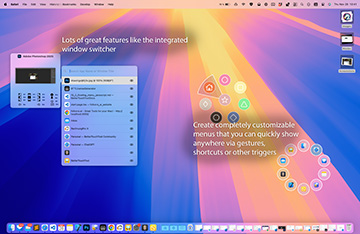
BetterTouchTool focuses on customizing input devices on Mac, including trackpads, mice, the Touch Bar, and keyboards. You can create gestures, shortcuts, and triggers that fire actions across your system. It supports window snapping, app launching, macros, and even smart home control through HomeKit integration.
Compared to Keyboard Maestro, BetterTouchTool is stronger on UI customization and input device control but less versatile for complex logic-based workflows.
Key features:
- Custom gestures for trackpad, mouse, Touch Bar, and keyboard
- Window management and snapping
- Macro support and trigger chaining
- Active development with frequent updates
Pricing: Standard license $10 one-time (2 years of updates) or $25 lifetime.
Best for: Mac users who want deep input device customization rather than full workflow automation.
9. Automator
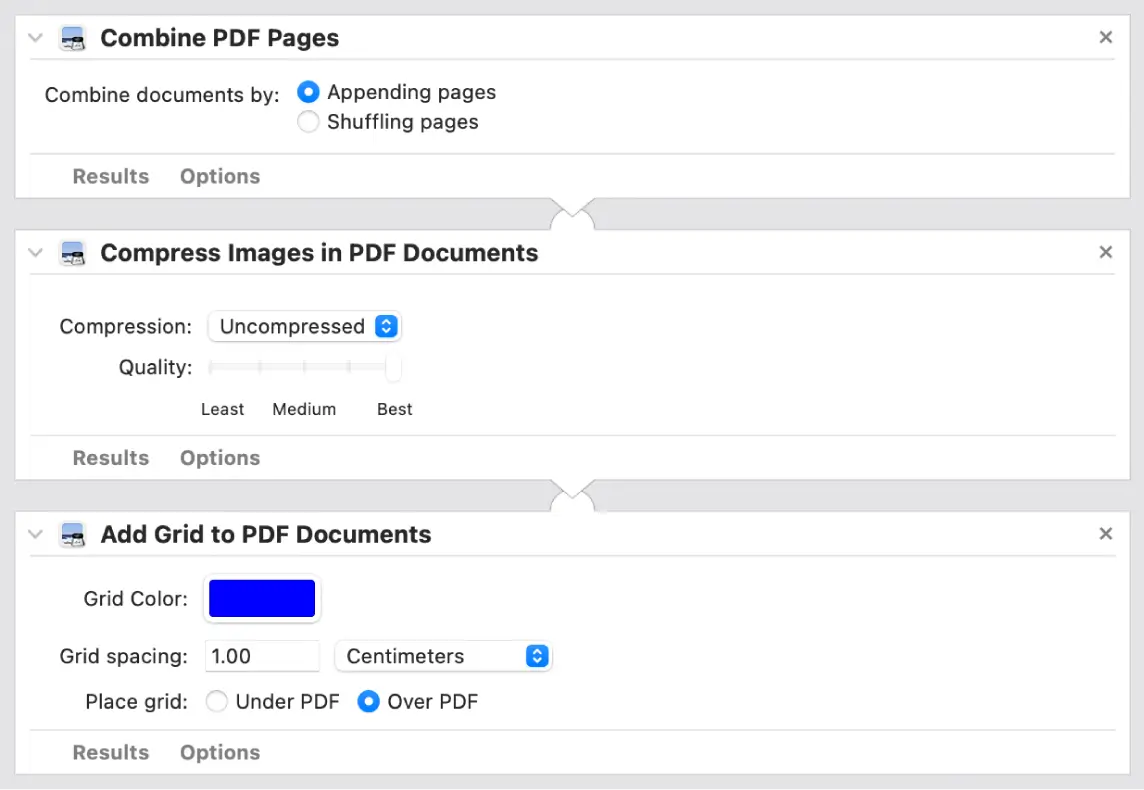
Automator is Apple's older drag-and-drop automation tool built into macOS. It lets you create workflows, services, and quick actions that handle files, rename items in batches, launch apps, and run scripts. It integrates well with macOS services and doesn't require any downloads or purchases.
Compared to Keyboard Maestro, Automator is free and built in but feels dated, with an outdated UI and limited active development. It's still useful for basic system automations but isn't as flexible.
Key features:
- Free and pre-installed on every Mac
- Drag-and-drop workflow builder
- AppleScript, JavaScript, and shell script support
- Integrates with macOS services and Finder
Pricing: Free (built into macOS).
Best for: Mac users who want simple system automation without installing or paying for anything new.
10. Hammerspoon

Hammerspoon is a free, open-source automation tool for Mac that uses Lua scripting to control nearly any part of macOS. It exposes APIs for window management, system events, keyboard shortcuts, application control, and more, which makes it incredibly flexible for technical users.
Compared to Keyboard Maestro, Hammerspoon has no visual interface and requires writing Lua code, so the learning curve is steeper. The trade-off is more control and zero cost.
Key features:
- Full Lua scripting for macOS automation
- Window management, hotkeys, system event monitoring
- Active community with shared "Spoons" (modules)
- Free and open source
Pricing: Free.
Best for: Developers and advanced users who want maximum control over Mac automation through code.
Alternatives for Windows
Keyboard Maestro doesn't run on Windows, so these tools fill the gap for anyone who needs similar macro or automation capabilities on a PC.
11. AutoHotkey
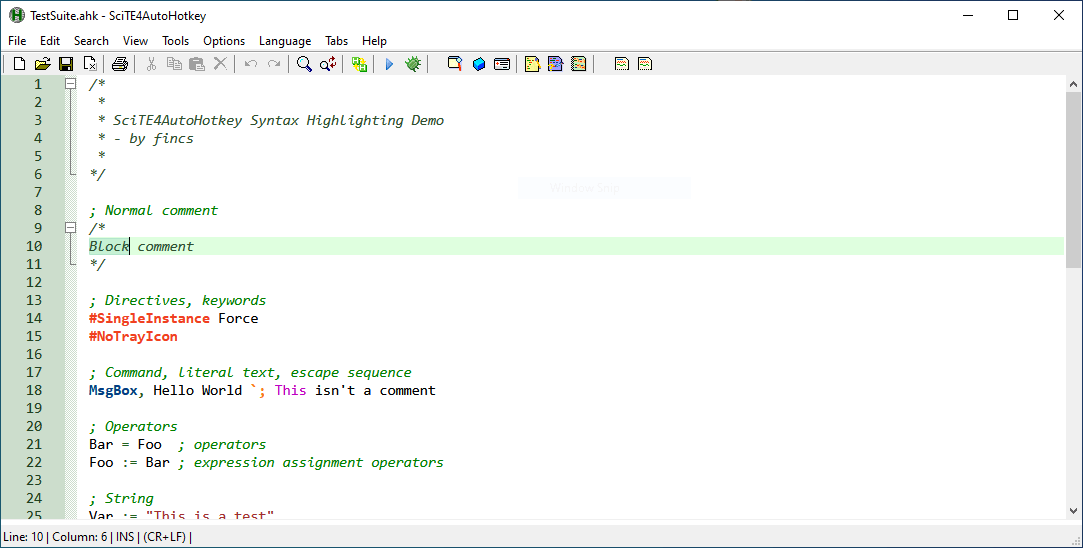
AutoHotkey is a free, open-source scripting language for Windows that's often called the Keyboard Maestro of PC. It lets you create hotkeys, hotstrings (text expansion), key remapping, macros, and full GUI automation scripts. The scripting language is custom-built for automation, with simple syntax for common tasks and full access to the Windows API for advanced workflows.
Compared to Keyboard Maestro, tools like AutoHotkey cover more ground (text expansion, key remapping, macros, GUI automation) but require writing scripts instead of using a visual editor. It has a steeper learning curve, especially for non-programmers, but it's the most powerful free automation tool on Windows.
Key features:
- Free and open source under GNU GPLv2
- Hotkeys, hotstrings, key remapping, and full GUI automation
- Active community with thousands of shared scripts
- Compiles scripts into standalone executables
Pricing: Free.
Best for: Windows users who want deep automation and don't mind learning a scripting language.
12. Power Automate
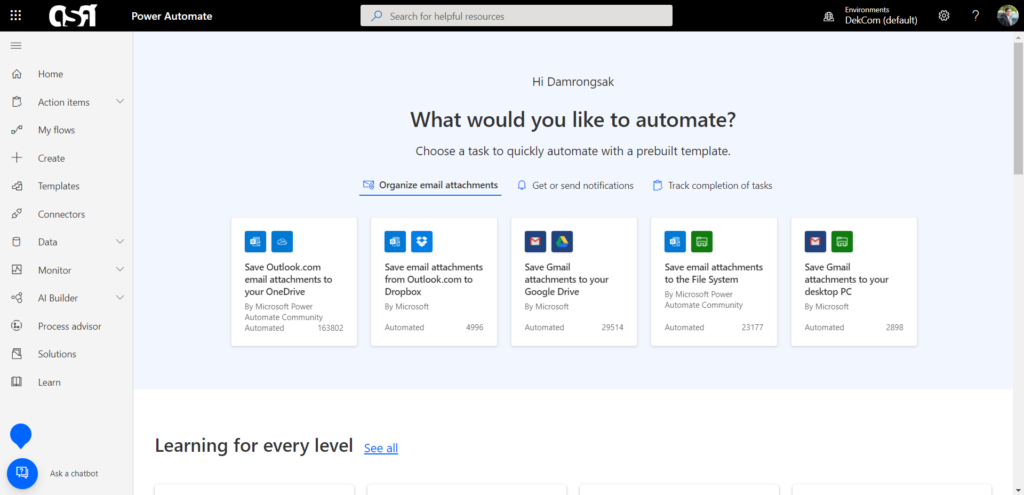
Power Automate is Microsoft's workflow automation platform. It includes cloud-based flows that connect 1,000+ apps, desktop flows for Windows automation, and AI Builder for adding AI to workflows. It integrates deeply with Microsoft 365, Teams, Outlook, SharePoint, and third-party services like Salesforce and Dropbox.
Compared to Keyboard Maestro, Power Automate is built for business workflows and cross-app automation rather than local desktop macros. It's a stronger fit for teams already in the Microsoft ecosystem.
Key features:
- Cloud flows connecting 1,000+ apps
- Desktop flows for Windows automation (RPA)
- AI Builder for adding AI to workflows
- Deep Microsoft 365 integration
Pricing: Free plan with limited features; Premium from $15/user/month; Process plan from $150/bot/month for unattended RPA.
Best for: Windows users in Microsoft-centric environments who need to automate business workflows.
Looking for a free text expander that works anywhere (Chrome, Windows, macOS)?
Join 800,000+ who are using Text Blaze templates.
Alternatives for iOS
Keyboard Maestro is macOS-only, so iOS users need different tools. These cover automation, scripting, and workflow building on iPhone and iPad.
13. Apple Shortcuts
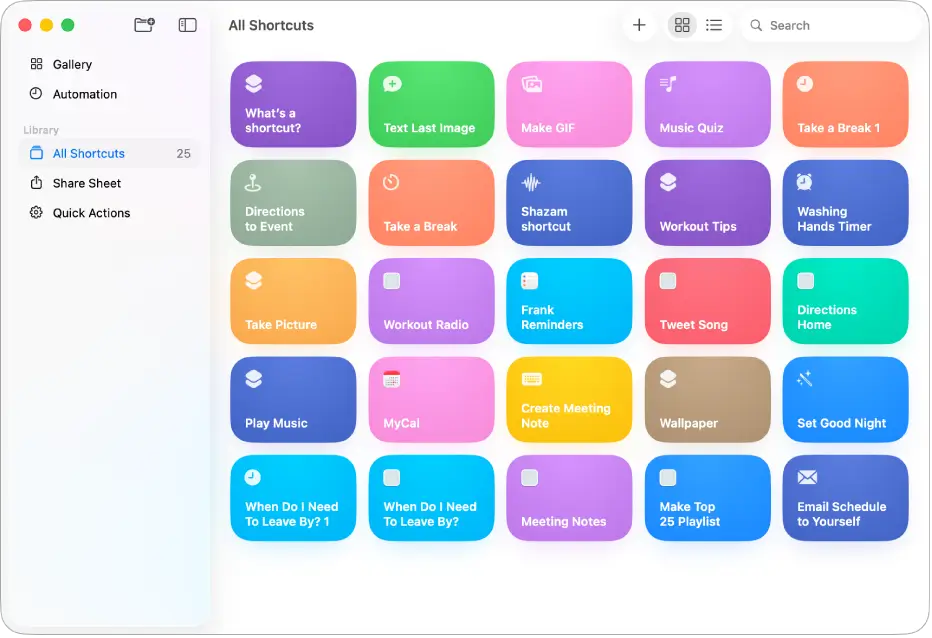
Apple Shortcuts is Apple's built-in automation tool for iOS, iPadOS, and macOS. It uses a visual, drag-and-drop editor that lets you build workflows to automate everyday tasks, from sending texts to manipulating files to triggering smart home actions. Shortcuts sync across Apple devices via iCloud and integrate with Siri, widgets, and most native Apple apps.
Compared to Keyboard Maestro, Shortcuts is simpler and cross-device but doesn't match the depth of Keyboard Maestro's trigger system, conditional logic, or scripting on macOS.
Key features:
- Visual workflow builder
- Deep integration with Siri, widgets, and Apple apps
- iCloud sync across iPhone, iPad, and Mac
- Pre-built gallery of shortcuts to start from
Pricing: Free (built into iOS, iPadOS, and macOS).
Best for: Apple users who want native, cross-device automation without installing anything new.
14. Scriptable
Scriptable is an iOS automation app that lets you write JavaScript to interact with system functions, apps, and APIs. You can automate everything from creating calendar events to fetching data from the web to displaying custom widgets on your home screen. It integrates with Shortcuts and supports URL schemes for triggering scripts from other apps.
Compared to Keyboard Maestro, Scriptable is built for iOS, which is a category Keyboard Maestro doesn't cover at all. It's also more developer-focused, requiring JavaScript knowledge to get the most out of it.
Key features:
- JavaScript automation for iOS and iPadOS
- Custom home screen widgets
- Access to native iOS APIs (files, calendar, reminders, location)
- Integrates with Shortcuts and supports URL schemes
Pricing: Free.
Best for: iOS users comfortable with JavaScript who want flexible mobile automation.
Cloud and No-Code Automation
If your automation needs go beyond a single device, cloud-based tools can connect apps and trigger workflows across services without scripting.
15. Zapier
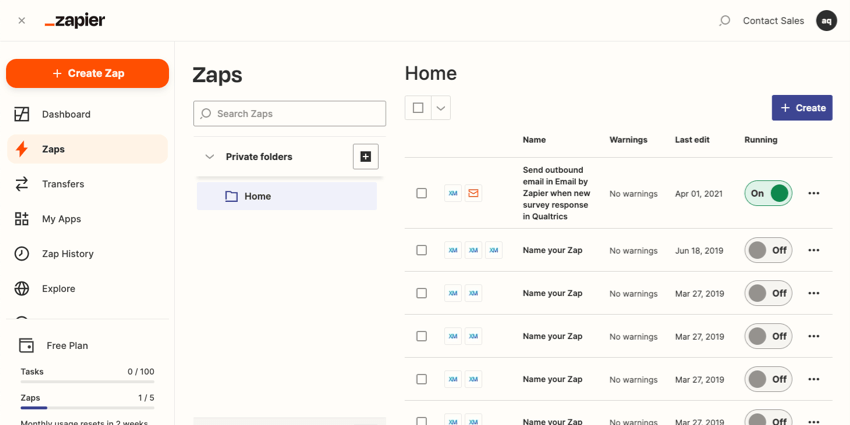
Zapier is a cloud-based automation platform that connects 7,000+ apps, from Gmail and Slack to Trello and Google Sheets. You build "Zaps" using triggers and actions, like "when I receive a new email with an attachment, save it to Dropbox." It includes Tables, Forms, AI features, and multi-step workflows with conditional logic.
Compared to Keyboard Maestro, Zapier isn't a desktop automation tool, so it won't help with local Mac macros. But for connecting web apps and automating cross-service workflows, it's far more powerful and works on any platform with a browser.
Key features:
- Connects 7,000+ apps including Gmail, Slack, Salesforce, and Notion
- Multi-step workflows with conditional logic and filters
- Built-in Tables, Forms, and AI features
- No-code visual editor
Pricing: Free plan with 100 tasks/month; Professional from $19.99/month (annual); Team from $69/month.
Best for: Anyone who needs to automate cross-app workflows without writing code.
Keyboard Maestro vs Top Alternatives
To help you decide, here's how Keyboard Maestro stacks up against five of the most common alternatives people consider.
Looking for a free text expander that works anywhere (Chrome, Windows, macOS)?
Join 800,000+ who are using Text Blaze templates.
Keyboard Maestro vs Text Blaze
Keyboard Maestro is built for system-level macOS automation with triggers, conditional logic, and macros. Text Blaze focuses on text and workflow automation through dynamic templates that work across Chrome, Windows, and Mac.
If your work is mostly typing and form-filling, Text Blaze will save you more time with less setup. If you need to automate Mac system events and app behavior, Keyboard Maestro goes deeper.
Best for Keyboard Maestro: Mac power users who need to automate system events, app behavior, and complex multi-step workflows.
Best for Text Blaze: Anyone who wants fast, flexible text expansion and workflow automation across browsers and desktops without learning a scripting system.
Keyboard Maestro vs Alfred
Keyboard Maestro and Alfred are both Mac-only, but they solve different problems. Keyboard Maestro is a full automation platform with triggers, macros, and conditional logic.
Alfred is primarily a launcher that adds light automation through workflows (Powerpack only). For pure speed and navigation, Alfred wins. For deep workflow automation, Keyboard Maestro wins.
Best for Keyboard Maestro: Building complex, trigger-based macros and system automations on Mac.
Best for Alfred: Mac users who want a fast keyboard launcher with snippets, clipboard history, and lightweight workflows.
Keyboard Maestro vs AutoHotkey
Keyboard Maestro is the Mac equivalent of AutoHotkey, and AutoHotkey is the Windows equivalent of Keyboard Maestro. Both are powerful automation tools, but Keyboard Maestro uses a visual editor while AutoHotkey relies on a custom scripting language.
AutoHotkey is free and open source, which is its biggest advantage. The trade-off is a steeper learning curve, especially for non-programmers.
Best for Keyboard Maestro: Mac users who prefer a visual editor over writing scripts.
Best for AutoHotkey: Windows users (or anyone comfortable with scripting) who want deep automation at no cost.
Keyboard Maestro vs Shortcuts
Apple Shortcuts is free, built into macOS, iOS, and iPadOS, and syncs across Apple devices via iCloud. Keyboard Maestro is paid, macOS-only, and far more powerful for complex automations.
Shortcuts works well for simple, portable workflows across Apple devices, while Keyboard Maestro handles advanced trigger-based automation on Mac that Shortcuts can't match.
Best for Keyboard Maestro: Mac-specific automation with conditional logic, complex triggers, and scripting.
Best for Shortcuts: Cross-device workflows across iPhone, iPad, and Mac that don't need deep customization.
Keyboard Maestro vs Raycast
Raycast is a modern Mac launcher with snippets, clipboard history, window management, and AI features. It's easier to learn and faster to set up than Keyboard Maestro, but it doesn't match Keyboard Maestro's depth for trigger-based automation or conditional logic.
Raycast is best when you want a fast, all-in-one productivity tool, and Keyboard Maestro is best when you need real automation depth.
Best for Keyboard Maestro: Power users who want full control over macros, triggers, and conditional automation.
Best for Raycast: Mac users who want a modern launcher with AI features and a strong extension ecosystem.
FAQ
What is the best Keyboard Maestro alternative?
The best Keyboard Maestro alternative depends on your platform and use case. For most users, Text Blaze is the strongest pick because it works on Mac, Windows, Chrome, and Edge with the same snippet library, has a generous free tier, and supports dynamic templates with placeholders, dropdowns, and conditional logic.
Though, if you need Windows-specific automation, AutoHotkey or Zapier can also work for you.
Is Keyboard Maestro free?
No, Keyboard Maestro doesn't have a free plan. It costs $36 for a one-time lifetime license, and major version upgrades cost an additional $25. A free trial is available so you can test the tool before committing.
Looking for a free text expander that works anywhere (Chrome, Windows, macOS)?
Join 800,000+ who are using Text Blaze templates.
Is Keyboard Maestro worth it?
Keyboard Maestro is worth it if you're a Mac user who automates complex workflows or runs the same multi-step tasks daily. Its macro editor, trigger options, and scripting support save real time for power users.
If you only need simple text expansion, keyboard shortcuts, or cross-platform support, a lighter tool will likely serve you better.
What is the Windows equivalent of Keyboard Maestro?
AutoHotkey is the closest Windows equivalent of Keyboard Maestro. It's free, open source, and supports hotkeys, text expansion, key remapping, and full GUI automation. The main difference is that AutoHotkey uses a scripting language instead of a visual editor, so the learning curve is steeper.
For a no-code option that works on Windows and Mac, Text Blaze is a strong cross-platform alternative.
Does Keyboard Maestro work on iPhone or iPad?
No, Keyboard Maestro is macOS-only and doesn't have an iPhone or iPad version. For iOS automation, the best options are Apple Shortcuts (free, built-in, syncs across Apple devices) and Scriptable (free, JavaScript-based automation for power users).
Is Keyboard Maestro hard to learn?
Keyboard Maestro has a moderate learning curve. The interface is powerful but dense, and beginners often need time to learn how triggers, actions, and macros work together. Most users find that simple automations are easy to set up, but advanced multi-step workflows require a real time investment.
If that learning curve is a concern, simpler tools like Apple Shortcuts, Text Blaze, or Raycast are easier to get started with.
Are there free alternatives to Keyboard Maestro?
Yes, several free alternatives to Keyboard Maestro exist. Text Blaze has a free forever plan that covers most personal use cases for text expansion and workflow automation. Apple Shortcuts and Automator are free and built into macOS.
Espanso is a free, open-source text expander that works on Mac, Windows, and Linux. AutoHotkey is free and open source for Windows. Hammerspoon is free for Mac users comfortable with Lua scripting.
What Is the Best Keyboard Maestro Alternative?
The best Keyboard Maestro alternative depends on where you work and what you're trying to automate. Windows users should look at AutoHotkey for free, scripting-based automation or Power Automate for Microsoft-centric workflows. iOS users get the most from Apple Shortcuts and Scriptable. And for cross-app cloud workflows, Zapier covers ground no desktop tool can match.
For most Mac users, though, the right fit comes down to how much complexity you actually need. If you want full system automation with triggers and conditional logic, Hammerspoon or Alfred's Powerpack get you there. If you just want to type faster, automate forms, and skip the macros, a text expander will save you more time with less setup.
That's where Text Blaze tends to be the strongest starting point. It works across Chrome, Mac, and Windows with the same library, supports dynamic templates with placeholders and conditional logic, and has a free plan that covers most personal use cases. You can set up your first useful snippet in under five minutes, which is hard to say about most other tools on this list.
Pick one tool, build a few automations, and you'll know within a week whether it fits your workflow.