15 Best Microsoft Edge Extensions to Install in 2026
The 15 best Microsoft Edge extensions for productivity, security, reading, focus, and utilities in 2026. Picks that actually earn their place in your browser.

Microsoft Edge has grown into a capable browser with Chromium compatibility, strong Windows integration, and a real extension ecosystem. The catch is that the Edge Add-Ons store and the Chrome Web Store together offer thousands of extensions, and not all of them are worth your time.
Below are 15 extensions worth installing in Edge in 2026, grouped by what they help you do; from writing and security to focus, reading, and general utilities.
What Are Microsoft Edge Extensions?
Microsoft Edge extensions (or add-ons) are small programs that add features to the Edge browser. They can block ads, manage passwords, expand text shortcuts, capture web pages, organize tabs, and dozens of other things Edge doesn't do on its own.
Edge supports two extension sources: the Microsoft Edge Add-Ons store and the Chrome Web Store. Because Edge is built on Chromium (the same engine as Chrome), most Chrome extensions work in Edge with minor or no adjustments. Some extensions are exclusive to one store, but the practical difference for most users is small.
How to Add Extensions to Edge
Installing extensions in Edge takes a minute or two, regardless of which store you're using.
Here's how to add extensions/add-ons to Edge:
From the Microsoft Edge Add-Ons store
Open Edge and visit the Microsoft Edge Add-Ons store.
Browse or search for an extension.
Click Get to install. Confirm by clicking Add extension in the popup.
The extension appears in your toolbar or in the Extensions menu (the puzzle icon).
From the Chrome Web Store
Open Edge and visit the Chrome Web Store.
If you haven't already, click Allow extensions from other stores in the banner at the top, then click Allow.
Find the extension you want and click Add to Chrome.
Confirm by clicking Add extension in the popup.
Both stores install extensions the same way once installed. Manage them by going to Settings → Extensions or by clicking the puzzle icon in your toolbar.
The 15 Best Microsoft Edge Extensions in 2026
The 15 extensions below are organized into five categories so you can scan to what matters for your work. Each one includes a short overview, key features, and pricing.
For Productivity and Writing
Text Blaze
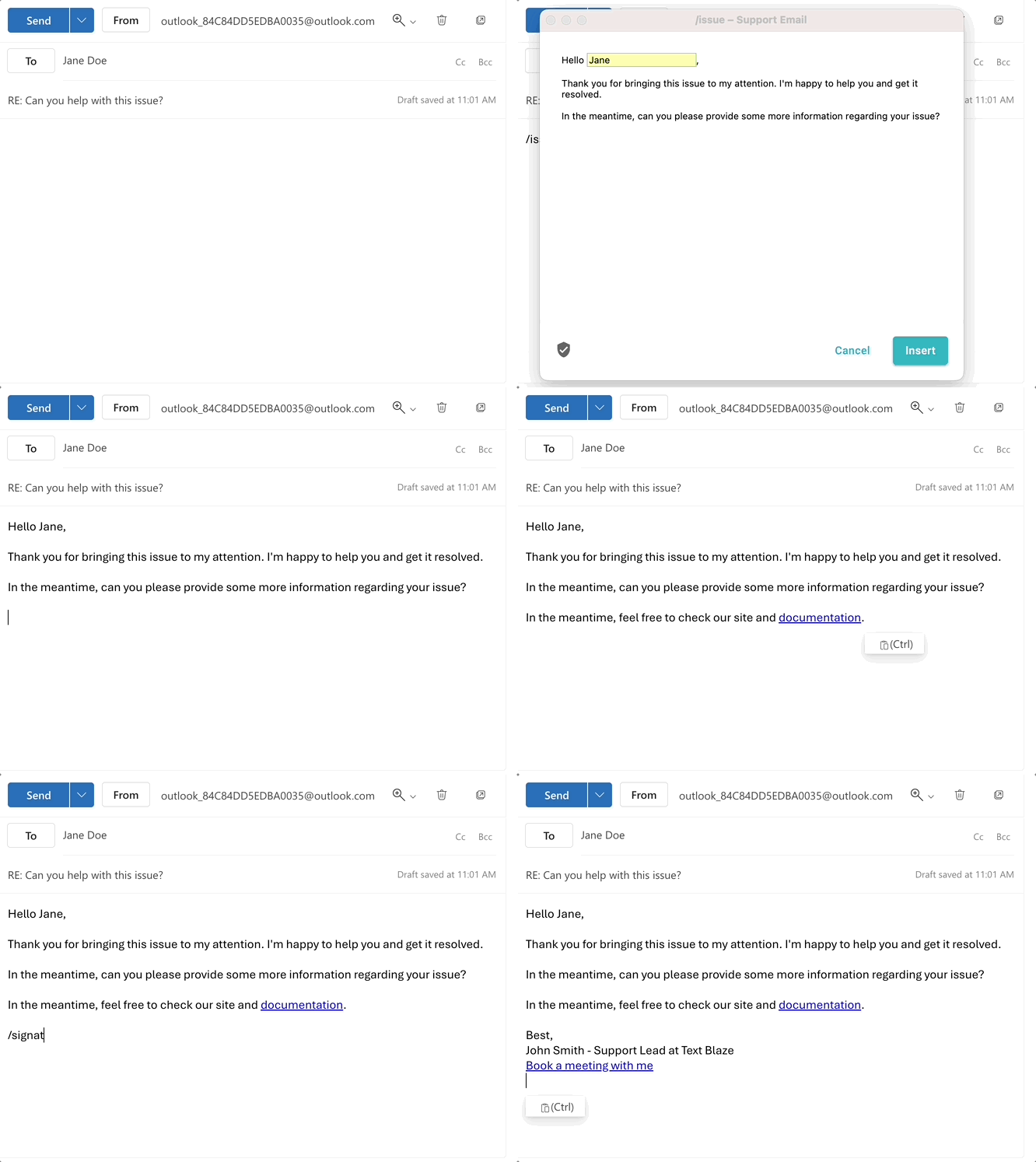
Text Blaze is a free text expander that allows you to create keyboard shortcuts that expand into full templates, signatures, replies, and forms across any website or app where you type.
With Text Blaze, you can create smart text templates for common phrases and even full emails that you can insert anywhere online using keyboard shortcuts.
Using Text Blaze, you can automate repetitive typing, boost productivity, and get more done using keyboard shortcuts. Whether you want to automate repetitive phrases or even full emails, Text Blaze helps you do it faster!
Key features:
Automate repetitive typing - 800,000+ trust Text Blaze to automate workflows and save time with powerful text expansion.
Automate your work anywhere via the Text Blaze Edge extension, Chrome Extension, Windows app, and Mac app!
Create dynamic templates with placeholders, if/else rules, drop-down menus, AI, autopilot, and more!
Text Blaze is free forever! - Say goodbye to annoying licenses or 7-day trials.
Text Blaze is perfect for teams! - Text Blaze helps teams streamline workflows, sync communication, and save HOURS every day.
Want to automate repetitive typing in Microsoft Edge for free?
Join 800,000+ who are using Text Blaze templates.
Grammarly
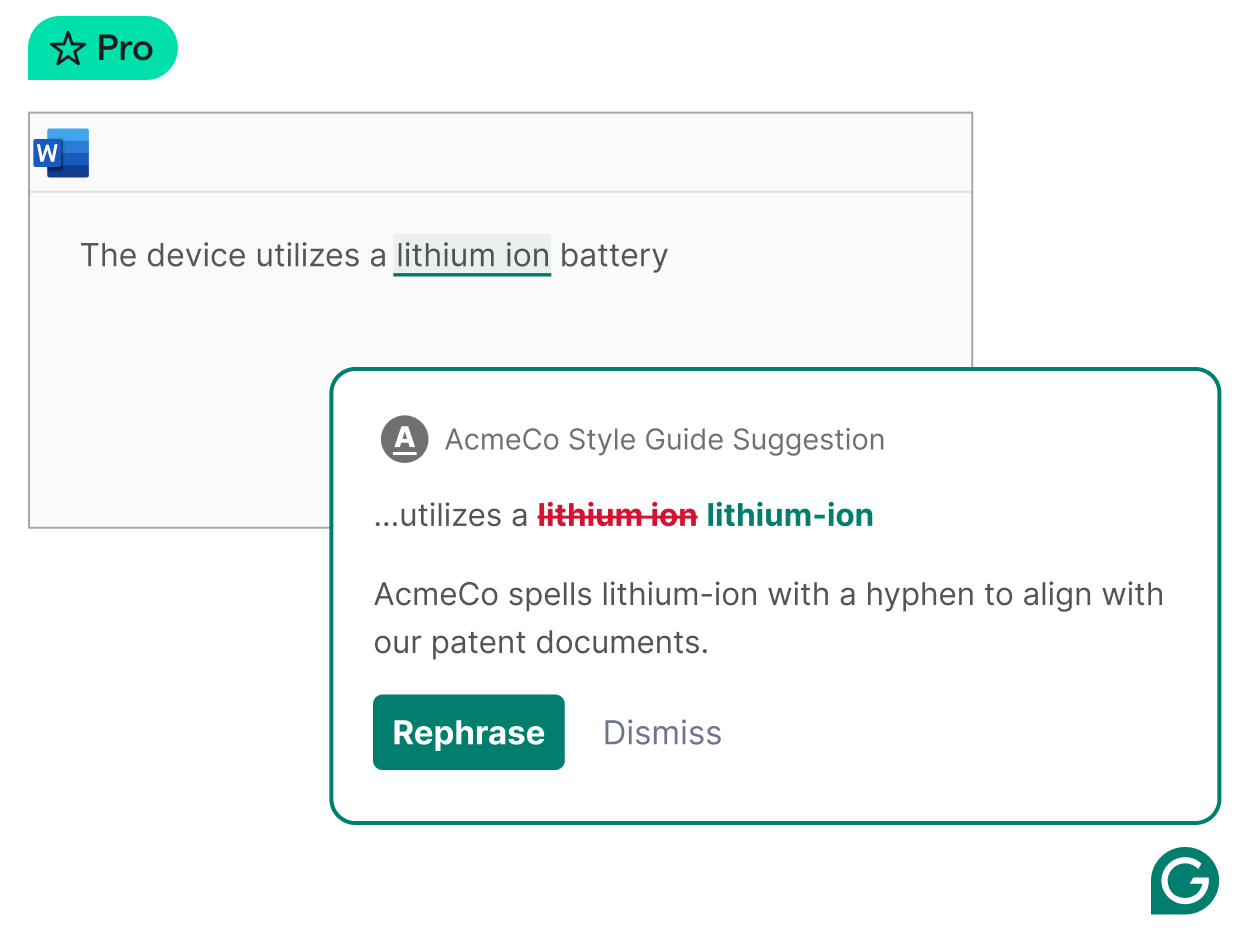
Grammarly checks spelling, grammar, tone, and clarity as you write across Edge. It runs in Gmail, Outlook on the web, Google Docs, LinkedIn, and most other text fields, surfacing suggestions inline. Tools like Grammarly are great for quick fixes/writing reviews.
The free tier handles basic grammar and spelling. Premium ($12/month) adds tone, clarity, and word choice suggestions, plus plagiarism detection.
Key features:
- Real-time grammar and spelling checks
- Tone detection and clarity suggestions
- Vocabulary enhancement
- Works across most websites with text input
Pricing: Free, Premium from $12/mo.
Monica AI
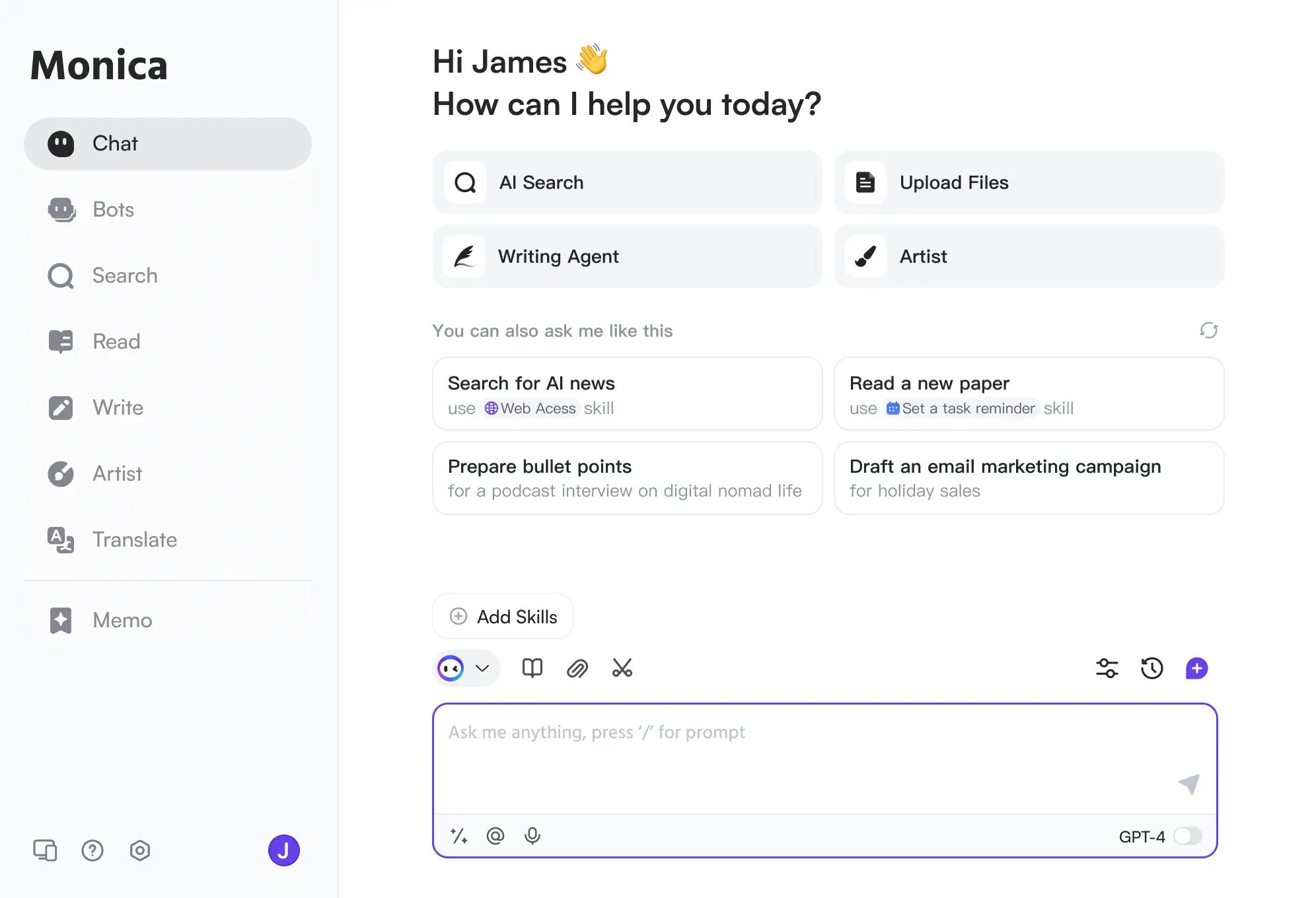
Monica is an AI assistant that runs as a sidebar in Edge, powered by GPT-4 and other large language models. Tools like Monica AI can summarize the page you're reading, draft replies in Gmail or LinkedIn, rewrite paragraphs for tone, translate selected text, and answer questions about content you're looking at.
The free tier covers a limited number of daily messages (40). Paid plans start at $9.90/month and offer 5,000 AI queries/month, GPT-4 access, and additional models.
Key features:
- AI sidebar that works on any webpage
- Summarization, translation, and rewriting tools
- Drafts replies and content in Gmail, LinkedIn, and other text fields
- Access to multiple AI models (GPT-4, Claude, Gemini on paid tiers)
Pricing: Free with daily limits, paid from $9.90/mo.
Todoist
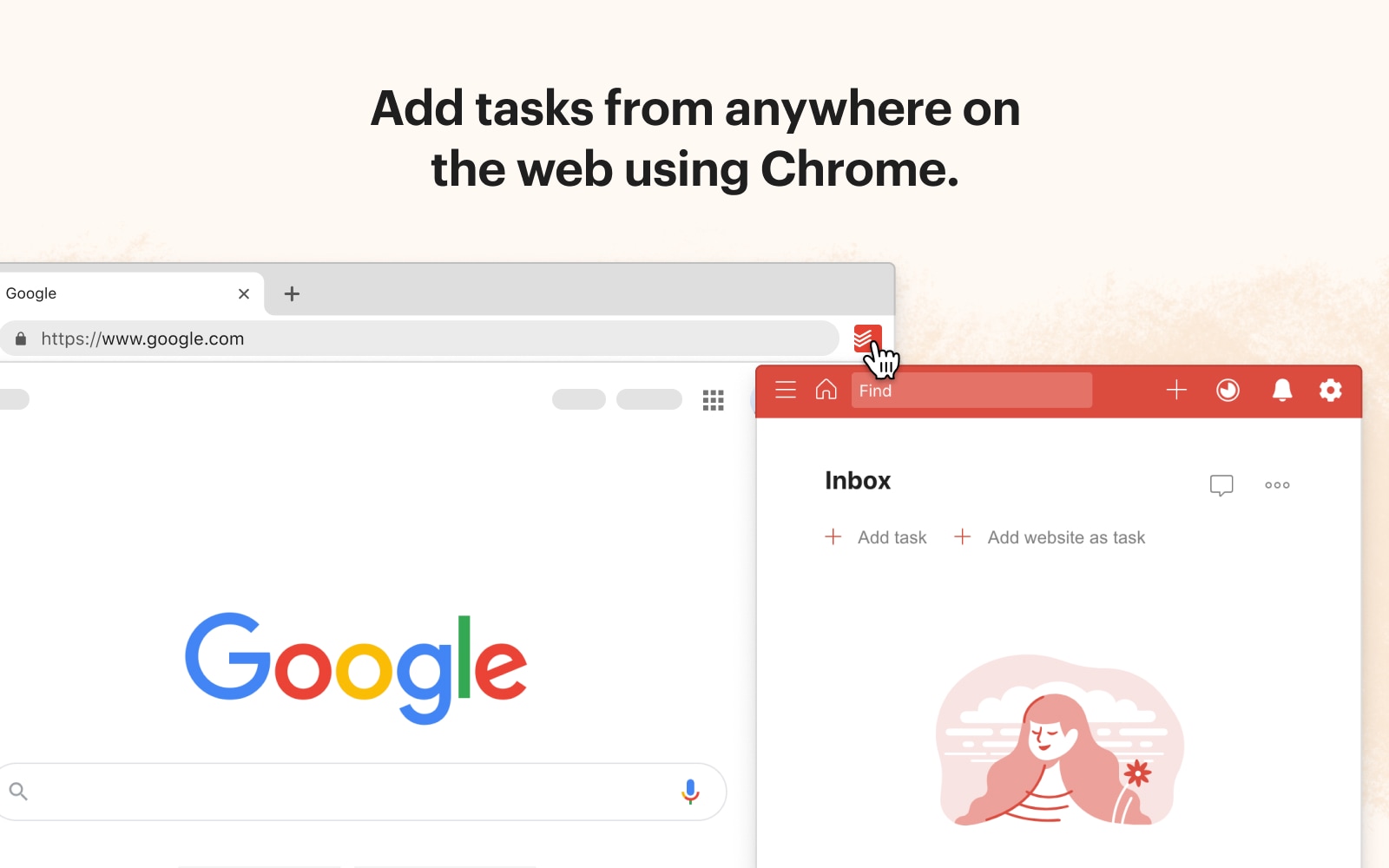
Todoist is a productivity extension and task manager from Doist, available across nearly every platform. The Edge extension lets you add tasks from any webpage you're on, set deadlines using natural language ("tomorrow at 3pm"), and view your full task list in a popup without leaving the browser.
The free tier handles up to 5 active projects. Pro ($5/month) unlocks reminders, labels, filters, and templates.
Key features:
- One-click task capture from any webpage
- Natural language date parsing
- Cross-platform sync (web, desktop, mobile)
- Karma productivity tracking system
Pricing: Free, Pro from $5/mo.
For Security and Privacy
Bitwarden
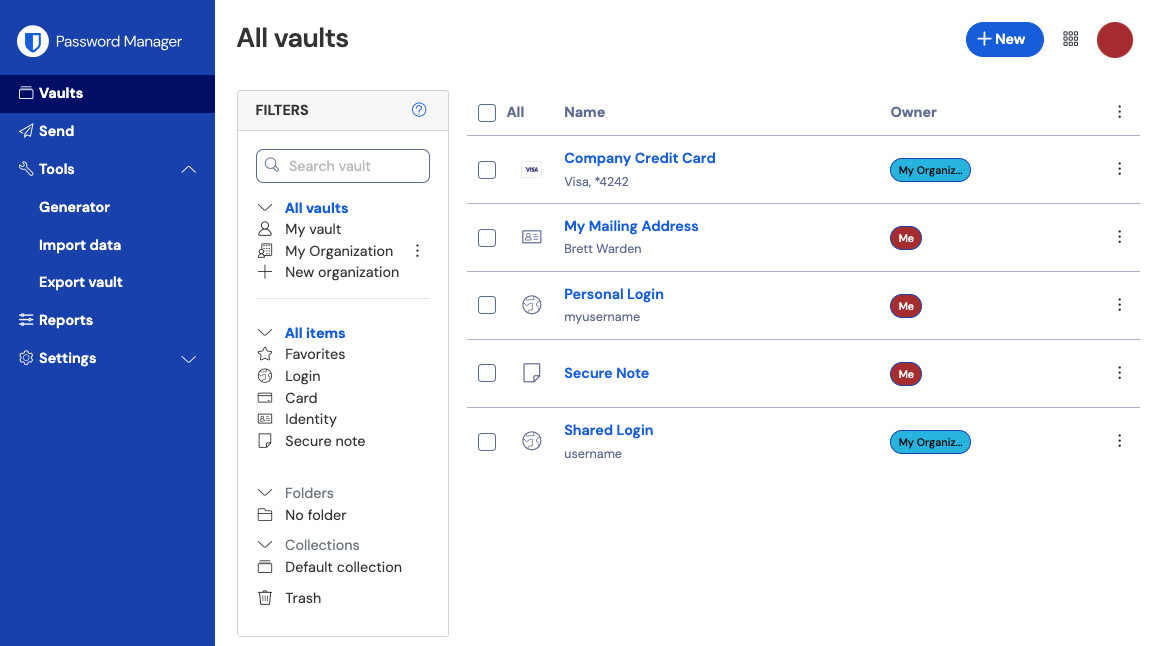
Bitwarden is an open-source productivity software and password manager. Unlike most password managers, the free tier includes unlimited password storage across unlimited devices, which has made it a popular recommendation in security circles since LastPass's 2022 data breach.
The Edge extension handles autofill, password generation, and secure note storage. Premium ($19.80/year) adds vault health reports, emergency access, and 1 GB of encrypted file storage.
Key features:
- Unlimited passwords and devices on the free tier
- End-to-end AES-256 encryption
- Open-source code with public security audits
- Self-hosting option for teams that want full control
Pricing: Free, Premium $19.80/year.
uBlock Origin
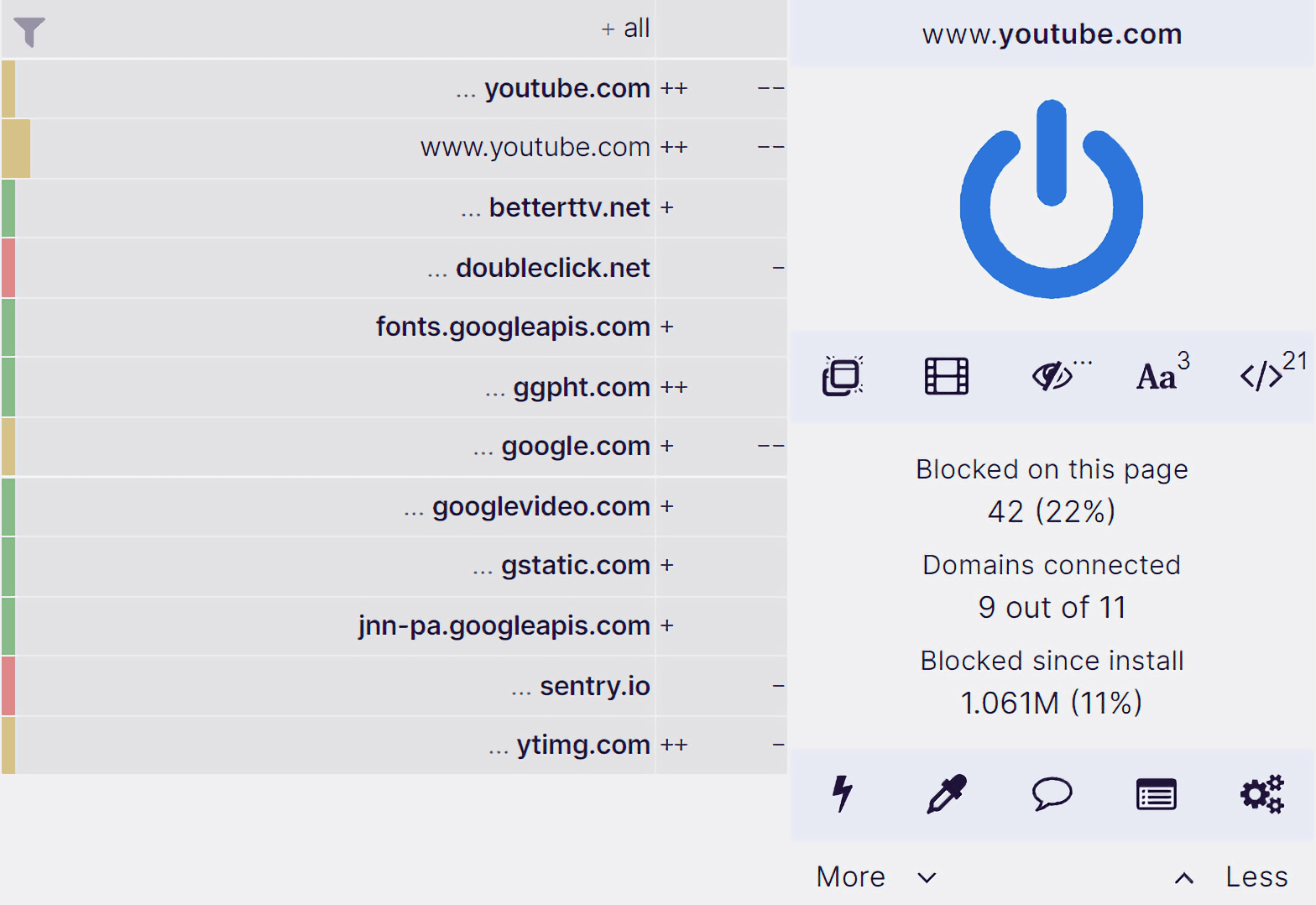
uBlock Origin is a free, open-source content blocker. It blocks ads, trackers, malware domains, and other unwanted page elements using filter lists, with lower memory and CPU usage than most commercial ad blockers.
It's the consensus pick for ad blocking on Chromium browsers. The Edge version works identically to the Chrome version, with all the same filter lists supported.
Key features:
- Blocks ads, trackers, and malware domains
- Lower CPU and memory usage than most ad blockers
- Custom filter lists and rules
- No paid tier or premium upsell
Pricing: Free and open source.
Want to automate repetitive typing in Microsoft Edge for free?
Join 800,000+ who are using Text Blaze templates.
For Reading and Saving Content
OneNote Web Clipper

The OneNote Web Clipper is Microsoft's official extension for saving web content to OneNote. The clipper lets you save full articles, selected regions, screenshots, or simplified versions, then sort them into specific OneNote notebooks and sections.
If you already use OneNote (especially within a Microsoft 365 setup), this is the natural pick. If you don't, the friction of setting up OneNote first probably isn't worth it.
Key features:
- Save full pages, regions, simplified articles, or bookmarks
- Direct save into specific OneNote notebooks and sections
- Highlight and annotate before saving
- Free with any Microsoft account
Pricing: Free (requires Microsoft account).
Raindrop.io

Raindrop.io is a bookmark manager and read-later service. It saves pages with full screenshots, organizes them into collections, supports tags, full-text search, and a clean reading mode that strips ads and formatting.
The free tier covers unlimited bookmarks and basic organization. Pro ($28/year) adds nested collections, permanent backups of saved pages, and advanced search filters.
Key features:
- Unlimited bookmarks on the free tier
- Visual bookmark grid with full screenshots
- Collections, tags, and full-text search
- Distraction-free reading mode
Pricing: Free, Pro $28/year.
Evernote Web Clipper
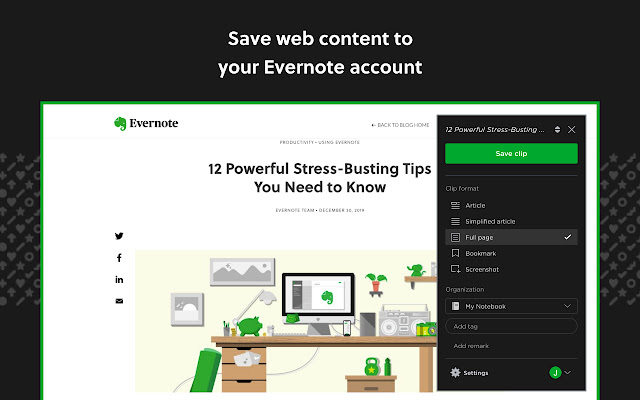
Evernote Web Clipper saves web content to your Evernote account. It supports clipping articles, simplified views, full pages, screenshots, and bookmarks, with options to tag, annotate, and route saved content to specific notebooks.
The free Evernote tier limits you to 50 notes total and 2 devices, which is restrictive. Personal ($14.99/month) lifts those limits and adds offline access.
Key features:
- Multiple clip formats (article, simplified, full page, screenshot)
- Tagging and notebook organization
- Annotate and highlight before saving
- Search through clipped text content
Pricing: Free with strict limits, Personal from $14.99/month.
For Focus and Tab Management
Momentum
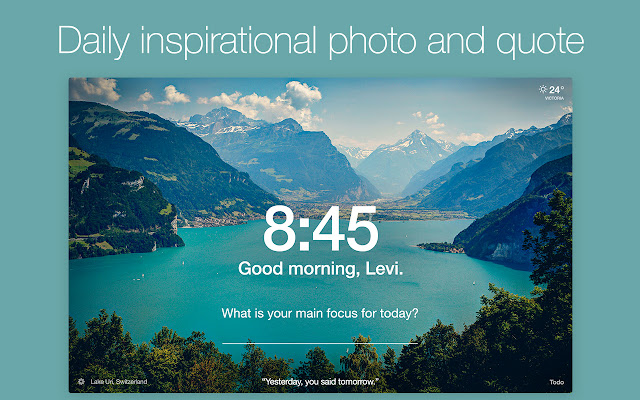
Momentum replaces Edge's default new tab page with a personalized dashboard. Each new tab opens with a high-resolution background photo, the current time and weather, a daily focus prompt, a brief inspirational quote, and a to-do list you build up over the day.
The free tier covers the basics. Momentum Plus ($3.33/month billed annually) adds custom themes, integrations with task apps (Todoist, Trello, etc.), and removes the daily limit on certain features.
Key features:
- Daily background photos and inspirational quotes
- Built-in to-do list and focus prompt
- Time, weather, and personalized greeting
- Customizable widgets
Pricing: Free, Plus $3.33/month.
OneTab
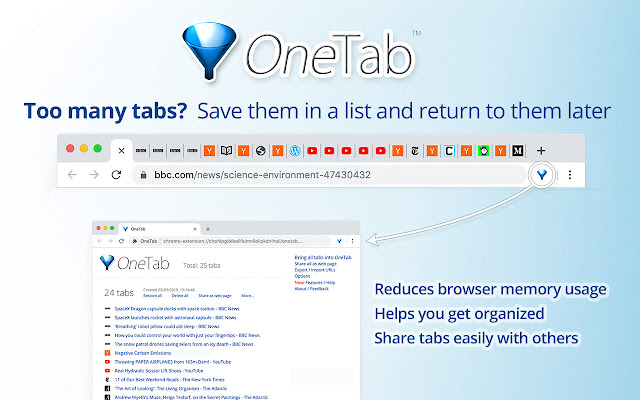
OneTab is a productivity tool that focuses on tab management. It collapses all your open tabs into a single list with one click. Open 30 tabs while researching something? Click OneTab and they're consolidated into one tab showing a clickable list of all of them, freeing up memory and reducing browser clutter.
The trade-off is that OneTab isn't a real session manager. The list it creates can be lost if you accidentally clear it, and it doesn't sync between devices. For occasional cleanup, that's fine. For serious session management, look at dedicated tools.
Key features:
- One-click consolidation of all open tabs
- Reduces browser memory usage significantly
- Restore tabs individually or all at once
- Export tab list as URL list or HTML
Pricing: Free.
DarkReader

Dark Reader is an open-source extension that applies dark mode to every website, even ones that don't have a native dark theme. It analyzes each page and generates a dark version on the fly, with adjustable brightness, contrast, sepia, and grayscale settings.
It's the consensus pick for browser-based dark mode and supports per-site customization, so you can keep specific sites in light mode if you want.
Key features:
- Automatic dark mode for any website
- Adjustable brightness, contrast, sepia, grayscale
- Per-site settings and exclusions
- Free and open source
Pricing: Free and open source.
Want to automate repetitive typing in Microsoft Edge for free?
Join 800,000+ who are using Text Blaze templates.
For Tools and Utilities
GoFullPage
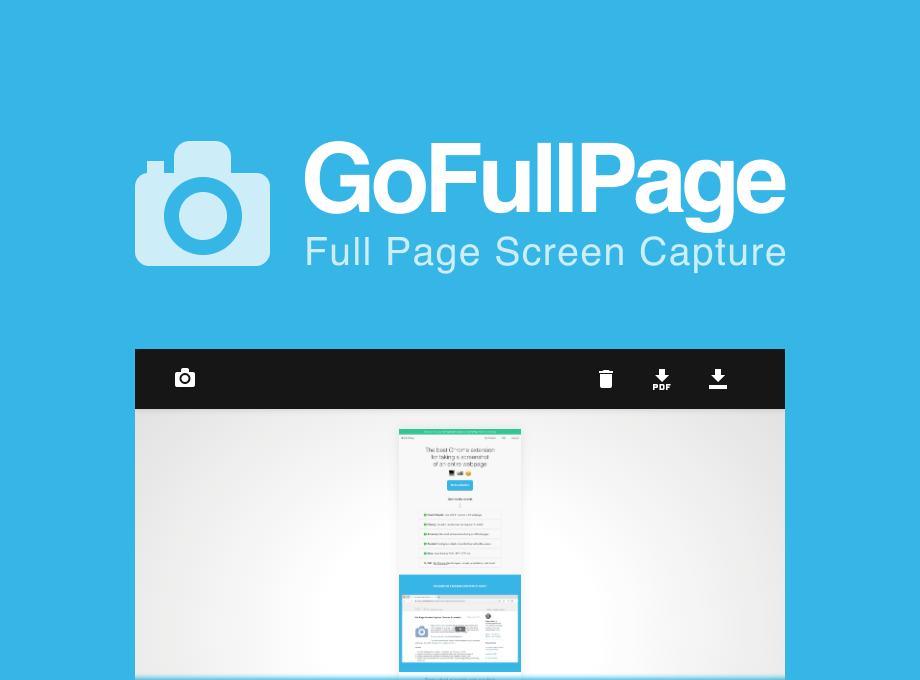
GoFullPage captures a screenshot of an entire webpage, not just the visible portion. Click the GoFullPage icon and it scrolls through the page, stitches together a single image, and gives you the option to save as PNG, JPG, or PDF.
The free version is unrestricted for standard screenshots. Pro ($1/month) adds editing tools, annotation, and the ability to save screenshots to Google Drive.
Key features:
- Full-page screenshots with one click
- Export as PNG, JPG, or PDF
- Captures content beyond the visible viewport
- Lightweight with minimal permissions
Pricing: Free, Pro $1/month.
Adobe Acrobat
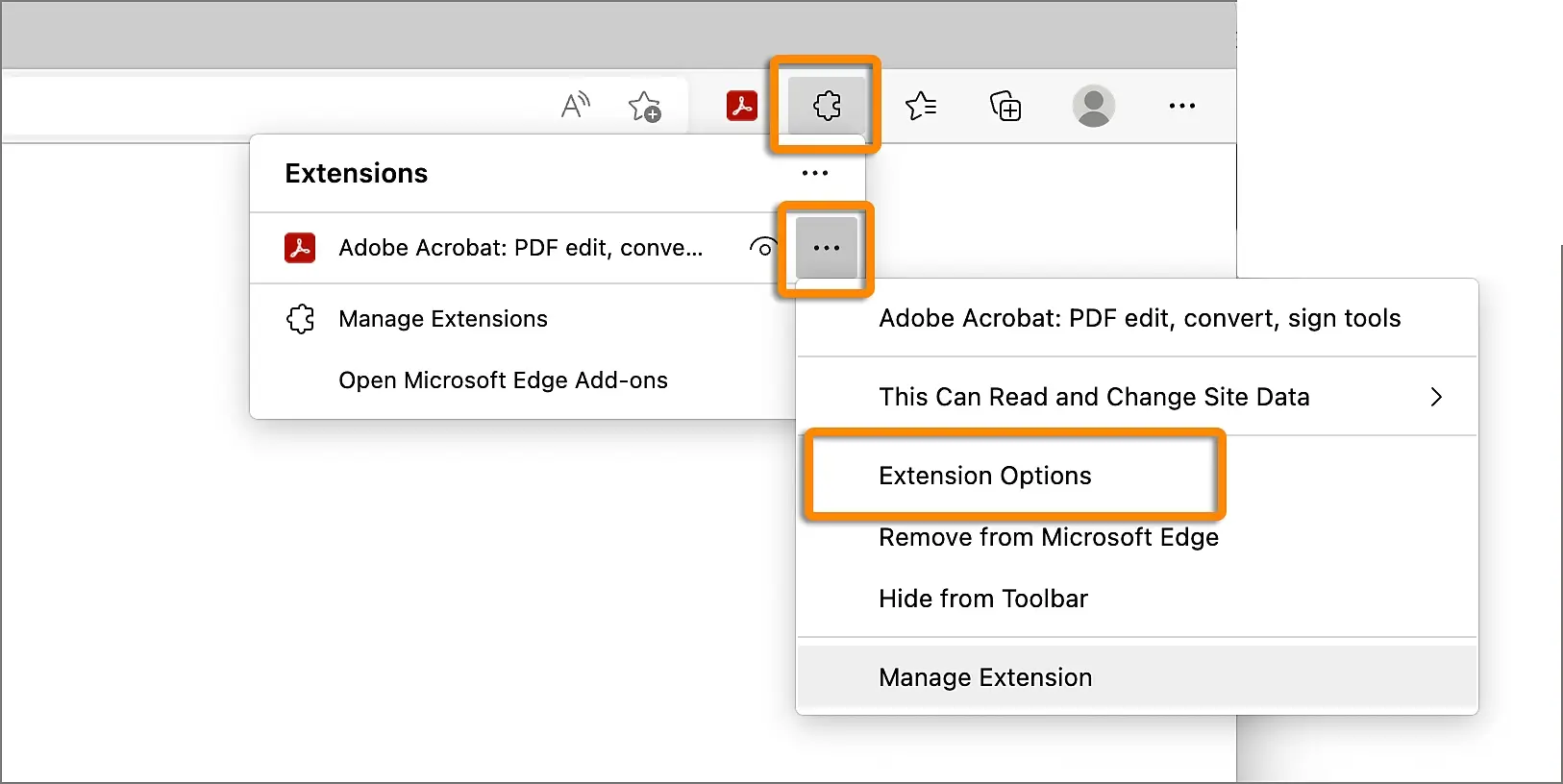
The Adobe Acrobat extension brings PDF tools directly into Edge. You can convert webpages to PDF, fill out PDF forms inline, sign documents, and combine multiple webpages into a single PDF without leaving the browser.
The free tier handles basic conversion and viewing. Acrobat Pro features (editing, OCR, advanced security) require an Adobe subscription ($9.99/mo).
Key features:
- Convert webpages to PDF in one click
- Fill and sign PDF forms in the browser
- View PDFs without a separate app
- Integrates with Adobe Document Cloud
Pricing: Free, Acrobat Pro from $19.99/month.
Honey
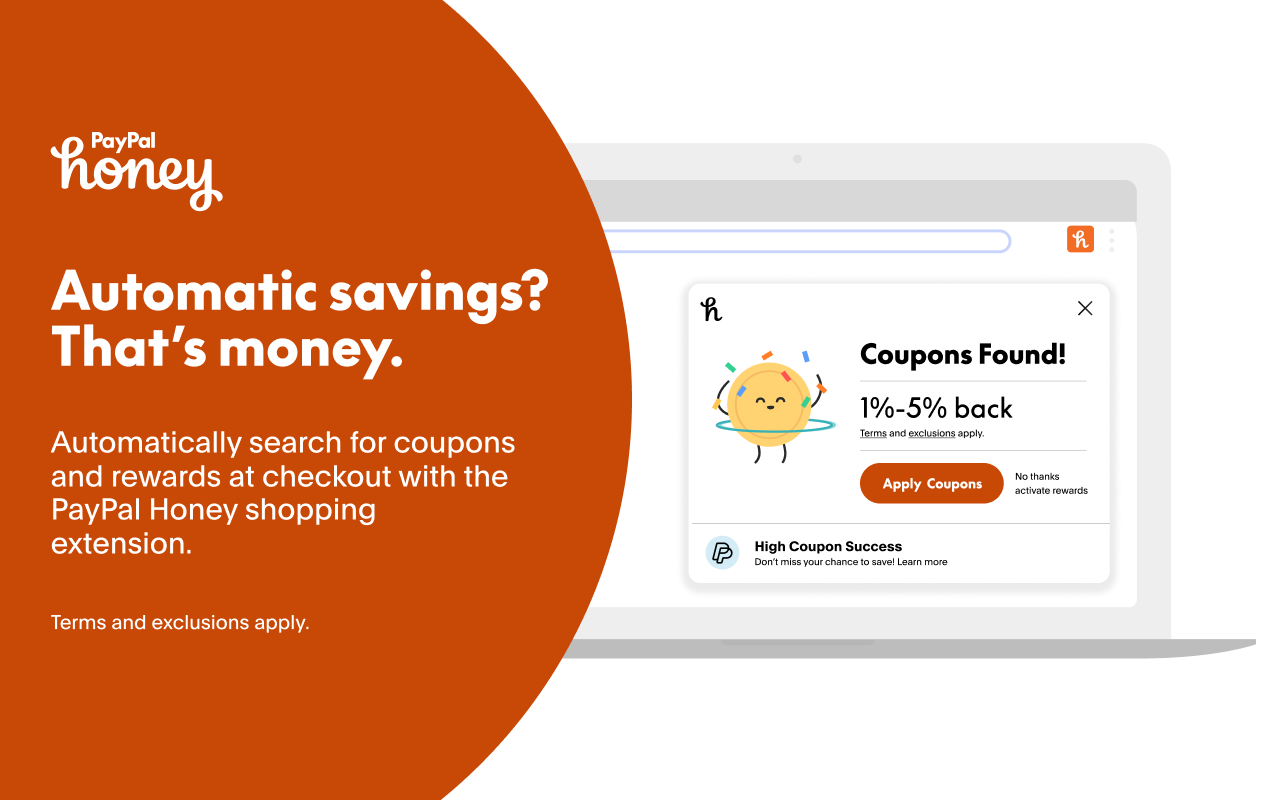
Honey is an automatic coupon and price-tracking extension that applies discount codes at checkout on supported retailers. It scans for available codes when you reach a checkout page, tests them, and applies the best one without manual entry.
The trade-off worth knowing: Honey has been criticized for replacing affiliate cookies on supported retailers, which can affect content creators you're trying to support. If that matters to you, it's worth reading more about how the extension works before installing.
Key features:
- Automatic coupon code testing at checkout
- Price tracking and drop alerts
- Amazon price history and best-seller comparisons
- Honey Gold rewards on supported purchases
Pricing: Free.
Microsoft Edge Extensions FAQ
Are Microsoft Edge extensions safe?
Most are, but not all. Extensions from the Microsoft Edge Add-Ons store are reviewed by Microsoft before publishing, which adds a baseline of safety. Chrome Web Store extensions go through Google's review process. Neither is perfect, and there have been cases of malicious extensions slipping through both stores.
To stay safe: check the developer (look for verified or recognized companies), read recent reviews (not just the top ratings), check the permissions before installing (an extension that wants to "read and change all your data on all websites" should have a good reason for that), and uninstall anything you stop using.
Can I use Chrome extensions in Microsoft Edge?
Yes. Edge is built on Chromium, the same engine as Chrome, so most Chrome Web Store extensions install and run in Edge without issues. The first time you visit the Chrome Web Store from Edge, you'll see a banner asking permission to install extensions from other stores. Click Allow once and you're set.
A small minority of extensions use Chrome-specific APIs and don't work fully in Edge, but for the vast majority, the experience is identical.
How do I remove an extension from Edge?
Click the puzzle piece icon in the toolbar to open the extensions menu. Click Manage extensions, find the one you want to remove, and click Remove. You can also right-click an extension's icon directly in the toolbar and select Remove from Microsoft Edge.
If you want to disable an extension temporarily instead of removing it, toggle the switch off on the same Manage extensions page.
Do Edge extensions sync across devices?
Yes, if you sign into Edge with the same Microsoft account on each device. Edge syncs installed extensions across desktop installations by default, but individual extensions also store their own data (passwords, bookmarks, snippets, settings) separately. Most modern extensions handle their own sync through your account with that service, so logging into the extension itself on each device gets your data across.
Why are some extensions slowing down my browser?
Each extension uses memory and processing power, and some use a lot more than others. Background scripts that run constantly (ad blockers, password managers, AI assistants) tend to be heavier than extensions that only activate when you click them.
Open Settings → Performance in Edge to see which extensions are using the most resources. Disable or remove anything you don't actively use. As a rule of thumb, keeping 5-10 well-chosen extensions installed is better than 20+ that all run in the background.
Pick the Right Extensions for Your Workflow
Installing all 15 of these extensions would slow Edge down and create more clutter than productivity. The better approach is to start with two or three from the categories that match how you actually work: one writing tool, one security pick, and maybe one for the way you read or save content.
If you're starting from scratch, Text Blaze and Bitwarden cover the two highest-leverage gaps in most browsers: repetitive typing and password security. From there, add a screenshot tool, a reading manager, and a focus aid as you need them.