5 Best Free Text Expanders for Chrome in 2026
Tired of retyping the same emails and replies? See the 5 best free text expanders for Chrome in 2026, tested, ranked, and compared.

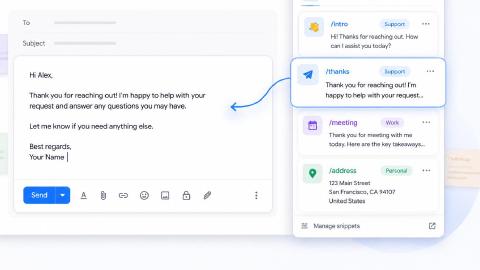
Imagine typing ;sig and watching your full email signature appear. Or /addr and getting your full mailing address. Or a single shortcut that fills out an entire customer support reply. That's what a text expander does, and once you start using one, going back to retyping the same things over and over feels almost painful.
If you spend most of your day in Chrome, a Chrome-based text expander is the fastest way to get started. No desktop app to install, no system permissions to wrestle with. Just an extension that works inside your browser.
In this article, we'll cover the 5 best free text expanders for Chrome in 2026, ranked and compared. For each one, you'll find key features, who it's best for, pricing, and the tradeoffs to know about before you commit.
Text Expanders for Chrome at a Glance
| Tool | Best For | Price | Key Strength |
|---|---|---|---|
| Text Blaze | All-purpose typing automation and team workflows | Free forever | Dynamic templates with placeholders, forms, and logic |
| Auto Text Expander | Simple, no-frills shortcut expansion | 100% free | Lightweight setup with sync across Chrome |
| Magical | Autofill and AI message generation | Free tier | AI-assisted replies and form autofill |
| Web Text Expander | Saving and reusing AI prompts (ChatGPT, Gemini) | 100% free | Tag filtering and quick-add via right-click |
| Briskine | Email-heavy roles (sales, support, recruiting) | Free tier | Deep Gmail, Outlook, and LinkedIn integration |
What Is a Text Expander?
A text expander is a tool that turns short shortcuts into longer pieces of text. You set up an abbreviation like ;sig or /addr, assign it to a full sentence, paragraph, or template, and from then on, typing those few characters expands them automatically.
Most text expanders for Chrome work on any site you type in, including Gmail, Google Docs, LinkedIn, CRMs, support tools, and AI chat apps like ChatGPT and Gemini. Common use cases include:
Email and message replies: Set up shortcuts for frequent responses, signatures, and follow-ups so you can reply in seconds instead of retyping the same thing every time.
Form filling: Trigger your name, address, phone number, or other repeatable info with a few keystrokes.
AI prompt management: Save your best ChatGPT or Gemini prompts as shortcuts and reuse them across new chats without copy-pasting.
Workflow automation: More advanced expanders can automate workflows by chaining steps, filling forms dynamically, or running browser actions.
Simple text expanders just expand text. More advanced tools like Text Blaze add placeholders, drop-down menus, if/else logic, and team sharing, which turn shortcuts into full workflow automation.
What to Look for in a Text Expander for Chrome
Not every text expander is a good fit for every workflow. Some are bare-bones snippet tools. Others are full automation platforms. Before picking one, it helps to know which features actually matter for the way you work.
Here's what to evaluate:
Where it works: A Chrome extension should expand text on any site you use, including Gmail, Google Docs, LinkedIn, your CRM, support tools, and AI chats.
Dynamic templates and placeholders: Basic expanders just paste static text. Better ones let you insert dynamic fields like names, dates, dropdowns, or fill-in-the-blank prompts.
Logic and forms: For more advanced use cases (sales follow-ups, support replies, structured prompts), you'll want if/else rules, conditional content, and form fields that prompt you for input before expanding.
Team sharing: If you work with a team, look for shared template libraries so everyone uses the same approved messaging.
Free tier vs. free trial: "Free" can mean different things. Some tools are free forever with no feature limits. Others give you a 7-day or 30-day trial, then push you to pay.
Cross-platform support: If you also work outside Chrome (desktop apps, other browsers), check whether the tool has a Mac, Windows, or Edge version so your shortcuts follow you.
The right tool depends on whether you need quick snippet expansion, dynamic templates, or full workflow automation. Each of the tools below covers a different point on that spectrum.
5 Best Free Text Expanders For Chrome
Here are the five best free text expanders for Chrome in 2026, ranked by overall capability and matched to specific use cases. Each entry covers what the tool does well, where it falls short, pricing, and who it's best for.
1. Text Blaze
Text Blaze is the most powerful free text expander for Chrome, and the best all-around pick for most people. It's trusted by 800,000+ users with a 4.9 rating and 1,800+ five-star reviews on the Chrome Web Store.
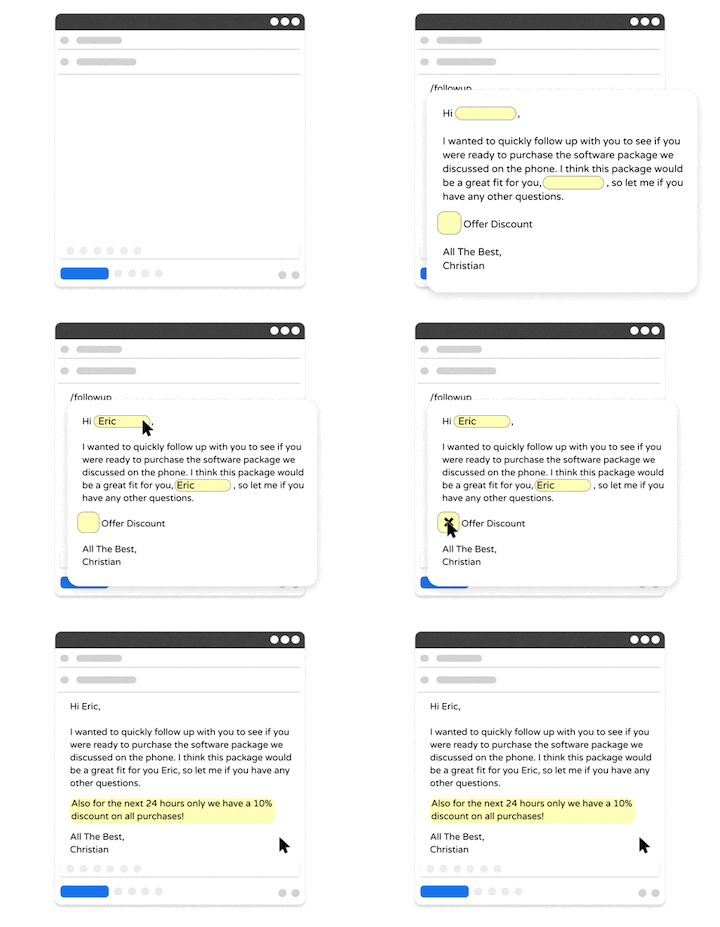
Where most text expanders just paste static snippets, Text Blaze turns shortcuts into full templates with placeholders, drop-down menus, if/else logic, forms, and even autopilot actions.
That means you can build a single shortcut that asks for a customer name, picks the right opening based on the situation, fills in today's date, and inserts a personalized reply, all from a few keystrokes.
It also works everywhere you do. The Chrome extension covers any website you type in. There are also Windows, Mac, and Edge versions, so your snippets follow you outside the browser.
Key features:
- Dynamic templates with placeholders, dropdowns, and form fields
- If/else logic and conditional content for situational replies
- Autopilot actions that fill forms and trigger browser steps automatically
- Team sharing with shared snippet libraries and folders
- Works on Chrome, Edge, Windows, and Mac
- Integrates with Gmail, Salesforce, HubSpot, ChatGPT, Zendesk, and more
Pros:
- Free forever, no trial limits or feature paywalls on core text expansion
- Significantly more powerful than other free options on this list
- Strong fit for both individuals and teams
Cons:
- The advanced features (logic, forms, autopilot) have a slight learning curve compared to bare-bones snippet tools
Pricing: Free forever.
Best for: Anyone who wants more than basic snippets, including sales teams, customer support, recruiters, healthcare professionals, and anyone building repeatable workflows in Chrome.
Want to save hours of repetitive typing for free?
Join over 800,000+ others who are using Text Blaze templates.
2. Auto Text Expander
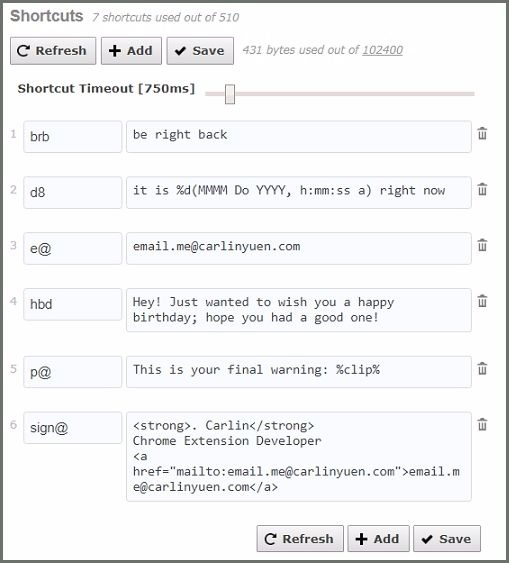
Auto Text Expander is a simple, no-frills Chrome extension that does exactly what its name says. You set a shortcut, you assign it to a longer piece of text, and it expands automatically when you type.
It's a good pick if you don't need anything fancy. There are no forms, no logic, no team features. Just lightweight shortcut expansion that syncs across any Chrome browser you sign into.
If you've never used a text expander before and want the lowest possible barrier to entry, this is a reasonable place to start.
Key features:
- Simple shortcut-to-text expansion
- Sync across Chrome browsers via your Google account
- Support for date and time placeholders
- Import and export of shortcuts
Pros:
- 100% free with no upsells or paid tier
- Easy to set up in minutes
- Lightweight and unobtrusive
Cons:
- No dynamic templates, forms, or logic
- Chrome-only, so your shortcuts don't work in desktop apps or other browsers
- Limited support and infrequent updates
Pricing: Completely free.
Best for: Beginners who want basic shortcut expansion in Chrome and nothing more.
3. Magical
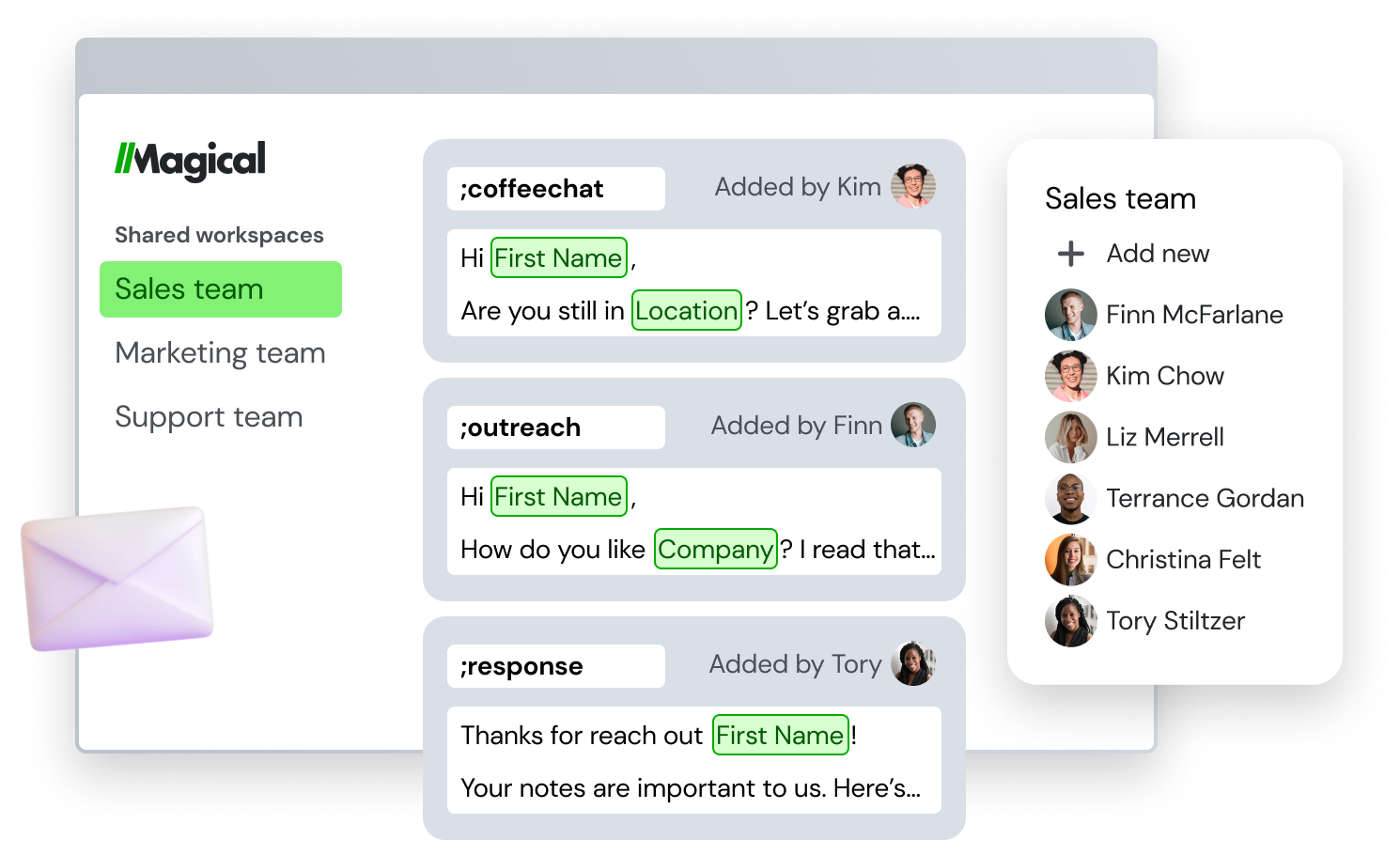
Magical is a Chrome extension that started as a text expander and has evolved into a broader automation tool. Alongside standard shortcut expansion, it includes AI-generated message suggestions, autofill across web forms, and data transfer between tabs.
If your day involves a lot of repetitive form filling and outreach (sales prospecting, recruiting, data entry), tools like Magical typically go beyond what most pure text expanders offer.
If you mainly want shortcut expansion for emails and replies, it's still capable, but you may find the broader feature set more than you need.
Key features:
- Shortcut-based text expansion with variables
- AI message generation for sales and outreach replies
- Autofill across forms, CRMs, and ATS platforms
- Cross-tab data transfer for prospecting and lead enrichment
- Team template sharing on paid plans
Pros:
- Strong autofill and data-transfer features for sales and recruiting workflows
- AI-assisted message drafting built in
- Polished interface with a low learning curve
Cons:
- Free plan caps shortcut usage and limits AI features
- More focused on sales and recruiting than general productivity
- Some features (like data transfer) require setup that goes beyond simple expansion
Pricing: Free trial with limits on shortcuts and AI usage. Paid plans start with team features and higher limits.
Best for: Sales reps, recruiters, and ops teams who want autofill and AI message generation alongside basic text expansion. If you mainly need pure shortcut expansion, Text Blaze or Auto Text Expander will likely be a better fit.
4. Web Text Expander
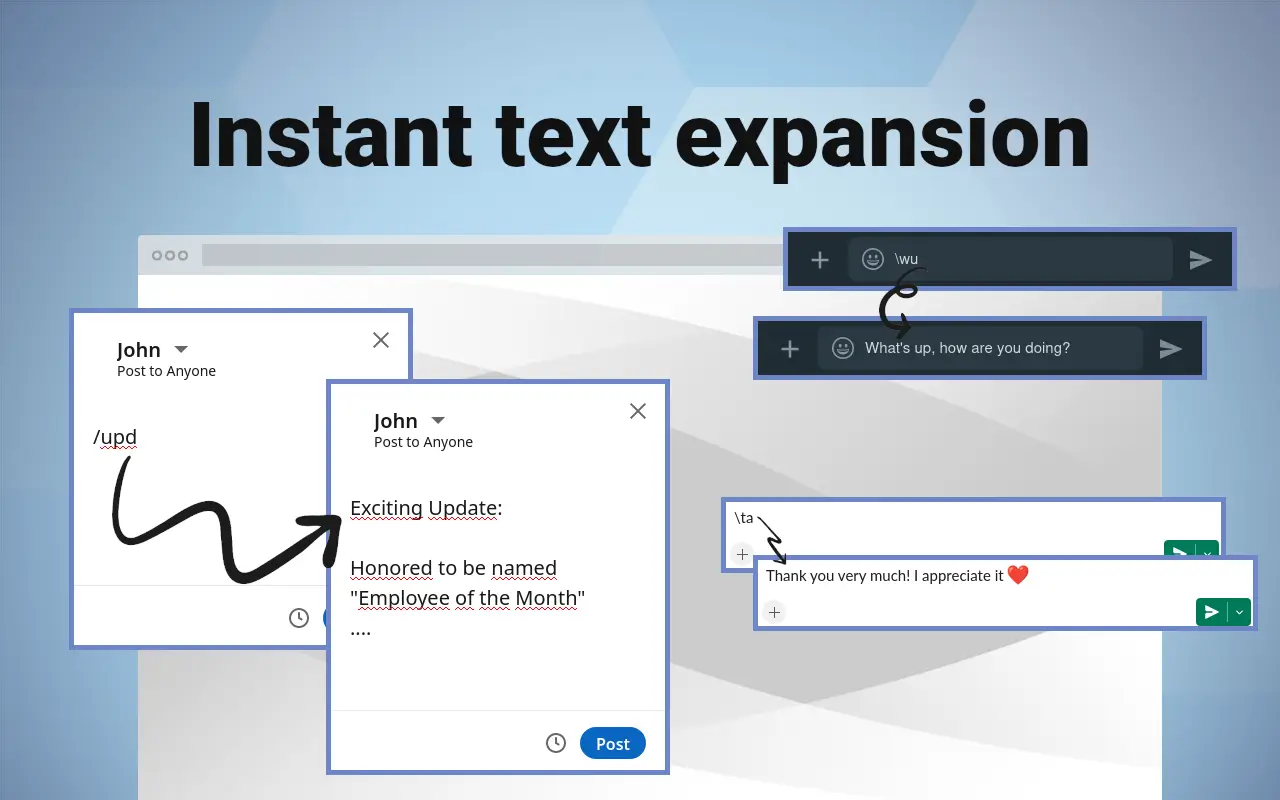
Web Text Expander is a free Chrome extension focused on fast, organized snippet expansion across the web. It has 20,000+ users and a 4.6 rating on the Chrome Web Store, with regular updates throughout 2026.
What sets it apart is how it positions itself for AI workflows. The extension explicitly supports saving and reusing prompts with text replacement for tools like ChatGPT and Gemini.
Key features:
- Instant shortcut expansion with caret position control
- Tag-based snippet organization and quick search
- Date and time placeholders
- Right-click quick add to create snippets from any webpage
- Built-in support for AI prompt management (ChatGPT, Gemini)
- Gmail snippet integration
Pros:
- Genuinely free with no usage caps
- Strong organization features (tags, search) for users with lots of snippets
- Actively maintained with frequent updates
- Useful angle for managing AI prompts
Cons:
- No dynamic templates, logic, or form fields
- Chrome-only with no desktop or other-browser version
- Smaller user base means fewer integrations and tutorials than larger tools
Pricing: Completely free.
Best for: Heavy ChatGPT and Gemini users who want a clean way to save and reuse prompts, plus anyone who needs basic snippet expansion with strong organization features.
Want to save hours of repetitive typing for free?
Join over 800,000+ others who are using Text Blaze templates.
5. Briskine
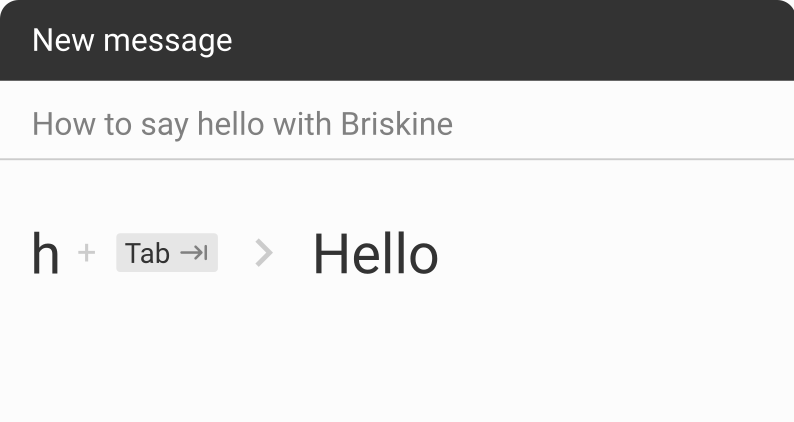
Briskine is a Chrome extension built specifically for email and messaging. It has 100,000+ users and a 4.5 rating on the Chrome Web Store, with active development through 2026.
If most of your repetitive typing happens in Gmail, Outlook, or LinkedIn, Briskine is one of the strongest free options out there. You create templates for replies, follow-ups, signatures, and outreach messages, then insert them with a shortcut and a TAB key press.
Variables like first name and email are filled in automatically based on who you're writing to, which makes it especially useful for sales, support, and recruiting workflows.
Key features:
- Keyboard shortcuts and snippet expansion in email and messaging tools
- Auto-filled variables (first name, email, etc.) pulled from the recipient
- Template search from inside the compose box
- Native integration with Gmail, Outlook, LinkedIn, and Facebook
- Team template sharing on paid plans
Pros:
- Strongest Gmail and Outlook experience of any tool on this list
- Auto-filled recipient variables save real time on personalized outreach
- Polished, well-maintained extension with a large active user base
Cons:
- Heavily focused on email and messaging, less useful for general typing across the web
- Team template sharing is paid-only
- No advanced logic, forms, or workflow automation
Pricing: Free tier covers personal use with unlimited templates. Paid plans add team sharing and admin features.
Best for: Sales, support, and recruiting professionals who live in Gmail, Outlook, or LinkedIn and want fast, personalized email replies.
FAQ
Does Chrome have a built-in text expander?
No. Chrome doesn't include a native text expander. You'll need to install a Chrome extension like Text Blaze, Auto Text Expander, or Briskine to add text expansion to your browser.
Most options install in under a minute and work across Gmail, Google Docs, and any other site you type in.
Are text expanders for Chrome free?
Most major text expanders for Chrome offer a free tier. Some, like Text Blaze and Auto Text Expander, are free forever for core features. Others offer free trials or freemium plans that cap usage.
Always check whether the free version covers your actual workflow before committing.
Do text expanders work outside Chrome?
It depends on the tool. Pure Chrome extensions only work inside the browser. Tools like Text Blaze offer separate Windows and Mac apps, plus an Edge extension, so your shortcuts work everywhere you type.
If you split your work between Chrome and desktop apps, look for cross-platform support before picking a tool.
There are plenty of desktop-focused automation tools that help you with similar use cases outside of Chrome.
Are text expanders safe to use?
Reputable text expanders are safe, but they do require permission to read and modify text on the pages where they run.
Before installing one, check the developer's privacy policy, look at how data is stored (locally vs. in the cloud), and review the Chrome Web Store listing for active maintenance and a strong rating. Tools with large user bases and recent updates are generally lower risk.
What's the difference between a text expander and autofill?
Autofill remembers and reuses specific data like names, addresses, and credit card numbers in form fields. A text expander is broader. It lets you create custom shortcuts that expand into any text you choose, including emails, replies, prompts, code snippets, and templates.
Some tools, like Text Blaze & Magical, combine both. Others, like Briskine, focus on text expansion with smart variables.
Want to save hours of repetitive typing for free?
Join over 800,000+ others who are using Text Blaze templates.
Can I use a text expander with ChatGPT or Gemini?
Yes. Most modern text expanders work inside AI chat interfaces like ChatGPT, Gemini, and Claude. This is increasingly useful for saving and reusing prompts, style guides, and structured queries. Text Blaze and Web Text Expander both highlight this use case explicitly.
What Is the Best Text Expander for Chrome?
The best free text expander for Chrome depends on what you actually do all day, but for most people, the answer is the same: you want a tool that's powerful enough to handle real workflows, flexible enough to work across every site you type in, and free enough that you can build your daily process around it without worrying about a paywall later.
That's exactly what Text Blaze is built for. It's free forever with no usage caps on core features, trusted by 800,000+ users with a 4.9 rating and 1,800+ five-star reviews, and works everywhere you type, from Gmail and Google Docs to Salesforce, ChatGPT, and beyond. You can start with simple shortcuts for emails and signatures, then grow into dynamic templates with placeholders, forms, if/else logic, and team sharing as your needs expand.
If you want the fastest way to stop retyping the same things, install Text Blaze from the Chrome Web Store and try it free. Most people are saving real time within the first hour.