15 Typing Hacks for Actually Typing Faster in 2026
Most typing advice is repetitive or outdated. These 15 typing hacks actually help you type faster by reducing what you type and improving your workflow.

Typing faster isn’t just about moving your fingers quicker. Most of the time, the real slowdown comes from repeating the same phrases, fixing small mistakes, or switching between tools. That’s where most “typing advice” falls short: it focuses on speed, not efficiency.
If you spend a lot of time writing emails, filling out forms, or working across apps, small improvements can add up quickly. The right typing habits can save minutes on every task, which turns into hours over time.
In this article, we’ll cover 15 typing hacks that actually help you type faster by reducing unnecessary work and improving how you write day to day.
What Are Typing Hacks?
Typing hacks are simple techniques, shortcuts, and tools that help you type faster by reducing unnecessary work. Instead of focusing only on speed, they focus on efficiency, helping you write less, reuse content, and move through tasks more quickly.
Most people try to improve typing by practicing more or typing faster. That helps, but it doesn’t solve the bigger problem: a lot of typing is repetitive. The same emails, phrases, and responses get written over and over.
Typing hacks focus on eliminating that repetition. By combining shortcuts, reusable text, and smarter workflows, you can significantly reduce how much you actually need to type.
15 Typing Hacks to Type Faster
Most typing advice focuses on speed alone, but the biggest improvements come from reducing effort. The tips below are grouped by type, starting with ways to eliminate repetitive typing, then moving into keyboard shortcuts, workflow improvements, and AI-powered methods.
Here are 15 typing hacks you can use to type faster in 2026:
Typing hacks that reduce what you type
The fastest way to type more is to type less. These tips focus on removing repeated input so you are not doing the same work over and over.
1. Create shortcuts for the phrases you actually repeat
Look at the last few messages you sent. You will usually find the same types of sentences showing up again and again, especially email intros, links, and quick replies.
Instead of retyping them, assign a short trigger to each one. A few characters can expand into a full sentence or paragraph, which removes repeated typing without changing how you work.
Start with a small set:
- A message you send daily
- A link you paste often
- A short response you repeat
This is known as text replacement and it's a popular (and useful) way to type faster in 2026.
2. Save useful messages the moment you send them
The easiest way to build reusable content is to capture it while it is still fresh. When you send a message that works well, save it immediately instead of planning to come back later.
This turns your normal workflow into a system. Over time, you build a library of responses without needing a separate setup session or extra effort.
3. Fix the inputs that slow you down
Typing speed is often limited by hesitation, not finger speed. Certain words or phrases cause pauses or repeated corrections, which break your flow.
Instead of trying to type them more carefully, remove the friction by creating shortcuts or quick fixes. Cleaning up just a few of these problem areas can make your typing feel noticeably smoother.
For example, you can use hotkeys to help switch between apps and tabs, or even repetitive phrases.
4. Use one shortcut to handle structured responses
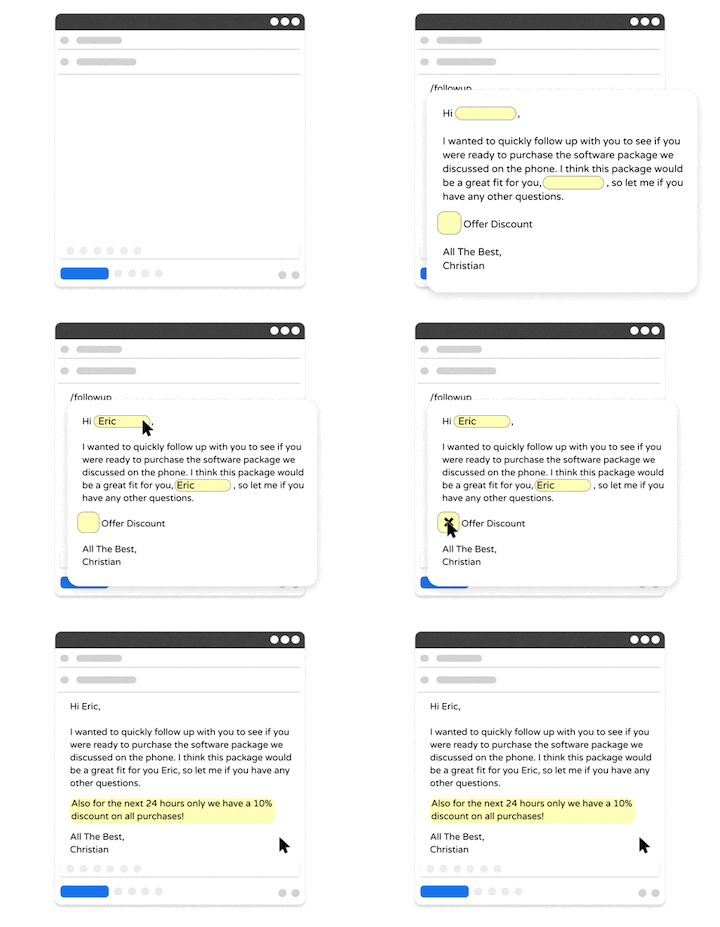
Some messages follow the same structure every time, even if the details change. Instead of rebuilding that structure, insert the full format with one trigger and fill in the variable parts. This is done through text expansion.
Text Blaze is a text expander that works well for that use case because it allows you to create shortcuts that automate repetitive typing for you.
With Text Blaze, you can:
Save & re-use repetitive phrases, links, and messages with keyboard shortcuts.
Create dynamic templates with placeholders, drop-down menus, toggle fields, if/else rules, autopilot, data transfer, and more.
Automatically use clipboard contents with text shortcuts. Extract clipboard contents and use formulas to extract only parts that you need.
Automate workflows by streamlining data transfer, form-filling, repetitive typing, and much more.
Plus, Text Blaze is free forever, so you can use it to type faster without having to pay.
Want to automate repetitive typing anywhere for free?
Join 800,000+ who are using Text Blaze templates.
5. Keep your clipboard history visible while you work
You copy more than you realize when working across tabs, especially when pulling links, snippets, or notes from different places.
The problem is that most systems only store your last copied item. That means every time you need something again, you have to go back and find it.
According to McKinsey, employees spend about 1.8 hours per day searching for information. A lot of that time comes from switching between tools and trying to relocate things you already had.
A clipboard manager removes a big part of that. Instead of re-copying, you just grab what you already copied earlier.
Keyboard and editing habits that actually improve speed
Once you reduce how much you type, the next step is improving how you move through and edit text. Small changes here can make a big difference over time.
6. Pay attention to how you edit, not just how you type
Typing faster will not help if editing slows you down. A lot of time is lost while fixing mistakes, moving through text, or making small corrections.
Watch how you edit for a few minutes and look for inefficiencies. Moving by words instead of characters, deleting in chunks, and staying on the keyboard all make a noticeable difference once they become habits.
7. Move through text in larger jumps
Editing gets slow when you move through text one character at a time. Reaching the right spot in a sentence should not take multiple keystrokes.
Using shortcuts that jump word by word lets you get there much faster, especially when fixing something in the middle of a sentence.
A large-scale typing study analyzing millions of keystrokes found that faster typists make fewer unnecessary movements and corrections.
The takeaway is simple. Speed improves when you reduce how many steps it takes to do something.
8. Remove entire sections when something feels off
Trying to fix a sentence piece by piece can take longer than rewriting it. When something does not feel right, clearing the section and starting fresh is often faster and leads to a better result.
This also helps you avoid getting stuck making small edits that do not improve the overall message.
9. Keep your hands on the keyboard during edits
Switching between keyboard and mouse breaks your rhythm more than it seems. Each switch introduces a small delay that adds up over time.
Try doing a full editing pass without touching your mouse:
- Navigate with shortcuts
- Select text with keys
- Copy and paste without clicking
Research on context switching shows that even small interruptions can reduce efficiency and slow down task completion.
Keeping everything on the keyboard helps maintain flow.
Workflow habits that reduce typing entirely
Typing speed is not just about keystrokes. It is also about how efficiently you move between tasks and tools.
10. Use the same setup across every tool
Typing happens across many tools, not just one. If each tool works differently, you lose time adjusting your workflow every time you switch.
Using shortcuts or systems that work across apps keeps everything consistent. This makes it easier to move between tasks without breaking your rhythm.
Want to automate repetitive typing anywhere for free?
Join 800,000+ who are using Text Blaze templates.
11. Keep reusable content in one place
A lot of typing time is actually spent looking for things you have already written, which is a waste of time.
Instead of reusing content, you search through old messages, documents, or tabs trying to find it again. This shifts time away from searching and back into actual work.
12. Turn repeated steps into one action
If you follow the same steps every time you type something, those steps can usually be simplified.
Instead of copying, switching tabs, and pasting, reduce the process into a single action when possible. This is where typing speed turns into workflow speed, which has a much bigger impact over time.
AI-assisted ways to reduce typing
AI tools change how you approach writing. Instead of typing everything manually, you can reduce how much you need to write in the first place.
13. Rewrite instead of editing sentence by sentence
Editing small pieces of text takes longer than it feels. Rewriting your message in one pass is often faster when you need to improve clarity or tone.
This works well for fixing tone in emails, simplifying writing, and making responses shorter. You replace multiple small edits with one clear improvement.
14. Summarize before you respond
Long messages slow you down because you end up rereading parts of them while trying to write.
Before you respond, take a few seconds to pull out the key points. You can do this mentally or jot down a quick one-line summary.
A simple approach:
- What is the main ask?
- What actually needs a response?
- What can be ignored?
Once that is clear, writing the response becomes much faster because you are not figuring things out mid-sentence.
15. Start with a draft instead of a blank page
Starting from nothing is often the slowest part of typing. A rough draft gives you something to react to, which is much faster than building everything from scratch.
Microsoft found that people using AI tools complete writing tasks faster and spend less time starting documents.
Refining is almost always faster than starting from zero.
Want to automate repetitive typing anywhere for free?
Join 800,000+ who are using Text Blaze templates.
What Is the Best Way to Apply These Typing Hacks?
Trying to apply all of these at once usually does not work. The fastest way to improve is to focus on a few changes that remove the most friction from your current workflow.
Start with what you repeat most: Look at the messages, inputs, or actions you do every day and prioritize those first. Small wins here create immediate time savings.
Focus on reducing steps, not typing faster: Speed comes from doing less work, not moving your fingers faster. Shortcuts, templates, and workflows have a bigger impact than raw typing speed.
Make one change at a time: Add a few shortcuts, test a new habit, or adjust how you edit. Let it become natural before layering on more.
Keep everything accessible: Your shortcuts, templates, or saved content should be easy to use without thinking. If it takes effort to find, you will not use it.
Adjust based on what slows you down: Pay attention to where you hesitate or repeat work. Those are the best places to apply these hacks.
Over time, these small changes compound. Instead of trying to type faster, you build a workflow that requires less typing in the first place.
How to Actually Type Faster
Typing faster is less about speed and more about removing friction from how you work. Most improvements come from changing your habits, not practicing typing tests.
Start by noticing where you slow down. Look for moments where you pause, retype something, or switch tabs to find information. Those are the areas that have the biggest impact.
From there, focus on reducing repetition. If you type the same thing more than once, turn it into a shortcut or template. If you follow the same steps every time, simplify them into a single action.
As you start doing this, you will naturally end up relying on tools that support these habits. For example, using something like Text Blaze makes it easier to turn repeated phrases and structured responses into shortcuts that work across the sites you already use.
At that point, typing faster is no longer about effort. You are simply doing less of it.