What Are Text Snippets? How to Use Them in 2026
Wondering what text snippets are? See how they work, why they save time, and 35+ examples for support, sales, recruiting, and more.

If you've ever found yourself typing the same email, response, or block of text over and over, you're not alone. Whether it's a thank-you reply, a product description, or a code snippet you copy-paste daily, repetitive typing eats up hours every week.
Text snippets fix that. They let you type a short shortcut and have it expand into a full message, paragraph, or template in seconds.
In this article, we'll cover what text snippets are, how they work, why they save time, and 35+ real examples you can adapt for your role.
What Are Text Snippets?
Text snippets are short pieces of pre-written content that you can save and insert anywhere you type using a keyboard shortcut. Instead of typing out the same email reply, signature, or paragraph every time, you assign it a short trigger like /thanks or ;sig, and the full text appears instantly.
A snippet can be as short as a single word (your phone number) or as long as a multi-paragraph email template. More advanced snippets include dynamic elements like the current date, fill-in fields, dropdown menus, or formulas that update each time you use them.
Most people use snippets through a text expander app, which runs in the background and watches for your shortcuts across any app or website where you type.
How Are Text Snippets Used?
Text snippets work through a simple mechanic: you assign a shortcut to a piece of text, and the tool replaces the shortcut with the full content when you type it.
Here's the typical flow:
Save the snippet - Open your text expander and create a new snippet. Paste in the text you want to reuse, whether that's an email reply, a code block, or a signature.
Assign a shortcut - Pick a trigger that's easy to remember and unlikely to come up in normal typing. Common patterns include
/thanks,;email, or..addr.Use it anywhere - When you type the shortcut in any app or website, the snippet replaces it instantly. No copy-paste, no switching tabs, no retyping.
More advanced snippets can include dynamic placeholders. For example, a customer support reply might leave a blank space for the customer's name, or a follow-up email might auto-fill today's date.
Why Use Text Snippets?
Text snippets save time, reduce errors, and keep messaging consistent. Here are the main reasons people start using them:
Save hours each week - If you write the same emails or responses often, snippets can cut typing time by 50% or more, freeing up real hours for higher-value work.
Reduce typos and errors - A pre-written snippet is always spelled correctly and formatted the same way, which matters in customer-facing communication.
Keep messaging consistent - Teams that share snippets ensure everyone uses the same language, tone, and branding, even as the team grows.
Onboard faster - New hires can hit the ground running with shared snippet libraries instead of memorizing every standard response.
Reduce mental fatigue - Repetitive typing wears you down. Snippets let you focus on the parts of writing that actually need your attention.
Want to automate repetitive typing anywhere for free?
Join 800,000+ who are using Text Blaze templates.
35 Examples of Text Snippets by Role
Text snippets fit into nearly every role that involves typing. Here are 35+ practical examples organized by job function. Use them as inspiration, then adapt them to your own workflow.
Customer Support
Customer support reps answer the same questions dozens of times a day. Snippets are a great tool to help support teams to keep responses consistent, fast, and on-brand.
Refund confirmation - "Hi {name}, I've processed your refund for ${amount}. Please allow 5-7 business days for it to appear on your statement."
Ticket received - "Thanks for reaching out, {name}. We've received your ticket and a member of our team will get back to you within 24 hours."
Password reset instructions - A step-by-step walkthrough of how to reset a password, with placeholders for the customer's email.
Escalation handoff - "I'm escalating this to our specialist team. {name} will follow up with you shortly."
Closing reply - "Glad we got that sorted! Let us know if anything else comes up. Have a great day, {name}."
Sales
Sales reps live in repetitive outreach. Snippets help personalize at scale without sacrificing speed.
Cold outreach intro - A short opening message with placeholders for the prospect's name, company, and a custom hook.
Follow-up after no reply - "Hi {name}, just bumping this to the top of your inbox. Any thoughts on what we discussed?"
Meeting scheduler link - "Here's my calendar to find a time that works: {calendar-link}"
Pricing summary - A quick overview of pricing tiers with links to the full pricing page.
Demo confirmation - "Confirming our demo on {date} at {time}. Here's the meeting link: {link}"
Recruiting
Recruiters write similar messages all day across LinkedIn, email, and ATS platforms. Snippets cut hours of typing every week.
Initial outreach - A personalized intro message for candidates with placeholders for name, role, and company.
Interview invitation - "Hi {name}, we'd love to schedule a {duration} interview with {interviewer}. Here are some times that work: {availability}"
Rejection email - A polite, respectful rejection template with room for personalization.
Offer letter follow-up - "Just confirming we've sent the offer to {email}. Let me know if you have any questions."
Marketing
Marketers send recurring messages to vendors, partners, and team members.
Content brief - A standard template with sections for goals, audience, key messages, and deliverables.
Influencer outreach - A pitch template introducing your brand and the partnership opportunity.
Campaign launch announcement - A short message announcing a new campaign with placeholders for links and dates.
Approval request - "Hi {name}, can you review and approve the attached by {date}? Thanks!"
Healthcare
Healthcare professionals use snippets in EMRs and patient communications to handle repetitive documentation accurately and automate medical workflows.
Patient intake summary - A standard template covering chief complaint, history, and assessment.
Prescription instructions - Common medication instructions with dosage placeholders.
Appointment reminder - "Hi {patient-name}, this is a reminder of your appointment on {date} at {time}."
Referral note - A template for referring patients to specialists with placeholders for the reason and provider.
Real Estate / Property Management
Real estate agents and property managers handle repetitive communication around listings, showings, leases, and tenant requests. Snippets keep responses fast and consistent and help automate property-related workflows.
Listing inquiry response - "Hi {name}, thanks for your interest in {property-address}. The home is still available, and I'd be happy to schedule a showing. Here are some times that work: {availability}"
Showing confirmation - "Confirming your showing at {property-address} on {date} at {time}. Please reach out if anything changes."
Maintenance request acknowledgment - "Hi {tenant-name}, we've received your maintenance request for {issue}. A technician will contact you within 24 hours to schedule a visit."
Lease renewal reminder - "Your lease at {property-address} is set to expire on {date}. Please let us know if you'd like to renew, and we'll send the updated paperwork."
Application follow-up - "Hi {name}, just confirming we've received your application for {property-address}. We'll review it and get back to you within 2-3 business days."
Developers
Developers use snippets for code blocks, commit messages, and documentation.
Common code blocks - Frequently used functions, imports, or boilerplate code.
Pull request template - A standard PR description with sections for context, changes, and testing.
Bug report template - A structured template covering steps to reproduce, expected behavior, and actual behavior.
Code review comment - Common review comments like "Consider extracting this into a helper function" or "Can we add a test for this case?"
Standup update - "Yesterday: {yesterday}. Today: {today}. Blockers: {blockers}."
Executive Assistants
Executive assistants juggle calendars, emails, and coordination across teams. Snippets keep their work fast and consistent.
Meeting confirmation - A standard email confirming meetings with date, time, location, and agenda placeholders.
Calendar hold - "Holding {date} from {start-time} to {end-time} for {meeting-purpose}. Please confirm."
Travel itinerary template - A structured template with flights, hotels, and ground transport.
Expense report follow-up - "Hi {name}, please submit your expense report for {month} by {date}."
How to Use Text Snippets
Text snippets work across most platforms, but the way you set them up depends on where you spend most of your time typing. Here's how to use snippets across the most common environments:
Text Snippets That Work Anywhere
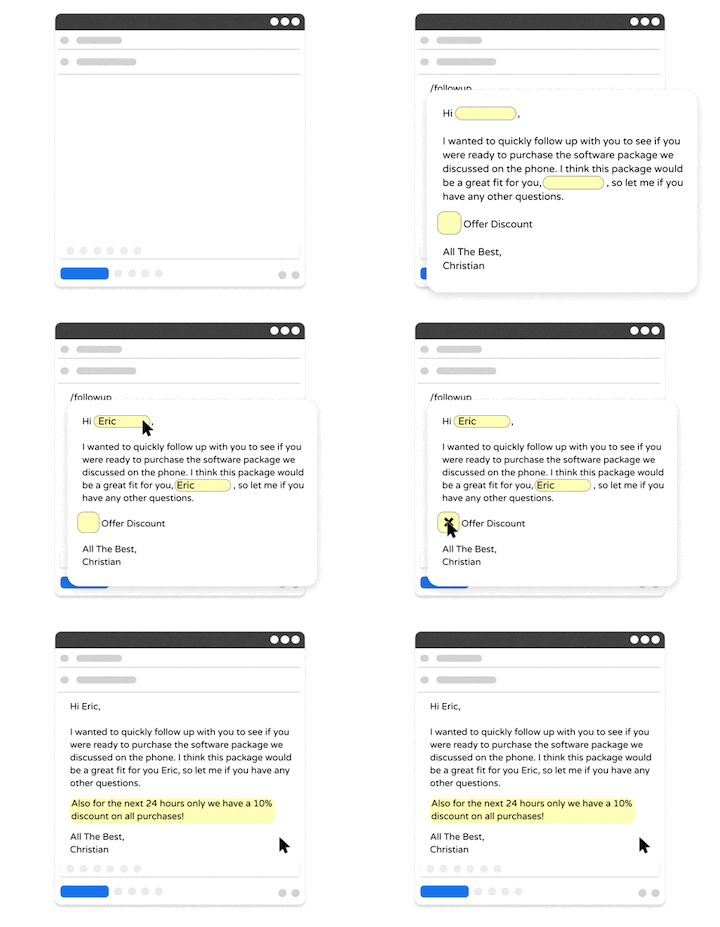
If you want snippets that work in every app and website, Text Blaze is the most flexible option. It runs as a Chrome extension, Windows app, or Mac app, so the same snippets follow you across browsers, desktop apps, and websites.
Text Blaze supports dynamic templates with placeholders, dropdown menus, if/else logic, formulas, and form fields, which means your snippets can adapt to context instead of just pasting static text. Teams can share snippet libraries with shared folders, usage analytics, and admin controls.
Plus, Text Blaze is the #1 rated text expander on the Chrome Web Store (4.9 rating with 1,900+ reviews) and is trusted by 800,000+ users.
Here's why Text Blaze stands out as a snippet tool:
Works on Chrome, Edge, Windows, and Mac with the same snippet library.
Supports dynamic content like placeholders, formulas, dates, and conditional logic.
Free forever for individuals, with paid plans for teams.
Trusted by 800,000+ users with a 4.9 rating on the Chrome Web Store.
Want to automate repetitive typing anywhere for free?
Join 800,000+ who are using Text Blaze templates.
Text Snippets For Chrome
Chrome doesn't have a true built-in text expander, but you can get basic snippet behavior using Chrome's autofill settings or Google's "Text Replacement" feature inside Gboard if you're on ChromeOS.
Chrome autofill works for things like addresses and contact info, but it's limited to form fields and won't help with full email templates or dynamic content.
For anything beyond basic autofill, you'll want a dedicated text expander for Chrome. These tools install as Chrome extensions and run in the background, watching for your shortcuts as you type in Gmail, Google Docs, LinkedIn, or any other web app.
Chrome-based tools work in most web apps, but won't help in desktop apps like Slack, Word, or your code editor. If you bounce between web and desktop, you'll want a tool that covers both.
Text Snippets for Mac
Mac has a built-in Text Replacement feature you can find in System Settings > Keyboard > Text Replacements. You add a shortcut and the replacement text, and it works system-wide across most native Mac apps.
It's a solid starting point for simple replacements like email addresses, phone numbers, or short phrases, and it syncs across your Apple devices via iCloud.
The trade-offs are that it doesn't support dynamic content (placeholders, dates, formulas), can be inconsistent in non-native apps, and lacks the team sharing and analytics features most professionals need.
For more flexibility, a dedicated text expander for Mac gives you dynamic templates, faster expansion, and better cross-app reliability.
Text Snippets for Windows
Windows includes a few built-in options. The Windows clipboard history (Win + V) lets you paste recently copied items, and Microsoft Word has AutoCorrect entries that can act like basic snippets within Word documents.
PowerToys, Microsoft's free utility suite, also includes a "Quick Accent" and other text utilities, though it doesn't have a true system-wide text expander.
These built-in tools work for narrow use cases, but they don't cover snippets across every app, support dynamic content, or sync across devices.
For a real solution, you'll want a dedicated text expander for Windows that runs in the background and inserts your saved text whenever you type a shortcut, in any app from Outlook to Slack to Notepad.
Start Saving Time With Text Snippets
Text snippets are one of the simplest productivity upgrades you can make. They take a few minutes to set up, work in nearly every app you already use, and start saving time the moment you stop retyping the same content.
The best place to start is wherever you type the most. If you live in the browser, a Chrome-based tool covers most of your needs. If you bounce between desktop apps, a system-wide expander on Mac or Windows will save more time. And if you want one tool that works everywhere, Text Blaze covers Chrome, Mac, and Windows with the same snippet library, so you only need to set up your snippets once.
Pick a tool, build your first five snippets, and you'll start noticing the time you save almost immediately.