{error}
Sample Usage
{if: catch(count <= 0, yes)}{error: The count is not greater than 0!; block=yes}{endif}
Quick Overview VideoSettings
Setting Name Type Description Positional text The error message to show to the user. block yes/no If yes, blocks insertion while the error is shown. type error/success/info/warning Type of alert to be used. show default/validate validate will show the error only after you attempt to insert the snippet.General Command Settings trim yes/no/left/right If yes whitespace is removed before and after the command. If left, only whitespace to the left is removed. If right, only whitespace to the right is removed.
| Setting Name | Type | Description |
|---|---|---|
| Positional | text | The error message to show to the user. |
| block | yes/no | If yes, blocks insertion while the error is shown. |
| type | error/success/info/warning | Type of alert to be used. |
| show | default/validate | validate will show the error only after you attempt to insert the snippet. |
| General Command Settings | ||
| trim | yes/no/left/right | If yes whitespace is removed before and after the command. If left, only whitespace to the left is removed. If right, only whitespace to the right is removed. |
The error command can be used for form validation and for preventing a snippet from being inserted until certain conditions are met.
The error command is best used in combination with the {if} command to conditionally show an error and block snippet insertion.
The block setting
If the block setting is no the message that you used in the first positional setting will be inserted into your snippet.
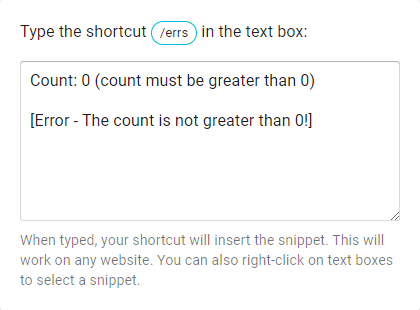
Notice how the error text is inserted into the snippet itself inside of the [Error - ] text.
If block is yes, the message will be displayed (not inserted) and the snippet user will not be able to insert the snippet until the error is resolved.
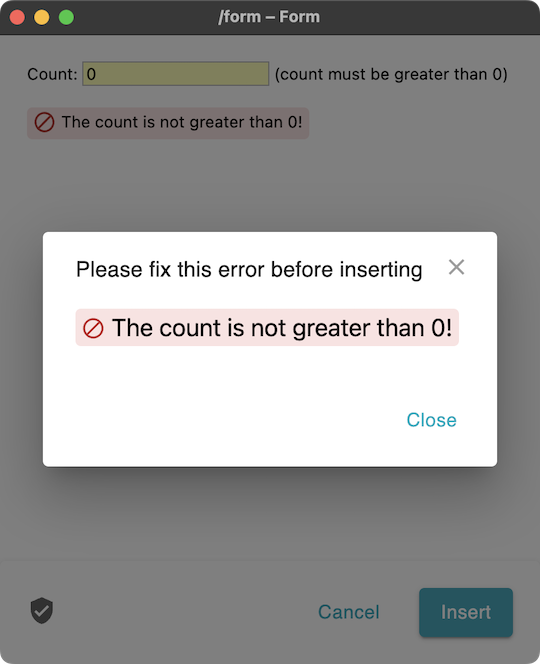
Text Blaze will not allow you to insert the snippet by showing an alert.
The type setting
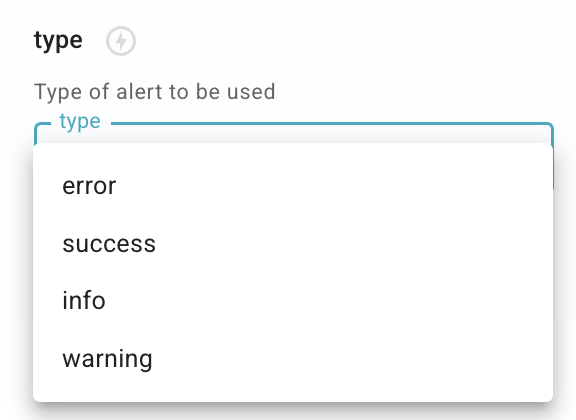
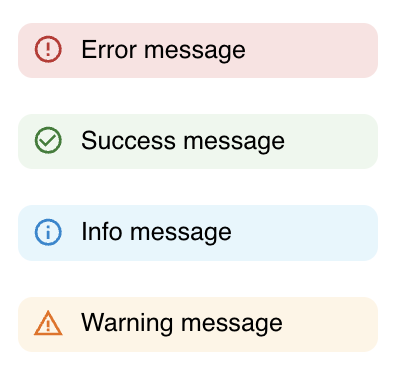
The type setting allows you to customize the type of alert shown in your snippet. You can choose between: error (red), success (green), info (blue), and warning (yellow).
When you add an {error} command to a snippet, you can choose a type by selecting an option from the drop-down menu in the type setting. If no type is specified, the default is a red error message.
Quality assurance in team-shared snippets
A good use case for the error command is when you're sharing snippets with your team. It will ensure that everyone using the snippet is entering the right information and validating it correctly before the final insertion.
Check out our Rules & Validation Guide to learn more about validating snippets' content.