How HOMAHA Senior Care Uses Text Blaze, Data Blaze, and AI Blaze to Maximize Patient Care and Minimize Denials
HOMAHA Senior Care uses Text Blaze, Data Blaze, and AI Blaze to stay compliant, cut denials, and spend more time on patient care.

“Since September 2024, Text Blaze has saved us 22,320 hours.”
My name is Jessica Little, and I am a Senior Support Specialist at HOMAHA Senior Care LLC. We provide care to individuals where they live: Skilled Nursing Facilities, Assisted Living Facilities, or at home. Whether they have acute or chronic illnesses, our providers strive to maximize health and wellness.
Part of my job is making sure our documentation and communication stay up to date with regulations, and Text Blaze has made that much simpler. It has also made it far easier to train, guide, and support newer team members.
Most importantly, Text Blaze helps our team stay compliant. I use {import} which imports another snippet into the current snippet. It allows me to reuse common parts of snippets, so I can update one snippet when rules change, and everyone instantly uses the correct wording.
Before Text Blaze, our notes weren't completed consistently, and they didn't always include the right documentation or billing information.
Streamlining Healthcare Documentation with Text Blaze
“Text Blaze has increased our note production and cut down on denials.”
Simple errors like the wrong place of service were a common cause of denial in the past. However, by using Text Blaze, we stay consistent and avoid these errors. Snippets take care of the billing details so our providers can focus on the medical and nursing documentation.
One example is our BMI calculator snippet. It uses {=} (Formula Command) to calculate the patient's BMI and {if} to display the matching ICD-10 code.
BMI to Dx Code
{note: trim=yes}Weight {formtext: name=weight; default=150; cols=5} {formmenu: default=lbs; kgs; name=weight units}
Height: {formtext: name=height; cols=3; default=70} {formmenu: default=inches; CMs; name=height units}
BMI: {=BMI; format=,.2f}
{kgs=weight/2.2046 if `weight units`="lbs" else weight}
{cms=height*2.54 if `height units`="inches" else height}
{bmi=(kgs/cms/cms)*10000}{endnote: trim=yes}{note: preview=yes}{if: bmi < "40"}{if: bmi > "34.9"}Does patient have additional risk factors?{formtoggle: name=+risk factor (osa, dm2); default=no}{formmenu: Diabetes; Sleep Apnea; High Blood Pressure; name=risk factors; multiple=yes}{endformtoggle}{endif: trim=no}{endif}
{endnote: trim=left}BMI: {=BMI; format=,.2f} {=`bmi icd-10`}{if: bmi <"20"}{if: bmi >"0"}{`bmi icd-10`="(Z68.1)"}{endif}{endif: trim=yes}
{if: bmi <"21"}{if: bmi >"19.9"}{`bmi icd-10`="(Z68.20)"}{endif}{endif: trim=yes}
{if: bmi < "22"}{if: bmi > "20.9"}{`bmi icd-10`="(Z68.21)"}{endif}{endif: trim=yes}
{if: bmi < "23"}{if: bmi >"21.9"}{`bmi icd-10`="(Z68.22)"}{endif}{endif: trim=yes}
{if: bmi < "24"}{if: bmi > "22.9"}{`bmi icd-10`="(Z68.23)"}{endif}{endif: trim=yes}
{if: bmi < "25"}{if: bmi > "23.9"}{`bmi icd-10`="(Z68.24)"}{endif}{endif: trim=yes}
{if: bmi < "26"}{if: bmi > "24.9"}{`bmi icd-10`="(Z68.25)"}{endif}{endif: trim=yes}
{if: bmi < "27"}{if: bmi > "25.9"}{`bmi icd-10`="(Z68.26)"}{endif}{endif: trim=yes}
{if: bmi < "28"}{if: bmi > "26.9"}{`bmi icd-10`="(Z68.27)"}{endif}{endif: trim=yes}
{if: bmi < "29"}{if: bmi > "27.9"}{`bmi icd-10`="(Z68.28)"}{endif}{endif: trim=yes}
{if: bmi < "30"}{if: bmi > "28.9"}{`bmi icd-10`="(Z68.29)"}{endif}{endif: trim=yes}
{if: bmi < "31"}{if: bmi > "29.9"}{`bmi icd-10`="(Z68.30)"}{endif}{endif: trim=yes}
{if: bmi < "32"}{if: bmi > "30.9"}{`bmi icd-10`="(Z68.31)"}{endif}{endif: trim=yes}
{if: bmi < "33"}{if: bmi > "31.9"}{`bmi icd-10`="(Z68.32)"}{endif}{endif: trim=yes}
{if: bmi < "34"}{if: bmi > "32.9"}{`bmi icd-10`="(Z68.33)"}{endif}{endif: trim=yes}
{if: bmi < "35"}{if: bmi > "33.9"}{`bmi icd-10`="(Z68.34)"}{endif}{endif: trim=yes}
{if: bmi < "36"}{if: bmi > "34.9"}{`bmi icd-10`="(Z68.35)"}{endif}{endif: trim=yes}
{if: bmi < "37"}{if: bmi > "35.9"}{`bmi icd-10`="(Z68.36)"}{endif}{endif: trim=yes}
{if: bmi < "38"}{if: bmi > "36.9"}{`bmi icd-10`="(Z68.37)"}{endif}{endif: trim=yes}
{if: bmi < "39"}{if: bmi > "37.9"}{`bmi icd-10`="(Z68.38)"}{endif}{endif: trim=yes}
{if: bmi < "40"}{if: bmi > "38.9"}{`bmi icd-10`="(Z68.39)"}{endif}{endif: trim=yes}
{if: bmi < "45"}{if: bmi > "39.9"}{`bmi icd-10`="(Z68.41)"}{endif}{endif: trim=yes}
{if: bmi < "50"}{if: bmi > "44.9"}{`bmi icd-10`="(Z68.42)"}{endif}{endif: trim=yes}
{if: bmi < "60"}{if: bmi > "49.9"}{`bmi icd-10`="(Z68.43)"}{endif}{endif: trim=yes}
{if: bmi < "70"}{if: bmi > "59.9"}{`bmi icd-10`="(Z68.44)"}{endif}{endif: trim=yes}
{if: bmi > "69.9"}{`bmi icd-10`="(Z68.45)"}{endif}
{if: bmi < "18.6"}{if: bmi >"0"}{`Malnutrition`="BMI <18.5"}Unavoidable Malnutrition (E46){endif}{endif: trim=yes}
{if: bmi > "39.9"}{`Morbid obesity`="BMI >40"}Severe Obesity (E66.01){endif: trim=yes}
{if: bmi < "40.0"}{if: bmi > "34.9"}{if: `+risk factor (osa, dm2)`}{`Morbid obesity`="BMI >35 +risk factor"}Severe Obesity (E66.01) due to risk factor(s): {=join(`risk factors`, "BLAZE_AND")}{endif}{endif}{endif}
_
Another example is the welcome note below. Nurses fill out a short questionnaire, and the snippet builds the full note in ChartPath, our EMR, from the selections.
The snippet also has {error} commands that confirm that a signed consent has been uploaded to our EMR (ChartPath) before letting them proceed. It also requires a time selection so the billing goes through correctly. This is one of the snippets where we use {import} to pull in other snippets that we share across many notes. That way, when something changes, I update it once in the shared snippet instead of editing every note individually.
The second part of this snippet, after "Hit insert and relax", uses the workflow automation features that allow us to automate actions on a webpage, move between fields and fill them, or select from menus.
We use the {click} command to automatically click on a focused element or to switch to another open tab and click an element there. The {wait} command builds in slight delays in our snippets to make sure certain parts of the page are fully loaded before the snippet continues running. We also use Text Blaze's {key}, which emulates a key press on the EMR. This command makes the snippet move between text fields and elements on a webpage to fill them out.
New Welcome
{note: preview=yes}Facility: {formtext: name=Facility}
Program: {formmenu: default=New Sign-On; Rejoining Program; name=Type of Welcome}
Consent: {formmenu: default=Consent is NOT Uploaded; Consent is Uploaded; name=Consent} {if: Consent = "Consent is NOT Uploaded"}{error: Upload consent before seeing patient; block=yes}{endif}
Date Consent Signed: {formdate: MM/DD/YYYY; name=Admit Date}
{if: `Type of Welcome` = "Rejoining Program"}Original Sign-on: {formdate: MM/DD/YYYY; name=Original Date}
Reason Discontinued: {formmenu: leaving facility; changes in insurance coverage; family request; other; name=Reason}{endif}
Patient Status: {formmenu: default=Existing; New; name=Status}
Provider F2F: {formtext: name=Provider}
AVS Not Completed: {formtoggle: name=AVS Not Completed; default=yes}{endformtoggle}
Visit Type: {formmenu: default=In-Person; Virtual; name=Visit} {if: Visit = "Virtual"}Telehealth: {formmenu: default=Audio-Video; Audio ONLY; name=Virtual type}{endif}
Med List: {formmenu: default=Do not have med list; Will add med list; name=Medication Status}
Mobility: {formmenu: default=Ambulatory.; Uses Walker for Mobility (Z99.89).; Uses Wheelchair for Mobility (Z99.3).; Uses Cane for Mobility (Z99.89).; name=Mobility}
Specialty: {formmenu: default=Med In Motion; Homaha; name=Specialty}
Total Time: {formmenu: default=Select Time; 20; 25; 30; 35; 40; 45; 50; 55; 60; 65; name=Total Time}
{if: `Total Time` = "Select Time"}{error: Select minutes before proceeding; block=yes}{endif}
Hit insert and relax {endnote}
{if: Status = "New"; trim=right}{import: ~open.1welcome}{else}{import: ~open.welcome}{endif: trim=left}
{if: `Type of Welcome` = "Rejoining Program"}Resident re-establishing care at {=Facility}. Originally signed on {=`Original Date`}; discontinued due to {=Reason}. Consent signed {=`Admit Date`}.{else}Initial welcome visit for new sign-on at {=Facility}. Consent signed {=`Admit Date`}.{endif}
{click: selector=[data-detail-name="SURGICALNOTE"]; maxdelay=+60s}Surgical history reviewed; no new history reported.
SDOH: Resides at {=Facility}. {=Mobility}
{if: `AVS Not Completed`}{click: selector=[data-detail-name="MEDALLERGIESADDITIONAL"]; maxdelay=+60s}Allergies reviewed with facility MAR.
{click: selector=[data-detail-name="MEDSADDITIONAL"]; maxdelay=+60s}{if: `Medication Status` = "Will add med list"}Medications reconciled with facility MAR.{else}Med list not available; will obtain from facility.{endif}{else}Meds and allergies reviewed per AVS.{endif}
PE: {if: Visit = "Virtual"}Limited exam via {=`Virtual type`} telehealth.{else}Exam performed in person.{endif}
{key: tab}{key: tab}{if: Visit = "Virtual"}02 - Telehealth Provided Other than in Patient's Home{else}13 - Assisted Living Facility{endif}
{key: tab}{key: tab}{key: tab}{=Specialty}{key: tab}{key: tab}
{=`Total Time`}{key: tab}{if: `Total Time` >= 60}99350 - EST PT Home HIGH (>60 min){elseif: `Total Time` >= 40}99349 - EST PT Home MOD (40-59 min){elseif: `Total Time` >= 30}99348 - EST PT Home LOW (30-39 min){else}99347 - EST PT Home MINOR (20-29 min){endif}
{wait: delay=+1s}{key: tab}TOTAL TIME (MINUTES): {=`Total Time`}. Includes prep, history review, exam, counseling, orders, care coordination, and documentation on the date of the encounter.
{click: selector=.treeNode; maxdelay=+60s}
_
Text Blaze, Data Blaze, and AI Blaze Keep HOMAHA Fast and Compliant
“Text Blaze, Data Blaze, and AI Blaze give our team more time to focus on our patients.”
At HOMAHA, we don't just use Text Blaze. We also use Data Blaze and AI Blaze, and we keep finding new ways to make our jobs easier and reduce the time spent on repetitive tasks.
In our practice, we mainly use Text Blaze for ChartPath, but I also use it to speed up repetitive documentation across everything I do.
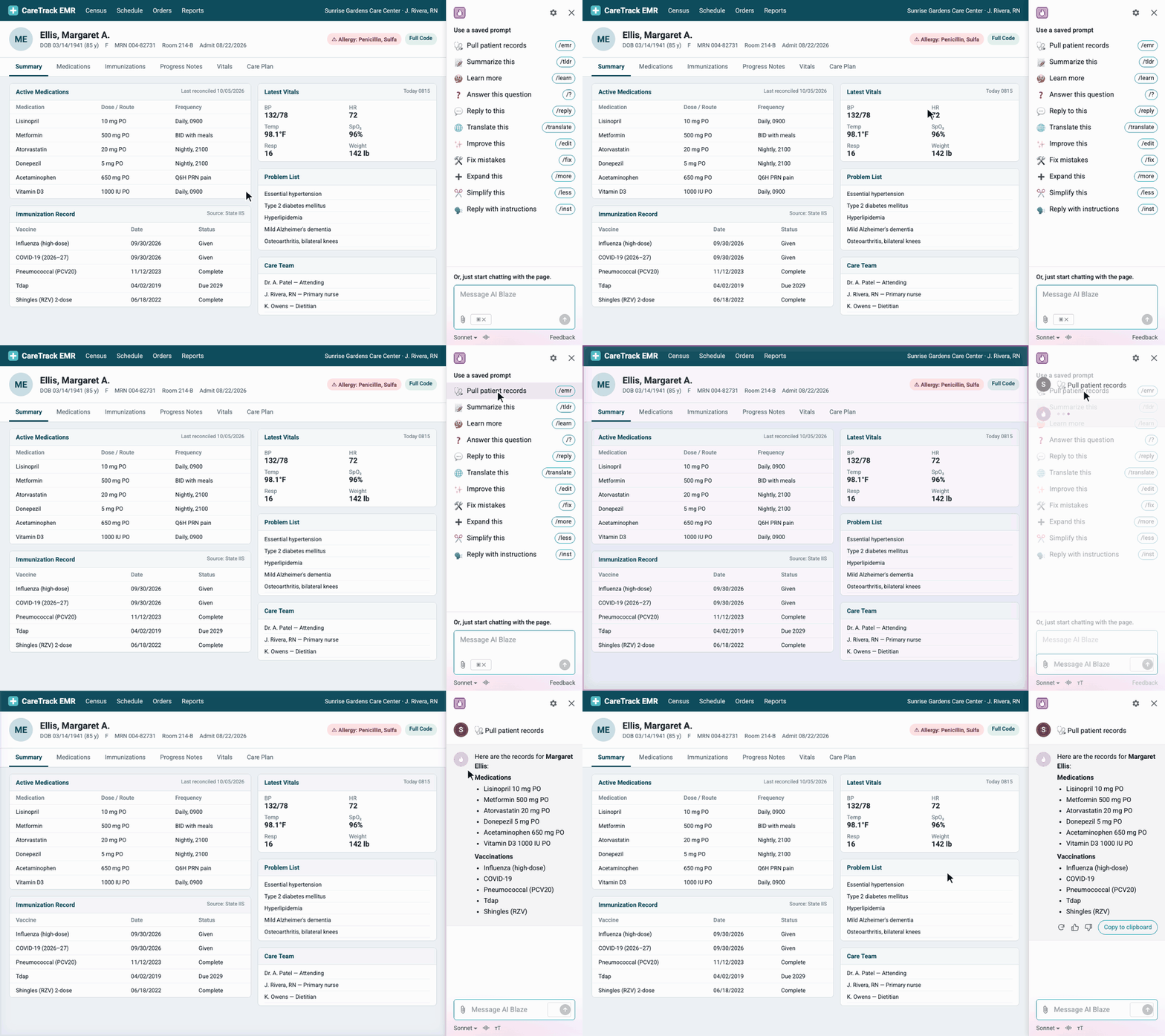
AI Blaze lets me pull information directly from the facility EMR, like medication lists or vaccination records, so I no longer have to type everything.
With Data Blaze, our nurses record vitals in a shared spreadsheet. When our doctor does her rounds, Text Blaze pulls that information straight into her note, so it's already filled in and ready for her to review.
Here's a simplified example: nurses log each resident's pulse in a Data Blaze table, and the snippet pulls in each resident's average.
More Time for Patients
Without Text Blaze, I would be doing a lot of copying and pasting. When I started, we did all our charting on paper. Then we moved to computers and copied templates out of Word documents, but we still had no company standard. Now I'm the only one who creates our snippets, so the whole team stays aligned with coding requirements and compliance standards.
Text Blaze, Data Blaze, and AI Blaze have made our team faster, more consistent, and more compliant. The three tools give us more time with our patients, which is what matters most.