Best Practices for Shortcuts
How to Trigger Snippets
With Text Blaze, there are three different ways you can trigger snippets:
1. Type the snippet’s shortcut in a text box on any page.
2. Right-click in Chrome, go to Text Blaze, then click your snippet to insert it.
Keep in mind that when using the right-click context menu in Chrome, you must right-click in a text box in order to insert snippets. You can also reload the Chrome extension using this menu.
3. Use the Text Blaze Assistant.
With the Text Blaze Assistant, you can use a keyboard shortcut to bring up the assistant window where you can see your snippets, search for specific ones, and click to insert them.
Here are the shortcut keys for the Text Blaze Assistant:
- Text Blaze Chrome extension: Shift+ctrl+space (PC) and Shift+Cmd+Space (Mac)
- Text Blaze Windows desktop app: Shift+ctrl+/
- Text Blaze Mac desktop app: Shift+command+/
Conflicting shortcuts

If you have conflicting shortcuts, you’ll see the message above in your Text Blaze dashboard.
This means that you have at least two snippets that have shortcuts that conflict with one another. Each Text Blaze snippet must have a unique shortcut.
In the image below, the shortcuts are highlighted yellow due to a conflict. New snippet 3 /do conflicts with the other two because you must type /do before you can complete /dothis or /dothat. This means /do will always trigger first.

Shared Folders and Conflicting Shortcuts
Sometimes shortcuts of snippets that were shared with you could conflict with your own shortcuts.
In this case, it helps to use conventions to help differentiate your own snippets from team snippets. Read more about how to do that here.
How to Resolve the Conflicting Shortcuts Error
To resolve the conflicting shortcuts notification, you can change the shortcut of one of the snippets that are conflicting.
Regarding the example shown in the screenshot above, you could use this structure for shortcuts that do not conflict:
- /dothis
- /dothat
- /do1
/do1 works because you won't accidentally type it when typing /dothis or /dothat.
You can read more below to learn different ways to organize snippets through their shortcuts.
Shortcuts Best Practices
Shortcut Conventions
One way to manage your shortcuts is to come up with conventions that are easy to remember and avoid conflicts. You can use different special characters in snippets to help you remember which type of snippet you are inserting.
For example, you can use different special characters for snippets for links vs. snippets for emails.
Emails:
- /intro
- /closing
- /sig
Links
- -homepage
- -community
- -documentation
Teams can come up with different shortcuts for personal vs. shared snippets, which helps with avoiding conflicts. For example, shared snippets could start with one character and personal with another:
Team snippets
- .support
- .response
- .connect
Personal snippets
- /calendar
- /signature
- /availablity
You can also include a special character at any point in your shortcuts, which gives you a lot of options for how to organize them.
These are just organizational examples and you can choose any system that works for you. Doing this not only helps you remember your shortcuts, but it also helps you avoid conflicts.
Import Command
Text Blaze’s {import} command allows you to import other snippets into other ones. This is useful because it allows you to quickly use more than one snippet without having to remember multiple shortcuts.
Here’s an example of how to use {import}:
{note}{formmenu: default=; Intro Email; Follow-Up Email; Reminder Email; name=Email type}{endnote}
{if: `Email type` = ""; trim=right} {elseif: `Email type` = "Intro Email"; trim=yes} {import: /intro-email} {elseif: `Email type` = "Follow-Up Email"; trim=yes} {import: /follow-up} {elseif: `Email type` = "Reminder Email"; trim=yes} {import: /reminder} {endif: trim=left}
In this snippet, Text Blaze's {if} command sets conditions based on your selection in the drop-down menu ({formmenu} command). Depending on your selection, a different, relevant snippet is imported and used.
Note that if you change the shortcut of a snippet that is imported into other snippets, you'll need to re-select it in those snippets. This also applies with snippets shared with you.
Print List of Shortcuts

Per feature requests in the Text Blaze community, we made it possible for you to print out a list of your snippets. If you have multiple snippets and want to have a physical copy of your list of shortcuts, you can use this feature to print out a copy of them.
You can print a list of your shortcuts by going to this page and either clicking ‘Print all shortcuts’ or clicking the arrow and selecting the folders of snippets that you want printed.
Doing this generates a PDF that shows your snippets’ names and their corresponding shortcuts.
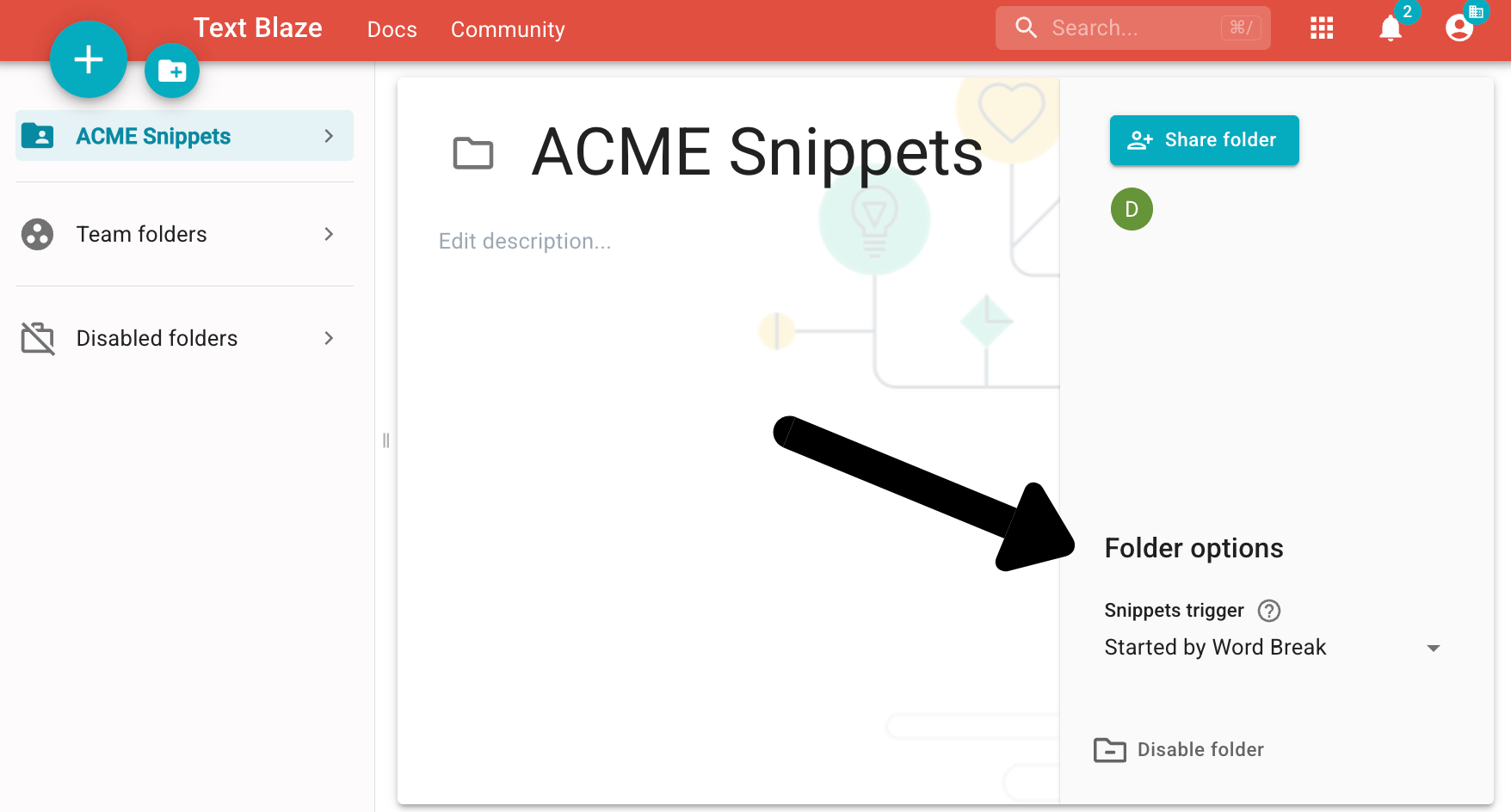
Snippet Trigger Settings Per Folder

Depending on where and how you use Text Blaze, you might want to change the way your shortcuts are triggered. For each of your Text Blaze folders, you can change the way snippets within them are triggered.
You can choose from the following settings:
- Started by word break - Your snippets are triggered if they are preceded by a word break (ex: you hit space, then type the shortcut).
- Started and ended by word break - Your shortcuts are triggered when there’s a word break before and after (ex: you hit space, type the shortcut, then hit space again).
- Anywhere - Your shortcuts are triggered anywhere, even if it’s within the middle of another word.
Depending on your needs, you can change these settings on a folder-by-folder basis to determine when your shortcuts are triggered.
To change a folder’s trigger settings, click on the folder, then go to the bottom right side of the dashboard and click the drop-down menu, then click the setting you want.