Marketplace
Quick Overview VideoOverview
The Marketplace is a place where you can find ready-made templates that you can use as a starting point for your work, or command packs to extend your snippets' functionality.
Templates
A template is a group of snippets and/or a space that you can use as a starting point for your work and customize it for your specific needs. Once you find a suitable template, you can copy it to your account by clicking the "Copy template" button.
In the Marketplace, you can find free and paid templates made by creators and reviewed by the Text Blaze team.
Command packs
Command packs add new dynamic commands to Text Blaze, extending the capabilities of your snippets. To learn more, check the command packs page.
Become a creator
If you want to share your creative idea with others, you can publish it as a template, and then share the link with your colleagues, or get it listed in the Marketplace. You even have the option to charge for your templates.
In the following section, we'll go through the process of publishing, editing, and listing templates.
Publishing a template
Templates are supported across all of our products, including Text Blaze and Data Blaze. By publishing a template, you're creating a copy of your folder or space that you can share with others using a unique URL.
Publishing a template doesn't immediately list it in the Marketplace; you'll need to submit it for review first before it gets listed.
In the following sections, we'll go through the process of publishing our different types of templates.
Snippets template
To publish a Text Blaze snippets folder to the Marketplace:
- Select the folder you want to share and click the "Share folder" button.
- Click on the settings icon in the top-right of the share folder dialog.
- Click on "Publish template".
You'll now be prompted to provide template details and send it for review.
A template is unlisted by default. It will not be visible to anyone until you submit it for review and get it approved.
Space template
To publish a Data Blaze space to the Marketplace:
- Open the space you want to share and click the "Share" button in the top bar.
- Click on the settings icon in the top-right of the share space dialog.
- Click on "Publish template".
Editing a template
After publishing a template, you can edit your template's information that will be presented to users, such as the title and description.
Connecting a snippets folder
If your snippets folder is connected to a Data Blaze space (for example, using the {dbselect} command),
you can publish the folder alongside the space as a single template.
In that case, when the user copies your template to their own account, they will have both the folder and the space copied to their account.
To connect your space to a snippets folder:
- Edit the space template that you want to connect to a folder.
- In the template's edit dialog, scroll down to the "Connected folder" section.
- Select the folder you want to connect to the space.
- Save the template (or submit it for review, if it's already listed).
Now your template will include both the space and the snippets folder.
Note: A space template can only be connected to a single folder at a time. If you have multiple folders connected to that space, you can only select one of them for your template.
Listing a template in the Marketplace
To list a template in the Marketplace, you must first make sure that your template follows our guidelines, then submit it for review.
Submitting a template for review
Open your template's edit dialog, then provide the following information:
| Attribute | Description |
|---|---|
| Title | The title used to describe the template. |
| Categories | Up to three categories for the template. |
| Brief description | A short summary of what the template does, used to describe the template in listings and search results. |
| Full description | A detailed explanation of what the template does, shown in the template page. |
| Cover images | One or more cover images to preview the template, with the first image used as the main preview image. You may use gifs, but the first image should be a static one. |
After you have finished providing your template's information, you can submit it for review as follows:
- Click on the "Submit for review" button at the bottom of the template's edit dialog.
- You'll be prompted to provide a
URL slug, which is the URL your template will be available at once it is approved. The slug can contain only alphanumeric characters or dashes, should start with a letter, and cannot start or end with a dash. It should also be unique, such that no one else has already used it. - If it's your first time submitting a template for review and you haven't created a Marketplace profile yet, you'll be prompted to set your profile information. Your profile information is only displayed in the Marketplace for your listed templates.
- You'll receive an email once your template is approved or rejected.
- If approved, it will be publicly listed and available to all users in the selected categories and searchable in the Marketplace.
- If rejected, you'll be notified of the requested changes, then you can make the required changes and resubmit for review.
Unlisting a template
If you have a listed template that you no longer want to be publicly listed, you can unlist it by clicking the "Unlist" button at the bottom of the template's edit dialog.
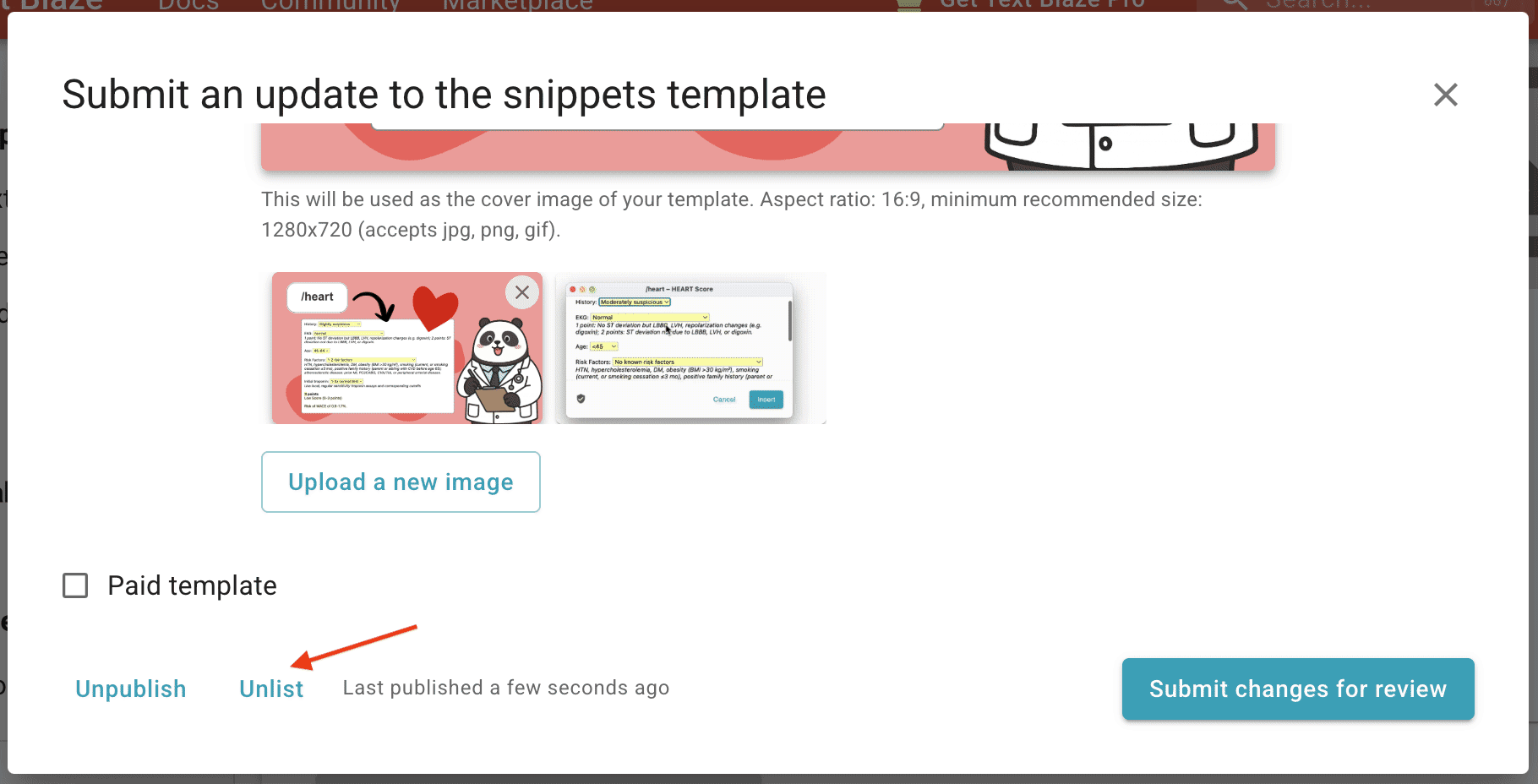
Unlisting a template will not delete it; it will only make it invisible to other users. You'll need to submit it for review to make it visible again.
Unpublishing a template
If you want to delete a template completely, you can unpublish it by clicking on the "Unpublish" button at the bottom of the template's edit dialog.
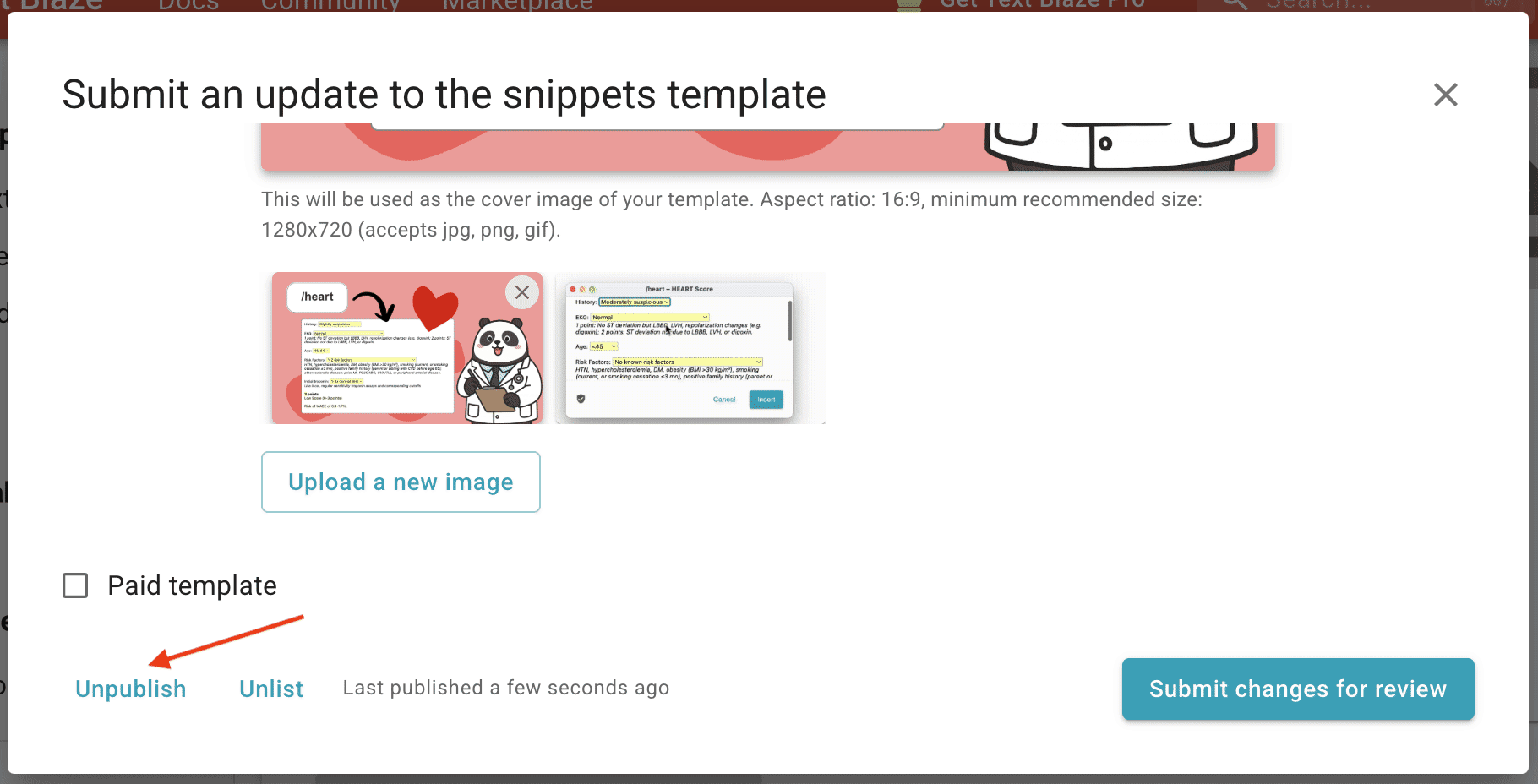
Unpublishing a template will delete it, but your original folder or space will remain intact.
Selling your template
If you want to make your template available for purchase, you can do so by following these steps:
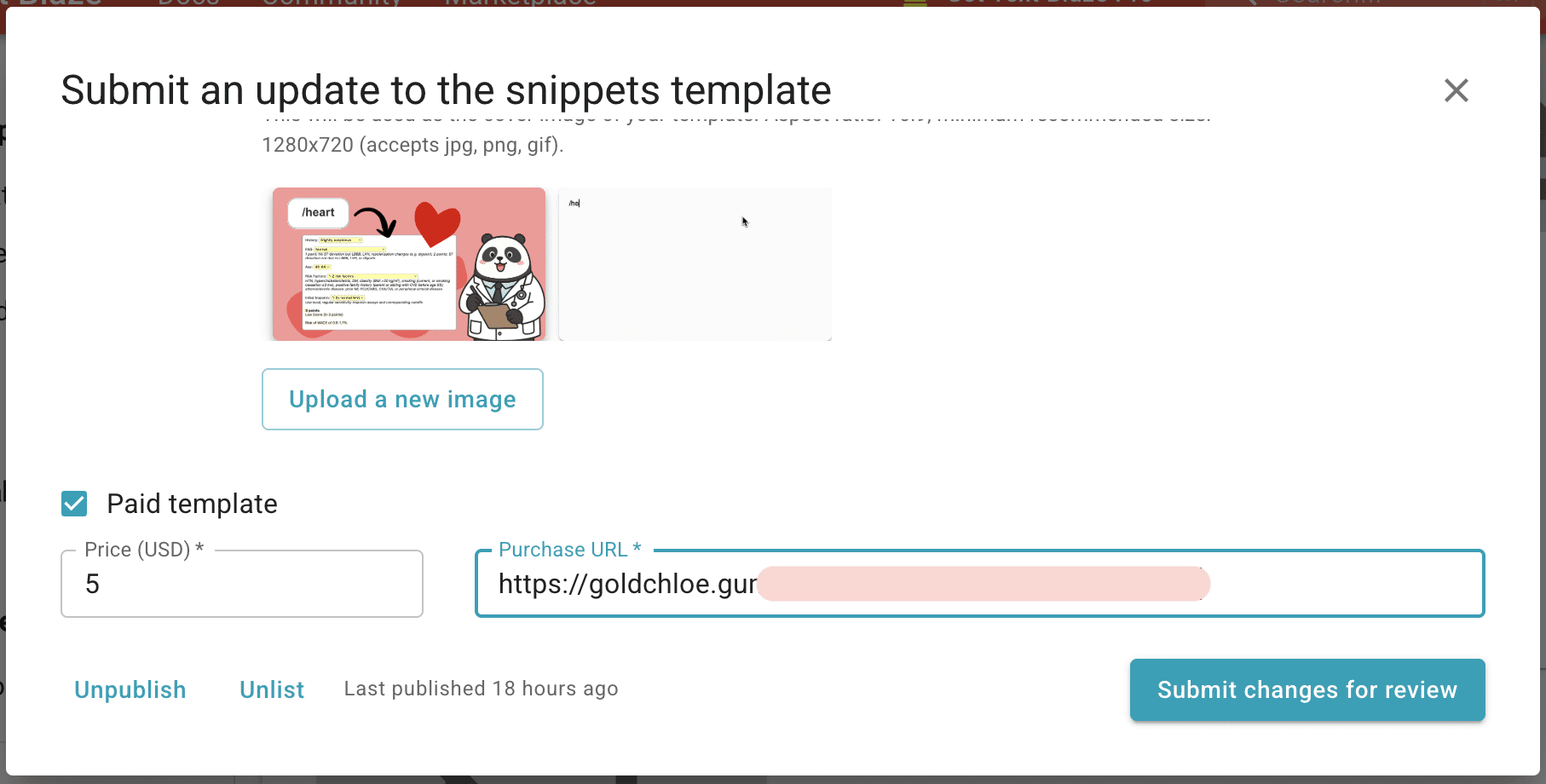
- Open your template's edit dialog.
- Scroll down to the "Paid" checkbox, and check it.
- Provide the price and the URL where users can pay for your template.
- Click the "Submit for review" button.
Text Blaze does not handle payments for your template; you need to use a third-party website that supports payments such as Gumroad.com, and provide the payment URL to the user.
Once we approve your paid template and a user opens it, they can only read the template information but will not be able to preview its content.
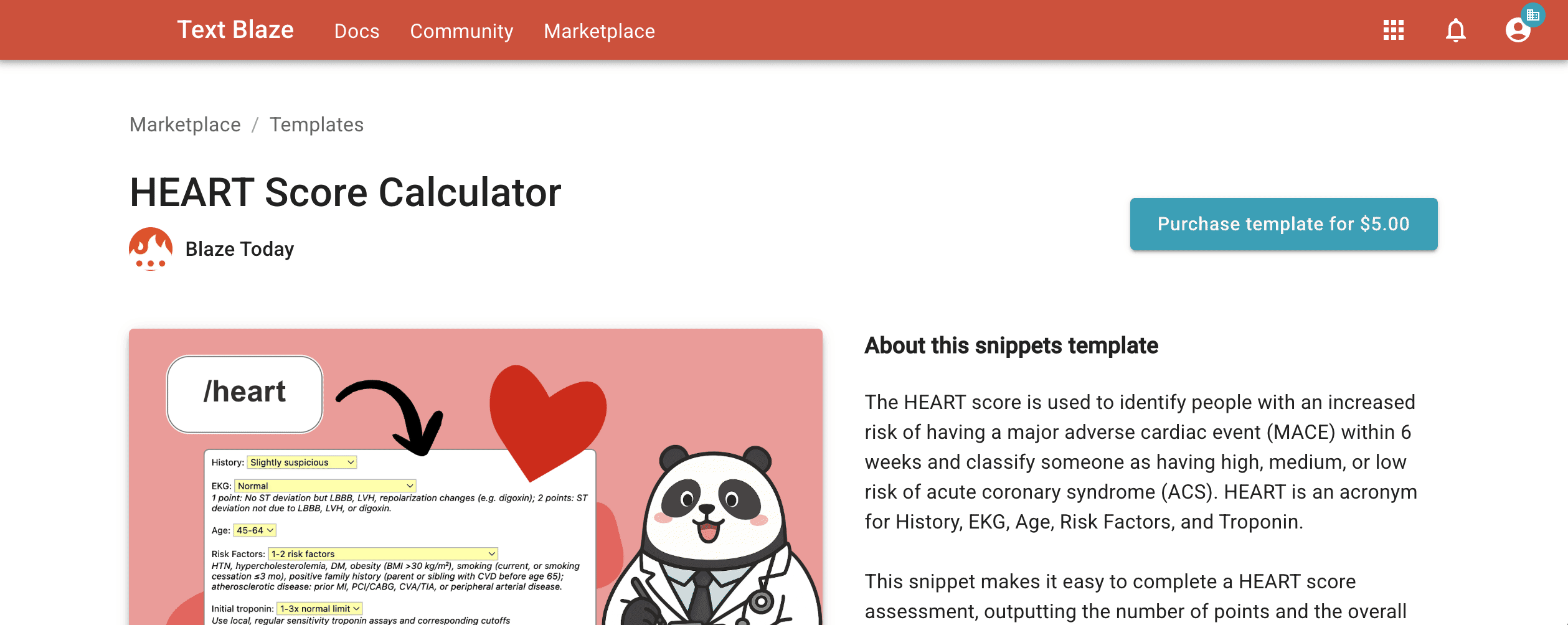
Users will not be able to preview your paid templates, so please make sure you provide a good description and a set of useful screenshots.
When a user purchases your template, you should share the hidden URL of the template with them. You can find and copy the hidden URL by clicking the "Copy paid link" button in either the template's edit dialog, or the folder/space share dialog.
Managing your Marketplace profile
You can update your profile information at any time with the following steps:
- Click the account button in the top-right corner of the top bar.
- Click the "Marketplace" menu item.
- Switch to the "Profile" tab.
- Update your profile information.
You can edit your profile information at any time. However, once you have at least one template listed in the Marketplace, any further edits to your profile will require approval from us before it goes live.
Frequently Asked Questions (FAQ)
How are templates reviewed?
The Text Blaze team regularly reviews templates to ensure the quality of the Marketplace. All templates must follow our guidelines:
Rules for a good template:
- Provide value to other users.
- Solve a specific problem or help automate a repetitive task.
Not allowed:
- No offensive language or content.
- No promotion of illegal activities.
- No spam or spammy content.
When will my template be published?
Once you submit your template for review, the process usually takes up to three business days for it to be approved. You will receive a notification email in both cases.
How many templates can I submit?
You can submit as many templates as you like, as long as they're unique and provide value to other users.
Can I update my templates after submission?
You can update your templates at any time as long as they are still unlisted. If your template is already listed, any changes will require approval from the Text Blaze team before being published. Until then, your current listed version will remain as it is until your changes are approved or rejected. Also, if your changes are rejected, your current listed version will remain as it is.
Can I update my profile after submission?
You can update your profile information at any time; however, if you already have one or more listed templates, your profile updates will require approval from the Text Blaze team before they go live in the Marketplace.
How do I get paid for my templates?
Text Blaze does not handle payments for any paid templates; you will need to use a third-party website that supports payments, such as Gumroad.com. Revenue splits are subject to the individual terms and conditions described by the service you choose.
A template can be marked as paid by selecting the "paid" option when editing it. You will be able to specify a URL where users can buy the template. You will then need to provide the buyer with the hidden URL so they can access the template after payment.
Further questions and help
We're happy to review your work and help you create and market successful templates. Feel free to reach out to us with your ideas or questions about the Marketplace.
You can contact us directly at support@blaze.today. You can also post a question on our Community Forum.